Feedback report
Overview
The Feedback report in Adobe Learning Manager collects both Level 1 (learner feedback) and Level 3 (manager feedback) after learners complete the learning objects. This report presents a structured overview of both subjective and objective responses from learners and their managers.
The report tracks learner details such as name, email, feedback form name, version, and language, and captures responses to administrator-defined questions. It also records the learner’s selection for each question (for example, Strongly Agree, Agree, or Disagree).
Purpose and benefits
- Provides actionable insights to improve the course quality and overall learning effectiveness.
- Refine navigation, pacing, and delivery methods based on direct user feedback.
Use cases
- Identify content issues quickly: Administrators can spot low ratings or repeated negative comments and update the learning objects without waiting for support tickets or escalations.
- Measure training effectiveness: Teams can compare learner feedback across multiple courses or versions to understand which learning objects are performing well and which may need to rework.
- Track learner engagement with feedback forms: Administrators can see how many learners are answering or skipping questions, helping them refine feedback forms to improve response quality and completion rates.
How to download the Feedback report
-
Log in to Adobe Learning Manager as an administrator.
-
Select Reports from the left navigation menu.
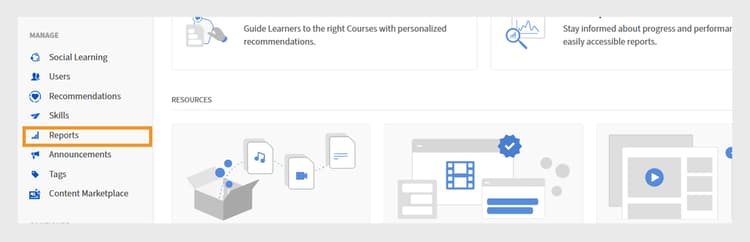
The Administrator homepage shows the Reports option highlighted for downloading reports -
Select Custom Reports within Reports and then select Excel Reports.
-
Select Feedback Report.
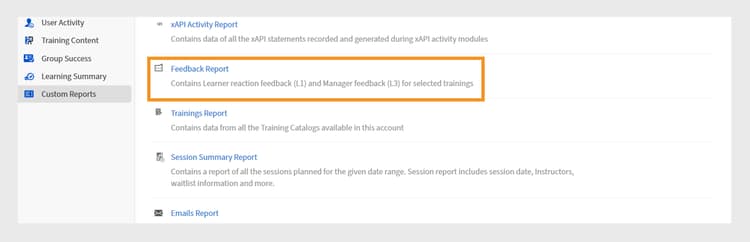
Custom Reports section shows the option to select Feedback Report to access learner and manager feedback data -
Select All Trainings or Selected Trainings, and the date range. If you select the second option, you can add up to a maximum of 10 courses or Learning Paths and generate their feedback report. Additionally, you can generate the report for up to one year.
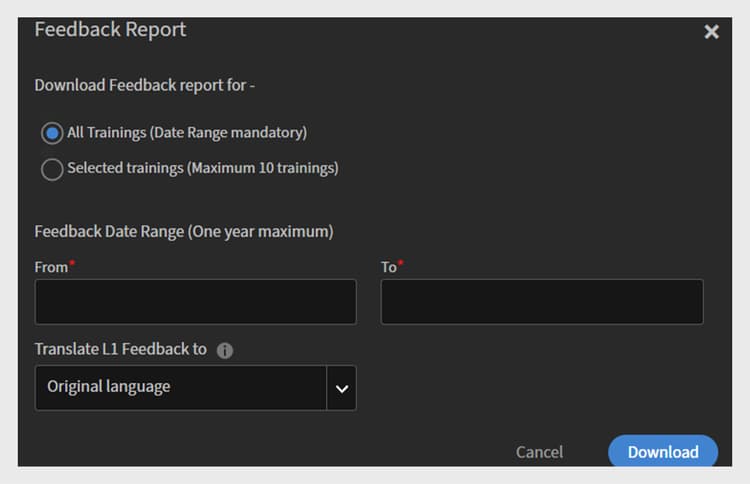
Configure the Feedback Report by selecting the training scope, setting the date range, and choosing the translation option before downloading -
Select the language to translate the L1 feedback to. Objective questions and their responses are translated into the selected language when that language version is explicitly defined. Only the subjective questions that are explicitly defined in the selected language appear in the report. Responses to subjective questions would be in the original response language.
-
Select Download to download the report.
What does the Feedback report contain
The following are the default columns in the Account-level report:
The following columns appear in the Account-level report based on the four types of questions added to the feedback form:
Download learning object level report
To download the Learning Object level report:
- Log in to Adobe Learning Manager as an administrator.
- Select Courses from the left navigation menu.
- Select any course and then select View Course.
- Select L1 Feedback.
- Select Export Report and then select OK.
The following columns appear in the Learning Object level report: