Use a non-logged-in menu URL for self-registration
Self-registration profiles let external users, such as partners or members of multiple organizations, create their own accounts in Adobe Learning Manager. You can now share a non-logged-in menu URL for each self-registration profile. The menu is built in Experience Builder.
When users select Sign up from a page reached through that URL, Adobe Learning Manager adds them to the profile the URL belongs to. This lets you keep users from different organizations, such as different agencies or partner companies, in separate profiles.
Earlier, a non-logged-in page URL always added new users to the one profile selected in Branding. The non-logged-in menu URL removes that limitation: every profile has its own URL, and all of the URLs open the same landing page.
Before you begin
-
Create the non-logged-in menu in Experience Builder and select the landing page in Branding. All profile URLs open this landing page.
-
Create the self-registration profile in Users > External. Each profile has its own group ID and access key, which users need to sign up.
Copy the sign-up URL for a profile
-
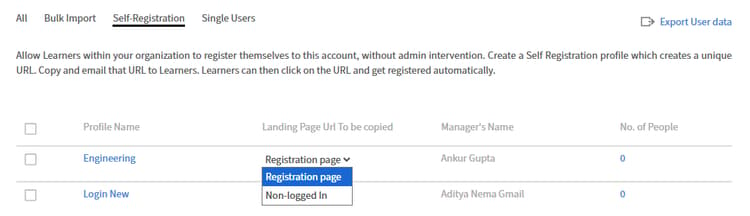
Select Users > External and then select Self-Registration.
-
In the Landing page URL to be copied column, select Non-logged in for a profile.
-
Copy the URL and share it with the users you want to invite.
The Landing page URL to be copied list includes these options:
- Registration: The standard registration URL
- Non-logged in Homepage (legacy): The URL for the legacy non-logged-in homepage
- Non-logged in menu: The URL for the non-logged-in menu in Experience Builder
What users see
-
The user opens the URL and lands on the non-logged-in landing page you selected in Branding.
-
The user selects Sign up and enters the group ID and access key for the profile.
-
The user enters their name, email address, and password, and then completes registration.
Adobe Learning Manager adds the user to the profile that the URL belongs to. You can see the new user under that profile in Users > External.
Send a welcome email with the URL
-
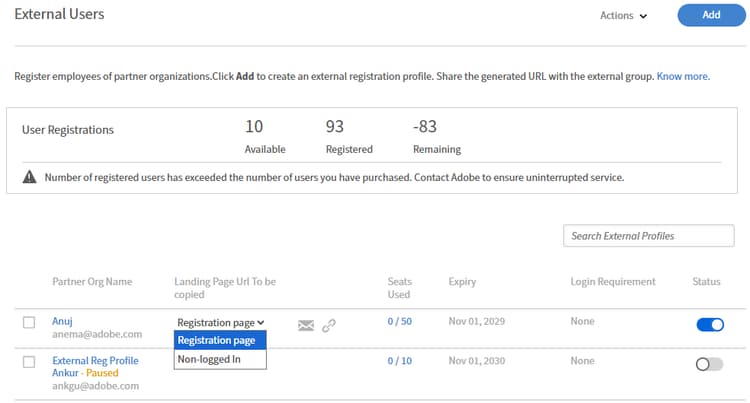
Select Users > External and select the self-registration profile.
-
In the Landing page URL to be copied list, select the URL you want to include in the email.
-
Select the mail icon to send the email. Alternatively, select the copy icon to copy the URL.
Adobe Learning Manager sends the email using the Profile Created (External/Partners) template. The email contains the unique URL you selected, the seat limit for the profile, and the URL expiry date. Share the URL with the users you want to invite.
Move from the legacy non-logged-in homepage
Earlier versions of this list showed the option Non-logged in. It’s now named Non-logged in Homepage (legacy).
The legacy non-logged-in homepage will be deprecated in a future release. If you use it, move to the non-logged-in menu in Experience Builder to keep the same functionality.