Non‑logged‑in experience in Experience Builder
Introduction
The non-logged-in experience in Experience Builder allows organizations to display their learning content and portal pages to all visitors, including those who have not signed in. This feature is designed to attract, inform, and engage prospective learners by offering a smooth and branded preview of your training offerings before requiring them to log in or enroll.
This feature lets you create and customize public-facing pages using the same user-friendly drag-and-drop interface found in the standard Experience Builder. You can showcase course catalogs, categories, paths, and rich static content, including images, text, HTML, and embedded iframes, for anyone visiting your portal. This makes it easy to highlight your learning programs, promote new courses, and provide essential information to a broader audience.
Visitors can browse the catalog, view details about courses and instances, and utilize the global search to explore available training opportunities. However, actions that require a user’s identity, such as enrolling in a course, accessing personalized features (like, Calendar, Compliance, Leaderboard, or Social Learning), or consuming training, will prompt the visitor to log in. This approach ensures that sensitive and personalized information remains secure while still allowing for a comprehensive preview experience.
Administrators have the ability to configure which pages and widgets are visible to users who are not logged in, ensuring that only suitable content is displayed. Pages can be set to be accessible to both logged-in and non-logged-in users, or exclusively for one of these groups. The Experience Builder offers a preview mode, allowing you to see exactly how your pages will appear to visitors before they are published.
To enable this feature, your ALM integration administrator must activate the Training Data Access Connector. This connector ensures that course metadata is publicly accessible.
Branding and localization are fully supported, enabling you to customize page titles, favicons, and language settings to align with your organization’s identity and meet your audience’s needs. As part of the transition to this enhanced experience, the legacy homepage feature for non-logged-in users will be deprecated. Therefore, all new public content should be created using Experience Builder.
Purpose of the feature
The non-logged-in experience in Experience Builder allows organizations to publicly showcase their learning content and portal pages to anyone, without requiring users to log in. This helps attract, inform, and engage potential learners by providing a preview of available training and resources before enrollment or authentication is needed.
Real-world use cases of non-logged-in experience
- Marketing and outreach: Organizations can promote their training programs to external audiences, such as prospective customers, partners, or job applicants, by making course catalogs and program details publicly accessible.
- Pre-enrollment exploration: Learners can browse available courses, view overviews, and explore categories before deciding to sign up or log in, helping them make informed enrollment decisions.
- Corporate training portals: Companies can provide a public-facing portal for compliance or onboarding information, allowing new hires or contractors to see what training is available before they receive credentials.
- Event or campaign landing pages: Organizations running learning campaigns or events can create dedicated public pages to highlight featured courses, schedules, or resources, increasing visibility and engagement.
- SEO and discoverability: By making select pages and catalogs public, organizations improve their search engine visibility, making it easier for people to discover their learning offerings online.
Key concepts of non-logged in experience
Experience Builder’s non-logged-in experience lets you publicly showcase learning content and portal pages, allowing visitors to browse without logging in.
- Create public pages and menus: You set up pages and a single menu that everyone can access, regardless of login status.
- Add only supported widgets: You include widgets that don’t need user context (categories, courses and learning paths, content box, HTML, iframe), while the system hides user-specific widgets.
- Configure adaptive page behavior: You decide if a page appears for both logged in and non logged in users, and the system adapts visible widgets and content based on login state.
- Preview both experiences: You use preview options to see how pages look for logged in and non logged in users, with differences in widget visibility and content.
- Enable global search: Visitors search for courses and content, but only get basic search features without advanced AI integration.
- Let visitors browse catalog and course overviews: Visitors explore catalog pages, course details, and instances, but must log in to enroll or access personalized features.
- Customize branding and localization: You set favicons, and language settings to match your organization’s branding and accessibility needs.
- Enable the Training Data Access Connector: You activate this connector to export course metadata for public display, keeping non-logged-in pages up to date.
- Handle high traffic with shared infrastructure: The system manages large volumes of anonymous visitors using shared resources and rate limiting.
- Optimize for SEO: The platform prepares public pages for search engine indexing, making your learning content easier to find.
Prerequisites for non-logged in experience
- You must enable the Training Data Access Connector in the integration admin before you can use the non logged in experience.
- The connector exports course metadata to a public repository, which keeps non logged in pages updated.
TDA connector initialization
The Training Data Access (TDA) connector is a critical prerequisite for enabling the new non-logged-in experience builder feature in ALM. This connector facilitates the export of training metadata, allowing your portal to display course information to users who are not logged in.
- Connector activation: You must enable the TDA connector from the integration admin panel. This step unlocks the non-logged-in experience builder functionality and makes relevant UI options visible in your admin interface.
- Metadata export: Once activated, the connector exports essential training metadata (such as course name, description, overview, rating, duration, and skills) from ALM to a public repository. This data is used to populate non-logged-in pages and widgets.
- Scheduling and synchronization: The export process can be scheduled (e.g., daily) to ensure your portal reflects the latest course updates. Changes made in ALM will appear on your non-logged-in pages after the next export cycle, subject to caching and export frequency.
- Feature availability: The non-logged-in experience builder features, including menu creation, widget support, and catalog visibility, are only accessible after the TDA connector is initialized. If the connector is not enabled, your experience builder will remain limited to logged-in user scenarios.
- Migration and support: For accounts transitioning from legacy non-logged-in homepage features, initializing the TDA connector is the first step toward migration. It ensures you can leverage the new experience builder’s flexibility and enhanced capabilities.
What visitors can do without logging in
On a non-logged-in Experience Builder site, visitors can browse the training catalog by opening the catalog page for public catalogs. They can use filters such as catalog, product, role, type, skills, and tags, depending on how you have configured the site. Visitors can also search for trainings using the global search bar in the header (if enabled), and view search results directly on the catalog page.
Visitors can view training details by opening overview pages for courses, learning paths, and certifications. These pages display key metadata, including the title, description, author, duration, format, tags, and skills.
In addition, visitors can explore static and promotional content. They can read text and rich content blocks, view banners and image tiles, and interact with embedded iframes such as external microsites, videos, or tools.
If a visitor clicks enroll or tries to start training, the system prompts them to log in or sign up. After successful login, the visitor is redirected to the appropriate page, whether it is the home page, a custom page, or the specific training they selected.
What’s not available without logging in
On a non-logged-in Experience Builder site, visitors cannot access features or content that require user authentication. They are unable to enroll in trainings, start or consume courses, or access personalized widgets such as My Learning, Calendar, Compliance, Leaderboard, or Social Learning. These widgets depend on user-specific data and are only available after logging in.
Visitors also cannot perform actions like enrolling in a course or accessing any content that requires tracking progress or user context. Attempting to enroll or start a training prompts the visitor to log in or sign up before proceeding.
Supported widgets in non-logged-in mode
In non-logged-in mode, only widgets that do not require user-specific data are supported. These include:
- Categories widget, which displays available training categories.
- Courses and paths widget, which shows courses and learning paths from the public catalog. 1
- Content box, for adding static text, images, or promotional content.
- HTML widget, for embedding custom HTML content.
- Iframe widget, for displaying external sites, videos, or tools within the page.
- Widgets that require user context, such as My Learning, Calendar, Compliance, Leaderboard, and Social Learning, are not available in non-logged-in mode.
Widgets that require user context, such as My Learning, Calendar, Compliance, Leaderboard, and Social Learning, are not available in non-logged-in mode
Pages and menus in non-logged-in experience
- Only one non-logged-in menu is supported, visible to all visitors without authentication.
- Pages can be added to both logged-in and non-logged-in menus; if a page is in both, it adapts its widgets and content based on the user’s login state.
- Non-logged-in menus do not have audience targeting or personalization. Everyone sees the same set of pages.
- Widgets not supported in non-logged-in mode are hidden automatically; page layout adjusts to fill gaps.
- Menu and page management (adding, previewing, deleting) is like logged-in mode, but with adaptations for non-logged-in constraints.
Search and catalog behavior
In non-logged-in mode, users can access the catalog page and use search to browse available courses and learning paths. The catalog page displays all public courses, along with filters and search functionality, following the same account settings as in logged-in mode. When a user searches, the results appear on the catalog page, and users can view course and instance overview pages without logging in. However, actions like enrollment require login.
If a user attempts to enroll, the system requires them to log in first. The search for non-logged-in users is simpler than that for logged-in users and does not include advanced features like AI Assistant integration.
Technical implementation
Training data access connector setup
You must enable the training data access connector in the integration admin panel before you can use the non-logged-in experience builder feature. This connector exports training metadata from ALM to a public repository, making it accessible via APIs for your non-logged-in pages. The connector setup is a prerequisite for activating the feature and ensures your portal displays up-to-date training information.
Metadata export and synchronization
The connector exports key metadata fields such as course name, overview, description, rating, duration, and skills. You can schedule exports (for example, daily) to keep your portal synchronized with ALM. Not all metadata fields may be included; consult engineering for a complete list. Exported data is used to populate non-logged-in pages, and changes in ALM will appear after the next export cycle.
Caching and export frequency
The system uses backend export frequency and frontend caching to manage data updates. Changes made in ALM are reflected on your portal after the scheduled export and cache refresh. Some updates may not appear immediately due to these mechanisms. If you need faster updates, adjust the export schedule or clear the cache as needed.
CSS/JS customization support
You can apply custom CSS and JavaScript to both logged-in and non-logged-in pages using the customization tab. This allows you to maintain consistent branding, add custom UI elements, and enhance user experience across your portal. All customizations are applied globally, ensuring a unified look and feel.
URL differences and branding (favicon, page title)
Non-logged-in and logged-in pages may have different URLs to distinguish user states. You can customize the favicon and page title for your portal, helping reinforce your brand identity. These features are available in the experience builder; check with engineering for the latest status on non-logged-in support.
Performance and scalability
Shared stack vs premium stack
The shared stack allows multiple customers to use the non-logged-in experience builder on common infrastructure, supporting standard traffic levels. The premium stack is a paid option that provides dedicated resources, real-time features, and higher seat limits for customers with advanced needs. Choose the stack based on your expected traffic and business requirements.
Traffic limits and rate limiting
The shared stack enforces traffic limits to ensure fair usage among customers. Engineering will implement rate limiting to prevent any single customer from consuming all resources. If you plan marketing campaigns or expect high traffic, coordinate with engineering to understand your limits and avoid service disruptions. Rate limiting helps maintain system stability and performance for all users.
Multi-tenancy and SEO considerations
The platform supports multi-tenancy, allowing multiple customers to host their portals on shared infrastructure. Non-logged-in pages are SEO-friendly, along with sitemap.xml and robots.txt to optimize search engine visibility. This ensures your portal is discoverable and indexed appropriately by search engines.
Migration and deprecation
Transition from existing non-logged-in homepage
The legacy non-logged-in homepage feature will be deprecated. New accounts will not see this option, and existing accounts using it will be notified to migrate to the experience builder-based solution. You should recreate your homepage using the new experience builder for enhanced flexibility, widget support, and improved user experience. The transition plan ensures minimal disruption and continued support.
Communication plan
Customers using the legacy homepage will receive clear communication about the deprecation timeline and migration steps. Support will be provided to help you move your homepage to the new experience builder platform, ensuring you benefit from new features and ongoing updates.
Localization and login support
Locale fallback logic
The system displays pages in the locale they were created. If a user’s locale is unavailable, the system uses a fallback logic to select the next best available locale. This ensures users always see content in a supported language, improving accessibility and user satisfaction.
Supported login types
The non-logged-in experience supports all login types available in ALM, including SSO and standard login. Users can browse content without logging in and will be prompted to log in when required, such as enrolling in a course or accessing personalized features. This provides a smooth transition from browsing to engagement.
Non-logged in APIs
Admin Learning Object API
Non-logged-in Experience Builder pages and headless portals often organize or filter courses based on product and role. The Admin LO API has been enhanced to ensure that these associations are consistently accessible for back-end and headless integrations, as well as for the TDA connector.
Endpoint and behavior
You continue to use the existing Admin LO endpoint:
GET /primeapi/v2/learningObjects/{loId}?enforcedFields[learningObject]=products,roles
Where:
- loId is the learning object ID (for example course:12345).
- enforcedFields[learningObject] instructs the API to explicitly include products and roles for that LO.
This is fulfilled by ensuring that the LO’s product and role associations are present in the response when requested through enforcedFields. The response then contains, in attributes, the product and role metadata needed to compute or expose the recommended products (rec_products) and roles (rec_roles) for Experience Builder and other consumers.
A typical call from an admin or integration looks like:
curl -X GET
“https://{your-domain}/primeapi/v2/learningObjects/course:12345?enforcedFields[learningObject]=products,roles”
-H “Authorization: Bearer {admin_token}”
-H “Accept: application/vnd.api+json”
The returned LO JSON is the same basic structure as before, but now you can rely on product/role fields being present when you request them with enforcedFields. Integrations that do not use enforcedFields continue to behave as before.
Learning Objects Listing – JobAid Support in effectiveModifiedDate Filter
Purpose
The Training Data Access (TDA) connector and headless implementations often need to perform incremental synchronization, based on the effective modification date of learning objects. Until this release, JobAids (LO type jobAid) were not correctly handled when combined with the effectiveModifiedDate filters. This release fixes this so JobAids can be synced incrementally just like courses and learning paths.
Endpoint and behavior
You use the existing LO listing endpoint with date filters and LO type:
GET /primeapi/v2/learningObjects
?filter.effectiveModifiedDate.fromDate=2025-03-15T13:14:56.000Z
&filter.effectiveModifiedDate.toDate=2025-03-20T13:14:56.000Z
&filter.loTypes=jobAid
Previously, when filter.loTypes=jobAid was combined with an effectiveModifiedDate range, the filter effectively excluded JobAids, and the call behaved as though JobAids were not supported.
From this update onwards, the call returns only JobAid learning objects whose effectiveModifiedDate falls inside the specified window.
{
  "links": {
    "self": "https://acapapiserver/primeapi/v2/learningObjects?page[limit]=10&filter.effectiveModifiedDate.fromDate=2026-01-19T13:14:56.000Z&filter.effectiveModifiedDate.toDate=2026-01-21T13:14:56.000Z&filter.loTypes=jobAid"
  },
  "data": [
    {
      "id": "jobAid:144968",
      "type": "learningObject",
      "attributes": {
        "authorNames": ["Sid"],
        "dateCreated": "2026-01-20T08:48:55.000Z",
        "datePublished": "2026-01-20T08:48:55.000Z",
        "dateUpdated": "2026-01-20T08:48:55.000Z",
        "effectiveModifiedDate": "2026-01-05T07:31:18.000Z",
        "loType": "jobAid",
        "loFormat": "Content",
        "loResourceType": "Content",
        "localizedMetadata": [
          {
            "description": "Link jobAid new",
            "locale": "en-US",
            "name": "Link jobAid new"
          },
          {
            "description": "Link jobAid new fre",
            "locale": "fr-FR",
            "name": "Link jobAid new fre"
          }
        ],
        "relationships": {
          "authors": {
            "data": [
              { "id": "13385176", "type": "user" }
            ]
          },
          "instances": {
            "data": [
              { "id": "jobAid:144891_-1", "type": "learningObjectInstance" }
            ]
          }
        }
      }
    }
  ]
}
This means you can now safely implement incremental JobAid syncs based on effectiveModifiedDate, in the same way you already do for other types.
If you omit filter.loTypes=jobAid, the behavior for other LO types is unchanged; the change only affects the combination of JobAid with that filter.
Menu API: Non‑Logged‑In Menu Filter
Purpose
Experience Builder and headless frontends need a straightforward way to retrieve the non‑logged‑in menu , the one that defines navigation for public visitors. Before this release, you had to fetch all menus and then apply custom logic to identify which one represented the non‑logged‑in navigation. This release adds a simple server‑side filter.
Endpoint and behavior
You use the existing Menu listing endpoint with a new query parameter:
GET /primeapi/v2/templates/menus?include=pages,subMenus.pages&isNonLoggedIn=true
The key points:
- include=pages,subMenus.pages is optional but recommended when you need the page and submenu page details in the same response.
- isNonLoggedIn=true is new in this release and tells the server to return only menus that are flagged as non‑logged‑in menus.
Without the isNonLoggedIn parameter, the endpoint behaves exactly as before and returns menus according to the existing default behavior. With isNonLoggedIn=true, it typically returns the single menu used by the non‑logged‑in experience for your account (since there is normally just one non‑logged‑in menu per account).
In practice, a client can now issue:
curl -X GET
“https://{your-domain}/primeapi/v2/templates/menus?include=pages,subMenus.pages&isNonLoggedIn=true”
-H “Authorization: Bearer {admin_token}”
-H “Accept: application/vnd.api+json”
and get back the non‑logged‑in navigation structure in one call, with all the pages that should be visible to anonymous visitors.
This is particularly useful when you are building a headless non‑logged‑in site and want to mirror the same navigation that Experience Builder uses, or when you are debugging whether the non‑logged‑in menu has been configured correctly.
Allow listing of custom domains
The non‑logged‑in stack consists of:
- A public CDN domain (for example cpcontents.adobe.com or yourdomain.example.com) that serves layouts, config JSON, and static assets.
- A public Elasticsearch (ES) endpoint that serves catalog and search data, but only if the request comes from an allow‑listed domain for that ALM account.
When you introduce a custom domain, it works seamlessly without any additional effort following the existing process for adding a custom domain.
Prerequisites
Before whitelisting a custom domain for non‑logged‑in:
- The custom domain is configured for your ALM account (for example, DNS for academy.yourcompany.com points to Adobe / Akamai, and certificates are provisioned).
- The Training Data Access (TDA) connector is enabled for the account.
- The non‑logged‑in Experience Builder feature is enabled (Adobe‑side).
These steps ensure that:
- Your account has a non‑logged‑in account JSON (often referenced as accountConfig / experienceBuilderConfig), which includes fields such as cpDomain, almDomain, almCdnBaseUrl, esBaseUrl, and allow‑listed domains.
- The non‑logged‑in stack knows where to serve data and from which domains it should accept requests.
How allow‑listing works
The allow‑list is stored in the configuration that TDA exports and the non‑logged‑in stack reads. That configuration includes:
- The ALM domains (cpDomain, almDomain).
- The CDN base URL for non‑logged‑in content (almCdnBaseUrl).
- The public search base URL (esBaseUrl).
- The list of domains that are allowed to make public non‑logged‑in calls for that account.
For non‑logged‑in Experience Builder to work on a custom domain:
- The browser must load the non‑logged‑in HTML from that custom domain (or from the ALM non‑logged‑in CDN domain, depending on your setup).
- Calls from that domain to the public ES and CDN endpoints must be accepted. That only happens if the domain is present in the allow‑list.
This release adds a new non‑logged‑in CDN domain, cpcontents.adobe.com, and specifies that it must be placed into the allow-listed domains in the TDA connector. For existing non‑logged‑in native users, this requires an update.
Allow-list a custom domain
Configure the custom domain in ALM
Work with Adobe to register your domain, for example, academy.yourcompany.com, as the custom domain for your ALM account. You update DNS to point to Adobe Akamai as instructed and wait for SSL and routing to complete.
At this point, both logged‑in and non‑logged‑in traffic can reach ALM through that domain, but non‑logged‑in search and catalog calls may still be blocked if the domain is not allow‑listed.
Enable TDA and non‑logged‑in Experience Builder
Ensure that:
- The Training Data Access connector is enabled.
- The non‑logged‑in Experience Builder feature is turned on for the account.
Enabling TDA creates or updates the non‑logged‑in account JSON. For new accounts, the process also allow‑lists the new non‑logged‑in CDN domain (cpcontent.adobe.com) by default, so the public ES endpoint expects calls from that domain.
For accounts that were already using the older non‑logged‑in stack, the M45 spec calls out that existing connectors must be deleted and recreated to pick up the new domain.
Add the custom domain to the allow‑list
The critical part is telling the non‑logged‑in ES stack that academy.yourcompany.com is an approved origin. There are two common paths.
- Re‑enable the TDA connector (simple, self‑service friendly)
The Experience Builder M45 wiki explains that existing native non‑logged‑in users will need to delete and re‑enable the TDA connection so the new domain is automatically allow‑listed. Doing this achieves two things:
- The non‑logged‑in account JSON is regenerated.
- The allow‑listed domains are updated to include the new non‑logged‑in CDN domain and your custom domain.
This is recommended when you have a small number of accounts and can tolerate temporarily disabling and re‑enabling the connector.
- Verify that the domain is actually allow-listed
After allow‑listing, open your non‑logged‑in site on the custom domain and inspect the browser network calls.
You want to see:
- Requests to almCdnBaseUrl (for example https://cpcontent.adobe.com/…) succeeding with 200/304.
- Requests to esBaseUrl (public search API, for example https://primeapps.adobe.com/almsearch/api/v1/…) succeeding, returning JSON with search / catalog data.
If these calls return 4xx or explicit errors suggesting “untrusted domain” or “origin not allowed,” the allow‑list is incomplete or misconfigured and Support needs to adjust it.
The non‑logged‑in LLD also notes that the account config can hold an expected domain value. At runtime, the site checks that the domain in the URL matches what is set in the config; if it does not, the user can be redirected to an error page. This protects against one customer’s configuration being accessed via another customer’s domain.
Using recommendations in the non‑logged‑in Experience Builder
The non‑logged‑in Experience Builder lets you build public learning pages where visitors can browse your catalog and see highlighted content before they sign in. Even though these visitors are anonymous, you can still present recommended trainings by using metadata and widgets.
In the logged‑in learner app, recommendations can be personalized: they can depend on the learner’s profile, history, skills, and progress. In the non‑logged‑in experience, there is no learner identity yet, so the platform cannot personalize per user.
Recommendations in non‑logged‑in mode are therefore:
- Curated or rule‑based: based on catalog, product, role, labels, tags, and other metadata.
- Segment‑oriented: “recommended for developers”, “recommended for partners”, “featured for beginners”.
- Marketing‑focused: used to attract and guide visitors to enroll once they log in.
Metadata and APIs that support recommendations
Behind the scenes, non‑logged‑in pages use:
- The TDA connector to export learning object metadata (courses, paths, certifications, job aids) to a public search index.
- The public search stack to answer queries from non‑logged‑in widgets (catalog, search, Courses and paths, Categories).
- The Admin Learning Objects API to expose product and role metadata that can be used for recommendation rules.
In this release, the Admin LO API was extended so that product and role associations are reliably available:
GET /primeapi/v2/learningObjects/{loId}?enforcedFields[learningObject]=products,roles
This allows widgets and headless integrations to build rule‑based recommendations using products, roles, catalog labels, tags and other fields consistently.
Designing recommendation sections with Experience Builder widgets
You create recommendation sections on non‑logged‑in pages by combining Experience Builder widgets with metadata filters.
Courses and Paths widget
Use the Courses and Paths widget when you want to show a row or grid of recommended items. In its configuration you can choose:
- Which catalogs to pull from.
- Which catalog labels, products, roles or tags to use as filters.
- Whether to show courses, paths, certifications, job aids, or a mix.
- Sorting and maximum number of items.
For example, you can create:
- “Recommended for developers”: filter by a product or role you use for developer content.
- “Start here”: filter by a label such as “Starter” or “Onboarding”.
- “Featured this quarter”: filter by a time‑bound label like featured-q3-2026.
The widget is not learning from behavior; it is showing whatever matches the metadata rules you define. From a visitor’s point of view, however, it looks like a recommendation strip.
Categories widget
Use the Categories widget to help visitors navigate into “recommended” sets of content, even if they do not know your product names.
You can configure tiles that each represent a segment such as:
- “For administrators”
- “For sales teams”
- “For partners”
- “By product line”
Each tile can link either to:
- A filtered catalog page (for example, the catalog filtered by certain products or labels).
- A dedicated non‑logged‑in page that uses Courses and paths preconfigured for that segment.
This gives you a “recommended paths by segment” experience without personalization.
Building segment‑based recommendations
Because non‑logged‑in visitors have no ALM profile yet, it is useful to design recommendations by segment and let visitors self‑select.
-
Use a non‑logged‑in home page that briefly explains who your academy is for and shows a small number of segment entry points (for example, “Developers”, “Marketers”, “Partners”, “New employees”). This can be done with a Categories widget or a simple Content box or HTML section with buttons.
-
For each segment, create a dedicated non‑logged‑in page in Experience Builder. On that page use one or more Courses and paths widgets configured with filters that represent what is “recommended” for that group. For example, for “Developers” you might filter on:
- Catalog = “Public Training”
- Product = “Adobe Experience Manager”
- Tags = “Developer fundamentals”
-
Use those segment pages as the destination of your marketing campaigns and as the target of the tiles on the non‑logged‑in home page.
Visitors perceive that they are seeing recommendations tailored to their situation, even though the logic is defined at design time via metadata.
Transitioning from non‑logged‑in to personalized recommendations
Non‑logged‑in recommendations are mainly about discoverability and conversion. Once visitors decide to enroll or start training, they will log in and become full learners with a profile and history.
The usual flow is:
-
A visitor discovers content through your non‑logged‑in recommendation sections (home recommendations, segment landing pages, featured rows).
-
They click into a course or path overview and choose to enroll or start.
-
ALM prompts them to sign up or log in.
-
After they log in, the standard logged‑in learner experience takes over, including:
- “My Learning”
- Logged‑in catalog with personal progress
- Any internal recommendation systems you use for existing learners.
In other words, the logged‑in recommendations help them decide what to do next and keep going.
How job aids can be used in the new non‑logged‑in Experience Builder
On the User Interface, job aids participate in non‑logged‑in experiences mainly through the widgets that can show learning objects:
-
Courses and paths widget
This widget can show multiple LO types, including job aids. In non‑logged‑in pages you can configure it to:- Include or exclude job aids explicitly.
- Filter job aids by catalog, product, role, labels, tags, and other metadata.
- Present them alongside courses and paths or as a separate “Resources” strip.
For example, on a public landing page you might configure one strip titled “Helpful resources” that shows job aids only, and another strip titled “Recommended courses” that shows courses and paths.
-
Catalog page and search
The non‑logged‑in catalog and search surfaces use the public search index (fed by the Training Data Access connector). That index now supports job aids correctly, so:- Non‑logged‑in search results can include job aids.
- Non‑logged‑in catalog filters (by type, product, tags, etc.) can include job aids as long as your account configuration and widgets are set up to show them.
-
LO overview pages
When a visitor clicks a job aid from any widget or from the catalog, they go to an LO overview page for that job aid in non‑logged‑in mode. From there, they can read its description and metadata. Actual download or consumption typically still requires login, but the presence and discoverability of the job aid itself is handled by the non‑logged‑in experience.
How job aids are exposed through non‑logged‑in APIs
On the API side, job aids are supported by:
- The Training Data Access connector and public search
TDA exports job aid metadata along with other LO types to the public search index that serves non‑logged‑in search and catalog queries. This is what Experience Builder and headless front‑ends rely on. - The Learning Objects listing with effectiveModifiedDate
In this release, the LO listing endpoint was corrected so that job aids work properly with the effectiveModifiedDate filter. You can now call:
GET /primeapi/v2/learningObjects
?filter.effectiveModifiedDate.fromDate=2026-01-19T13:14:56.000Z
&filter.effectiveModifiedDate.toDate=2026-01-21T13:14:56.000Z
&filter.loTypes=jobAid
Before this change, combining effectiveModifiedDate with loTypes=jobAid did not reliably return job aids. Now it does, as documented in the M45 Public API Changes wiki. That means:
- Your TDA or ETL jobs can incrementally sync job aids for non‑logged‑in experiences, the same way they do for courses and paths.
- Any headless implementation that builds a public job aid directory can query changes based on effectiveModifiedDate and loType=jobAid.
The sample response in the M45 doc shows a learningObject with loType: “jobAid” and loFormat: “Content” being returned when using this pattern.
- The Admin LO API
While not specific to non‑logged‑in, M45 also updates the Admin LO API to consistently expose product and role metadata for all LO types via:
GET /primeapi/v2/learningObjects/{loId}?enforcedFields[learningObject]=products,roles
For job aids, this means you can manage their product, role, labels, and tags centrally and rely on that metadata in public, non‑logged‑in experiences, for example in “Resources for marketers” sections or product‑specific landing pages.
Note:
In the non‑logged‑in state:
- Job aids are mainly discoverable: visitors can see that they exist, read descriptions, and understand how they support topics or courses.
- Actual consumption (downloading or opening the job aid content) typically still requires login, especially if job aids are considered part of licensed or internal content.
Changes in “brief description” in LO search (non‑logged‑in)
In the non‑logged‑in stack, search and listing of learning objects (LOs) are powered by the Training Data Access (TDA) connector and a public Elasticsearch index. Historically, this stack used a single overview/description field for each LO. Customers building headless non‑logged‑in portals wanted to show the same short description on LO tiles that the logged‑in learner UI shows, rather than only the long overview.
The change introduces support for the LO brief description in non‑logged‑in search and listing APIs:
- For courses, the existing UI semantics are:
- Logged‑in cards show “Brief description” (140‑character field) if present; otherwise they fall back to the long “Detailed overview”.
- For learning paths, the logged‑in UI uses the “Benefits” field as the short description, if defined, and falls back to the overview otherwise.
- For certifications, a short “Description” is used, with a longer “Certification overview” as fallback.
- For job aids, the main description field is used.
Other changes
Restriction that no two accounts can share the same custom domain
In the non‑logged‑in and logged‑in architectures of Adobe Learning Manager, a custom domain (for example, academy.example.com) is treated as a globally unique key that must map to exactly one ALM account, so the platform enforces a hard restriction that no two accounts can share the same custom domain. This is required for security, routing, and SEO: the routing layer and non‑logged‑in stack use the domain to look up the correct account configuration (including its non‑logged‑in account JSON, Experience Builder menus, branding, and TDA/search endpoints),
Allowing the same custom domain on two accounts would make it impossible to guarantee which account’s data is returned, could cause cross‑tenant leakage, and would also corrupt generated artefacts such as sitemap.xml and robots.txt that are produced per account but discovered by search engines per host. Operationally, this means that when you assign or move a custom domain you must first ensure it is not attached to any other account (or de‑register it there), and Adobe’s internal tooling will reject attempts to bind the same domain to multiple accounts.
Browser caching of resources in the non‑logged‑in experience
In the non‑logged‑in experience of Adobe Learning Manager, browser caching of resources is a core part of the performance and scale strategy, because public pages must handle large, sometimes spiky marketing traffic with low latency and minimal origin load. Static and semi‑static assets such as the non‑logged‑in HTML shell (for example, index.html/guest.html), account‑level configuration JSON (account.json or config.json), Experience Builder page layout JSON (menus, widget layouts, card settings), CSS, JS, images, and favicons are served from an Akamai CDN (cpcontents.adobe.com / cpcontent.adobe.com) with cache headers that encourage both CDN‑side and browser‑side reuse, so that after the first page load the browser can render subsequent non‑logged‑in pages largely from its cache, revalidating only when needed via ETag or Last‑Modified.
Launch the homepage options
On the Adobe Learning Manager homepage, select Branding. Then, on the left pane, select Non-logged in Homepage.
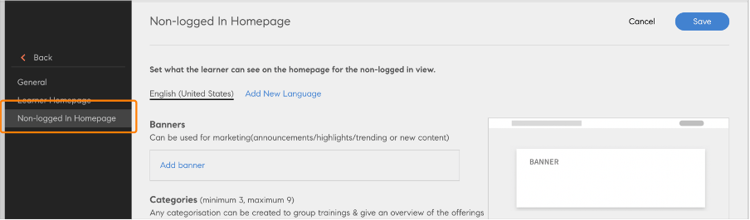
Select the option Non-logged in Homepage
Add a banner
Add a banner for any marketing announcement or feature the trending topic of the day. Select Add banner.
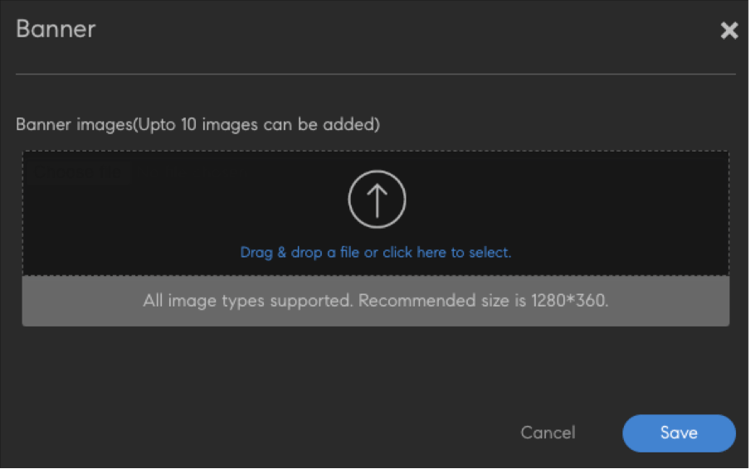
Add a banner
Browse to the location of the image to be used as the banner. Then provide a link as an action button on the banner image.
Add categories
This component can be used to filter catalog by tags, skills, and catalog. This section contains a header and description for each category. Upon clicking, the user is redirected to the catalog page with the applied filters.
Select Add category. Then enter the details for the category.
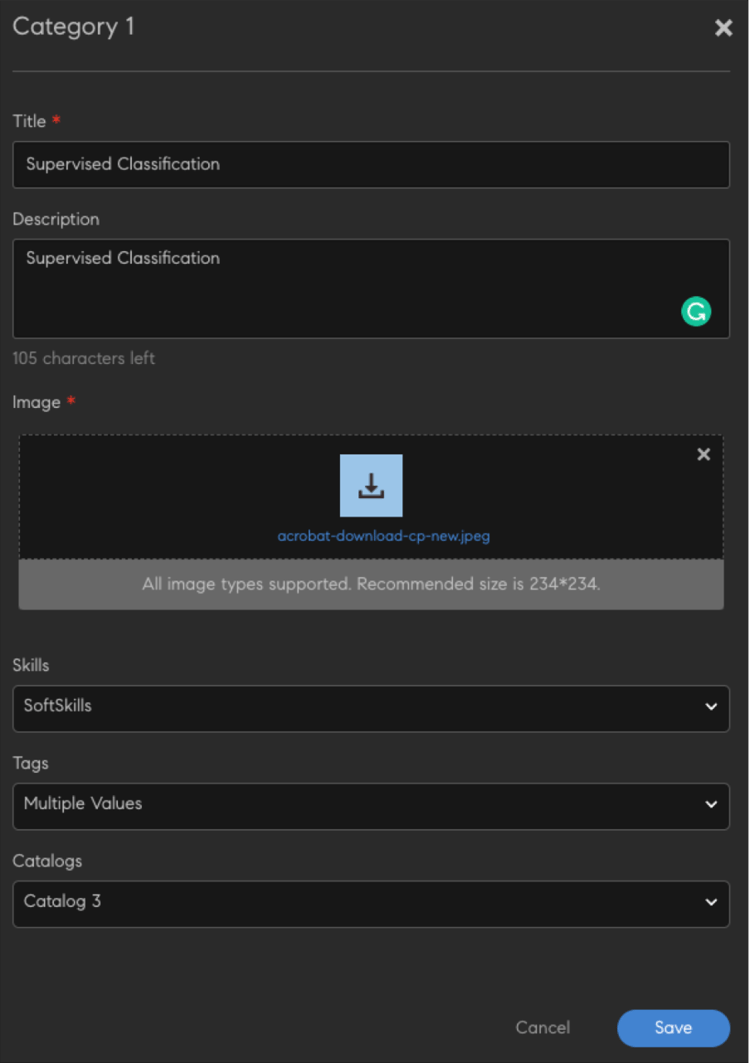
Add the categories
Save the category. The category is added to the section.
Add a catalog
Add a catalog for non-logged in users so that they can browse all the training on the platform.
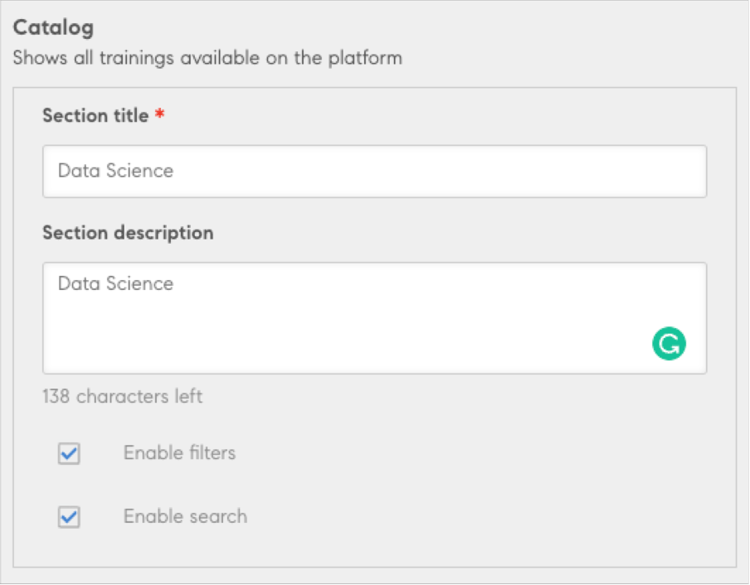
Add a catalog
All exported training will be present.