Custom certificates in Adobe Learning Manager
Introduction
Custom certificates in Adobe Learning Manager change how administrators design, manage, and deliver certificates of completion.
Administrators can:
- Design certificates in a visual, canvas-style editor instead of writing code.
- Attach certificates to courses with flexible defaults.
- Migrate from existing HTML templates and stay compatible with historical learner records.
The certification process follows the existing badge and achievement model in Learning Manager, so learner behavior stays familiar while administrators and support teams spend less time on certificate operations.
Key capabilities of custom certification
Certificate designer (canvas-style editor)
A drag-and-drop certificate designer provides a what-you-see-is-what-you-get (WYSIWYG) canvas where administrators can create and manage designs without HTML or CSS skills.
Visual editing
- Drag, position, resize, flip, and rotate text and images.
- Align elements (top, bottom, left, right); send to back or bring to front.
- Duplicate or clone elements for faster layout work.
Supported elements
- Text fields with font, color, size, and alignment controls.
- Dynamic placeholders (for example, learner name, course or certification name, date, account fields, and active user fields where only single-value attributes are allowed).
- Images, including logos and badges, with manual resizing preferred over auto-fit for predictable layout.
Background and layout
- Portrait or landscape orientation (fixed after creation).
- Backgrounds as solid colors or images with adjustable transparency.
- Image gallery with predefined images and shared backgrounds.
- Zoom controls (50%–150%) and grid or snap alignment.
Localization
- Multi-locale support where each locale has its own layout file.
- When you add a locale, its layout is copied from the default locale and can then be customized.
- Language drop-down with per-locale preview at design time.
Draft and publish lifecycle
- Save designs as drafts; drafts cannot be used for issuance.
- After publishing, the design structure is locked; some edits may require duplicating the design instead.
- Real-time PDF preview to check layout before release.
Template catalog and listing
The Certificate Design listing page helps administrators manage certificate templates at scale:
-
Tile-based catalog with Published and Draft tabs.
-
Search by certificate title; filter by Orientation.
-
Actions on each design:
- Duplicate (for variants).
- Set as default at Account, Course, Learning Path, or Certification level.
- Retire or inactivate templates that are no longer in use.
-
Support for third-party vendor templates that can be onboarded and reused.
Flexible configuration and inheritance
Administrators can configure certificates at several levels:
Account-level defaults
- Set a default certificate design for all new learning objects (LOs).
- The default acts as a starting point; existing LOs are not changed automatically when the account default changes.
Instance-level overrides
-
Instance-level configuration for courses, certifications, and learning paths, including:
- Per-cohort branding (for example, for different regions or partner accounts).
- Different certificate designs for recurring certification cycles.
Certificate resolution and fallback
When a learner completes training, Learning Manager chooses a design in this order:
- LO instance configuration
- LO configuration
- LO default template
- Account default template
Legacy HTML certificate migration
Existing HTML or ZIP certificate templates are preserved but cannot be edited in the new designer:
- Legacy templates are migrated with flags such as
isLegacy/is_active. - They appear as non-editable entries (no WYSIWYG preview) and remain valid for historical usage.
- When badges were tied to legacy templates, migration keeps certificates downloadable; where configuration cannot be preserved, global defaults apply.
PDF generation and pre-baking
To improve runtime performance and the learner experience:
- Certificates are pre-baked at completion time (when the LO completes), then cached so learners can download them quickly.
- Existing learner flows for downloading certificates through Badges and Achievements stay the same.
The challenge
Today, certificate management in Learning Manager depends on a code-heavy, support-heavy model:
High dependency on CSM and support teams: Administrators supply HTML or ZIP files that CSMs or engineering upload through internal tools. Every change (branding, logos, regulatory text, signatures) needs an internal ticket and deployment cycle.
Limited agility for business teams: Marketing, compliance, or HR teams often need frequent, localized certificate updates (languages, campaigns, country-specific rules). The current workflow slows those updates and delays compliance programs.
Fragmented configuration and unclear inheritance: Legacy HTML templates can be set at account, learning object default, and learning object level with complex fallback rules. Without clear multi-level custom configuration, it can be hard to see which template applies where.
Badge linkage constraintsCertificates are tightly coupled to badges:
- A certificate must be associated with a badge; there is no certificate-only issuance.
That coupling can complicate design changes when administrators want certificates without gamification elements.
Non-visual authoring and brand inconsistency: HTML-based certificates are flexible but need front-end skills many administrators do not have. Some customers rely on generic default certificates, which weakens brand consistency.
Competitive gap: Some learning management systems include native custom certificate designers (for example, Docebo). Self-serve certificate design in this area has been a known gap for Adobe Learning Manager.
The result is slow change, high support cost, and an authoring experience that does not match administrator expectations for certificates and credentials.
How custom certifications address these challenges
Self-serve, administrator-friendly workflows
Here are the workflows:
- The certificate designer and listing replace HTML upload scripts and internal provisioning with an administrator-driven experience:
- Administrators create, publish, and retire certificate designs inside Learning Manager without code or CSM involvement.
- Design updates (for example, seasonal or partner-specific branding) take minutes in the UI instead of tickets and engineering cycles.
- Account-level and learning object–level defaults reduce repetitive per-object configuration.
Reduced support overhead and operational risk
By consolidating certificate management under Achievements with a clear user experience:
- Workloads for “upload or change my certificate” requests drop for CSM and engineering teams.
- The product applies safe constraints (for example, locked orientation, non-editable legacy templates) to reduce risk to existing deployments.
- Migrated legacy templates keep historical certificates available without extra support effort.
Governance, consistency, and brand control
Defaults and galleries help customers:
- Ship on-brand templates once at the account level, and override only where needed.
- Govern certificates through publish and retire states with previewable drafts before rollout.
Alignment with existing badge and certificate flows
The design keeps the current learner path: certificates are still downloaded from Badges and Achievements, which limits retraining.
Performance and scalability
Pre-baked certificates and JSON-driven rendering target performance:
- Certificates generate at completion and are stored, so download is effectively a static retrieval.
- JSON-based designs stay lightweight for the editor and runtime rendering at scale.
Real-world use cases
Customer and partner education: branded credentials at scale
Scenario: A software company runs customer and partner academies with hundreds of programs across regions and brands.
- Use account-level default templates with backgrounds aligned to each product line.
- Add locale-specific layouts for localized certification titles, regulatory disclaimers, and signatures.
- For premium partners, duplicate base templates and add partner co-branding (logo and legal text) at the instance level.
- Pre-baked PDFs let partners download certificates right after they complete partner certifications, with minimal load on Learning Manager.
This pattern fits franchise or multi-brand ecosystems where certificates reinforce brand and partner value (for example, large partner networks such as RealPage).
Compliance and regulatory training: high-change, multi-locale environments
Scenario: A regulated enterprise must update compliance certificate wording often by country and language.
- Administrator-led editing lets legal or compliance teams change wording and dynamic fields without engineering tickets.
- Locale-specific layouts support country- or region-specific disclaimers and signatures on a shared design backbone.
- Fallback logic ensures that if a specific LO-instance template is missing, the system still uses safe defaults and avoids issuance failures.
This applies to healthcare, finance, government, and other industries where certificate text changes often and is audited.
Recurring certifications with peer or shared catalog content
Scenario: A master Learning Manager account shares content to multiple peer accounts (for example, many customer accounts), each with recurring certifications and its own certificates.
- Peer accounts can add acquired courses to recurring certifications and configure local certificate templates at the instance level.
- Course updates from the master account flow into recurrences as expected, while certificate designs can stay per customer.
Internal enablement and leadership programs
Scenario: Internal programs (for example, manager accelerators or product academies) want visually distinct certificates that administrators can update without HTML work.
- Program owners can design program-branded templates (for example, internal academy or MAP-style visuals) without HTML skills.
- Instance-level overrides let different cohorts or regions use variants (for example, cohort-specific or regional branding).
Transition from legacy HTML certificates
Scenario: Existing customers use HTML5 custom certificates managed through CSMs.
- Legacy HTML or ZIP templates are migrated and marked as legacy, which preserves past usage and downloads.
- Administrators can move to designer-based templates over time, starting with high-priority programs.
- If migration cannot preserve a mapping (for example, badges disabled mid-way), the system falls back to the global default template so learners are not blocked.
Exceptions to be aware of when using custom certificates
The custom certificate authoring experience introduced in M45 expands how certificates are created and managed. The following exceptions apply when working with certificates created before this release:
Existing certificates are preserved but not editable
Certificates created before M45 and already associated with learning objects are migrated automatically. These certificates continue to be issued for existing learning objects. After migration, they are available in read-only mode. You cannot modify their layout or content.
To update certificate designs, create a new certificate template using the custom certificate editor.
New Learning Objects use newly created certificates
Learning objects created after April 2026 release must use certificates authored through the new editor. Migrated certificates are not available for selection when configuring new learning objects.
Admins can create new certificates and set them as defaults to streamline reuse.
Certificates and badges must be enabled during authoring
Authors must explicitly enable certificates or badges for each learning object. This ensures certificates are issued only for learning objects where they are intended.
Certificate creation requires a one-time setup
Organizations that rely on certificates for multiple learning objects should plan time to recreate commonly used templates. The drag-and-drop editor is designed to make this process quick and consistent.
Create a custom certificate
-
Sign in to Adobe Learning Manager as an Administrator.
-
In the Configure section, select Achievements. The Badges page opens.
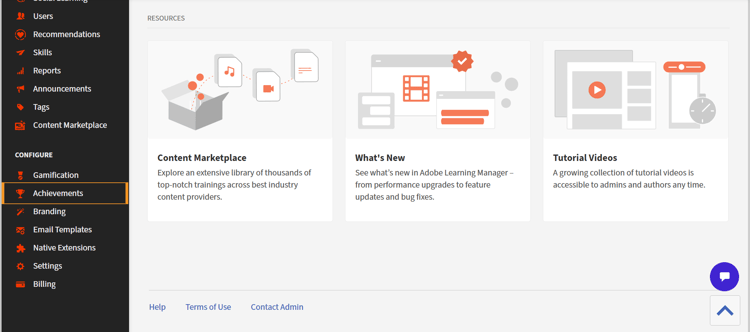
Navigate to Achievements on the left navigation panel -
In the left navigation panel, select Certificates. The Certificates page opens.
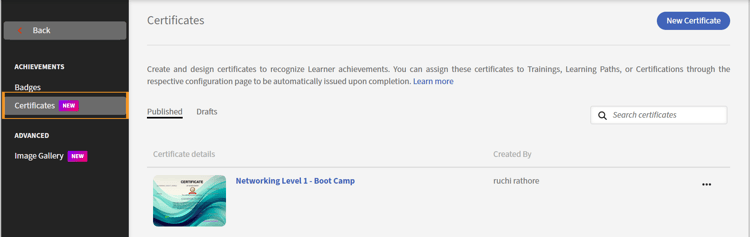
The Certificate page -
In the upper-right area of the page, select New Certificate. The Create a New Certificate dialog opens.
-
Select Landscape or Portrait, depending on how you want the certificate to look. After you select an orientation, you see a blank template and ready-made templates for that orientation.
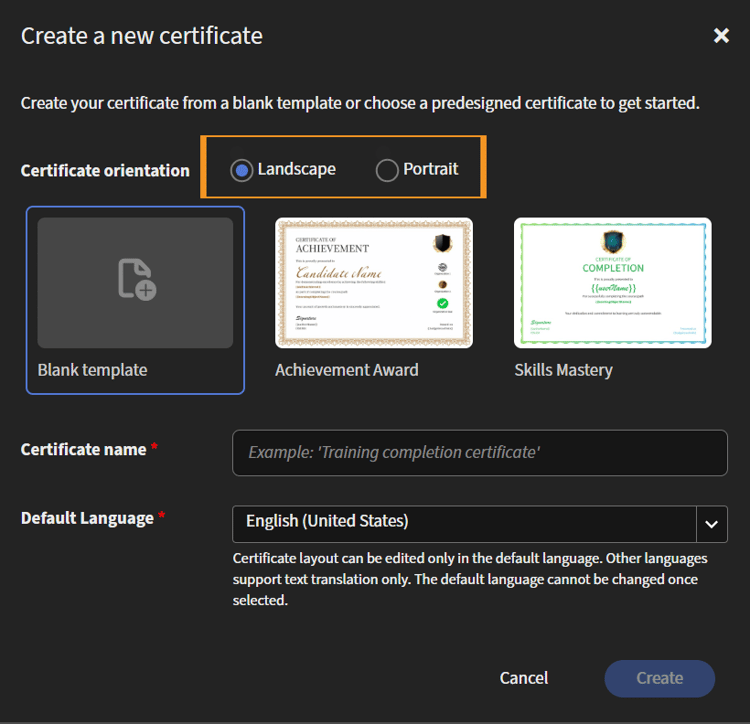
Landscape or Portrait option -
Select the blank template or an existing template.
-
Enter a certificate name.
-
In the drop-down menu, select a default language.
-
Select Create. If you chose the blank template, a blank canvas appears under your certificate name.
-
Add elements: Text, Image, Dynamic Value, and Certificate Background.
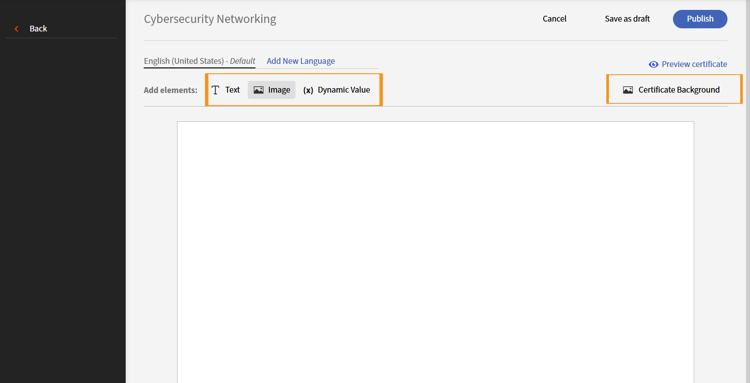
Add elements to the certificate -
For Text, add content under Preformatted text or Text Templates, or add custom text. The text appears on the canvas. When text is selected, formatting options appear above the canvas. To remove content you do not want, select the Delete icon in the upper-right corner of the canvas.
-
To add images, select Image next to Add elements. Upload images from your computer, or select images from the category lists.
-
Select Dynamic Value to add basic details, catalog labels, and active fields.
-
Select Certificate Background to apply colors or images.
-
Select Preview to review the certificate before you publish. This helps you understand how the certificate looks like.
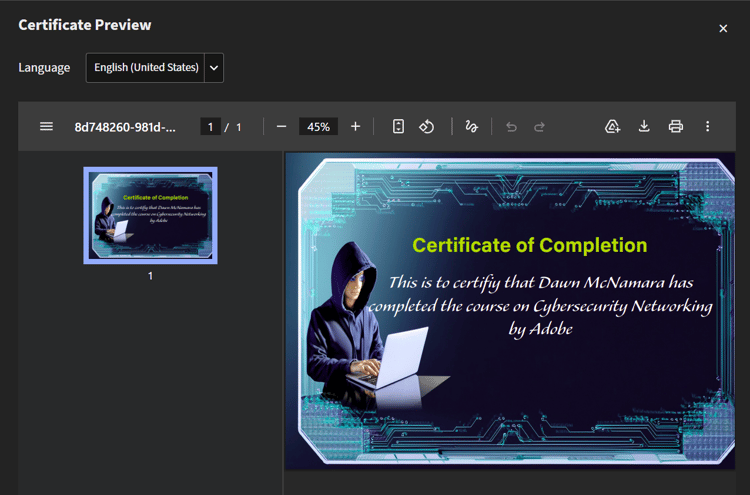
Preview the certificate -
In the preview, you can save to Google Drive, download, print, or use other options such as annotation or document properties.
-
Select Save as Draft to continue later, or select Publish to publish the certificate. After publication, learners can download the certificate when they meet the configured milestone.
After you save a certificate under Published or Drafts, you can edit, clone, rename, or delete it.
Edit a custom certificate
-
In the Configure section, select Achievements. The Badges page opens.
-
In the left navigation panel, select Certificates. The Certificates page opens.
-
Select the Published or Drafts tab for the certificate you want.
-
Open the actions menu (…) for the certificate, and select Edit.
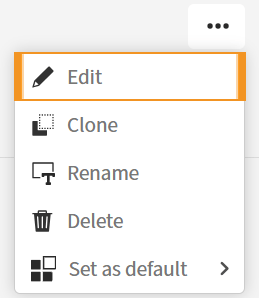
Edit option in the drop-down menu -
Make your changes.
-
Select Publish or Save as Draft.
Clone a custom certificate
Use Clone when you want a copy of a certificate for a new name or a similar use case. After you clone, rename the certificate so it has a distinct name; otherwise the name can match the source even if you changed the design.
-
In the Configure section, select Achievements. The Badges page opens.
-
In the left navigation panel, select Certificates. The Certificates page opens.
-
Select the Published or Drafts tab for the certificate you want.
-
Open the actions menu (…) for the certificate, and select Clone.
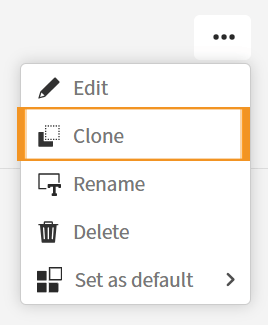
Clone option in the drop-down menu -
Make your changes.
-
Select Publish or Save as Draft.
-
Rename the cloned certificate using the steps in Rename a custom certificate.
Rename a custom certificate
You can rename a certificate without cloning it.
-
In the Configure section, select Achievements. The Badges page opens.
-
In the left navigation panel, select Certificates. The Certificates page opens.
-
Select the Published or Drafts tab for the certificate you want.
-
Open the actions menu (…) for the certificate, and select Rename.
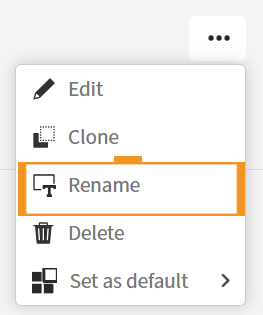
Rename option in the drop-down menu -
In the Rename certificate dialog, enter the new name.
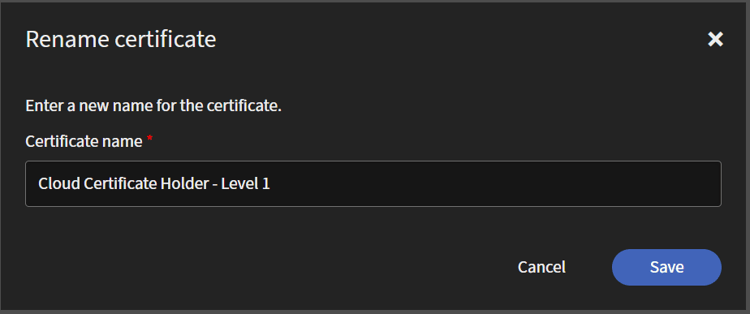
Enter a new name -
Select Save. Learning Manager shows a confirmation message.
Delete a custom certificate
Deleting a certificate cannot be undone. Proceed only if you are sure.
-
In the Configure section, select Achievements. The Badges page opens.
-
In the left navigation panel, select Certificates. The Certificates page opens.
-
Select the Published or Drafts tab for the certificate you want.
-
Open the actions menu (…) for the certificate, and select Delete. Adobe Learning Manager shows a confirmation message.
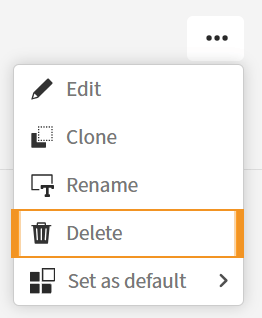
Delete option in the drop-down menu
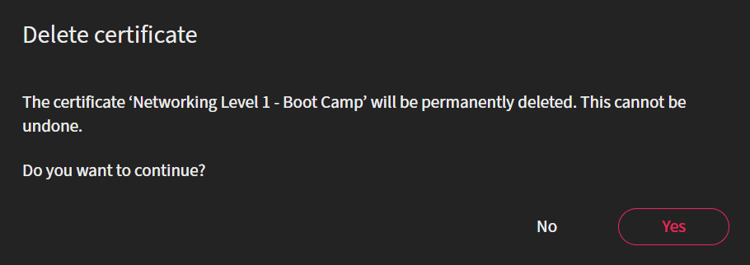
Confirmation message -
Select Yes. If the certificate is not attached to a learning object or instance, Learning Manager completes the deletion and may show another confirmation.
Set a custom certificate as the default certificate
You can set a certificate as the default for:
- Trainings
- Learning paths
- Certifications
- All
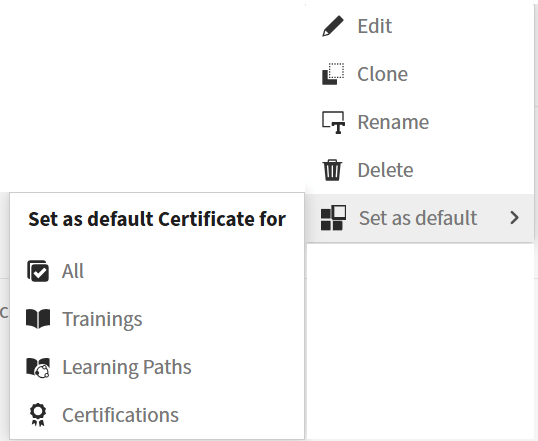
Set as default certificate
- In the Configure section, select Achievements. The Badges page opens.
- In the left navigation panel, select Certificates. The Certificates page opens.
- Select the Published or Drafts tab for the certificate you want.
- Open the actions menu (…) for the certificate, select Set as default, and then select one of the four options. Learning Manager shows a confirmation message.
- Select Yes. Learning Manager shows another confirmation. The certificate shows a Default for label with the category you selected (for example, Default for trainings).
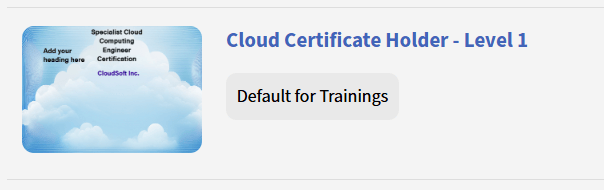
After it becomes the default certificate