Set up one-click enrollment in Adobe Learning Manager
How one-click enrollment works
One-click enrollment relies on two Adobe Learning Manager (ALM) capabilities working together:
Deep links provide a direct URL to a specific course or learning object within ALM. You can embed these links (which are direct URLs to modules) in emails, intranet portals, or third-party applications. If a learner is not already logged in when they click the link, ALM prompts them to authenticate and then takes them directly to the course.
It is generally valuable when learners are in the midst of work and are using Slack or Teams or when they need to have a quick two-minute refresher training before they travel or attend a meeting or a sales call. They can access the content immediately and get trained.
The enrollment-related services automatically enrolls a learner into a course before the deep link launches the course player. This removes the manual enrollment step that would otherwise interrupt the learner’s experience.
When a learner selects a one-click enrollment link, ALM enrolls them via the API in the background, then redirects them to the course using the deep link. The course player opens immediately.
Generate a deep link for a module
- Log in to Adobe Learning Manager as an administrator.
- Select Courses in the left navigation pane.
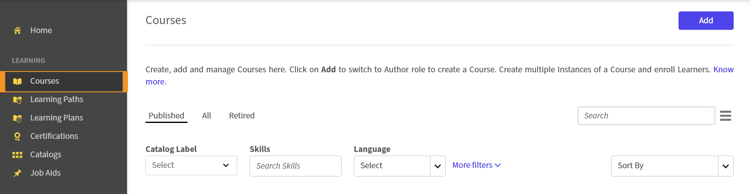
- Select a course
- Select Instances.
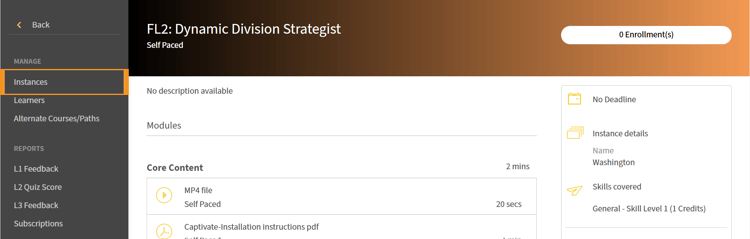
- Select the Module section the instance whose modules’ deep links you want to copy. The module details are displayed in the expanded section at the bottom of the instance.
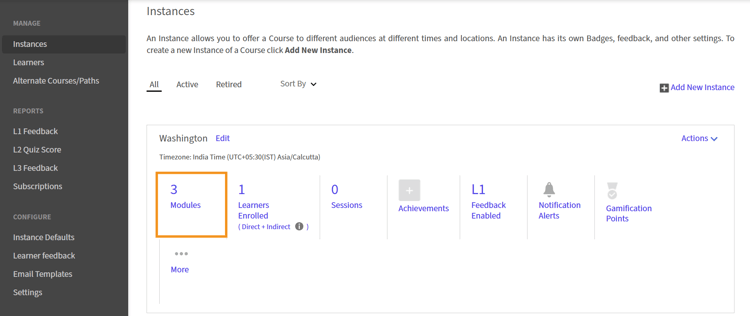
- Navigate to the module whose link you want to copy.
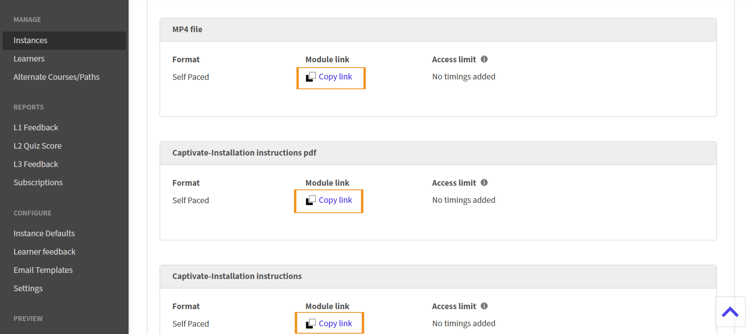
- Select Copy link. The deep link is now copied. This deep link is a link to open the particular module in a course.
You can now use this deep link to send it to a learner.