On this page: Learn how to use the externalDataLookup helper to dynamically fetch data from an external endpoint and personalize content for inbound channels in Adobe Journey Optimizer.
The externalDataLookup helper in the Journey Optimizer personalization Editor can be used to dynamically fetch data from an external endpoint for use in generating content for inbound channels like the Code-based Experience, Web and In-App Message channels.
To use the helper, you must first define an Action in the Administration > Configurations menu. An Action is where you configure details about an external endpoint, such as URL, GET vs. POST method, header parameters, query parameters, POST body JSON schema and response JSON schema.
Once the Action has been defined, it can be used both:
- In journeys, in a Custom Action activity to fetch content,
- In journeys and inbound campaigns, in an externalDataLookup helper to fetch data in an inbound action.
Guardrails and Limitations
Please refer to Custom Actions in Journey Optimizer Inbound Channels Campaigns and Journeys#GuardrailsandGuidelines as well.
- Maximum number of lookups - An inbound message request supports a maximum of 10 lookups of any kind, including external data lookups. Exceeding this limit fails the entire request. Learn more
- Default timeout - By default, Journey Optimizer uses a timeout of 300ms when calling an external endpoint. Contact your Adobe representative to increase this timeout for an endpoint.
- Response schema browsing & expression validation - In the personalization editor, you cannot browse the schema of the endpoint response when inserting expressions. Journey Optimizer does not validate references to JSON attributes from the response used in expressions.
- Supported data types for parameters - The supported datatypes for payload variable parameters to be substituted via externalDataLookup helper are
String,Integer,Decimal,Boolean,listString,listInt,listInteger,listDecimal. - Auto-refresh for updated actions - Changes to an Action configuration are not reflected in the corresponding externalDataLookup calls in live campaigns and journeys. In order for a change to be reflected, you need to copy or modify any live campaigns or journeys that are using the Action in an externalDataLookup helper.
- Variable substitution - For now, usage of variables is not supported within the externalDataLookup helper parameters.
- Dynamic path - For now, dynamic URL path is not supported.
- Multi-pass rendering - Multi-pass rendering is supported.
- Authentication - For now, authentication options in the Action configuration are not supported by the externalDataLookup helper. In the meantime, for API key-based authentication or other plaintext authorization keys, you can specify them as header fields in the Action configuration.
Configure an action and use the helper
To define an action and use the helper for personalization, follow these steps:
-
Create an Action to configure the endpoint for the lookup. This only needs to be done once for each endpoint and should be done by a technical user. Learn how to configure a custom action
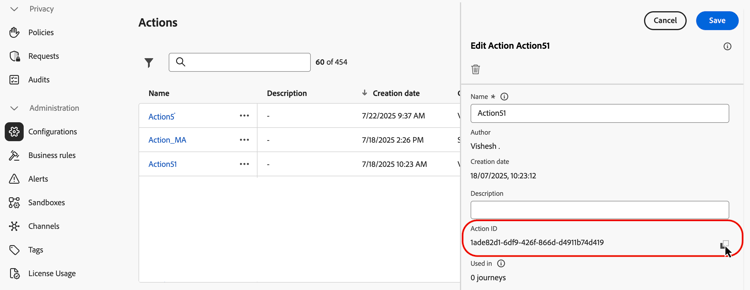
Note the Action ID and copy it.
-
Create an inbound campaign or journey action. For this example, we are showing how to use the externalDataLookup helper in a Code-based Experience JSON action, but it can be used in a personalization field in any inbound channel.
-
Edit the content of the action, go to Helper functions in the personalization editor, and navigate to Helper functions > Helpers.
-
Click the
+button to insert the externalDataLookup helper. The helper expression is inserted in the editor, with placeholder values for theactionIdandresult.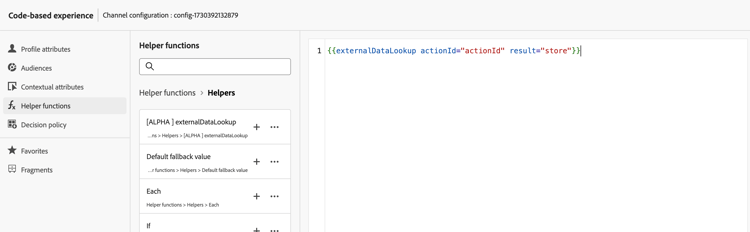
Replace the placeholder values as follows:
actionId: Paste the Action ID copied earlier.result: Set the name of your choice. You’ll use this result variable to access the fetched content.
-
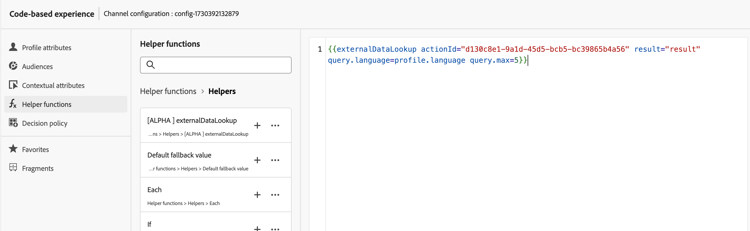
Add any variable parameter values to be passed as part of the endpoint call. For example, here is how you might pass a language parameter and a max items parameter.
-
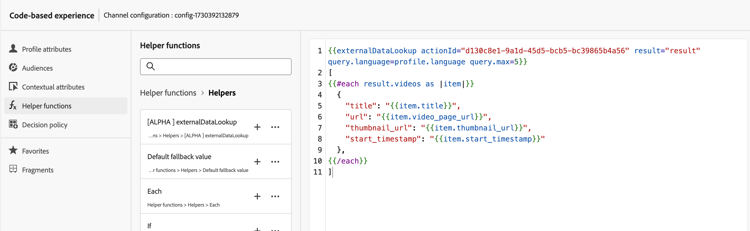
Use the result variable to access the fetched data and insert it into the content for the inbound action. For example, here is how you might return a JSON array of items fetched from the endpoint.
How it works
Runtime Execution
When an inbound action includes an externalDataLookup helper, the endpoint is called dynamically at the time the Journey Optimizer personalization request is received and processed by the AEP Edge Network.
This means the external endpoint needs to be able to handle at least as much concurrent load and throughput as the client is sending for the given surface to the AEP Edge Network.
Syntax
{{externalDataLookup actionId="d130c8e2-9a2d-45d5-bcb6-bc39865b4a56" result="result" optional-parameters...}}
Passing Parameters
When the external endpoint is called, all constant header values, query parameters and request payload value defined in the Action will be sent with the values given in the Action configuration.
For any variable header values, query/path parameters or request payload values, you can pass values dynamically using parameters to the externalDataLookup helper.
Parameter names:
- Header parameters:
header.<parameter-name> - Query parameters:
query.<parameter-name> - Payload parameters:
payload.<parameter-name> - Path Parameters:
dynamic_path.<parameter-name>
For example:
{{externalDataLookup actionId="..." result="result" header.myHeaderParameter="value1" query.myQueryParameter="value2" payload.myPayloadParameter="value3"}}`
Parameter values can be fixed values or they can be personalized by referencing profile fields or other contextual attributes, e.g.:
{{externalDataLookup actionId="..." result="result" query.myQueryParameter=profile.myProfileValue}}
Payload parameters can be provided using dot notation to reference nested JSON attributes, e.g.:
{{externalDataLookup actionId="..." result="result" payload.context.channel="web"}}
Accessing the result
To access the data fetched from an external endpoint lookup call, you can reference fields defined in the response payload in the Action definition using personalization expressions and helper functions.
For example, if the response payload in the Action looks like this:
{
    "videos": [
        {
            "id": "integer",
            "title": "string",
            "description": "string",
            "thumbnail_url": "string",
            "video_page_url": "string",
            "url": "string",
            "video_type": "string",
            "start_timestamp": "dateOnly",
            "created_on": "dateOnly",
            ...
        }
    ]
}
Then for example you could fetch and access the description of the first video in a Code-based Experience HTML action like this:
{{externalDataLookup actionId="d130c8e2-9a2d-45d5-bcb6-bc39865b4a56" result="result"}}

First video description: <b>result.videos[0].description</b>
Or for example you could fetch and loop through the items in order to return an item array in a Code-based Experience JSON action like this:
{{externalDataLookup actionId="d130c8e2-9a2d-45d5-bcb6-bc39865b4a56" result="result"}}

[
{{#each result.videos as |item|}}
    {
        "title": "{{item.title}}",
        "url": "{{item.video_page_url}}",
        "thumbnail_url": "{{item.thumbnail_url}}",
        "start_timestamp": "{{item.start_timestamp}}"
    },
{{/each}}
]
Troubleshooting
Timeouts and error handling
Journey Optimizer uses a strict timeout when calling the external endpoint in order to maintain low-latency, high-throughput performance characteristics for the Adobe Experience Platform Edge Network.
If the endpoint times out or there is any other sort of error reaching the endpoint, the result variable will be empty. Any references to attributes within the result variable in this case will also be empty. If you are simply displaying the attribute in the content, it will show as blank. If you are attempting to loop through an array attribute in the result, it will return no items.
If you want to more gracefully handle timeouts or errors by showing fallback content, you can check if the result of the lookup is empty and display fallback content in that case.
For example, you can show a fallback value for a single attribute like this:
First video description: {%=result.videos[0].description ?: "none found" %}
or you can conditionally render an entire block of content like this:
{{externalDataLookup actionId="d130c8e2-9a2d-45d5-bcb6-bc39865b4a56" result="result"}}

{%#if result%}
   ... do something with result ...
{%else%}
    ... return fallback content ...
{%/if%}
Debugging
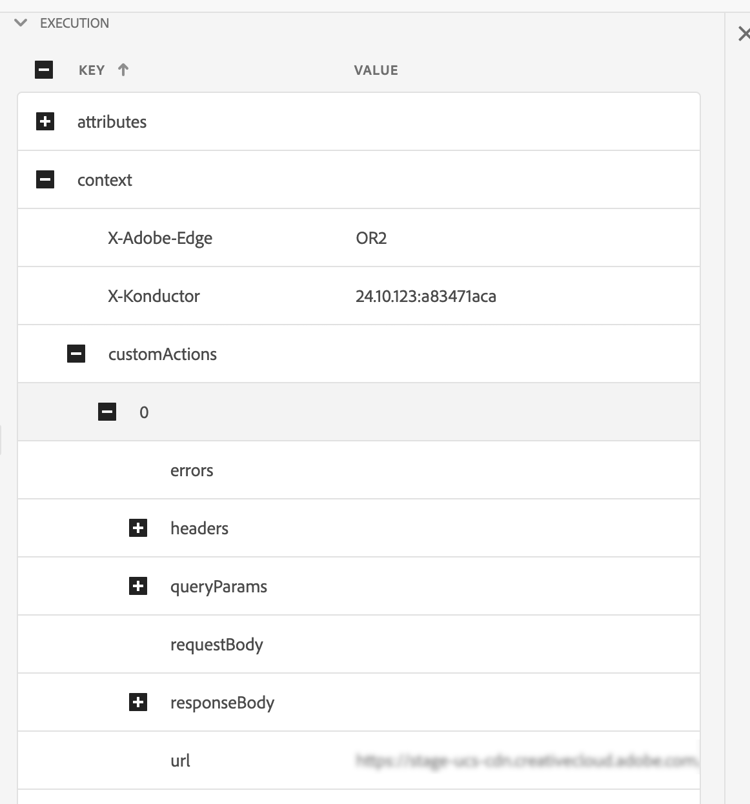
To help with debugging, timeout and error details for external data lookups are included in the Edge Delivery view in Adobe Experience Platform Assurance. If you are not seeing expected results for an externalDataLookup helper in an inbound action, you can start an Assurance session, initiate a Journey Optimizer call from a web or mobile implementation, and use the Edge Delivery view to check for timeout or error details.
For example:
Under the Edge Delivery Section of assurance trace as part of execution details a new customActions block has been added with request and response details similar to the one below. The errors section should help with debugging if there were any issues while executing custom action
Frequently asked questions faq-external-data
You will find below Frequently Asked Questions about External Data Lookup helper.
Need more details? Use the feedback options at the bottom of this page to raise your question, or connect with Adobe Journey Optimizer community.
Use the Contextual Attributes > Datastream > Event menu to browse the Experience Event schema you’re using and insert the relevant attribute as a parameter value like this:
| code language-none |
|---|
|
This section contains structured knowledge intended to support interpretation, retrieval, and question answering related to this topic.
For complete understanding, this information should be combined with the documentation on this page. Neither source is intended to stand alone; the page describes the feature, while this section provides additional context that helps disambiguate terminology, intent, applicability, and constraints.
- TL;DR: This page explains how to configure an Action for an external endpoint and use the
externalDataLookuphelper in the personalization editor to dynamically fetch that data at runtime for personalizing inbound channel content.
Intents:
- Configure an Action defining an external endpoint (URL, HTTP method, parameters, request/response schemas)
- Insert the
externalDataLookuphelper in a personalization expression for an inbound action - Pass variable header, query, payload, or path parameters to the external endpoint at call time
- Access fetched data via the result alias using personalization expressions and helper functions
- Handle timeouts and errors gracefully with fallback content patterns
- Debug external lookup issues using Adobe Experience Platform Assurance
Glossary:
- externalDataLookup: A helper function in the personalization editor that dynamically fetches data from a configured external endpoint at request time, for use in inbound channel content personalization. (product-specific)
- Action: A configuration object in Journey Optimizer (Administration > Configurations) that defines an external endpoint — URL, HTTP method, header/query parameters, POST body schema, and response schema. Required before using
externalDataLookup. (product-specific) - result variable: An arbitrary alias assigned in the
externalDataLookupcall; used to reference all fields from the fetched response in subsequent personalization expressions. - Inbound channels: Channels where content is delivered on demand when a user opens a surface — Code-based Experience, Web, In-App Message. (product-specific)
- AEP Edge Network: The infrastructure that receives personalization requests and triggers the external data lookup call at runtime.
Guardrails:
- Feature is in Limited Availability — only available for a set of organizations.
- Default timeout for external endpoint calls: 300ms (default; contact your Adobe representative to increase this timeout for a specific endpoint).
- Response schema browsing is not supported in the personalization editor; Journey Optimizer does not validate references to JSON attributes from the response used in expressions.
- Supported data types for payload variable parameters:
String,Integer,Decimal,Boolean,listString,listInt,listInteger,listDecimal. - Variable substitution within
externalDataLookuphelper parameters is not currently supported. - Dynamic URL paths are not currently supported.
- Authentication options in the Action configuration are not currently supported by
externalDataLookup; use header fields for API key-based or plaintext authorization as a workaround. - Changes to an Action configuration are not reflected in live campaigns or journeys using that Action; copy or modify any live campaigns/journeys to apply the changes.
- Multi-pass rendering is supported.
- Journey Optimizer does not currently cache external endpoint responses.
- The external endpoint must be able to handle at least as much concurrent load and throughput as the inbound traffic sent to the AEP Edge Network for the given surface.
Terminology:
- Canonical name: externalDataLookup — variants: external data lookup, external data lookup helper, External Data Lookup Helper
- Synonyms: “externalDataLookup” = “external data lookup helper”
- Do not confuse:
actionId(ID of the configured Action, identifying the external endpoint) ≠result(alias for the fetched response data) ≠ parameter names (variable values passed to the endpoint at call time) - Do not confuse: using
externalDataLookupin an inbound personalization action (fetches data dynamically at Edge Network request time) ≠ using a Custom Action in a journey activity (fetches content within a journey flow)
FAQ:
- Q: What happens if the external endpoint times out or returns an error? — The result variable will be empty. Attribute references within the result will display as blank, and array iterations will return no items. Use fallback content patterns — such as
?: "none found"for single attributes or{%#if result%}…{%else%}…{%/if%}for entire content blocks — to handle these cases gracefully. - Q: How do I pass a contextual attribute from the request as a parameter to an external data lookup? — Use the Contextual Attributes > Datastream > Event menu in the personalization editor to browse the Experience Event schema and insert the relevant attribute as a parameter value, for example:
query.myQueryParameter=context.datastream.event.<schemaId>.my.xdm.attribute. - Q: Does Journey Optimizer cache external endpoint responses? — Not currently. Caching will be supported in the future.
- Q: How do I debug issues with externalDataLookup? — Use Adobe Experience Platform Assurance. Start an Assurance session, initiate a Journey Optimizer call from your web or mobile implementation, and use the Edge Delivery view to inspect the customActions block for timeout or error details.
- Q: Can I use authentication in the Action configuration with externalDataLookup? — Authentication options in the Action configuration are not currently supported. For API key-based or other plaintext authorization, specify the credentials as header fields in the Action configuration.