Create a decision policy
Decision policies are containers for your offers that leverage the Decisioning engine in order to pick the best content to deliver, depending on the audience.
-
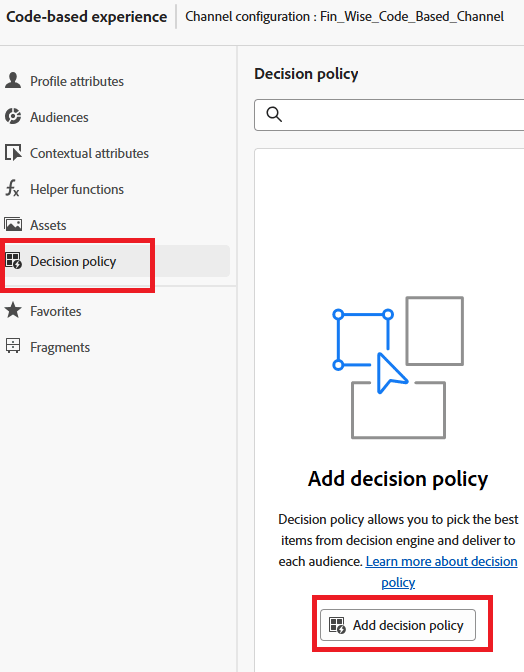
In the personalization editor, click Decison policy item in the left navigation, then click Add decision policy.
-
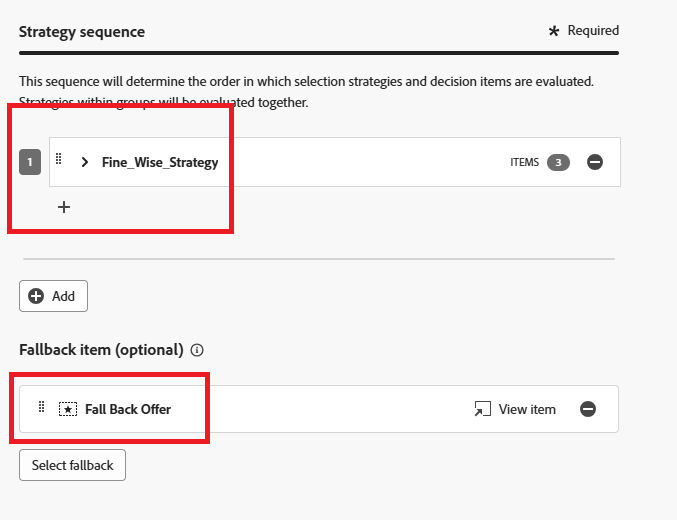
Click Add to select the selection strategy.
-
Click Select fallback to select the fall back offer.
-
Click Next to review the decision policy.
-
Click Create to complete the process of creating the decison policy.
Use the decision policy in the code editor
-
From the personalization editor, click Insert policy.
The code corresponding to the decision policy is added.
At this stage, you can include any required decision attributes directly within the code. These attributes are defined in the schema used by the Offers catalog. Standard attributes are organized under the
__experiencenamespace, while any custom attributes specific to your organization are stored under the_<imsOrg>namespace.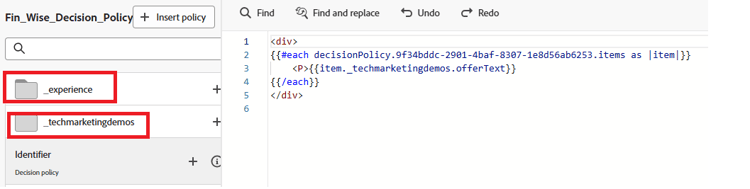
This code goes through a list of personalized offers chosen for the user and displays the text for each one on the web page. It shows the message (called
offerText) from each offer inside a paragraph, so users can see their tailored content clearly.If no personalized offer is available, a fallback offer is shown to ensure the space isn’t left blank.
-
Click Save, then activate the campaign.