Creating Adobe Experience Platform Tags
Adobe Experience Platform Tags (formerly Adobe Launch) help manage and deploy* marketing and analytics technologies on your website without needing to change the site’s code.
This video describes the process of creating Adobe Experience Tags
- Log in to Data Collection
- Click on _Tags -> New Property
- Create an Adobe Experience Platform Tag called personalization-on-weather.
- Add the following extensions to the Tag
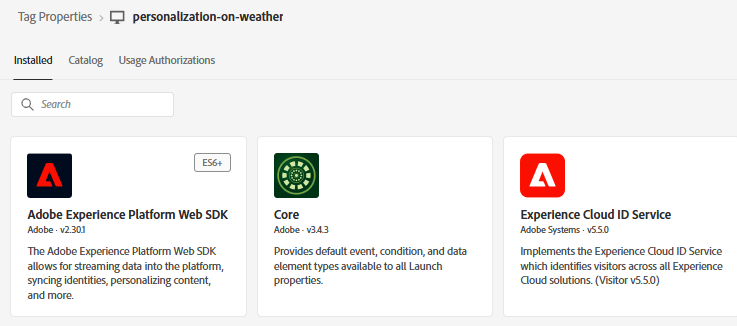
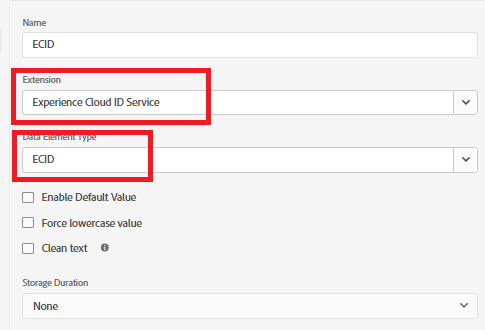
- Add a data element called “ECID” as shown below. This data element is used later in reporting
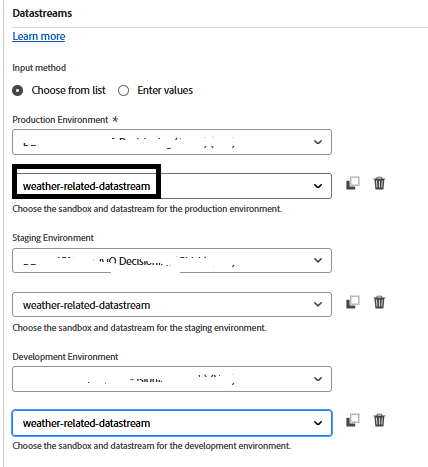
- Make sure to configure the Adobe Experience Platform Web SDK to use the correct environment and the weather-related-datastream created in the earlier step.
Build and deploy the AEP Tags
Create a new library and add all the modified resources to it, as illustrated in the screenshots below.
Add library

Create a library
In the create library screen specify the library name and the environment.
Add all the changed resources to this library
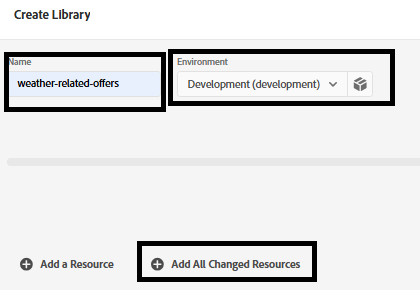
Then click on the Save and Build to Development button to build the library
Include AEP Tags in the HTML page
When you publish a AEP Tags property, Adobe gives you a script tag that you must place inside your HTML <head> or at the bottom of the <body> tags.
- Go to Tags(personalization-on-weather) property.
- Click on Environments and click the install icon of the environment you want (for example, Development, Staging, Production).
- Make a note of the embedded code. It is needed at a later stage of this tutorial.