Lesson 4 - Create a push campaign
In the previous exercise, you were a coffee enthusiast, a Fréscopa customer. You interacted with the brand through their website and the Fréscopa app and received many transactional messages. These messages are triggered through the user’s interaction with the website or the application.
In this exercise, you will put your marketer hat on and implement a marketing campaign for Frésopa, which will utilize the push channel to target the Fréscopa app users. Push notifications are used to keep app users informed, even when they are not using the app, but also to reengage them with the app. The objective is to incentivize the customer to buy the house blend, by offering a 10% discount.
Learning Objectives
- Know how to create a push campaign.
- Understand how to design a push message.
Exercise 4.1 - Create a push campaign
In this exercise, you create the push campaign, design, and customize the push notification, and send the push notification to your own device.
-
In Journey Optimizer, in the left navigation, in the JOURNEY MANAGEMENT section, select Campaigns.
-
Click Create Campaign.

-
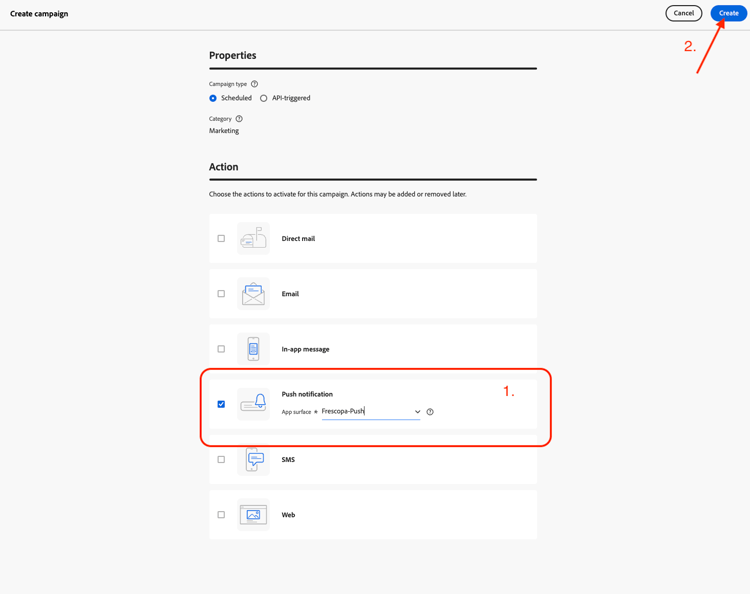
On the Create Campaign page, in the Action section, select the Push notification check box.
-
From the App surface dropdown, select Frecopa-Push.
-
Click Create to create a push campaign.
Exercise 4.2 - Configure your campaign
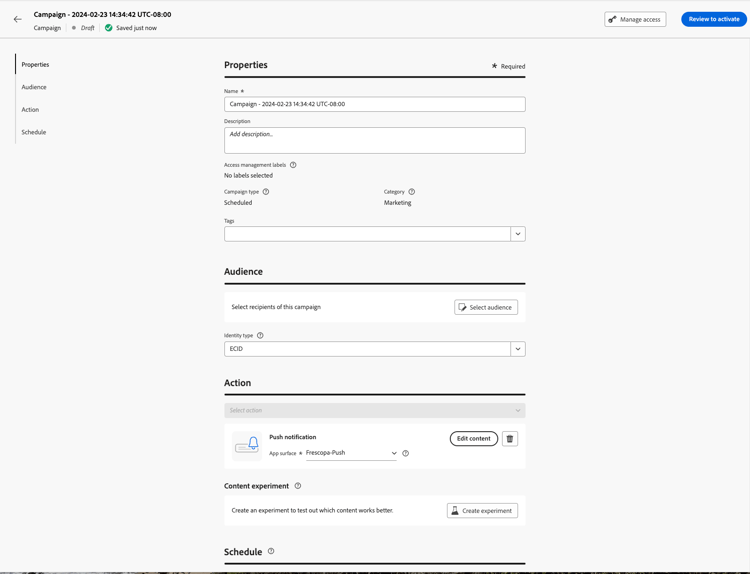
On this page, you configure the properties, audience, actions, and schedule of your campaign.
4.2.1 Properties section
Give your campaign a name. Make sure to start the name with your seat number, so you can easily find your campaign when you search for it.
For example, if your seat number is 99: 99 - 10% Discount Campaign.
4.2.2 Audience section
-
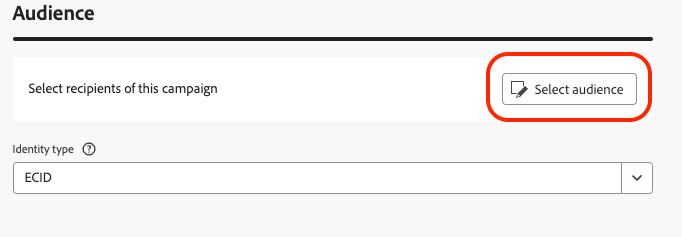
In the audience section, click Select audience.
-
On the Select audience screen, search for the audience:
Lab - Seat
your seat number -
Select the audience, then click Save.

4.2.3 Edit the content of the push notification
In this exercise, you design and customize the push notification.
-
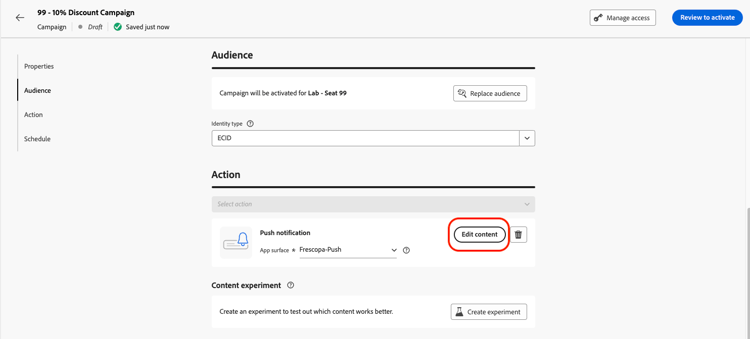
In the Action section, click the Edit Content button.
-
On the next screen, depending on the mobile device you have, select either the iOS™ or Android™ tab to configure your content.
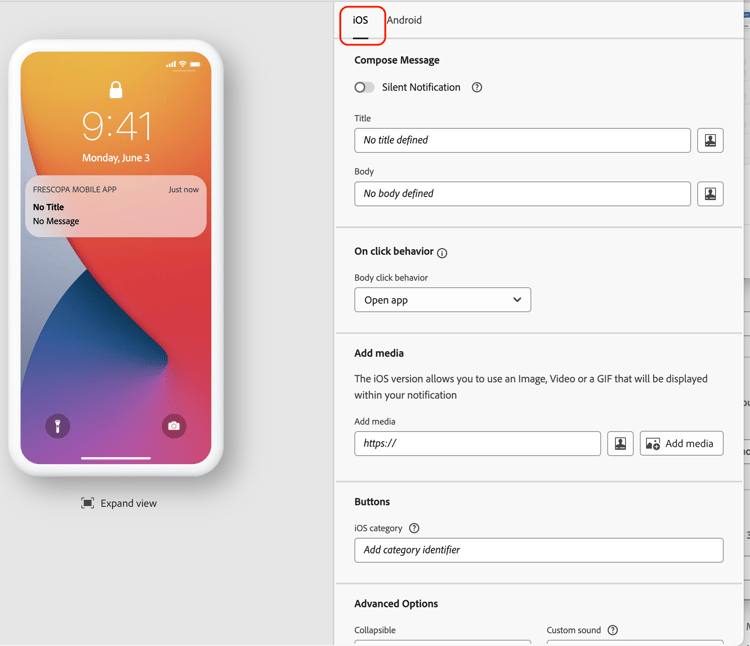
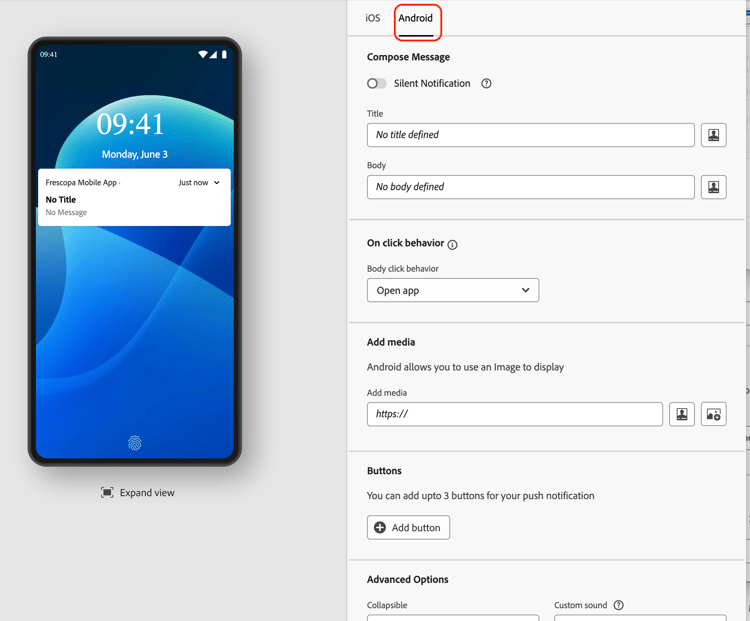
4.2.3.1 Compose Message section
-
Compose your message: Feel free to add any text you would like. Here are examples that you can use:
-
Title:
Get 10% off today! -
Body text:
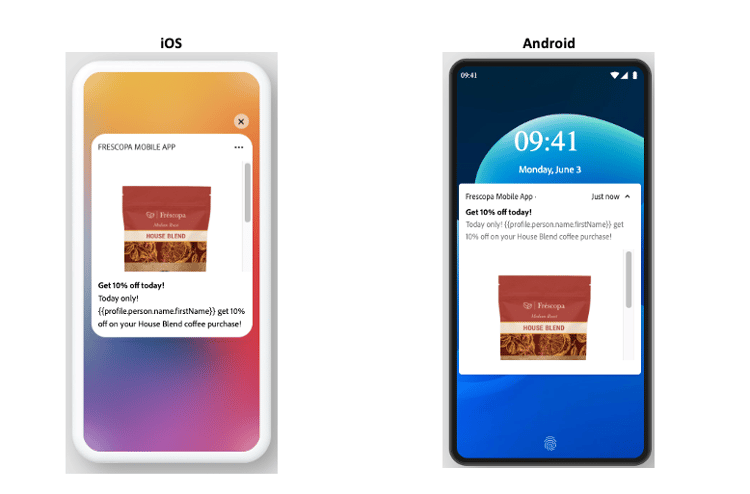
Today only! Get 10% off on your House Blend coffee purchase!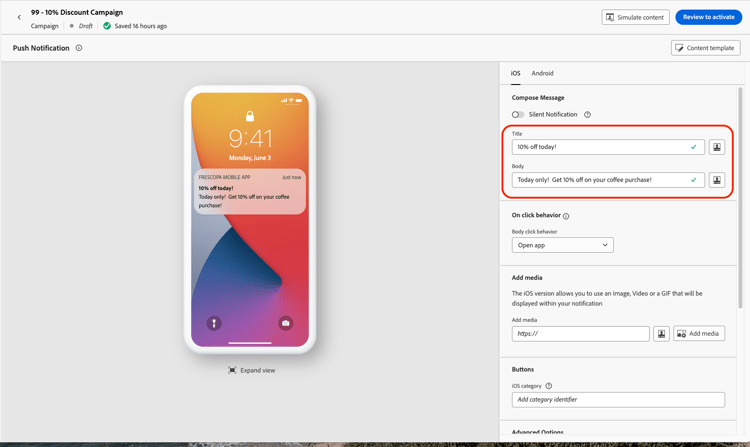
-
4.2.3.2 Change the on click behavior of the message to open a product page
-
In the On click behavior section, select Deeplink from the Body click behavior dropdown.
-
Copy and paste the following URL into the URL field:
dxdemo://exoticVibes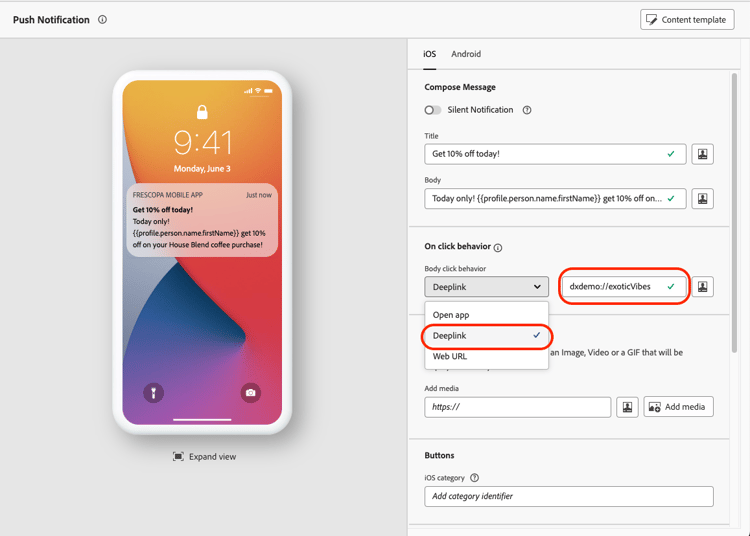
4.2.3.3 Add an image to the message
-
In the Add media section, click Add media.

-
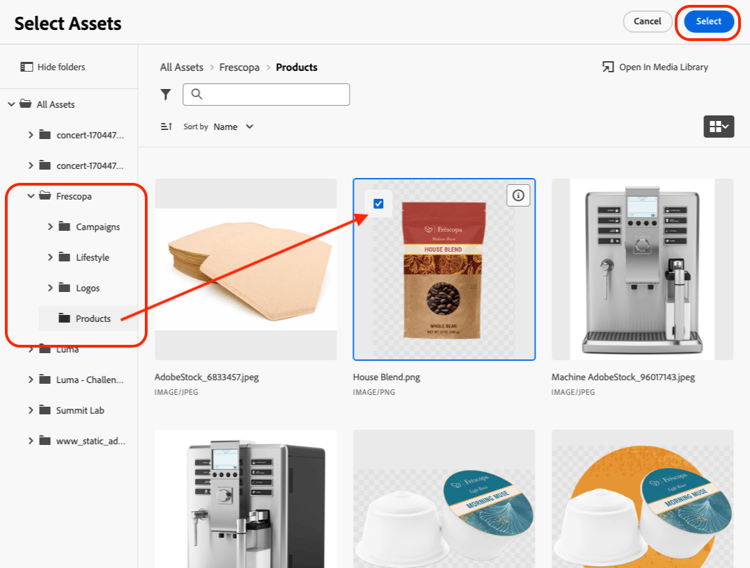
On the Select Assets screen, in the left navigation, open the Fréscopa folder and select an image from that folder.
For example:
HouseBlend.png -
Click the image and click the Select button to add the image to your push notification.
note success SUCCESS - On the preview screen, click Expand View.
- Preview your message.
Bonus Exercise
If you completed this part of the exercise and still have some time, try the bonus exercise:
Personalize the message that you are sending by adding the recipient’s first name
-
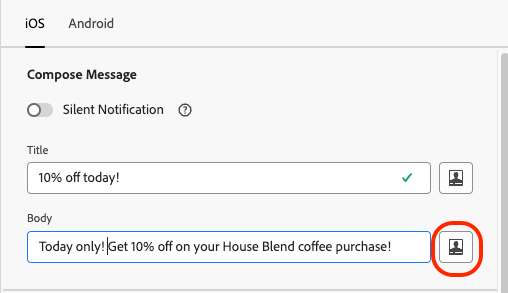
Click personalization dialogue next to the Body field.
-
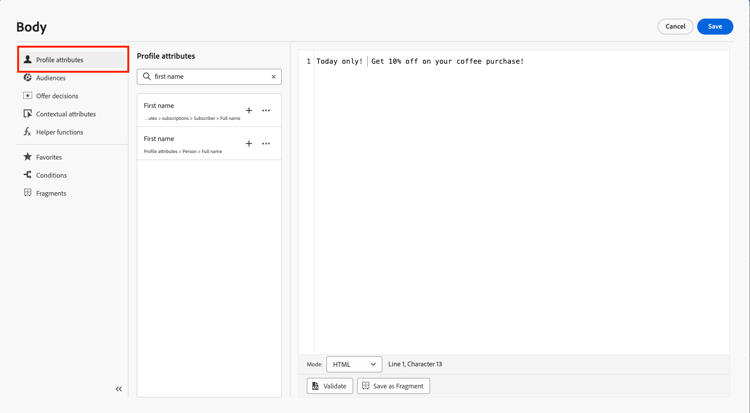
On the personalization dialogue screen, place the cursor where you want to add the first name in the text.
-
Ensure that the Profile attributes are selected in the left navigation.
-
In the Search field, search for:
first name. -
Click + next to the First name (Profile attributes>Person>Full name) to add the personalization field to your text.
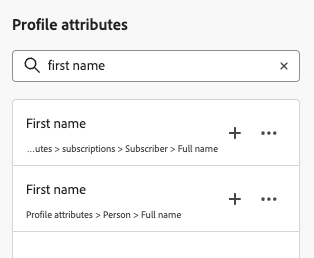
note success SUCCESS This is what your text should look like: 
-
Click Save to save the personalization.
note success SUCCESS - On the preview screen, click Expand View.
- Preview your message.
4.2.4. Review and activate
If you are happy with the content of your message, you can activate the message:
-
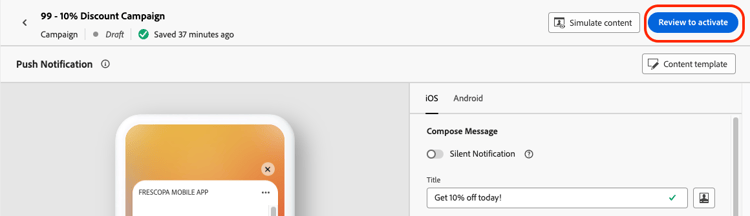
Click Review to activate.
-
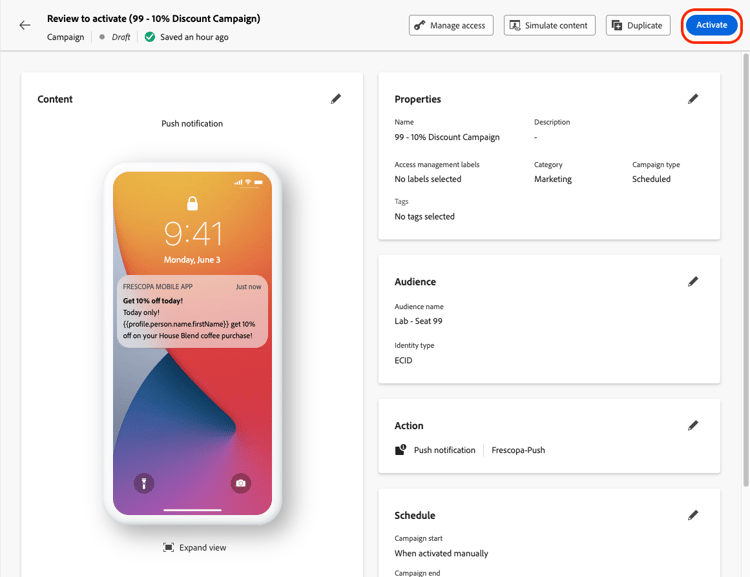
On the Review to activate screen, click Activate.
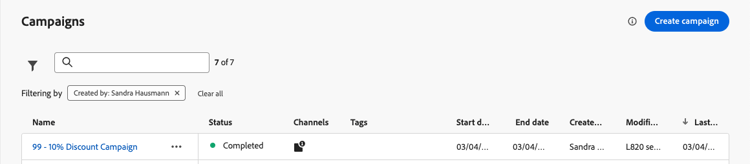
Once the status has changed to completed:
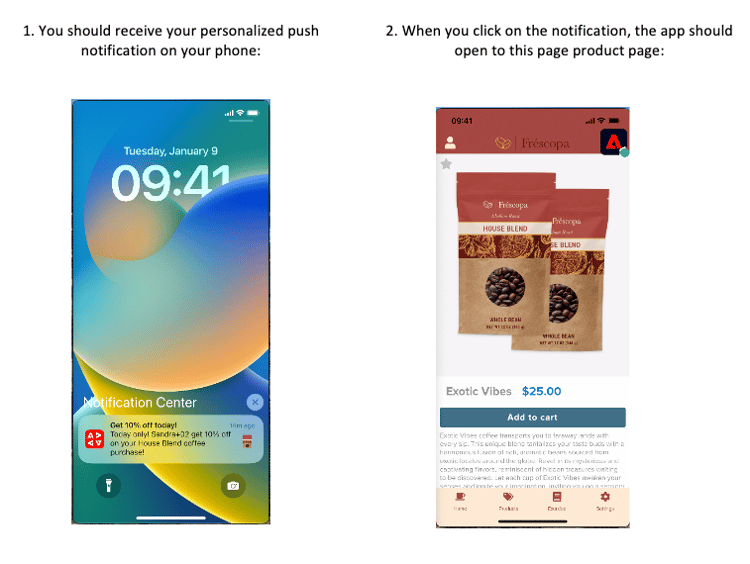
Additional resources
How to videos:
Product documentation: