Debugging Web push in AJO
This page provides helpful tips to debug the web push notification flow, including verifying Web SDK requests, checking the ECID and user profile in AEP, and ensuring that events like price.drop are correctly sent and received.
- Use the Adobe Experience Platform Debugger (Chrome Extension)
Install the AEP Debugger extension for Chrome to inspect Web SDK activity more easily:
This tool lets you:
-
View Web SDK requests and responses
-
Check the ECID (Experience Cloud ID)
-
Validate datastream configuration and payloads
-
Check if the user is identified (ECID)
Use the AEP Debugger or browser console to confirm that an ECID is generated. This ID is used to track the user across AEP and AJO. -
Use the Network tab to verify requests
Open the Network tab in your browser’s developer tools and filter for requests made by the Web SDK (look for/collectorinteract).- Confirm requests are being sent when the page loads and when actions are triggered
- Check that the
price.dropevent is included in the payload
-
Look up the user profile in AEP
Use the ECID to search for the user’s profile in Adobe Experience Platform. This helps confirm that the user is recognized and that their data (like push subscription) is being stored correctly. -
Verify the
price.dropevent is received
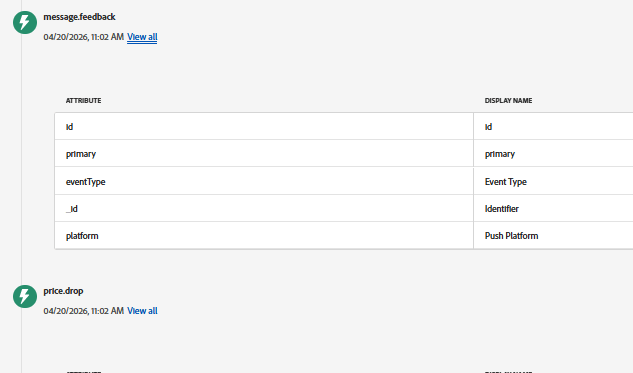
After triggering the event from the web page, check in AEP if the event was ingested and associated with the same ECID…
Check the json of the message.feedback event forfeedback.status. The status value should besent
-
Confirm push notifications are enabled
Ensure that:- The user accepted the browser notification prompt
- A push token exists in the user’s profile
-
Check the journey setup
Make sure the journey is published and configured to listen to theprice.dropevent.