Create Campaign
In this step, you will create a campaign in Adobe Journey Optimizer to send scheduled web push notifications to users who have opted in. The campaign targets an eligible audience and delivers messages at a predefined time, enabling planned and audience-based engagement.
- Log in to Journey Optimizer
- Navigate to Journey Management | Campaigns | Create Campaigns
Specify Campaign Settings
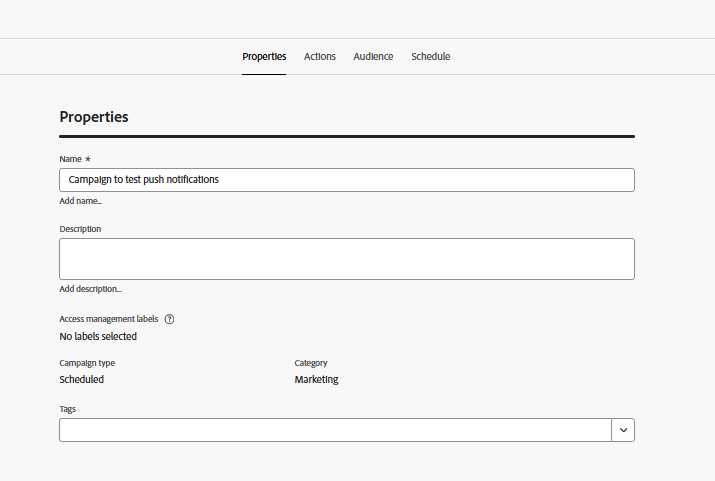
Specify the campaign name
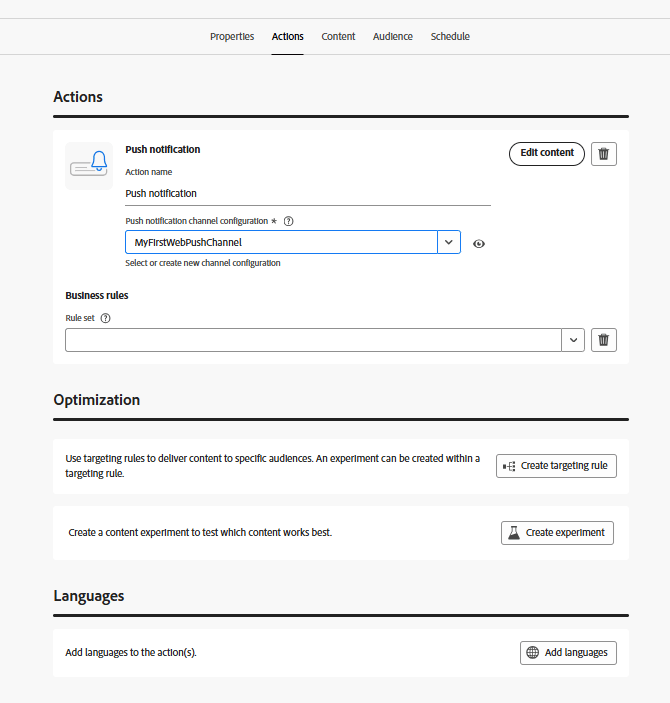
Associate Action with the campaign
Associate the push channel configuration created earlier in this tutorial
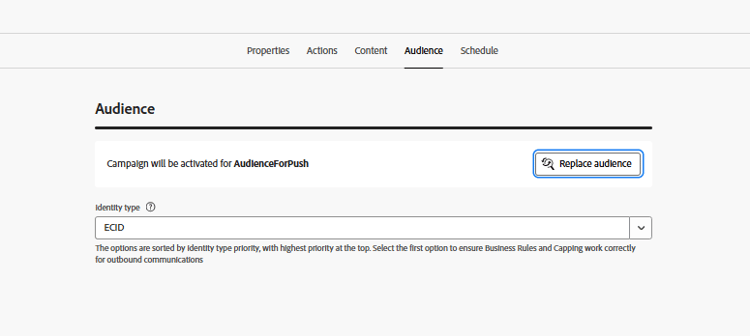
Associate Audience with the campaign
Associate the audience AudienceForPush with the campaign
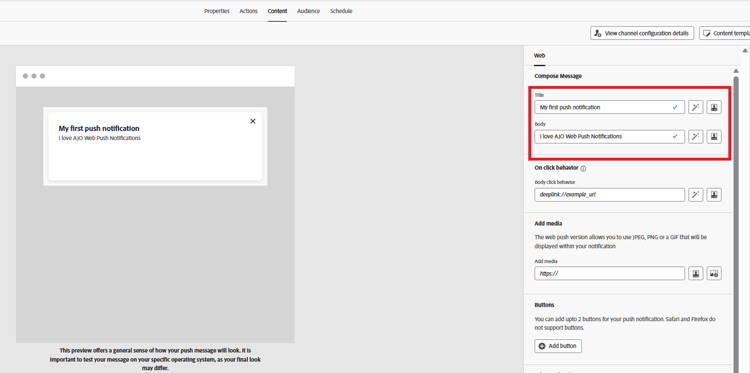
Create content for the push notification
Create basic push content for testing the push notification. Specify title and body of the message as shown below
Schedule the campaign
Schedule the campaign as per your needs
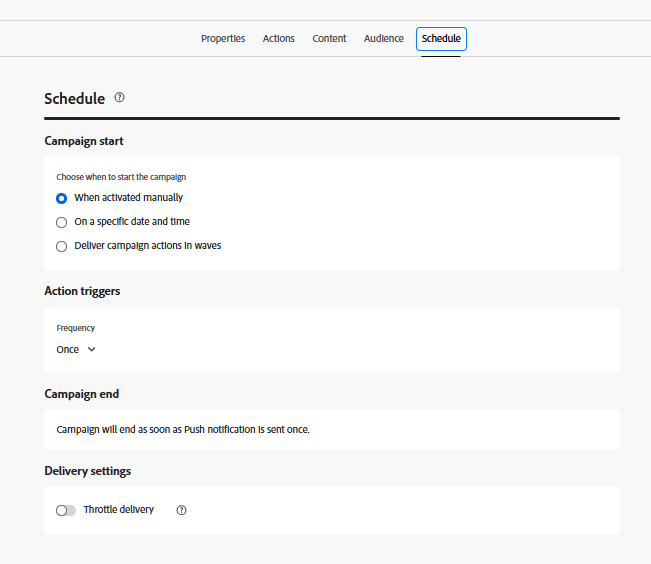
Finally make sure you activate the campaign.
Test the campaign
To test the campaign, first enable notifications on the web page by opting in when prompted. Once you have opted in, wait for the campaign to run at its scheduled time. When the campaign executes, you should receive the push notification in your browser.