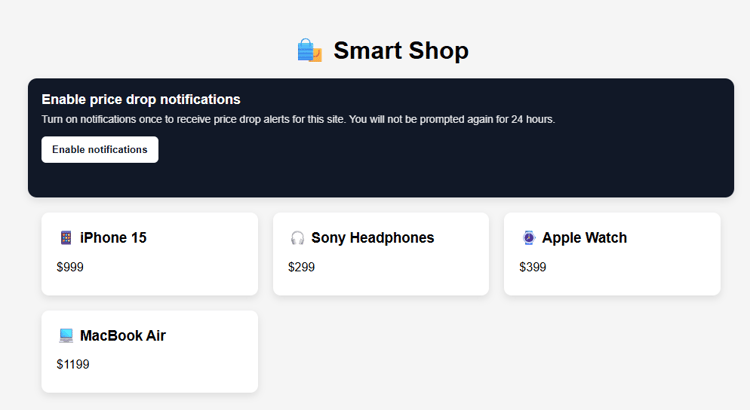
Capture user persmission
This web page captures the user’s consent to receive push notifications. It prompts the user to enable notifications using the browser’s Notifications API and, upon acceptance, registers the push subscription with Adobe Experience Platform using the Web SDK. This ensures that only opted-in users are eligible to receive push notifications through campaigns and journeys in Adobe Journey Optimizer.
To enable web push notifications, the page first loads a configuration file by calling fetch(“/config”) inside an initialization function. This configuration is served by a Node.js application and includes key values such as the datastream ID, organization ID, VAPID public key, app ID, and tracking dataset ID. Once the configuration is loaded, the Adobe Web SDK is initialized and the service worker is registered to support push messaging. When a user clicks Enable notifications, the browser prompts them for permission using the Web Notifications API. If permission is granted, the Web SDK sends the push subscription to Adobe Experience Platform, and the user is marked as opted in for 24 hours to avoid repeated prompts. You can try this flow on the local web page shop-smart.html included in the sample application after starting the server.