Create connections in the Experience Platform UI
-View Federated Database
Experience Platform Federated Audience Composition lets you build and enrich audiences from the third-party data warehouses and import the audiences to Adobe Experience Platform.
Supported databases supported-databases
To work with your federated database and Adobe Experience Platform, you must first establish a connection between the two sources. With Federated Audience Composition, you can connect to the following databases.
- Amazon Redshift
- Azure Synapse Analytics
- DataBricks
- Google BigQuery
- Microsoft Fabric
- Oracle
- Snowflake
- Teradata
- Vertica Analytics
Create connection create
To create a connection, select Sources within the Connections section.
The Sources catalog appears. Select Federated data to view the list of available federated databases for your organization.
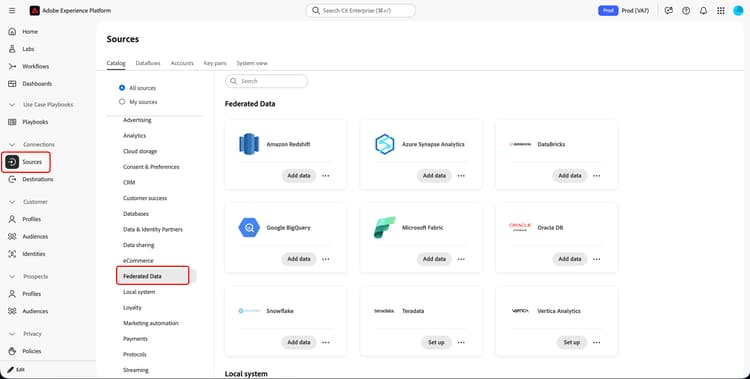
Once you’ve selected the federated database type, select Set up if you’re making a new connection or Add data if you’re using an existing connection.
The connect account page appears. You can either use an existing account or create a new account.
Existing account existing-account
If you select Existing account, you can choose one of the previously created source connections.
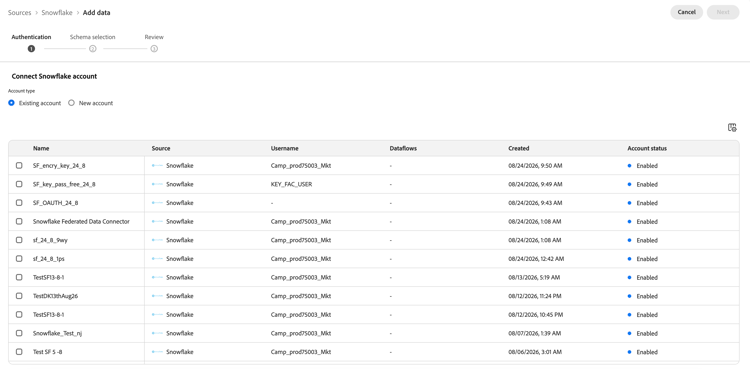
New account new-account
If you select New account, the connection details page is displayed. On this page, you can set details about your connection, including account name, description, and account authentication details. The account authentication section differs based on the database type previously chosen.
| note availability |
|---|
| AVAILABILITY |
| Only Amazon Redshift AWS, Amazon Redshift Spectrum, and Amazon Redshift Serverless are supported. |
| Additionally, secure access to your external Amazon Redshift data warehouse through private link is supported. |
After selecting Amazon Redshift, you can add the following details:
| table 0-row-2 1-row-2 2-row-2 3-row-2 4-row-2 5-row-2 | |
|---|---|
| Field | Description |
| Server | The name of the data source. |
| Account | The account’s username. |
| Password | The account’s password. |
| Database | The name of the database. If this is specified in the server name, this field can be left blank. |
| Working schema | The name of the database’s schema to use for work tables. More information about this feature can be found in the Amazon Schemas documentation. Note: You can use any schema from the database, including schemas used for temporary data processing, as long as you have the required permissions to connect to this schema. However, you must use distinct working schemas when connecting multiple sandboxes with the same database. |
| note |
|---|
| NOTE |
| If you want to create a secure connection using Azure Synapse Analytics, please contact your Adobe Customer Care representative. |
After selecting Azure Synapse Analytics, you can add the following details:
| table 0-row-2 1-row-2 2-row-2 3-row-2 4-row-2 5-row-2 | |
|---|---|
| Field | Description |
| Server | The URL of the Azure Synapse server. |
| Account | The application ID (Client ID) of the Azure app registration. |
| Password | The Client secret value of the Azure application. |
| Database | The name of the database. If this is specified in the server name, this field can be left blank. |
| Options | Additional options for the connection. For Azure Synapse Analytics, you can specify the type of authentication supported by the connector. Currently, Federated Audience Composition supports ActiveDirectoryMSI. For more information about connection strings, please read the example connection strings section within Microsoft’s documentation . |
Alternatively, you can securely configure your Azure Synapse Analytics connection by using Service Principal authentication. You should use Service Principal authentication for production-grade integrations as well as automation scenarios.
| accordion |
|---|
| Prerequisites |
|
Before setting up your Service Principal authentication, please note the following prerequisites:
|
Within the Azure Portal, you’ll first need to create a new app registration. Select Register after giving the application a unique name. The Overview page appears. Make sure you note the Application (Client) ID and the Directory (Tenant) ID values.
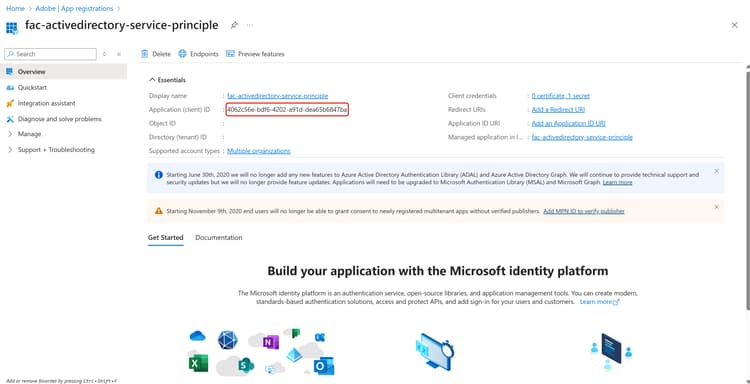
Within the newly registered application, select Certificates & secrets. From here, select New client secret within the Client secrets section to create a new client secret. After providing a description and expiry, select Add to generate the client secret.
| note important |
|---|
| IMPORTANT |
| After generating your client secret, copy and securely store your Client Secret Value. This value will not be visible again. |
Now that you’ve generated your client secret, you need to make sure you’ve granted the Service principal identity to the resource.
For more information on assigning identity to resources, read the Managed identities for Azure Synapse Analytics guide.
Since you’ve finished all your Azure-side configurations, you can now set up your Federated-Audience-Composition-side configurations.
Within your Azure Synapse connection, set the following configuration details:
| table 0-row-2 1-row-2 2-row-2 3-row-2 4-row-2 5-row-2 | |
|---|---|
| Field | Description |
| Server | The URL of the Azure Synapse server. |
| Account | The application ID (Client ID) of the Azure app registration. |
| Password | The Client secret value of the Azure application. |
| Database | The name of the database. If this is specified in the server name, this field can be left blank. |
| Options | Additional options for the connection. In order to use Service Principal authentication, you’ll need to set Authentication="ActiveDirectoryServicePrincipal". |
| note |
|---|
| NOTE |
| Secure access to your external DataBricks data warehouse through private link is supported. This includes secure connections to DataBricks databases hosted on Amazon Web Services (AWS) via private link and DataBricks databases hosted on Microsoft Azure via VPN. Please contact your Adobe representative for assistance in setting up secure access. |
After selecting DataBricks, you can choose with authentication method you want to use when connecting with Federated Audience Composition.
If you select Basic authentication, you can add the following login details:
| table 0-row-2 1-row-2 2-row-2 | |
|---|---|
| Field | Description |
| Server | The name of the DataBricks server. |
| Password | The access token for the DataBricks server. For more information on this value, please read the DataBricks documentation on personal access tokens. |
If you select OAuth2 Authentication Code, you can add the following details:
| table 0-row-2 1-row-2 2-row-2 3-row-2 4-row-2 | |
|---|---|
| Field | Description |
| Server | The name of the DataBricks server. |
| Client ID | The client ID from your DataBricks server. This field is used to identify the application during OAuth 2.0 authentication and acts like a username for your project. |
| Client Secret | The client secret from your DataBricks server. This confidential credential is issued with the client ID and acts like a password for your project. |
| Access scope | Prepopulated information that lists the scopes that your OAuth token is authorized for within your DataBricks server. |
If you select Service Principal Authentication, you can add the following details:
| table 0-row-2 1-row-2 2-row-2 3-row-2 | |
|---|---|
| Field | Description |
| Server | The name of the DataBricks server. |
| Client ID | The client ID from your DataBricks server. This field acts like a username for your project. |
| Client Secret | The client secret from your DataBricks server. This field acts like a password for your project. |
After inputting your login details, you can add the following information:
| table 0-row-2 1-row-2 2-row-2 3-row-2 4-row-2 | |
|---|---|
| Field | Description |
| HTTP path | The path to your Cluster or Warehouse. For more information on the path, please read the DataBricks documentation on connection details. |
| Catalog | The name of the DataBricks Catalog. For more information on catalogs in DataBricks, please read the DataBricks documentation on catalogs |
| Working schema | The name of the database schema to use for the work tables. Note: You can use any schema from the database, including schemas used for temporary data processing, as long as you have the required permissions to connect to this schema. However, you must use distinct working schemas when connecting multiple sandboxes with the same database. |
| Options | Additional options for the connection. The available options are listed in the following table. |
For DataBricks, you can set the following additional options:
| table 0-row-2 1-row-2 | |
|---|---|
| Options | Description |
| TimeZoneName | The name of the time zone to use. This value represents the TIMEZONE session parameter. For more information on time zones, please read the DataBricks documentation on timezones. |
| note |
|---|
| NOTE |
| Secure access to your external Google BigQuery data warehouse through VPN is supported. |
After selecting Google BigQuery, you can choose which authentication method you want to use when connecting with Federated Audience Composition.
If you select Basic authentication, you can add the following login information:
| table 0-row-2 1-row-2 | |
|---|---|
| Field | Description |
| Service account | The email address of your service account. For more information, please read the Google Cloud service account documentation. |
If you select OAuth2 Authorization Code, you can add the following login information:
| note |
|---|
| NOTE |
Before connecting to Google BigQuery using OAuth 2.0, you’ll need to configure your redirect URL in your Google Cloud project. Add the redirect URL https://fac-oauth.adobe.io/oauth to your Google Cloud project under your OAuth 2.0 Client ID configuration. |
| table 0-row-2 1-row-2 2-row-2 3-row-2 | |
|---|---|
| Field | Description |
| Client ID | The client ID from your Google BigQuery project. This field acts like a username for your project. |
| Client Secret | The client secret from your Google BigQuery project. This field acts like a password for your project. |
| Access scope | Prepopulated information that lists the scopes your OAuth token is authorized for within your Google Cloud resources. |
Select Sign in to finish your authentication.
If you select WIF, you do not need to provide any login information. However, you must add the client library configuration as the Config file path. For more information on the client library configuration, read the Google BigQuery (Workload Identity Federation) configuration section.
After inputting your login details, you can add the following details:
| table 0-row-2 1-row-2 2-row-2 3-row-2 4-row-2 5-row-2 6-row-2 | |
|---|---|
| Field | Description |
| Project | The ID of your project. For more information, please read the Google Cloud project documentation. |
| Dataset | The name of the dataset. For more information, please read the Google Cloud dataset documentation. |
| Config file path | The configuration file to the server. Only json files are supported. |
| Google Bucket location | The location of your Google Bucket. You only need to add this field if you are using the Change Dimension activity in your composition. For more information, please read the Google Cloud bucket locations documentation. |
| Use REST API connector | A toggle that enables the REST API connector to be used. This option is only available if you’re using basic authentication. |
| Options | Additional options for the connection. The available options are listed in the following table. |
For Google BigQuery, you can set the following additional options:
| table 0-row-2 1-row-2 2-row-2 3-row-2 4-row-2 5-row-2 6-row-2 7-row-2 8-row-2 9-row-2 | |
|---|---|
| Options | Description |
| ProxyType | The type of proxy used to connect to BigQuery. Supported values include HTTP, http_no_tunnel, socks4, and socks5. |
| ProxyHost | The hostname or IP address where the proxy can be reached. |
| ProxyUid | The port number that the proxy is running on. |
| ProxyPwd | The password for the proxy. |
| bgpath | Note: This is only applicable for the bulk-load tool (Cloud SDK). The path to the Cloud SDK bin directory on the server. You only need to set this if you’ve moved the google-cloud-sdk directory to another location or if you want to avoid using the PATH variable. |
| GCloudConfigName | Note: This is only applicable for the bulk-load tool (Cloud SDK) above version 7.3.4. The name of the configuration that stores the parameters for loading the data. By default, this value is accfda. |
| GCloudDefaultConfigName | Note: This is only applicable for the bulk-load tool (Cloud SDK) above version 7.3.4. The name of the temporary configuration to recreate the main configuration for loading data. By default, this value is default. |
| GCloudRecreateConfig | Note: This is only applicable for the bulk-load tool (Cloud SDK) above version 7.3.4. A boolean value that lets you decide if the bulk loading mechanism should automatically recreate, delete, or modify the Google Cloud SDK configurations. If this value is set to false, the bulk loading mechanism loads data using an existing configuration on the machine. If this value is set to true, ensure your configuration is properly set up - otherwise, the No active configuration found. Please either create it manually or remove the GCloudRecreateConfig option error will appear, and the loading mechanism will revert to the default loading mechanism. |
| restEndpoint | The endpoint for your Apigee proxy. You only need to use this if you are using the REST-API connector with the Apigee proxy. If you are using the Apigee proxy, enable the Use REST API Connector setting. For more information on setup, read the Google BigQuery Apigee Gateway Support section. |
After selecting Microsoft Fabric, you can add the following details:
| table 0-row-2 1-row-2 2-row-2 3-row-2 4-row-2 | |
|---|---|
| Field | Description |
| Server | The URL for the Microsoft Fabric server. |
| Application ID | The application ID for Microsoft Fabric. For more information about the application ID, please read the Microsoft Fabric documentation on application setup. |
| Client secret | The client secret for the application. For more information about the client secret, please read the Microsoft Fabric documentation on application setup. |
| Options | Additional options for the connection. The available options are listed in the following table. |
For Microsoft Fabric, you can set the following additional options:
| table 0-row-2 1-row-2 | |
|---|---|
| Option | Description |
| Authentication | The type of authentication used by the connector. Supported values include: ActiveDirectoryMSI. For more information, please read the Microsoft documentation on warehouse connectivity. |
| note |
|---|
| NOTE |
| Federated Audience Composition supports federated connection setup with Oracle databases on version 11g or higher and hosted on AWS, Azure, Exadata, or a private cloud (as long as it’s accessible by an outside network). If you have any further queries related to Oracle database setup or need to create a secure connection to Oracle, please contact your Adobe Customer Care representative. |
After selecting Oracle, you can add the following details:
| table 0-row-2 1-row-2 2-row-2 3-row-2 | |
|---|---|
| Field | Description |
| Server | The URL for the Oracle server. |
| Account | The username of the account. |
| Password | The password of the account. |
| note |
|---|
| NOTE |
| Secure access to your external Snowflake data warehouse through private link is supported. Note that your Snowflake account must be hosted on Amazon Web Services (AWS) or Azure and located in the same region as your Federated Audience Composition environment. Please contact your Adobe representative for assistance in setting up secure access to your Snowflake account. |
After selecting Snowflake, you can choose which authentication method you want to use when connecting with Federated Audience Composition.
If you select Basic authentication, you can add the following login information:
| table 0-row-2 1-row-2 2-row-2 3-row-2 | |
|---|---|
| Field | Description |
| Server | The name of the server. |
| User | The username for the account. |
| Password | The password for the account. |
If you select Key pair authentication, you can add the following login information:
| table 0-row-2 1-row-2 2-row-2 3-row-2 4-row-2 | |
|---|---|
| Field | Description |
| Server | The name of the server. |
| User | The username for the account. |
| Private key | The private key for the account. Only .pem files are supported. |
| Password | (Optional) The password for the account. |
If you select OAuth2 Authorization Code, you can add the following login information:
| note |
|---|
| NOTE |
Before connecting to Snowflake using OAuth 2.0, you’ll need to configure your redirect URL in your Snowflake OAuth integration object. Add the redirect URL https://fac-oauth.adobe.io/oauth to your Snowflake OAuth integration configuration. |
| table 0-row-2 1-row-2 2-row-2 3-row-2 | |
|---|---|
| Field | Description |
| Server | The name of the server. |
| Client ID | The client ID from your Snowflake project. This field acts like a username for your project. |
| Client Secret | The client secret from your Snowflake project. This field acts like a password for your project. |
Select Sign in to finish your authentication.
After inputting your login details, you can add the following details:
| table 0-row-2 1-row-2 2-row-2 3-row-2 4-row-2 5-row-2 | |
|---|---|
| Field | Description |
| Database | The name of the database. If this is specified in the server name, this field can be left blank. |
| Working schema | The name of the database schema to use for the work tables. Note: You can use any schema from the database, including schemas used for temporary data processing, as long as you have the required permissions to connect to this schema. However, you must use distinct working schemas when connecting multiple sandboxes with the same database. |
| Private key | The Base64-encoded private key of your Snowflake account. You can generate either encrypted or unencrypted private keys. If you are using an encrypted private key, then you must also provide a private key passphrase when authenticating against Experience Platform. Read the guide on retrieving your Snowflake private key for more information. |
| Private key passphrase | The private key passphrase is an additional layer of security that you must use when authenticating with an encrypted private key. You are not required to provide the passphrase if you are using an unencrypted private key. |
| Options | Additional options for the connection. The available options are listed in the following table. |
For Snowflake, you can set the following additional options:
| table 0-row-2 1-row-2 2-row-2 3-row-2 4-row-2 5-row-2 6-row-2 7-row-2 | |
|---|---|
| Options | Description |
| workschema | The name of the database schema to use for work tables. |
| TimeZoneName | The name of the time zone to use. This value represents the TIMEZONE session parameter. By default, the system time zone will be used. For more information on time zones, please read the Snowflake documentation on timezones. |
| WeekStart | The day that you want the week to start. This value represents the WEEK_START session parameter. For more information on week start, please read the Snowflake documentation on the week start parameter |
| UseCachedResult | A boolean that determines if Snowflake’s cached results will be used. This value represents the USE_CACHED_RESULTS session parameter. By default, this value is set to true. For more information on this parameter, please read the Snowflake documentation on persisting results. |
| bulkThreads | The number of threads to use for Snowflake’s bulk loader. The more threads added, the better the performance will be for bigger bulk loads. By default, this value is set to 1. |
| chunkSize | The file size of the each bulk loader’s chunk. When used concurrently with more threads, you can improve the performance of your bulk loads. By default, this value is set to 128 MB. For more information about chunk sizes, please read the Snowflake documentation on preparing data files. |
| StageName | The name of a pre-provisioned internal staging environment. This can be used in bulk loads instead of creating a new temporary stage. |
| note |
|---|
| NOTE |
| To connect with Teradata, you must complete various prerequisites, including installing database drivers. Please contact your Adobe Customer Care representative for more information. |
After selecting Teradata, you can add the following details:
| table 0-row-2 1-row-2 2-row-2 3-row-2 4-row-2 5-row-2 | |
|---|---|
| Field | Description |
| Server | The URL of the Teradata server. |
| Account | The username the database uses for the Open Database Connectivity (ODBC) session. |
| Password | The password that you use to connect to the ODBC session. |
| Database | The name of the database. |
| Options | Additional options for the connection. For Teradata, both the listed options are mandatory to add. The available options are listed in the following table. |
For Teradata, you can set the following additional options:
| table 0-row-2 1-row-2 2-row-2 | |
|---|---|
| Options | Description |
workTableSchema |
The name of the schema for the work tables. |
ODBCLib |
The location of the system’s ODBC library, which you can use if you’re mixing Teradata with another ODBC. |
After selecting Vertica Analytics, you can add the following details:
| table 0-row-2 1-row-2 2-row-2 3-row-2 4-row-2 5-row-2 6-row-2 | |
|---|---|
| Field | Description |
| Server | The URL of the Vertica Analytics server. |
| Account | The username of the account. |
| Password | The password of the account. |
| Database | The name of the database. If this is specified in the server name, this field can be left blank. |
| Working schema | The name of the database schema to use for the work tables. Note: You can use any schema from the database, including schemas used for temporary data processing, as long as you have the required permissions to connect to this schema. However, you must use distinct working schemas when connecting multiple sandboxes with the same database. |
| Options | Additional options for the connection. The available options are listed in the following table. |
For Vertica Analytics, you can set the following additional options:
| table 0-row-2 1-row-2 | |
|---|---|
| Options | Description |
| TimeZoneName | The name of the time zone to use. This value represents the TIMEZONE session parameter. For more information on timezones, please read the Vertica Analytics documentation on timezones |
After adding the connection’s details, please note the following additional settings:
You can now select Connect to source to set up the schema details for the database connection.
Schema selection schema-selection
The Schema selection page appears. On this page, you can define the schema for your federated database connection.
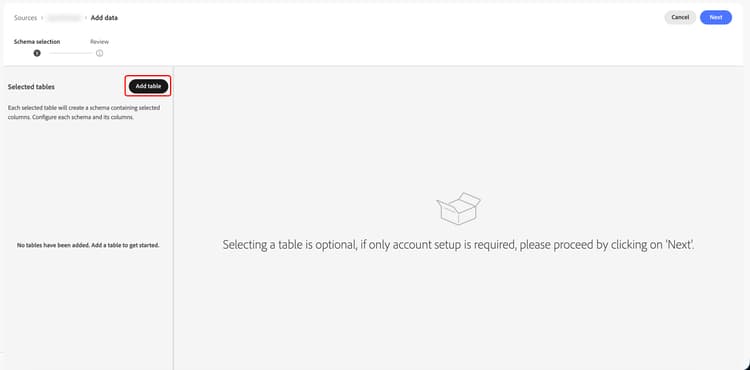
For more information on setting up schema details, read the schemas guide.
After choosing your schemas, select Next to continue.
Review review
The Review page appears. On this page, you can review the details of your federated database connection. If the details look correct, select Finish to create the connection.
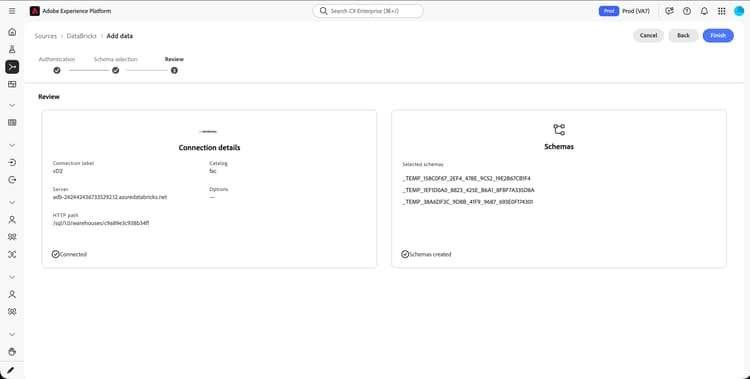
The connection is created. A popup appears, asking you to either View schema or Create relationships. If you select View schema, the schema browse page appears. If you select Create relationships, the entity diagram page appears.
Edit connection edit-connection
If you need to edit the login details for the source connection, select Sources followed by Accounts.
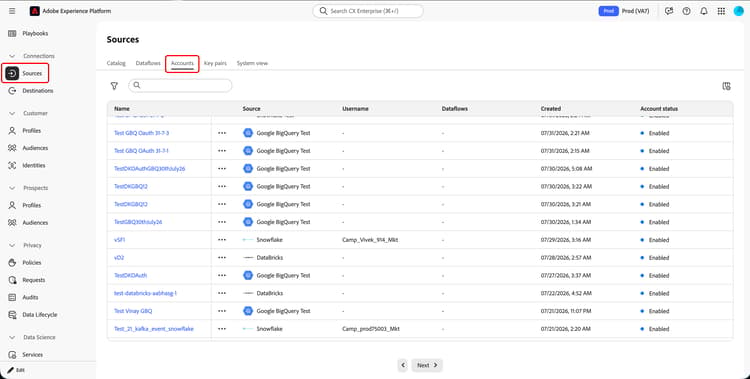
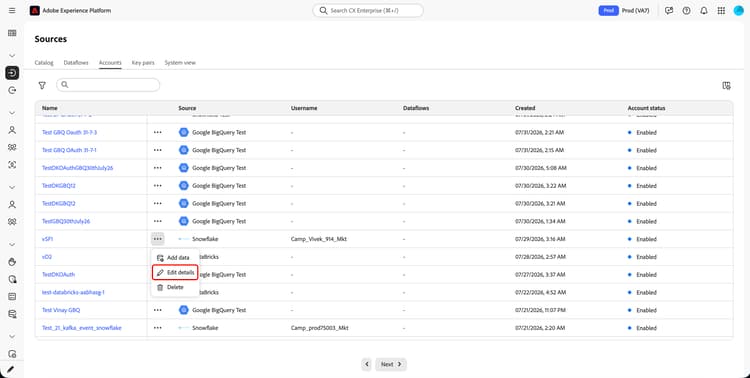
The source connectors browse page appears. Find the source connector you want to update, select

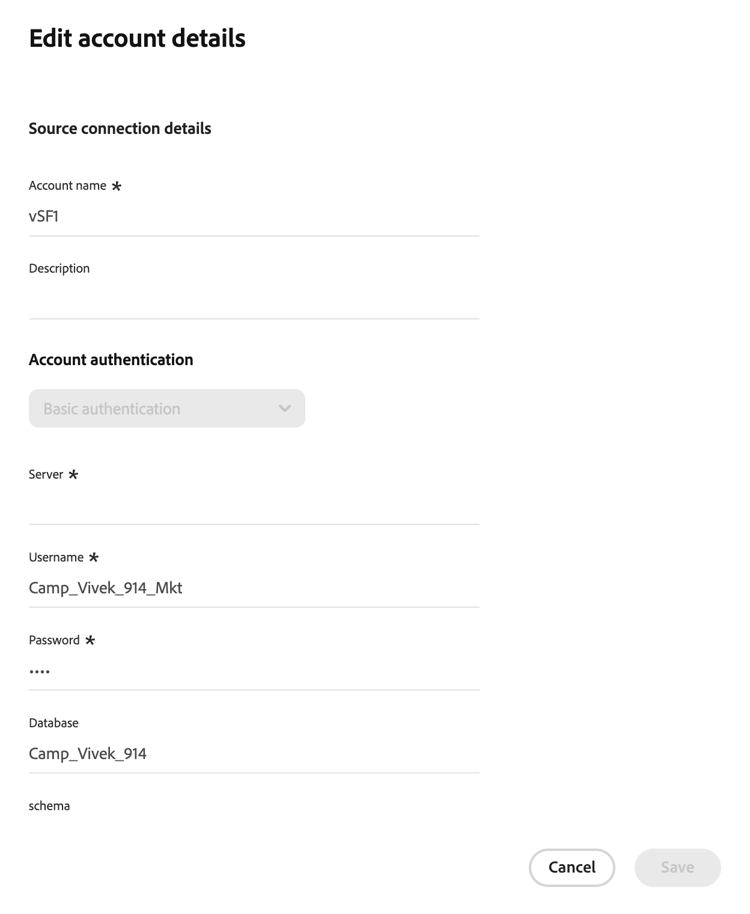
The Edit account details popover appears. On this popover, you can update details of the federated database source connection.
Appendix appendix
The following appendix describes how to set up the connections on the external account’s side.
Google BigQuery (Workload Identity Federation) configuration wif-configuration
Before you configure your Google Cloud Platform setup, you will need the following values:
- AWS Account ID
- Please contact your Adobe representative to get this value.
- AWS IAM role name
- The AWS IAM role name follows the ensuing format:
arn:aws:iam::<ADOBE_AWS_ACCOUNT_ID>:role/fac-<CUSTOMER_IMS_ORG_ID>
- The AWS IAM role name follows the ensuing format:
In Google Cloud Console, create a Workload Identity Pool in the IAM & Admin section. This lets you organize and manage external identities.
Select Add provider to create an identity provider. This configures a one-way trust between the identity provider in Google Cloud and the Worker Identity Pool by providing the relevant metadata about the provider.
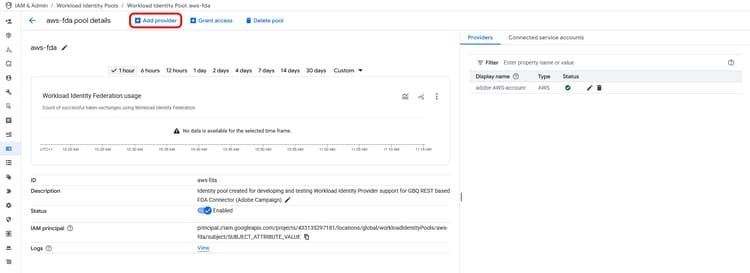
When you create a provider, you’ll need to provide the following information:
After creating the provider, you need to create an IAM policy to let the Workload Identity Pool identities impersonate the Service Account. Select Grant access to open the Grant access to service account dialog.
In the dialog, select Grant access using service account impersonation. Within the Select principals section, you’ll need to create your attribute mappings.
Select aws_role and add arn:aws:sts::AWSAccountID:assumed-role/AWSRoleName as the value, substituting AWSAccountID and AWSRoleName with the previously provided values.
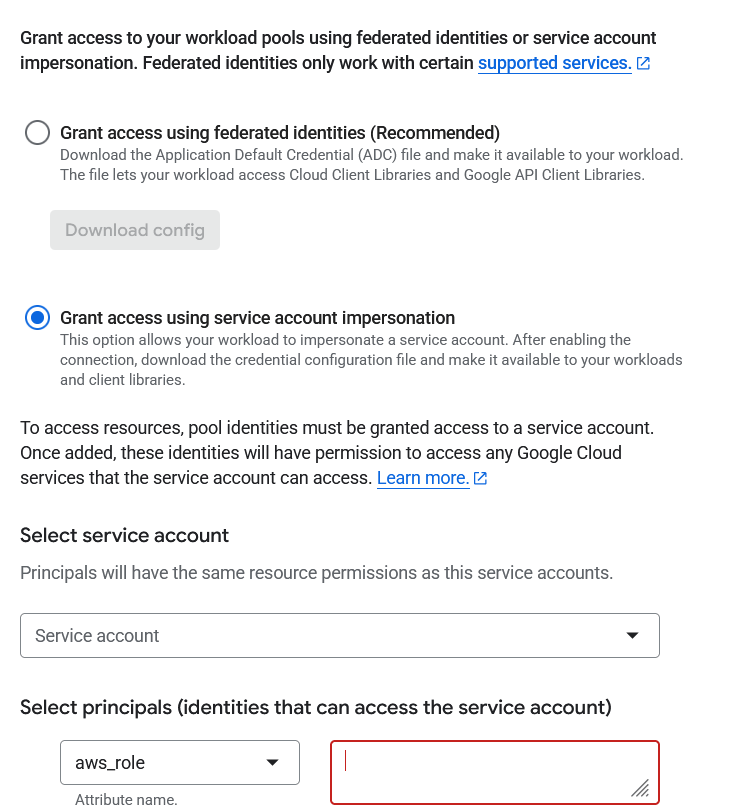
After granting access to the service account, download the client library configuration.
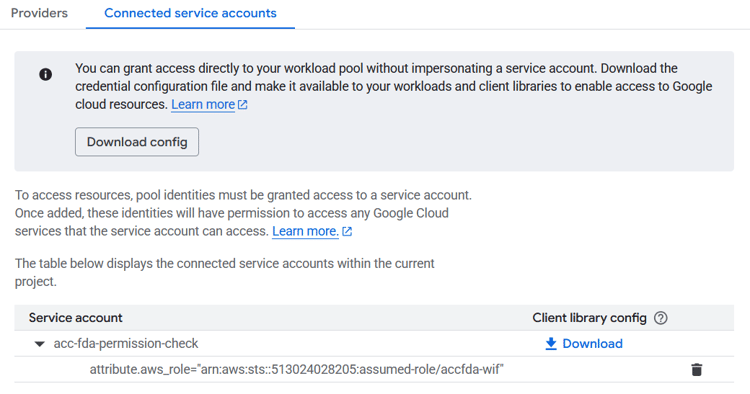
After downloading the client library configuration, you can now set up a WIF connection with Federated Audience Configuration.
Google BigQuery Apigee Gateway Support apigee
You can use Apigee, Google Cloud’s native API management platform, to proxy your API calls to Google BigQuery.
You’ll first need to create a proxy within the Apigee UI. In Google Cloud, go to Apigee followed by Proxy development, API proxies, and Create to bring up the Create a proxy panel. On the panel, you can fill in the following details:
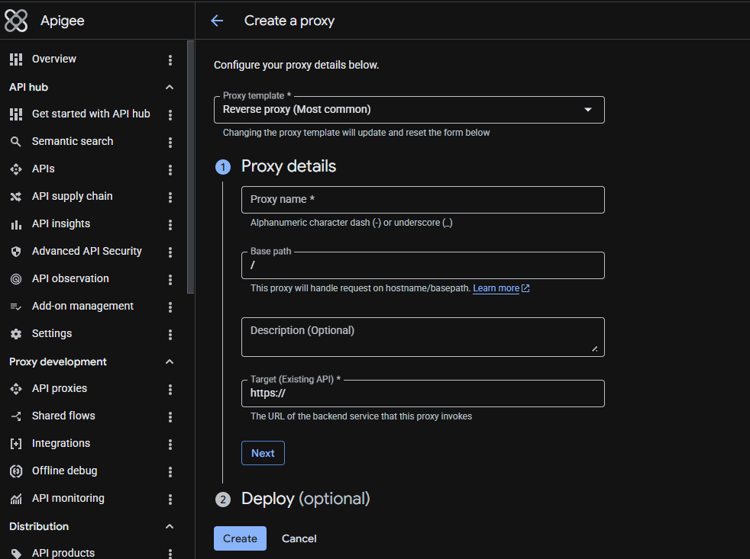
-), or underscores (_).For Federated Audience Composition, create a proxy endpoint rule for each endpoint that the Google BigQuery connector uses, as listed below:
/bigqueryhttps://bigquery.googleapis.com/bigquery/tokenhttps://oauth2.googleapis.com/token/storagehttps://storage.googleapis.com/storage/uploadhttps://storage.googleapis.com/upload/v1/tokenhttps://sts.googleapis.com/v1/token/v1/projectshttps://iamcredentials.googleapis.com/v1/projectsOnce you’ve created your proxy, you’re good to use it to connect with Federated Audience Composition. Once you deploy the proxy, you can find the full URL for your proxy listed under Hostnames when you select Environments followed by Groups within the Admin section.