Schemas overview schemas
-View Federated Schema
A schema is a representation of a table of your database. It is an object within the application that defines how the data are tied to database tables.
By creating a schema, you can define a representation of your table in Experience Platform Federated Audience Composition:
- Give it a friendly name and description to simplify the comprehension for the user
- Decide the visibility of each field, according to their real use
- Select its primary key, in order to link schemas between them, as needed in the data model
Create a schema create
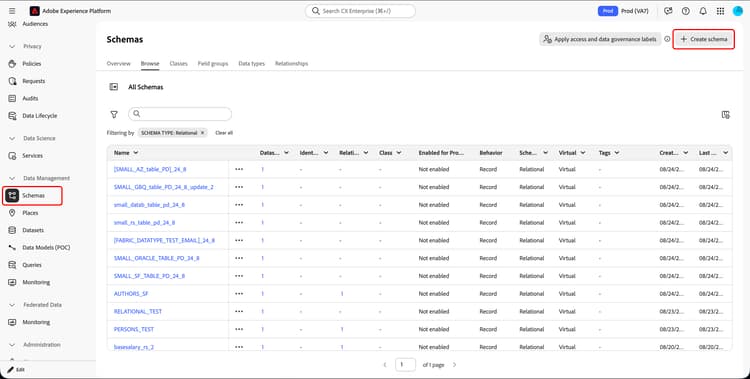
To create a schema in Federated Audience Composition, select Schemas within the Data Management section of the Experience Platform UI. Within the Schemas UI, select Create schema.
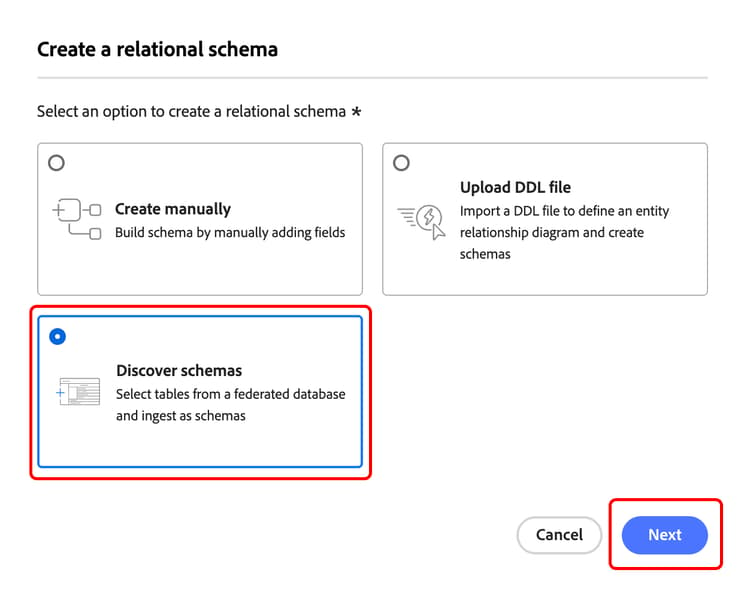
Once the Create schema popover appears, select Relational, followed by Discover schemas and Next to create a schema for Federated Audience Composition.
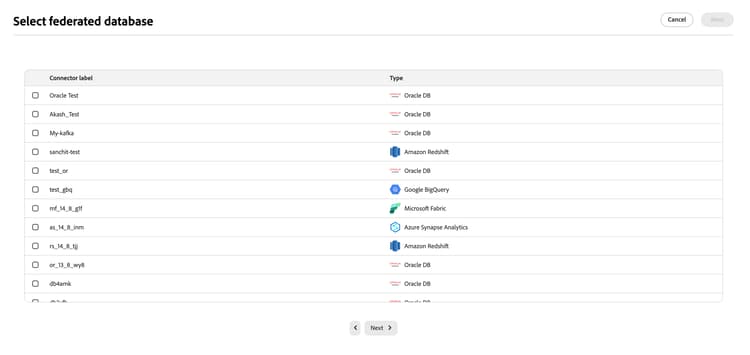
The Select federated database popover appears. On this popover, you can select the source database, followed by Next.
Define schema define
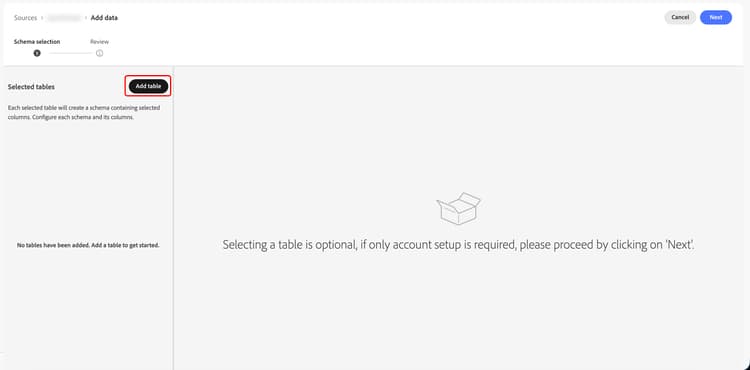
After choosing the federated database, you can now define your schema. The Add data screen appears. On this page, you can select Add table to choose which tables you want to add to the schema.
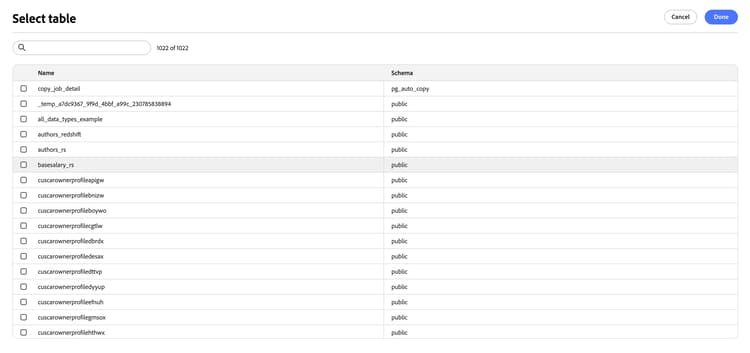
The Select Table popover appears. On this popover, you can select the tables which you want to use to create the schema.
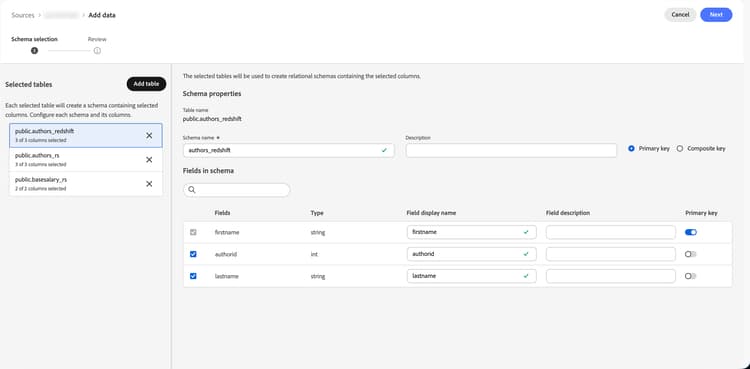
Each selected table generates a schema with the chosen columns. For each table, you can change the label of the schema, add a description, rename the field label, set the field label visibility, and select the schema primary key.
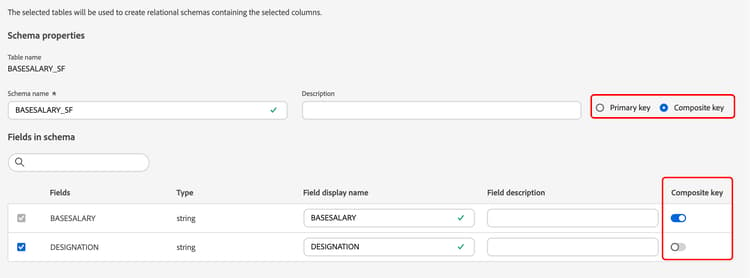
Additionally, you can create a key that is made up of multiple schema columns. Select Composite Key, and mark the keys you want to use as your composite key.
After completing your configuration, select Done to finish creating your schema.
Edit a schema schema-edit
To edit a schema, select the

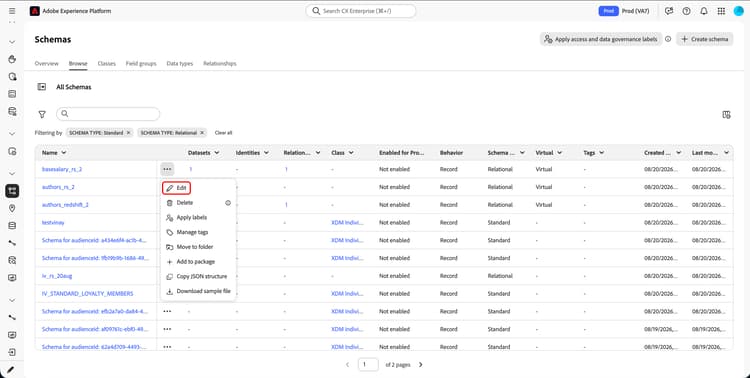
On the Edit schema window, you can see the Schema Editor. For more information on using the Schema Editor, read the schema UI guide.
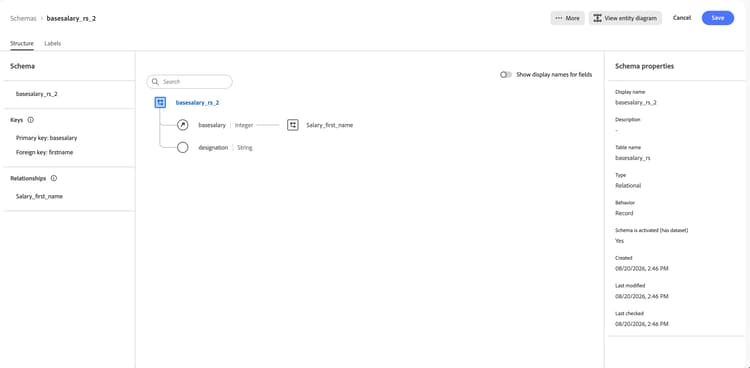
Edit relationships relationship-edit
To edit the relationships for a schema, select View entity diagram within the Schema Editor.
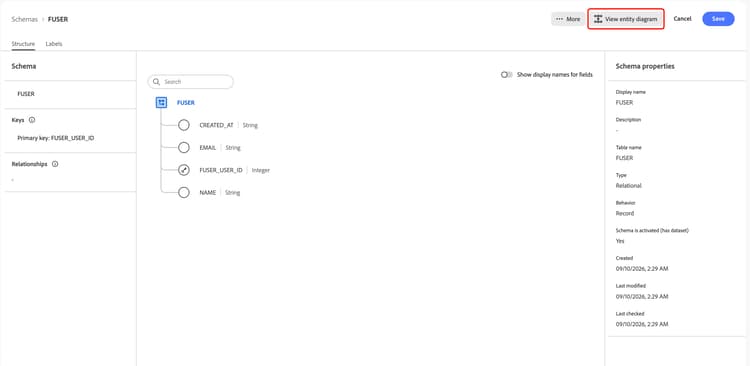
The entity diagram page appears. On this page, you can create links to establish relationships between your schemas.
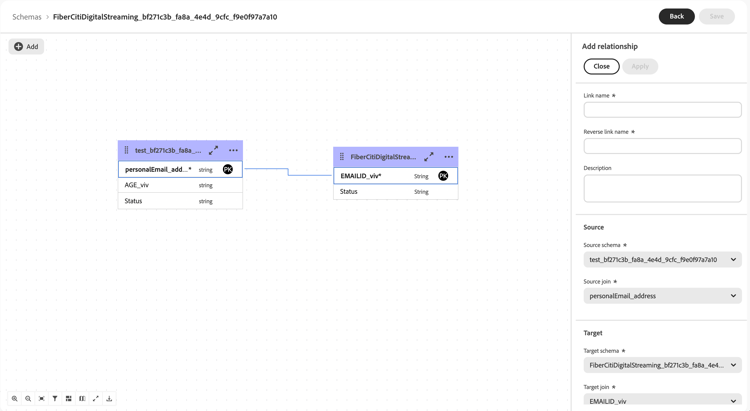
For more information on creating links, read the Canvas view tab of the data models overview.
Preview data in a schema schema-preview
To preview the data in the table represented by your schema, go to the Datasets section, and then select Browse.
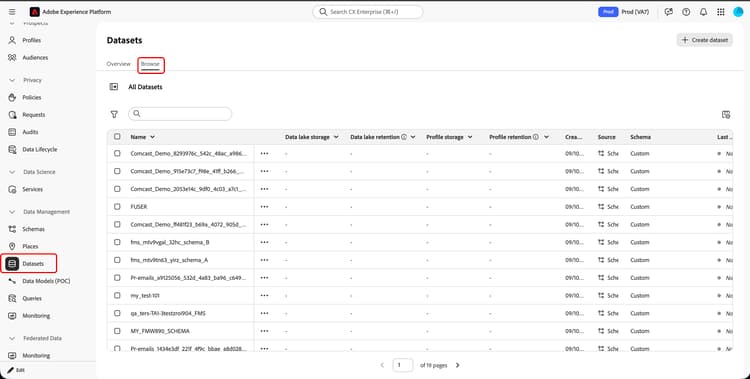
Select the
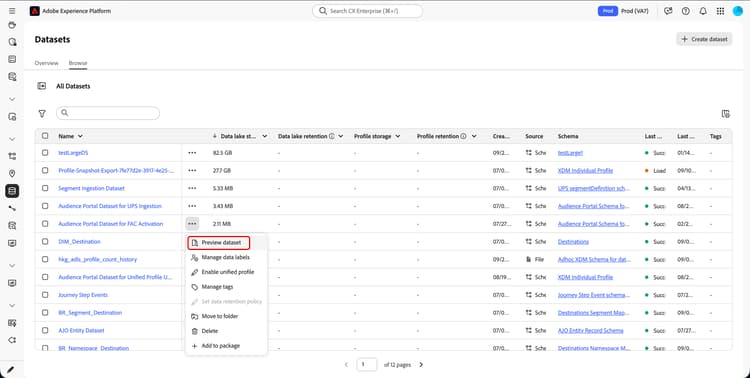
Refresh a schema schema-refresh
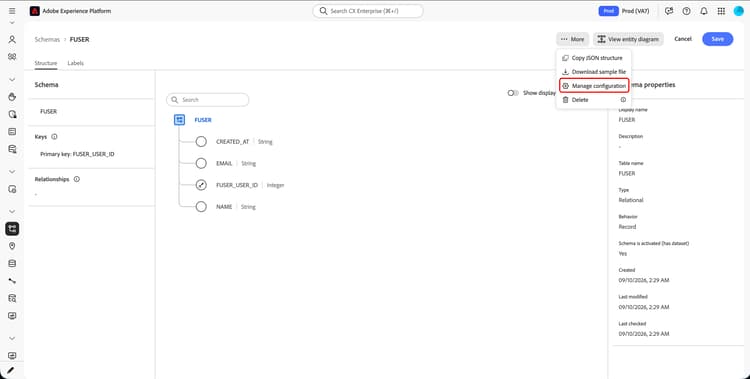
Tables in a federated database can be updated, added or removed. In such cases, you must refresh the schema in Adobe Experience Platform to align with the latest changes. To refresh the schema, select the More button, followed by Manage configuration.
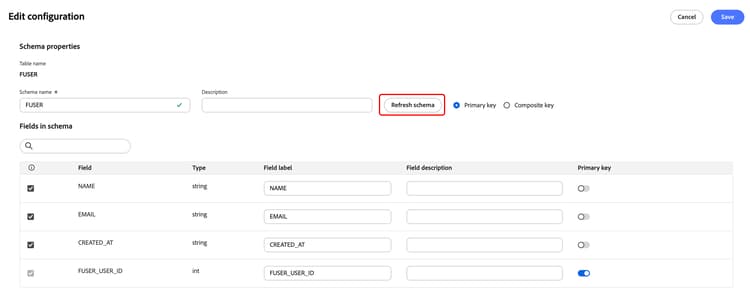
The Edit configuration popover appears. Select Refresh to refresh the schema.
Delete a schema schema-delete
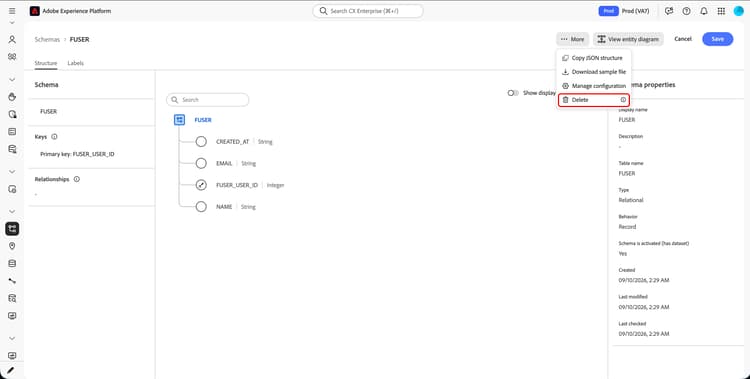
To delete a schema within the Schema Editor, select More, followed by Delete.