Algolia event forwarding extension overview overview
Use Algolia to deliver fast, relevant, and personalized search experiences. With AI-powered optimization, you can enhance search results and recommendations to help users quickly find the products, content, or information they need.
Use the Algolia event forwarding extension to send user behavior events to Algolia through the Insights API. This behavioral data enables AI-powered recommendations, personalized experiences, and intelligent search capabilities.
Prerequisites prerequisites
Before you install the extension, make sure that you have a Algolia account with access to the Insights API. If you don’t have an account, sign up and enable access to the API.
Also make sure that you understand how to use the Algolia Insights API. For an overview of how to send events, see the sending events with the Insights API.
Gather the following values from your Algolia account dashboard:
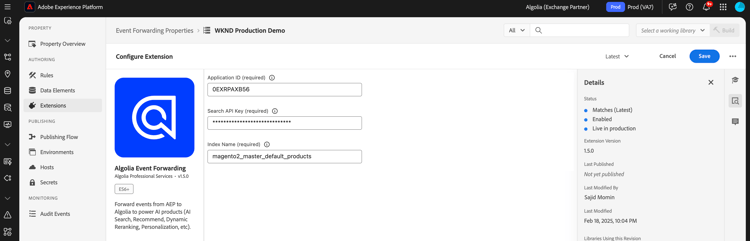
- Application ID
- Search API Key
- Index Name
Install the extension install
To install the Algolia extension, follow these steps:
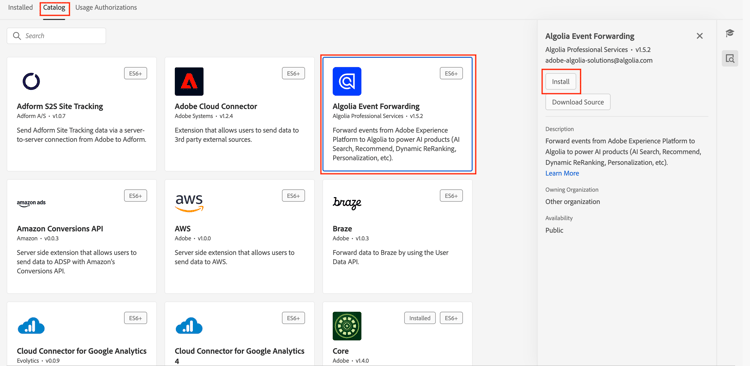
Navigate to Data Collection in Adobe Experience Platform. Select the Extensions tab.
Open the Catalog and locate the Algolia Event Forwarding extension and then select Install.
Configure the extension configure-extension
To configure the Algolia event forwarding extension, navigate to the Extensions tab, select the Algolia extension and then select Configure.
Algolia event forwarding extension action types action-types
The Algolia event forwarding extension offers a single action type that can be used in the Then section of a rule:
Send event send-event
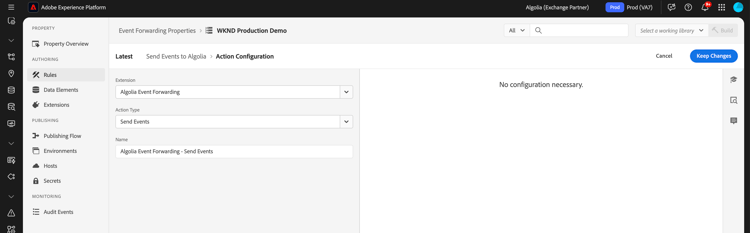
Configure the Send event action to forward events to Algolia:
Select Rules > Add Rule or select an existing rule. In the Then portion of the rule, add an action and select Extension: Algolia Event Forwarding > Action Type: Send Events.
Implement the Algolia event field group algolia-field-group
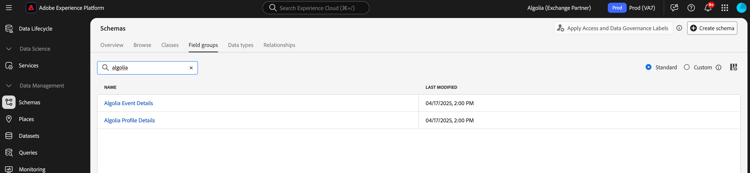
Ensure you add the Algolia event field group to your schema before you use the Algolia event forwarding extension. It is one of the standard field groups provided through Experience Platform.
Add the Algolia Event Details field group to your schema add-algolia-field-group
To add the Algolia Event Details field group:
Navigate to Schemas and select Browse.
Add a new schema or update an existing schema that you use to send web events and hover over the Add icon. Enter Algolia in the search box to narrow down the results.
Select the Algolia Event Details field group > Add field group button > Save.
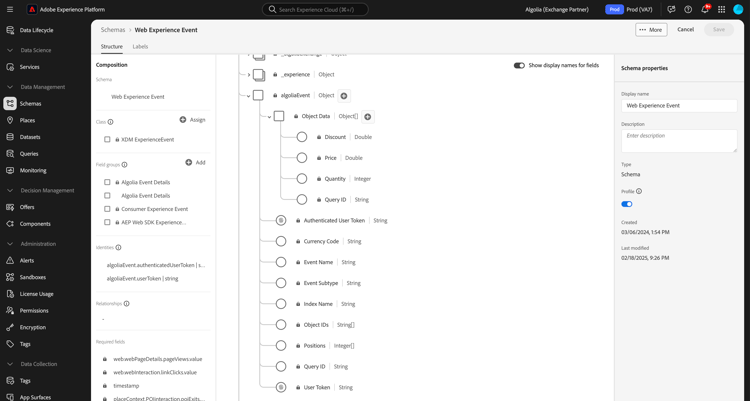
Map and send data using the Data Collection tag
The Algolia event forwarding extension can be used with the Adobe Experience Platform Web SDK to send data from your website to Algolia. This is done by creating a tag property, mapping data to the XDM object, and configuring rules to send events.
Step 1: Create a tag property with the web SDK
- Create a tag property.
- Install the Adobe Experience Platform Web SDK extension.
- Use this extension to map data from HTML to the Algolia Event field group.
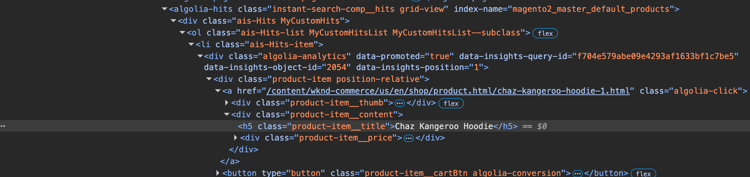
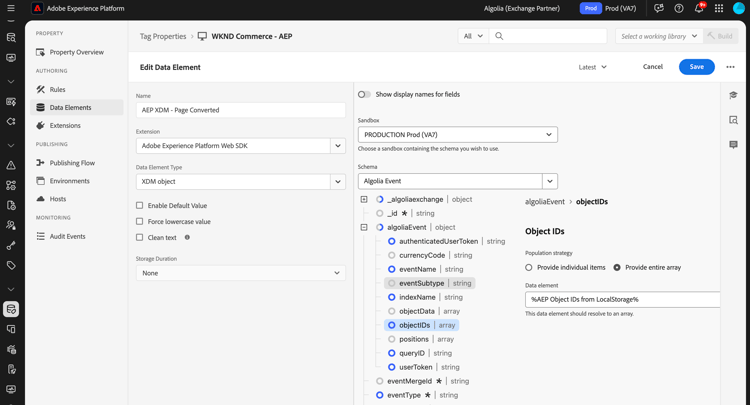
Step 2: Create a data element for XDM mapping
- Create a Data Element using the Adobe Experience Platform Web SDK.
- Select XDM object as the data element type.
- Map your data to the appropriate XDM fields, ensuring that Algolia-specific fields are populated.
Step 3: Create a rule to send events
- Create a new rule in your tag property.
- Add the required event triggers such as page load, or click events.
- Add an action using Adobe Experience Platform Web SDK.
- Select Send event as the action type.
- Configure the action to use your XDM data element.
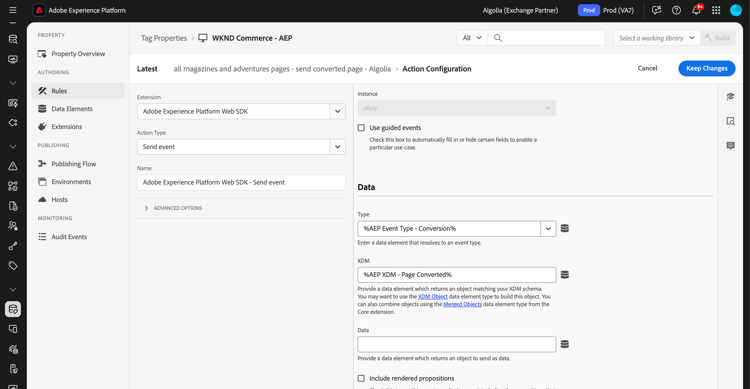
Step 4: Publish and test
- Publish the rules and extension changes to your target environment.
- Use the Adobe Experience Platform Debugger to verify the data is sent to Adobe Experience Platform and forwarded to Algolia.
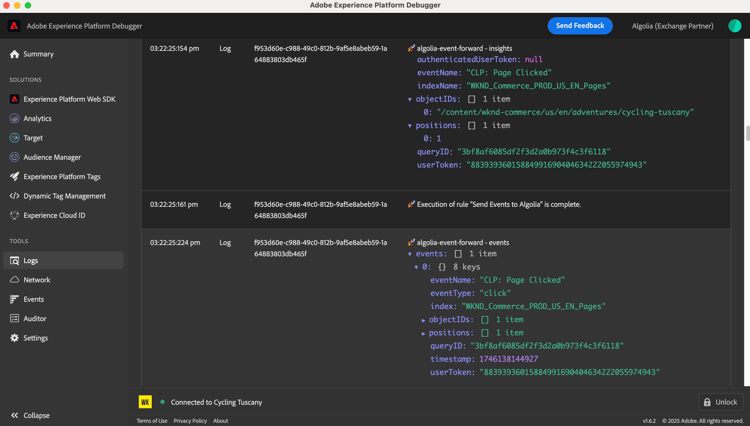
Verify events in Algolia
After configuring the Algolia event forwarding extension, you can verify that events are being sent and received correctly by following these steps:
Navigate to your Algolia dashboard and go to Data Sources > Events > Debugger.
Select the event that matches the event sent from Algolia’s event forwarding extension and verify that the expected data is present in the event.
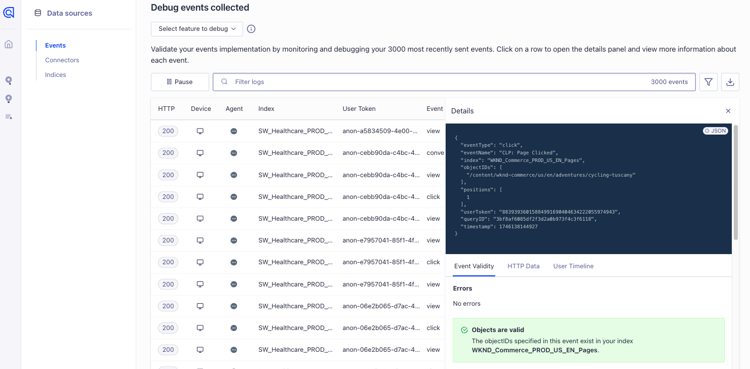
Common implementation scenarios
Use the Algolia event forwarding extension to capture and send user interaction data for various use cases, enhancing search relevance and personalization.
Track product or content views
Use the extension to track when users view product or content pages, helping Algolia understand user interests.
Track conversion events
Track add-to-cart events, purchases, and other conversion events to optimize Algolia’s AI-powered recommendations.
Troubleshoot
If you encounter issues while implementing the Algolia event forwarding extension, consider the following troubleshooting steps:
Events do not appear in Algolia
If events do not appear in Algolia, check the following:
- Verify API Credentials: Ensure that the Application ID and API Key match the values in your Algolia dashboard.
- Check Event Debugger: Use the Algolia Event Debugger to confirm if events are being received. If not, verify the event forwarding rule configuration.
- Inspect XDM Mapping: Ensure that all required fields in the Algolia schema are mapped correctly in the XDM object.
Incorrect event data
- Ensure that your XDM object data element is accurately mapped to the Algolia schema, with all required fields.
- Confirm that the event parameters matchthe expected format and structure outlined in Algolia’s Insights API documentation.
Next steps
This guide covered how to send data to Algolia using the Algolia Event Forwarding Extension. For more information on event forwarding capabilities in Adobe Experience Platform, read the event forwarding overview.
For details on how to debug your implementation using the Experience Platform Debugger and Event Forwarding Monitoring tool, read the Adobe Experience Platform Debugger overview and Monitor activities in event forwarding.