Data collection configuration settings data-collection
This configuration section allows you to determine how data is collected across the extension.
- Log in to experience.adobe.com using your Adobe ID credentials.
- Navigate to Data Collection > Tags.
- Select the desired tag property.
- Navigate to Extensions, then select Configure on the Adobe Experience Platform Web SDK card.
- Scroll down to the Data collection section.
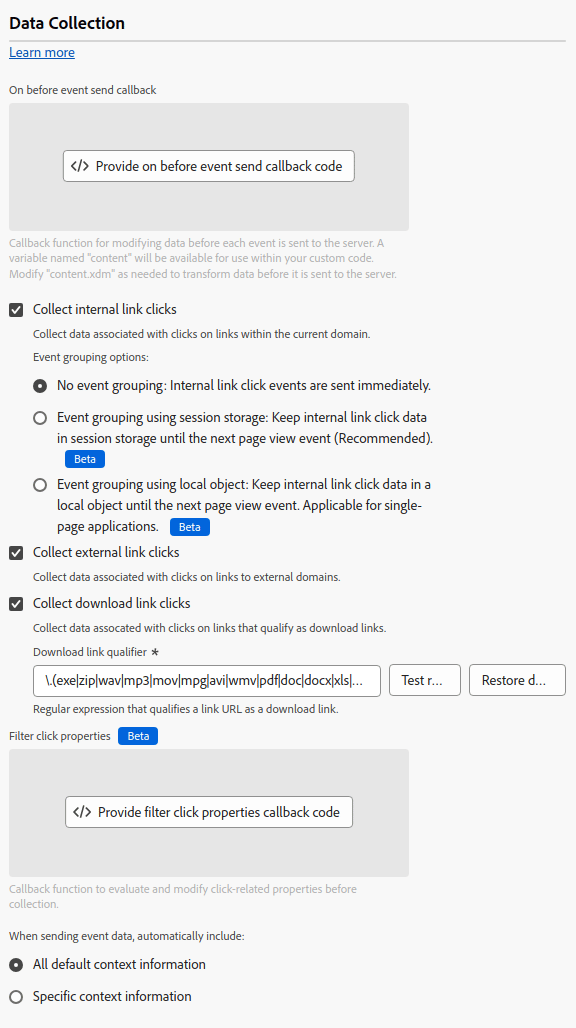
The following options are available:
On before event send callback
A callback function to evaluate and modify the payload sent to Adobe. Within the code editor, you have access to the following variables:
content.xdm: The XDM payload for the event.content.data: The data object payload for the event.return true: Immediately exit the callback and send data to Adobe with the current values in thecontentobject.return false: Immediately exit the callback and abort sending data to Adobe.
Any variables defined outside of content can be used, but are not included in the payload sent to Adobe.
// Use nullish coalescing assignments to add objects if they don't yet exist
content.xdm.commerce ??= {};
content.xdm.commerce.order ??= {};

// Then add the purchase ID
content.xdm.commerce.order.purchaseID = "12345";

// Use optional chaining to prevent undefined errors when setting tracking code to lower case
if(content.xdm.marketing?.trackingCode) content.xdm.marketing.trackingCode = content.xdm.marketing.trackingCode.toLowerCase();

// Delete operating system version
if(content.xdm.environment) delete content.xdm.environment.operatingSystemVersion;

// Immediately end onBeforeEventSend logic and send the data to Adobe for this event type
if (content.xdm.eventType === "web.webInteraction.linkClicks") {
  return true;
}

// Cancel sending data if it is a known bot
if (myBotDetector.isABot()) {
  return false;
}
false on the first event on a page. Returning false on the first event can negatively impact personalization.This callback is the tag equivalent to onBeforeEventSend in the JavaScript library.
Collect internal link clicks
A checkbox that enables the collection of link tracking data internal to your site or property. This checkbox is the tag equivalent to clickCollection.internalLinkEnabled in the JavaScript library. When you enable this checkbox, event grouping options appear:
- No event grouping: Link tracking data is sent to Adobe in separate events. Link clicks sent in separate events can increase the contractual usage of data sent to Adobe Experience Platform.
- Event grouping using session storage: Store link tracking data in session storage until the next “page view” event. On the next event that is considered a “page view”, the stored link tracking data is merged with the “page view” event payload. Adobe recommends enabling this setting when tracking internal links.
- Event grouping using local object: Store link tracking data in a local object until the next “page view” event. If a visitor navigates to a new browser page, link tracking data is lost. This setting is most beneficial in context of single-page applications.
The tag library considers a given event a “page view” when the following elements are included in the payload:
xdm.web.webPageDetails.namecontains a string valuexdm.web.webPageDetails.pageViews.valueis greater than0
Collect external link clicks
A checkbox that enables the collection of external links. This checkbox is the tag equivalent to clickCollection.externalLinkEnabled in the JavaScript library.
Collect download link clicks
A checkbox that enables the collection of download links. This checkbox is the tag equivalent to clickCollection.downloadLinkEnabled in the JavaScript library.
Download link qualifier
A regular expression that qualifies a link URL as a download link. This string is the tag equivalent to downloadLinkQualifier in the JavaScript library.
Filter click properties
A callback function to evaluate and modify click-related properties before collection. This function runs before the On before event send callback, and is the tag equivalent to clickCollection.filterClickDetails in the JavaScript library. Within the code editor, you have access to the following variables:
content.clickedElement: The DOM element that was clicked.content.pageName: The page name when the click happened.content.linkName: The name of the clicked link.content.linkRegion: The region of the clicked link.content.linkType: The type of link (exit, download, or other).content.linkURL: The destination URL of the clicked link.return true: Immediately exit the callback with the current variable values.return false: Immediately exit the callback and abort collecting data.- Any variables defined outside of
contentcan be used, but are not included in the payload sent to Adobe.
onBeforeLinkClickSend in the JavaScript library. Use the Filter click properties callback to filter or adjust click data, or use the On before event send callback to filter or adjust the overall payload sent to Adobe. If both the Filter click properties callback and the On before link click send callback are set, only the Filter click properties callback runs.Context settings
Automatically collect visitor information, which populates specific XDM fields for you. You can choose All default context information or Specific context information. It is the tag equivalent to context in the JavaScript library.
- Web: Collects information about the current page.
- Device: Collects information about the user’s device.
- Environment: Collects information about the user’s browser.
- Place context: Collects information about the user’s location.
- High entropy user-agent hints: Collects more detailed information about the user’s device.
- Send referrer to Adobe Analytics only once per page view: Prevent duplicate referrer data from being sent to Adobe Analytics.