Ingest batch data from Talon.One into Experience Platform using the UI
The Talon.One source for batch data receives events recorded for a Talon.One application. A common use-case is to filter for talon_session_closed to receive completed transactions, including loyalty points gained or redeemed, coupons redeemed, discounts granted, etc. Read the Talon.One Management API reference for more information on the API.
Follow this tutorial to learn how to ingest batch data from your Talon.One account into Adobe Experience Platform using the sources workspace in the UI.
Getting started
This tutorial requires a working understanding of the following components of Experience Platform:
-
Experience Data Model (XDM) System: The standardized framework by which Experience Platform organizes customer experience data.
- Basics of schema composition: Learn about the basic building blocks of XDM schemas, including key principles and best practices in schema composition.
- Schema Editor tutorial: Learn how to create custom schemas using the Schema Editor UI.
-
Real-Time Customer Profile: Provides a unified, real-time consumer profile based on aggregated data from multiple sources.
Navigate the sources catalog
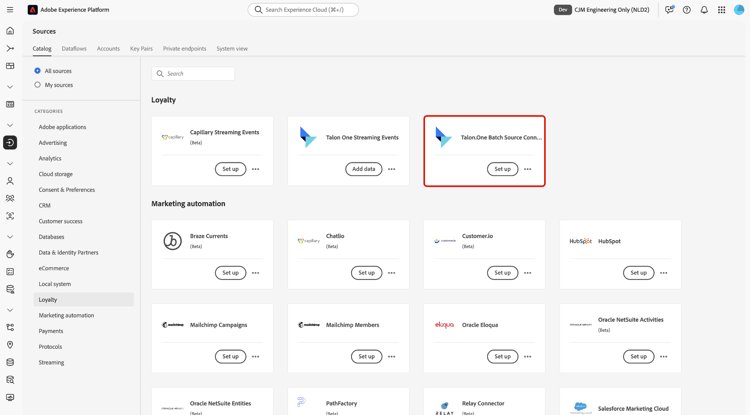
In the Experience Platform UI, select Sources from the left navigation to access the Sources workspace. Select the appropriate category in the Categories panel. Alternatively, use the search bar to navigate to the specific source that you want to use.
To ingest data from Talon.One, select the Talon.One Batch Source Connector source card under Loyalty and then select Add data.
Create a new account
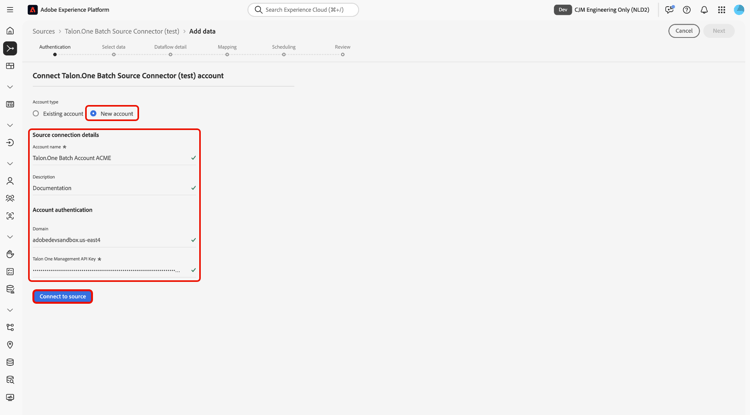
To create a new account for your Talon.One source, select New account and provide a name and an optional description for your account. Next, provide your Talon.One domain and your Talon.One Management API Key. When finished, select Connect to source and allow for a few moments for your connection to establish.
Use an existing account
To use an existing account, select Existing account and select the Talon.One account that you want to use from the accounts interface.
Select data
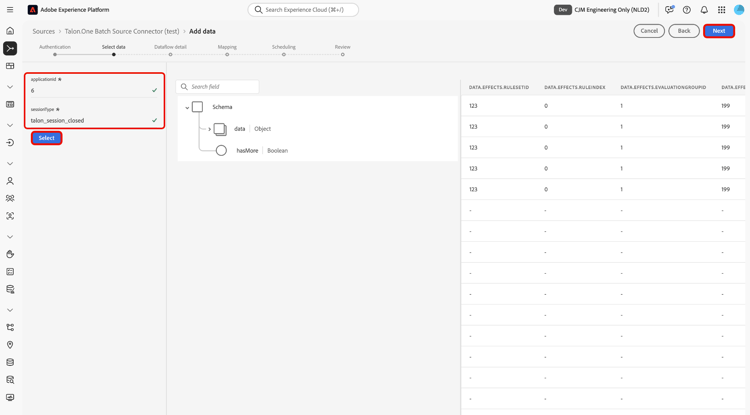
Once you have authenticated, provide values for your applicationId and sessionType. During this step, you can use the preview functionalities to inspect the structure of your data. When finished, select Next to proceed.
talon_session_closed event type. For details on filtering events by type, refer to the “type” query parameter in the Talon.One API documentation.
Configure dataset and dataflow details
Next, you must provide information regarding your dataset and your dataflow.
Dataset details
A dataset is a storage and management construct for a collection of data, typically a table, that contains a schema (columns/fields) and records (rows). Data that is successfully ingested into Experience Platform is persisted within the data lake as datasets.
During this step, you can either use an existing dataset or create a new dataset.
If your dataset is enabled for Real-Time Customer Profile, then during this step, you can toggle Profile dataset to enable your data for Profile ingestion. You can also use this step to enable Error diagnostics and Partial ingestion.
- Error diagnostics: Select Error diagnostics to instruct the source to produce error diagnostics that you can later reference when monitoring your dataset activity and dataflow status.
- Partial ingestion: Partial batch ingestion is the ability to ingest data containing errors, up to a certain configurable threshold. This feature allows you to successfully ingest all of your accurate data into Experience Platform, while all of your incorrect data is batched separately with information on why it is invalid.
Dataflow details
Once your dataset is configured, you must then provide details on your dataflow, including a name, an optional description, and alert configurations.
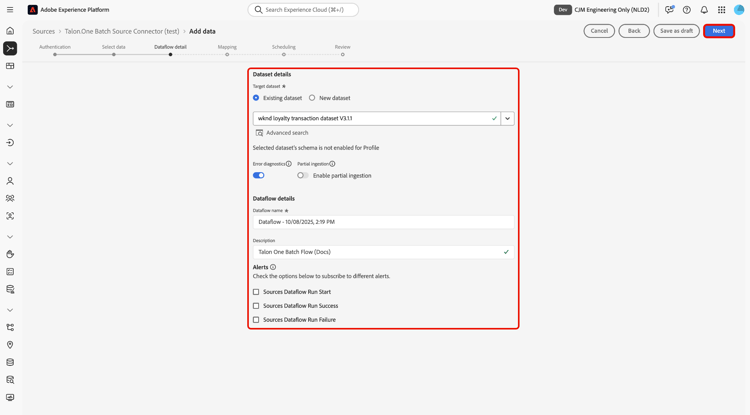
Experience Platform can produce event-based alerts which users can subscribe to, these options allow a running dataflow to trigger these. For more information, read the alerts overview
- Sources Dataflow Run Start: Select this alert to receive a notification when your dataflow run begins.
- Sources Dataflow Run Success: Select this alert to receive a notification if your dataflow ends without any errors.
- Sources Dataflow Run Failure: Select this alert to receive a notification if your dataflow run ends with any errors.
Mapping
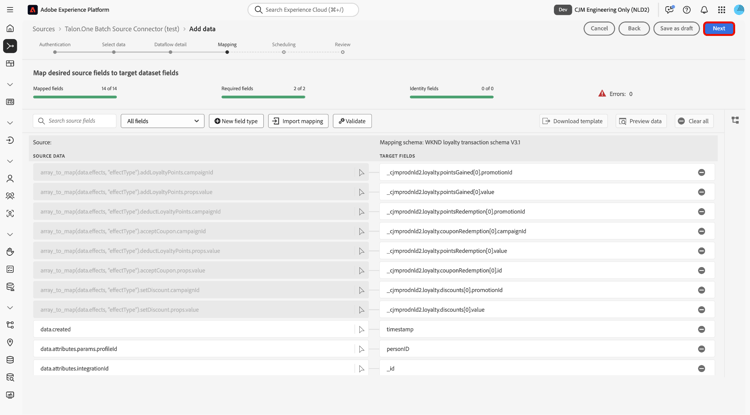
With your dataset and dataflow details configured, you can now proceed to map your source data fields to their appropriate target XDM fields. Use the mapping interface to map your source data to the appropriate schema fields before ingesting data to Experience Platform. For more information, read the mapping guide in the UI.
Schedule your dataflow ingestion
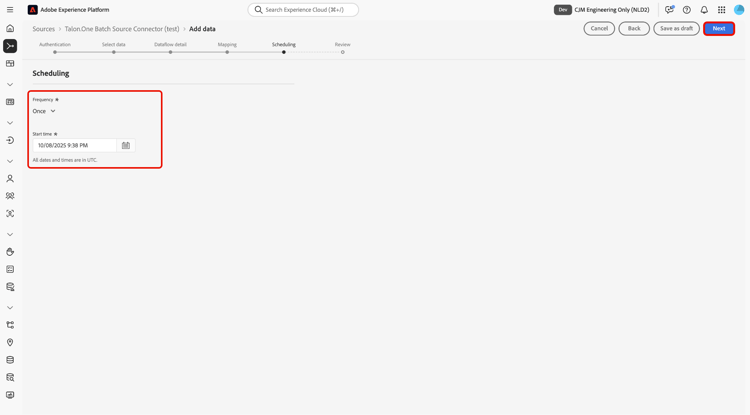
The Scheduling step appears. Use the interface to configure an ingestion schedule to automatically ingest the selected source data using the configured mappings. By default, scheduling is set to Once. To adjust your ingestion frequency, select Frequency and then select an option from the dropdown menu.
If you set your ingestion frequency to Minute, Hour, Day, or Week, then you must set an interval to establish a set time frame between every ingestion. For example, an ingestion frequency set to Day and an interval set to 15 means that your dataflow is scheduled to ingest data every 15 days.
During this step, you can also enable backfill and define a column for the incremental ingestion of data. Backfill is used to ingest historical data, while the column you define for incremental ingestion allows new data to be differentiated from existing data.
See the table below for more information on scheduling configurations.
Configure frequency to indicate how often the dataflow should run. You can set your frequency to:
- Once: Set your frequency to
onceto create a one-time ingestion. Configurations for interval and backfill are unavailable when creating a one-time ingestion dataflow. By default, the scheduling frequency is set to once. - Minute: Set your frequency to
minuteto schedule your dataflow to ingest data on a per-minute basis. - Hour: Set your frequency to
hourto schedule your dataflow to ingest data on a per-hour basis. - Day: Set your frequency to
dayto schedule your dataflow to ingest data on a per-day basis. - Week: Set your frequency to
weekto schedule your dataflow to ingest data on a per-week basis.
Once you select a frequency, you can then configure the interval setting to establish the time frame between every ingestion. For example, if you set your frequency to day and configure the interval to 15, then your dataflow will run every 15 days. You cannot set the interval to zero. The minimum accepted interval value for each frequency is as follows:
- Once: n/a
- Minute: 15
- Hour: 1
- Day: 1
- Week: 1
Review
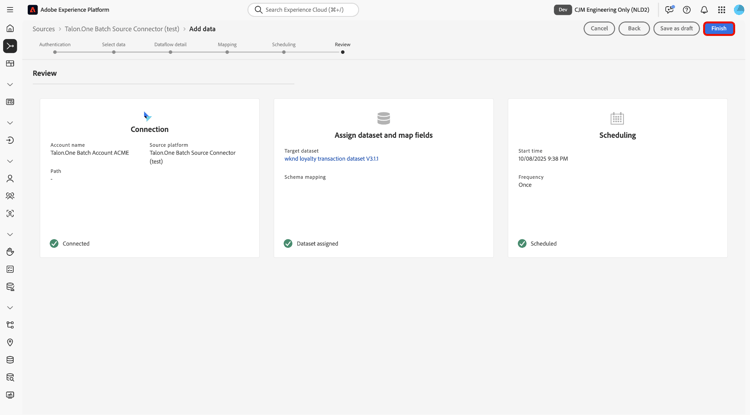
The Review step appears, allowing you to review the details of your dataflow before it is created. Details are grouped within the following categories:
- Connection: Shows the account name, source platform, and the source name.
- Assign dataset and map fields: Shows the target dataset and the schema that the dataset adheres to.
After confirming the details are correct, select Finish.
Monitor your dataflow
Once your dataflow has been created, you can monitor the data that is being ingested through it to see information on ingestion rates, success, and errors. For more information on how to monitor dataflow, see the tutorial on monitoring accounts and dataflows in the UI.
Known limitations
When mapping data from Talon.One’s schema to Adobe Experience Platform, it is currently not possible to capture multiple effects of the same type within a single transaction. For example, if a transaction includes multiple setDiscount effects (such as discounts from different campaigns), only one of those effects will be retained during mapping, and the others will be overwritten.