Ingest Meta Ads data to Experience Platform in the UI
Learn how to connect your Meta Ads account and import ads data into Adobe Experience Platform using the sources workspace.
Getting started
This tutorial requires a working understanding of the following components of Experience Platform:
-
Experience Data Model (XDM) System: The standardized framework by which Experience Platform organizes customer experience data.
- Basics of schema composition: Learn about the basic building blocks of XDM schemas, including key principles and best practices in schema composition.
- Schema Editor tutorial: Learn how to create custom schemas using the Schema Editor UI.
-
Real-Time Customer Profile: Provides a unified, real-time consumer profile based on aggregated data from multiple sources.
Navigate the sources catalog
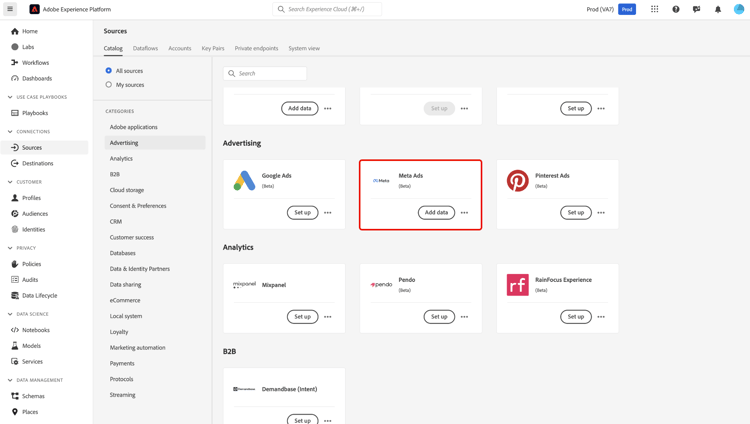
In the Experience Platform UI, select Sources from the left navigation to access the Sources workspace. Select the appropriate category in the Categories panel. Alternatively, use the search bar to navigate to the specific source that you want to use.
To ingest data from Meta Ads, select the Meta Ads source card under Advertising and then select Add data.
Use an existing account
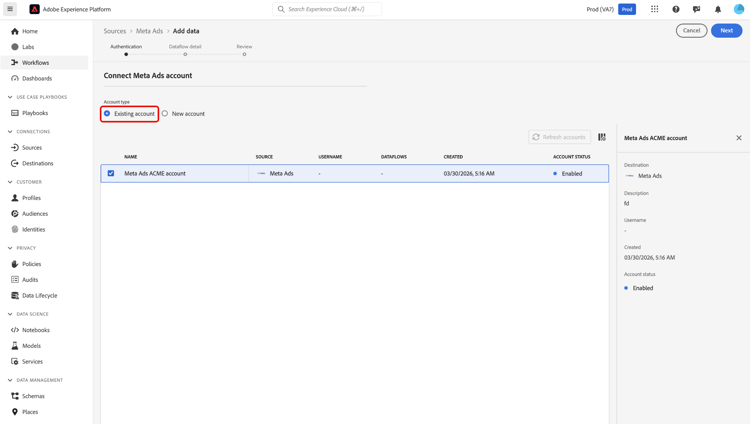
To use an existing account, select Existing account and select the Meta Ads account that you want to use from the accounts interface.
Create a new account
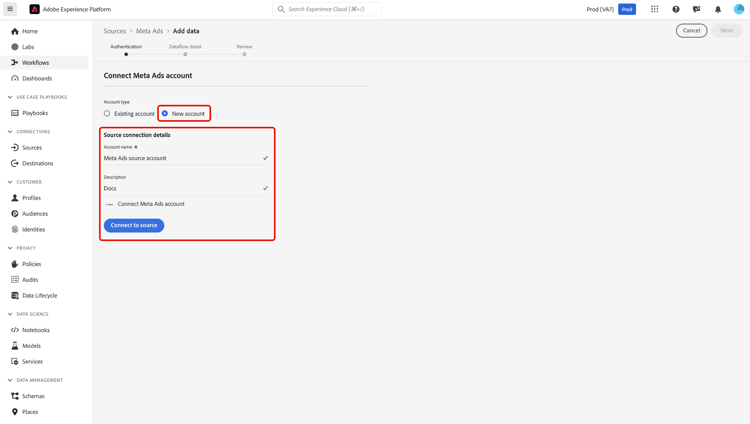
To create a new account, select New account and provide a name and description for your new Meta Ads source account. Select Connect to source.
After selecting Connect to source, you will be redirected to the Facebook login page. Enter your credentials to authenticate. Once logged in, you will be prompted to configure the necessary Facebook permissions for Experience Platform.
Configure permissions on Meta
First, specify which Pages you want Experience Platform to access:
- Opt in to all current and future Pages: Grant Experience Platform access to all your existing Pages, as well as any Pages you create in the future.
- Opt in to current Pages only: Grant access only to the Pages you select at this time.
Next, select which Instagram accounts Experience Platform should access:
- Opt in to all current and future Instagram accounts: Allow access to all of your current and future Instagram accounts.
- Opt in to current Instagram accounts only: Allow access only to the Instagram accounts you currently select.
After reviewing the access requests, select Save to confirm your permissions and continue.
Provide dataflow details
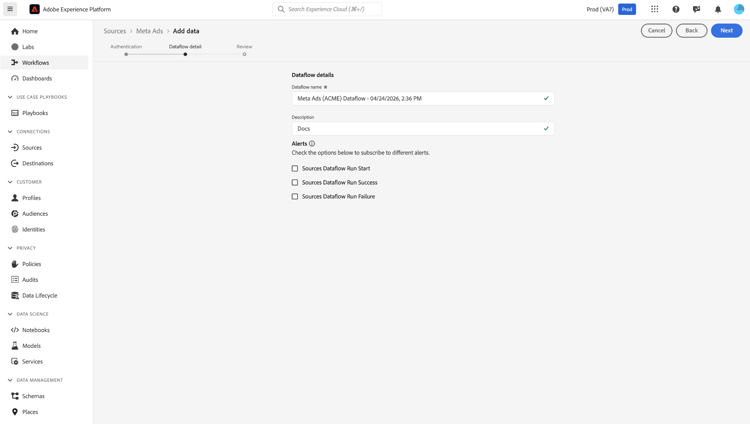
Use the Dataflow details page to provide a name and description for your dataflow. Additionally, you can configure alerts for your dataflow during this step.
Review dataflow
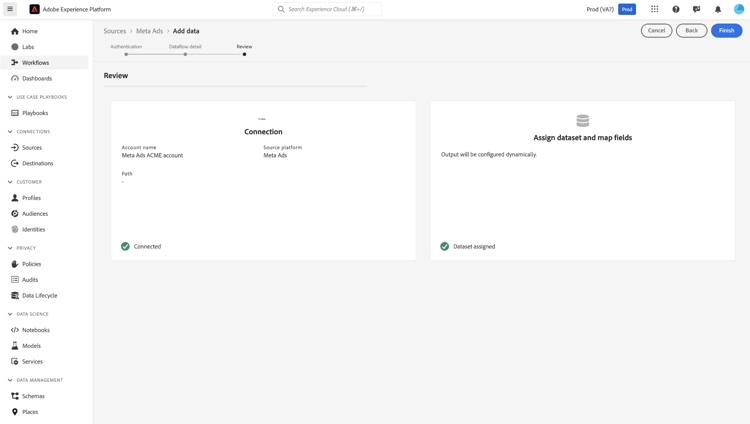
Finally, use the Review interface review the details of your dataflow before it is created. Details are grouped within the following categories:
- Connection: Shows the account name, source platform, and the source name.
- Assign dataset and map fields: Shows the target dataset and the schema that the dataset adheres to.
After confirming the details are correct, select Finish.