Connect Google Ads (V2) to Experience Platform using the UI
Learn how to connect your Google Ads account to Adobe Experience Platform using the Sources workspace. The Google Ads source retrieves read-only Google Ads account, campaign, ad group, ad, asset, and performance data and maps it to Experience Data Model (XDM)-compatible datasets.
The Google Ads source is intended for paid media reporting and analysis across Experience Platform applications.
Getting started
This tutorial requires a working understanding of the following Experience Platform components:
- Sources: Experience Platform allows you to ingest data from external applications and services.
- Experience Data Model (XDM): The standardized framework that Experience Platform uses to organize customer experience data.
- Schema composition: The basic building blocks and principles of XDM schemas.
- Schema Editor tutorial: Learn how to create custom schemas using the Schema Editor UI.
- Datasets: The storage construct used to hold ingested data.
- Real-Time Customer Profile: Provides a unified profile from data collected across multiple sources.
For more information, read the Google Ads source overview.
Prerequisites
Before you connect Google Ads (V2) to Experience Platform, make sure that you have:
- Access to a Google Ads advertiser account containing the campaigns and reporting data that you want to ingest.
- A Google user account with sufficient permissions to access the Google Ads account.
- Access to the relevant Google Ads manager account if the advertiser account is managed through a manager account.
- The required permissions to create sources, connections, schemas, datasets, and dataflows in the Experience Platform sandbox.
- A target XDM schema and dataset, unless the Google Ads (V2) workflow provisions them automatically.
- A data ingestion plan that identifies the Google Ads accounts, entities, metrics, and date range that you want to ingest.
Google Ads (V2) uses a read-only integration. The connector does not create, modify, or delete campaigns, ads, assets, or other Google Ads resources.
Connect your Google Ads account
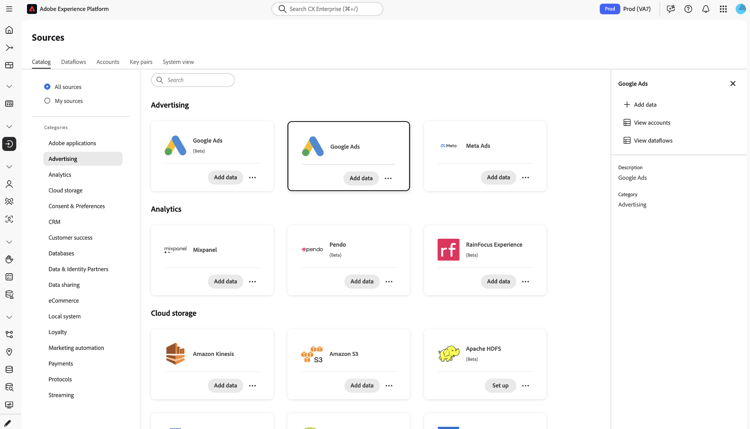
In the Experience Platform UI, select Sources from the left navigation to access the Sources workspace. Locate the Google Ads source card under Advertising and then select Add data.
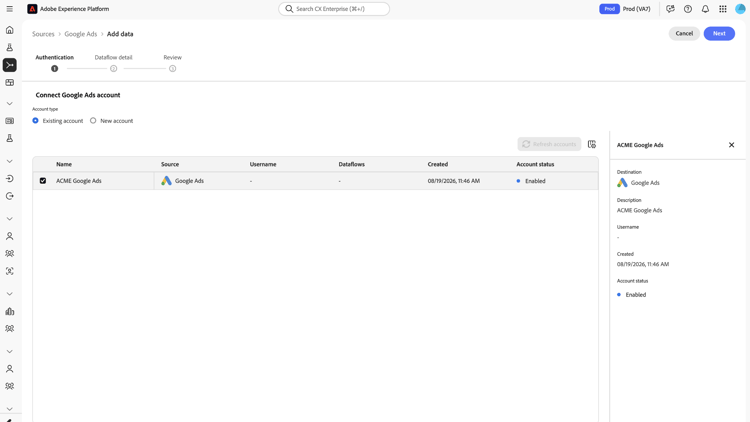
The Connect Google Ads account page appears. On this page, you can either create a new account connection or use an existing account connection.
Use an existing account
To use an existing account connection, select Existing account and select the Google Ads account that you want to use. When finished, select Next.
Create a new account
To create a new Google Ads account connection, select New account. Next, enter a name for the connection and an optional description. Under Account authentication, provide your Google Ads developerToken and, if applicable, your loginCustomerId.
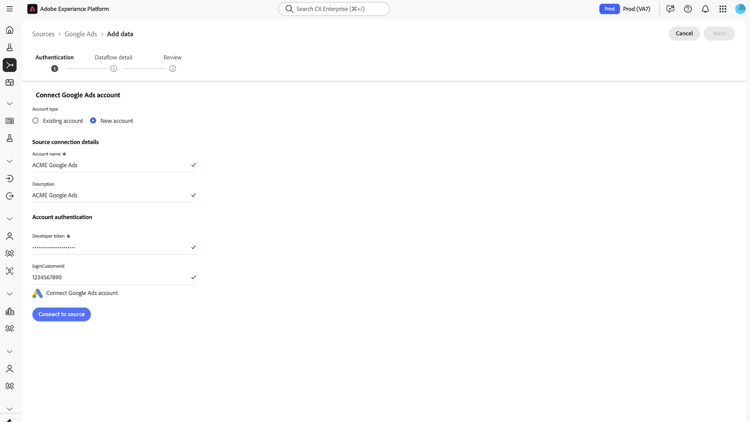
When finished, select Connect to source.
Authorize your Google account
You are prompted to sign in with your Google Account to authorize the connection to the associated Google Ads environment.
Select Continue in the dialog that asks for access to your Google Account.
After the connection succeeds, Connected appears. Select Next to proceed.
Provide dataflow details
Provide a name and optional description for your dataflow. You can also configure alerts for your dataflow during this step.
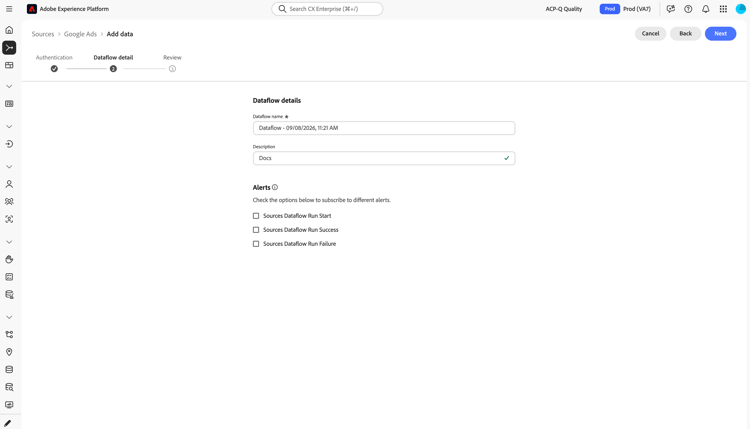
Review your dataflow
Review your dataflow. Use the Connection panel to review details of your dataflow, including its corresponding account name, source platform, and path to file. Use the Assign dataset and map fields panel to confirm that your dataset is correctly assigned.
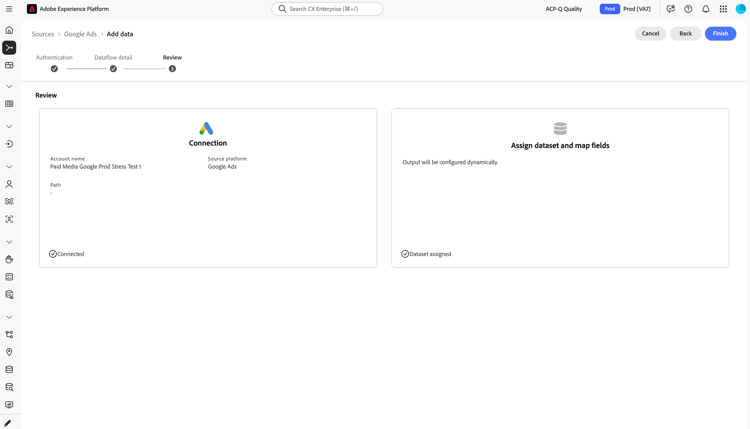
Finish
Select Finish to complete the Google Ads source connection.