Marketo Measure Ultimate destination mmu-destination
Use Adobe Marketo Measure (formerly Bizible) to learn which marketing efforts drive the most revenue and return on investment. Marketo Measure is a marketing attribution solution that tracks and reports on channel performance automatically. Use its reports to see which channels drive the most customer engagement and to optimize your marketing spend.
Use the Marketo Measure destination to export business-to-business (B2B) data from Adobe Experience Platform to Marketo Measure. The destination card is only available to Marketo Measure Ultimate customers.
Use cases use-cases
Use the Marketo Measure destination to:
- Meet the complex data and performance reporting requirements of large enterprises.
- Run B2B attribution reporting across multiple CRM and marketing automation systems.
- Bring in offline touchpoint data from third parties.
Prerequisites prerequisites
Before you connect to the Marketo Measure destination, make sure that you meet the following prerequisites:
- An admin must complete the Experience Platform sandbox mapping in the Marketo Measure settings. Without the sandbox mapping, you cannot connect to the destination or activate data.
- You can only export datasets that are based on B2B XDM classes, such as the XDM Business Account and XDM Business Opportunity classes.
- For each data source, you can export only one dataset per B2B XDM class.
- You can include each dataset in only one dataflow to the Marketo Measure destination.
- The key fields in your datasets must use the format that Marketo Measure requires. Read the account key format requirements for details.
Account key format requirements account-key-format
Marketo Measure validates the key fields of every record that it receives from Experience Platform. Each sourceKey value must use the format sourceID@sourceInstanceID.sourceType, for example 123@999-abc-888.Marketo. Marketo Measure uses the @ and . characters as separators. As a result, the sourceID, sourceInstanceID, and sourceType parts cannot contain either character.
Marketo Measure rejects records that do not follow this format. The rejection happens in Marketo Measure after the export, so your dataflow runs in Experience Platform can still complete successfully. In Marketo Measure, the import job errors on the Status page show a message such as the following:
accountKey.sourceKey: A field is not in the correct format (SourceId@SourceInstanceId.SourceType).
For the full list of required fields and formats, read the Marketo Measure Ultimate data integrity requirements.
accountKey.sourceKey is not compatible with the Marketo Measure destination. The default mapping appends a .mkto_org suffix to each account ID, for example 123.mkto_org@999-abc-888.Marketo. Marketo Measure does not support the .mkto_org suffix and rejects these records. For the same reason, Marketo Measure also rejects the .mkto_acct suffix that the named accounts mapping uses.Before you export Marketo Engage data to Marketo Measure, update your Marketo Engage source mapping to remove the .mkto_org suffix. Update every field that contains an account key so that the account references in each dataset match the account records.
accountKey.sourceIDaccountKey.sourceKeyaccountParentKeyaccountKeyb2b.accountKeypersonComponents.sourceAccountKeyFor example, in the Companies dataset, change the source field for accountKey.sourceKey from concat(id, ".mkto_org@${MUNCHKIN_ID}.Marketo") to concat(id, "@${MUNCHKIN_ID}.Marketo"). Change the source field for accountKey.sourceID from concat(id, ".mkto_org") to id.
Keep the following points in mind when you update the mapping:
- Mapping updates apply only to data that you ingest after the change. To apply the updated mapping to historical data, stop your existing dataflows and create new dataflows with the updated mapping.
- The
accountKey.sourceKeyfield is the primary identity of the Companies dataset. Changing its mapping also changes the account IDs that you use to look up these accounts in Experience Platform.
Supported audiences supported-audiences
This section describes which types of audiences you can export to this destination.
This category includes all audience origins outside of audiences generated through the Segmentation Service. Read about the various audience origins. Some examples include:
- Custom upload audiences imported into Experience Platform from CSV files
- Look-alike audiences
- Federated audiences
- Audiences generated in other Experience Platform apps such as Adobe Journey Optimizer
Supported audiences by audience data type:
Export type and frequency export-type-frequency
The following table describes the destination export type and frequency.
Connect to the destination connect
To connect to this destination, follow the steps in the destination configuration tutorial. In the configure destination workflow, fill in the fields listed in the next section.
Fill in destination details destination-details
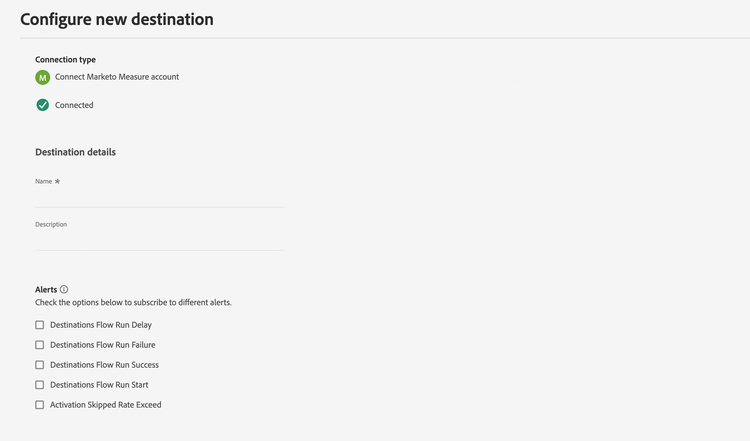
To configure details for the destination, fill in the following required and optional fields. An asterisk next to a field in the UI indicates that the field is required.
- Name: A name to identify this destination later.
- Description: A description to help you identify this destination later.
Enable alerts enable-alerts
Enable alerts to receive notifications on the status of the dataflow to your destination. Select an alert from the list to subscribe to notifications on the status of your dataflow. For more information on alerts, read the guide on subscribing to destinations alerts using the UI.
When you finish providing details for your destination connection, select Next.
Export datasets to this destination export-datasets
Read the export datasets tutorial for detailed instructions on exporting datasets to this destination.
Validate data export exported-data
To validate a dataset export, check that your dataset appears in your Marketo Measure Snowflake data warehouse. If records are missing, check the import job errors on the Status page in Marketo Measure. Then, make sure that the key fields in your dataset meet the account key format requirements.
Data usage and governance data-usage-governance
All Adobe Experience Platform destinations are compliant with data usage policies when handling your data. For detailed information on how Adobe Experience Platform enforces data governance, read the Data Governance overview.