Network tab
The Network tab aggregates all of the Adobe CX Enterprise solution calls made on the page and displays each request as a column, with the most recent request on the left. Standard parameters are automatically labeled with friendly names and arranged to group common parameters on the same row. Each column header shows the request type, such as Analytics · Page view or Concierge · Voice conversation, and the request number.
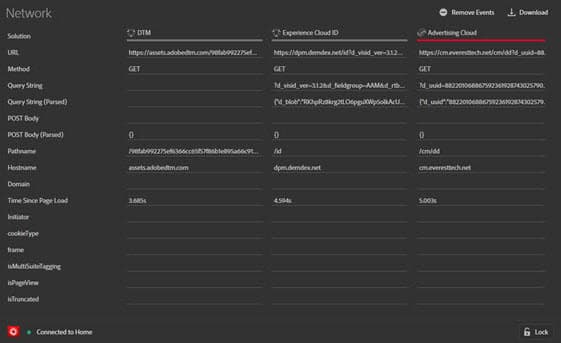
This screen is useful for comparing key value pairs across hits. You can confirm that parameters used for integrations, such as the ECID or the Supplemental Data ID, are consistent across integrations.
To change the information by solution, select the solution you want to view from the list in the left nav. The following example is filtered to show only Analytics:
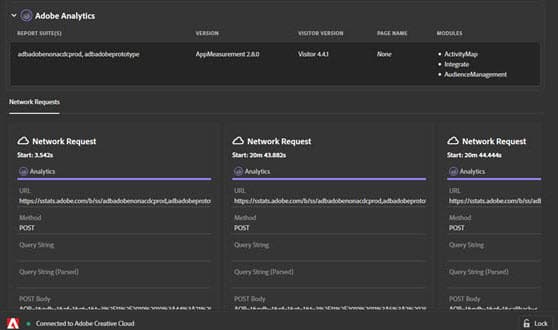
To return to displaying all solutions, select Network
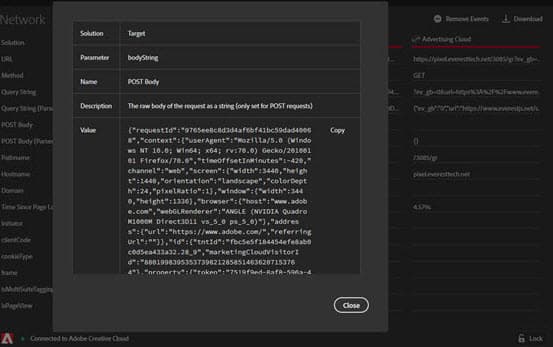
Select on an item in the Network view to see an expanded view. From the expanded view window, you can copy the information shown to the Clipboard.
Filter, search, and navigate requests filter-search
Starting in Debugger version 1.8.0, the request tables in the Network tab and in each solution tab include the following controls:
- Solution buttons: Available in the Network tab only. Select one or more solutions to show only their requests. Select All to show requests from every solution.
- Request types: Select which request types to show, such as Analytics page views, Web SDK events, media events, or Brand Concierge conversations. The menu shows the number of captured requests of each type.
- Find in requests: Search for an event, ID, or any raw value. Search highlights matching requests, rows, and values, but it does not hide requests that don’t match. To move between matching requests, select the previous and next arrow buttons next to the search field, or press Enter to go to the next match and Shift+Enter to go to the previous match. Press Escape to clear the search.
- Reset view: Clears the request type filter and search. In the Network tab, it also shows requests from all solutions again.
The request count shows the number of captured requests. When filters hide some requests, the count also shows the number of requests shown. When you search, it also shows the number of matching requests.
When the table contains more requests than fit in the window, arrow buttons appear at the left and right edges of the table. Select these buttons to jump to the oldest or most recent request.
Clear and download requests clear-download
To clear the list, select Clear events.
To download an Excel file containing the information on this screen, select Download. In the Network tab, the download includes requests from the selected solutions. Request type filters and search do not change which requests are downloaded.