Manage labels
You can use labels to categorize datasets and fields according to data usage and attribute-based access control policies. Labels can be applied at any time, providing flexibility in how you choose to govern data. Best practices encourage labeling data as soon as it is ingested into Adobe Experience Platform, or as soon as data becomes available for use. Read this document to learn how you can manage labels in the Permissions UI.
For a comprehensive list of labels and their corresponding governance policies, read the guide on core data usage labels.
Explore labels explore-labels
To view all available labels, navigate to Permissions in Adobe Experience Cloud. Select Labels from the left panel.
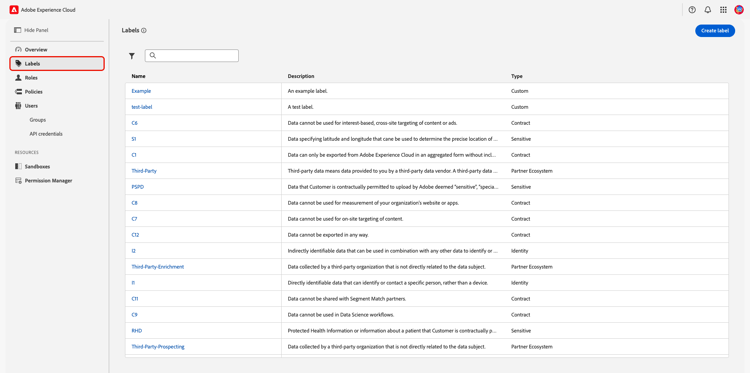
Labels are categorized by type and belong to one of the following categories:
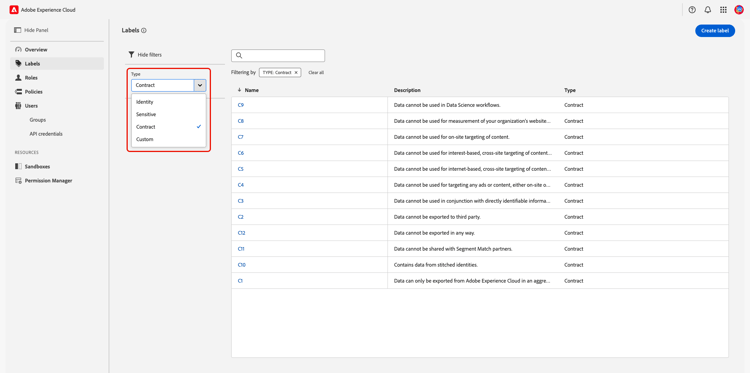
To filter labels, select the filter icon (

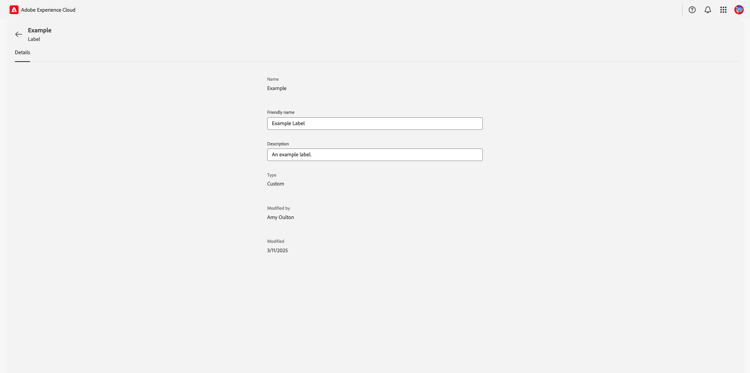
To view an individual label, select the label’s name from the list. The label’s detail page will appear. Adobe’s core labels are not editable.
Create a custom label create-custom-label
Prod sandbox.To create a new label, select Labels from left panel of the Permissions workspace and then select Create label.
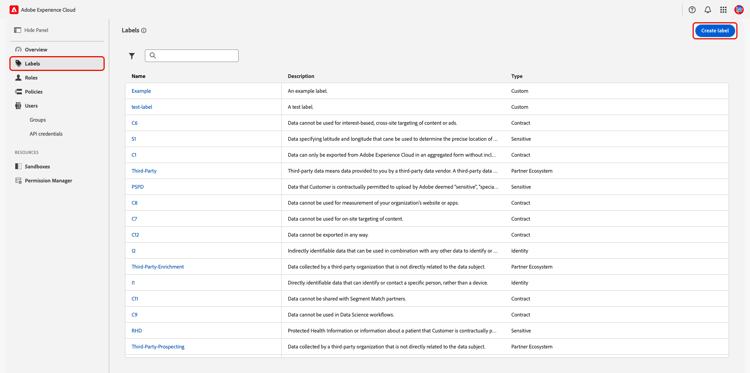
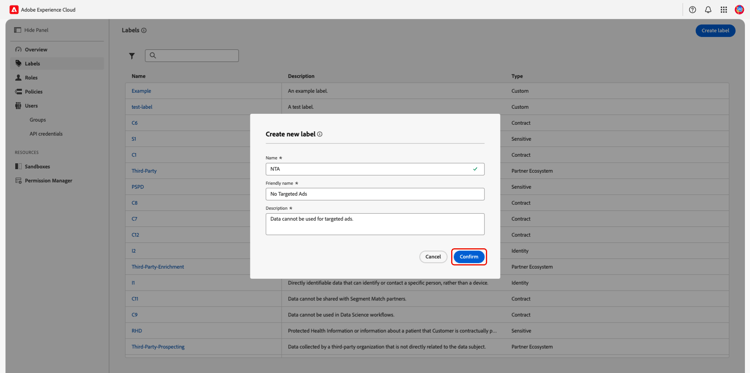
The Create new label dialog appears, prompting you to enter a Name, a Friendly name, and Description.
Select Confirm to finish creating your label.
Edit a custom label edit-custom-label
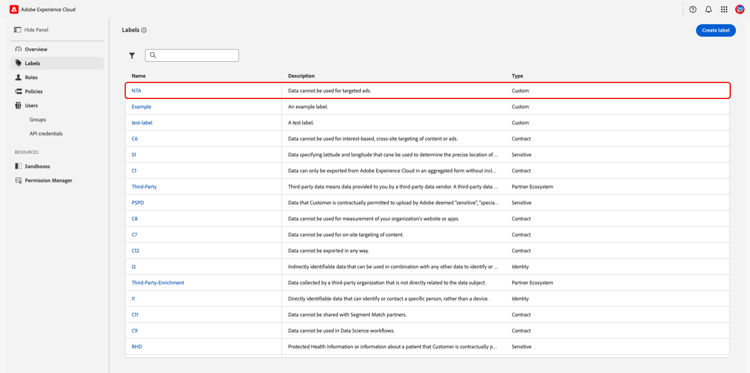
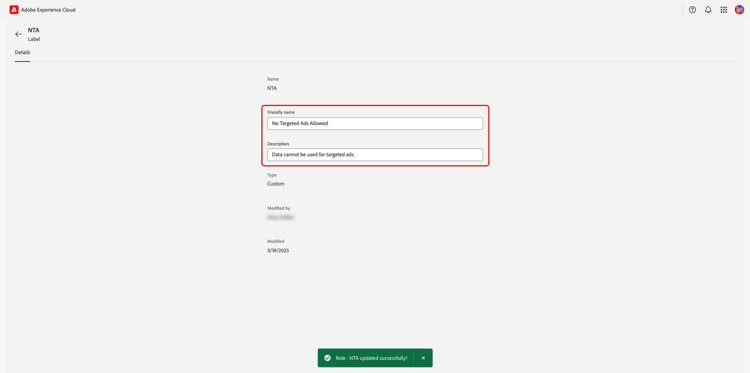
While you cannot edit a custom label’s Name, you can edit the Friendly name and Description. To edit a custom label, select the label from the list within the Labels workspace.
Edit either field and then click anywhere outside of the textbox to save your changes. A confirmation message will appear on the screen and the Modified by name and Modified date will change.
Next steps
Now that you have a deeper understanding of labels, you can begin applying them to schemas.