Configure OpenTelemetry for insights into AEM applications
Learn how to connect an AEM as a Cloud Service environment to the OpenTelemetry compatible observability platform of your choice.
In previous articles, you learned about the concepts and benefits of using OpenTelemetry with AEM as a Cloud Service. In this tutorial, we use the AEM WKND sample project as an example application and show how to export telemetry by deploying config/otel.yaml using a Cloud Manager Config Pipeline.
The high-level steps are:
- Obtain the OTLP/HTTPS endpoint and ingestion credential for your observability platform.
- Store the credential securely in Cloud Manager.
- Add the
config/otel.yamlfile to your AEM project repository. - Run the Cloud Manager Config Pipeline.
- Generate traffic to the AEM application.
- Verify the telemetry in your observability platform.
Prerequisites
Before starting, ensure that you have:
- An AEM as a Cloud Service development, stage, or production environment with the WKND site or your own application deployed. OpenTelemetry is not supported on HIPAA-scoped environments, sandbox programs and Rapid Development Environments (RDEs).
- Access to Cloud Manager with permission to manage environment variables and to create and run a Config Pipeline.
- An observability platform that accepts OTLP over HTTPS, with an endpoint and an ingestion credential.
- Access to the observability platform to verify and visualize the incoming AEM telemetry.
Step 1: Obtain your observability endpoint and credential
In your observability platform, locate its OTLP/HTTPS ingestion endpoint and create or retrieve the appropriate ingestion credential. See your platform’s documentation for instructions.
Not sure which platform to use? See Choose an observability platform.
This tutorial uses a self-hosted observability platform that supports OTLP over HTTPS and requires a basic authentication token.
Step 2: Store your observability credential in Cloud Manager
Store the ingestion credential as a Cloud Manager secret environment variable.
-
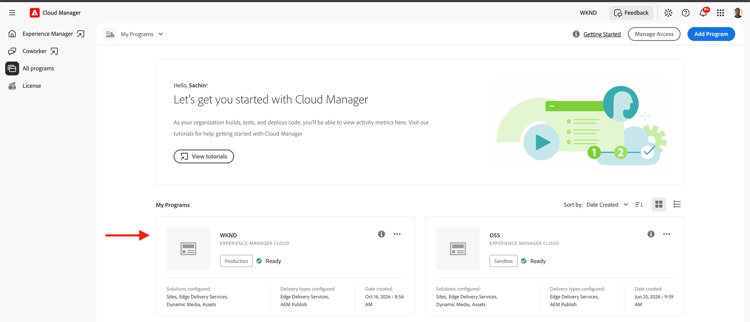
In Adobe Cloud Manager, select your AEM program.
-
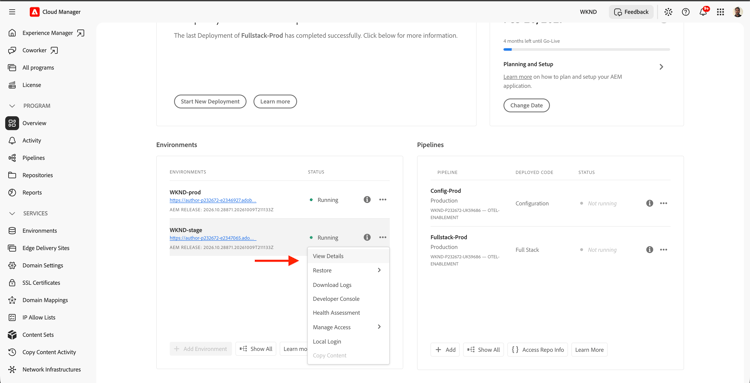
Select the target environment and click View Details.
-
On the Configuration tab, click Add/Update and add an environment variable with these values:
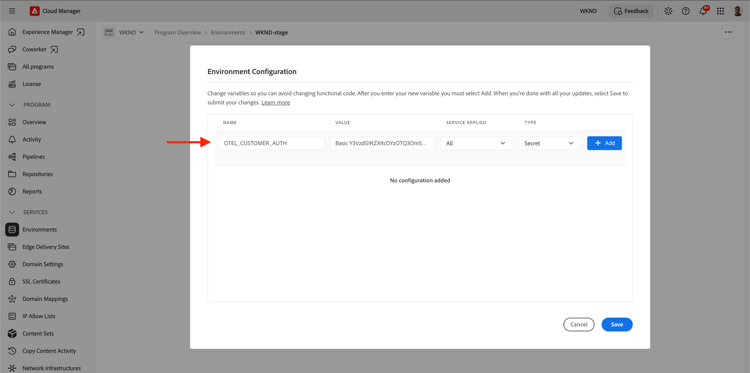
table 0-row-2 1-row-2 2-row-2 3-row-2 4-row-2 Setting Value Name OTEL_CUSTOMER_AUTHValue Your provider’s ingestion credential. The format varies by platform. See the provider-specific settings for examples. Service applied All Type Secret In this example, the self-hosted platform uses a basic authentication token in the
Basic <base64(user:password)>format. -
Click Add and then Save to store the environment variable.
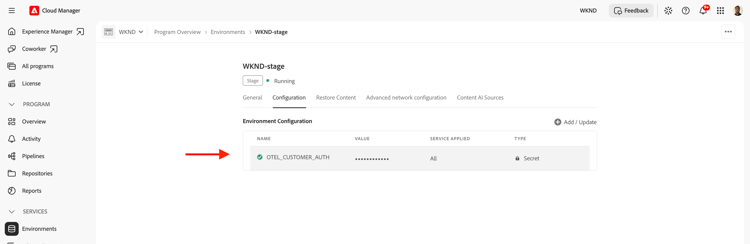
The config/otel.yaml file references this secret as ${{secrets.OTEL_CUSTOMER_AUTH}}. The credential must never appear in the AEM repository or the pipeline logs.
Step 3: Add OpenTelemetry configuration
In your AEM project repository, create the config/otel.yaml file. The self-hosted platform in this tutorial uses the following configuration:
kind: "Otel"
version: "v1"
metadata:
  envTypes:
    - "dev"
    - "stage"
    - "prod"
data:
  enabled: true
  type: "generic"
  endpoint: "https://my-self-hosted-observability.adobe.net"
  authHeaderName: "Authorization"
  authHeaderValue: "${{secrets.OTEL_CUSTOMER_AUTH}}"
  metrics: true
  logs: true
The key settings are:
metadata.envTypesenabledtrue.typegeneric for a self-hosted platform.endpointauthHeaderNameAuthorization.authHeaderValuemetricstrue.logstrue.Traces export whenever the integration is enabled. Metrics and logs are optional. They export only when set to true.
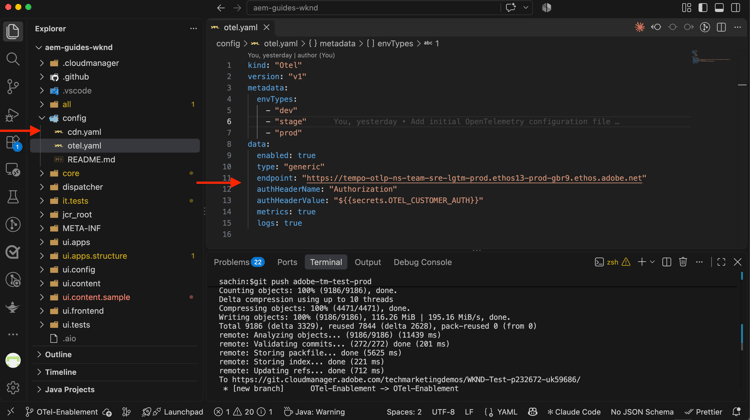
For example, see the following WKND sample configuration:
Step 4: Deploy OpenTelemetry configuration
- Commit the
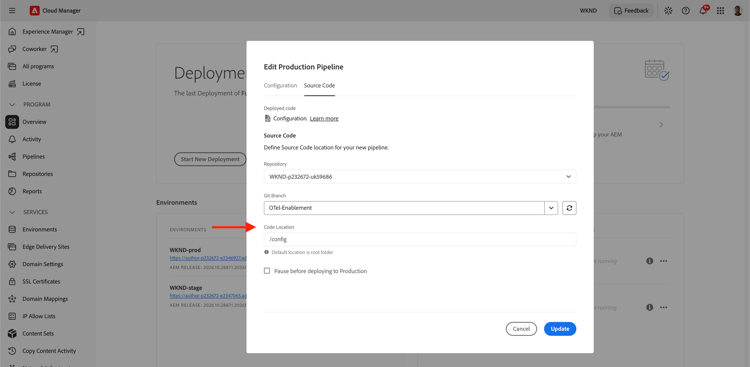
config/otel.yamlfile and push it to the repository and branch that your Config Pipeline uses as its source. - In Cloud Manager, create or edit the Config Pipeline for the environment, and verify its details.
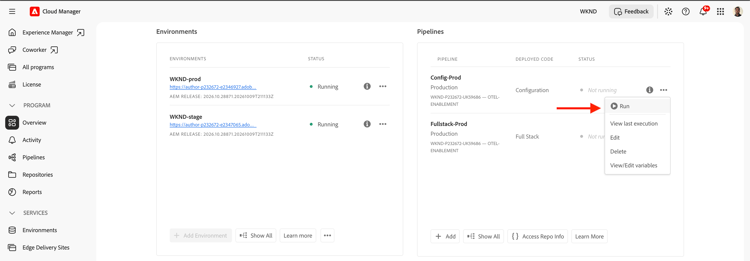
- Select the pipeline name and click Run.
- Monitor the pipeline run until it completes successfully.
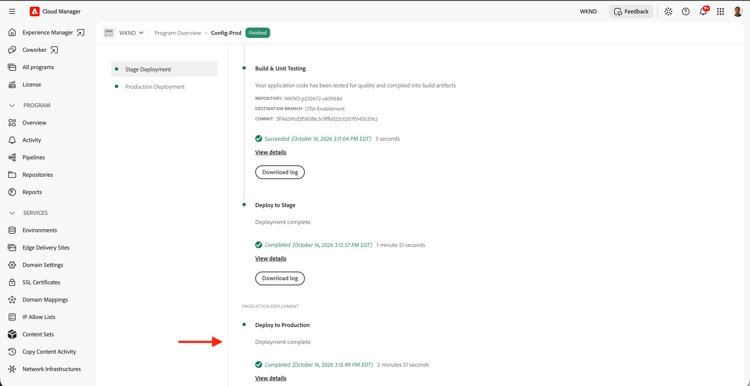
The pipeline validates the configuration before it applies the destination settings.
Step 5: Generate AEM traffic
After the pipeline completes, generate some application activity:
- Open the WKND site or your application on the AEM Publish service and navigate between a few pages.
- Optionally, open the WKND site on the Author service to generate Author telemetry.
Wait a few minutes for the telemetry to reach your observability platform.
Step 6: Verify telemetry in your observability platform
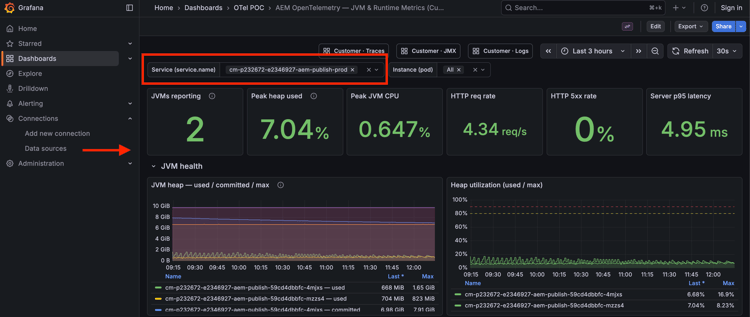
Open your observability platform and look for the telemetry. The steps to locate traces, metrics, and logs vary by platform. The following screenshots are from Grafana based observability platform dashboards.
Find the AEM service
Search for an AEM service name similar to:
cm-p<program>-e<environment>-aem-publish-<environment-type>
In the self-hosted platform used in this tutorial, the Publish service telemetry appears as follows:
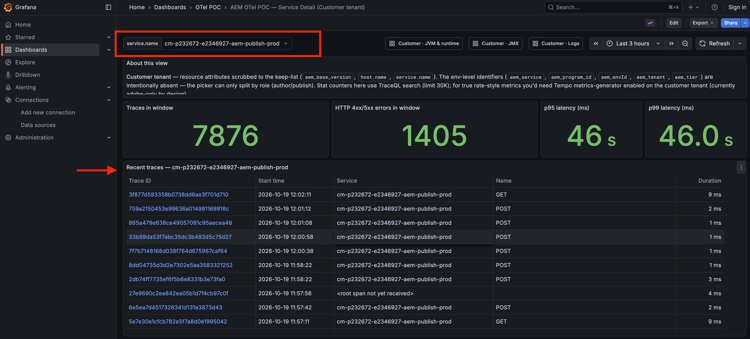
Inspect traces
Look for inbound HTTP request spans that match your WKND page requests. Open a trace and review its request name, duration, and related spans.
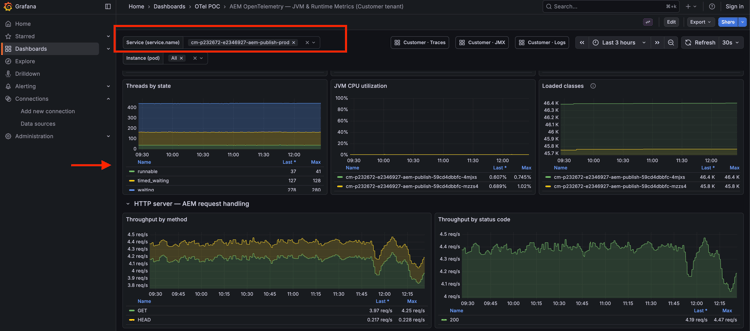
Inspect metrics
Because the configuration sets metrics: true, look for JVM and HTTP metrics like memory usage, garbage collection duration, thread count, and HTTP request duration.
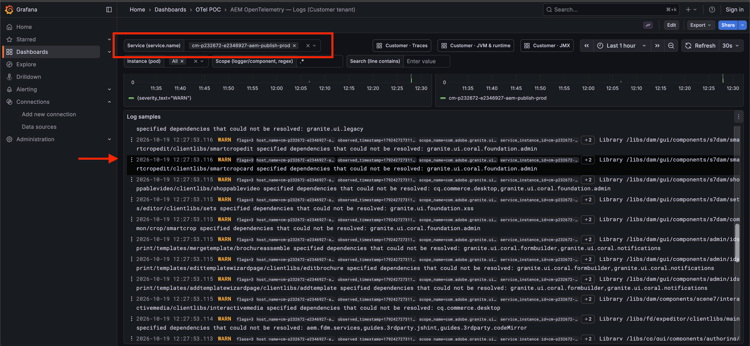
Inspect logs
Because the configuration sets logs: true, check your destination for AEM application logs. The integration exports logs at a supported severity (WARN or higher) threshold, so ordinary page visits might not produce log entries at that level.
Troubleshooting
If the Config Pipeline fails or telemetry does not appear in your observability platform, review the pipeline logs and check the following:
metadata.envTypes includes the target environment type (dev, stage, or prod). A mismatch causes the configuration to be skipped without an error.OTEL_CUSTOMER_AUTH exists as a Cloud Manager secret environment variable, with Service applied set to All. It must not be a pipeline variable.401 or 403)service.name filters.logs: true is configured and that the AEM application has generated log entries at WARN level or above.If the issue persists, contact Adobe Support and provide the AEM program ID, environment ID, Config Pipeline execution ID, exact error message, and observability provider details. Never include authentication credentials or secret values.
For additional configuration examples and troubleshooting information, see the OpenTelemetry product documentation.
Next steps
You have configured OpenTelemetry for AEM as a Cloud Service and verified that telemetry from the WKND sample application is available in your observability platform.
You can now use this telemetry to investigate slow or failing requests, monitor JVM and HTTP performance, and correlate application logs with traces to better understand AEM application behavior.
To extend telemetry for your application-specific logic, see Custom instrumentation with OpenTelemetry.
To explore additional configuration options, supported observability providers, and networking requirements, refer to the OpenTelemetry product documentation.