Create test content without leaving your IDE
Use the AEM MCP Server from an AI-powered IDE such as Cursor IDE to work with AEM pages, content fragments, and assets in natural language, no low-level API code or UI navigation.
In this tutorial you review Adventure content fragment details, update a fragment (for example, an adventure’s price), and verify the change in the WKND Adventures React app all from your IDE against a lower AEM environment (RDE or Development) without leaving the MCP flow.
Add the AEM MCP Server
This tutorial uses Cursor IDE as an example agentic IDE; the same AEM MCP Server registration works in any MCP-compatible IDE or chat application.
The AEM MCP Server can be added to your AI client for seamless integration with various AI tools and platforms. Choose your client below.
Register the following URL in any MCP-compatible IDE or chat application:
| code language-none |
|---|
|
Here’s how to set it up in Cursor, using the manual registration URL from Other MCP clients:
-
Open Cursor on your machine.
-
Go to Settings > Cursor Settings from the Cursor menu to open the settings window.

-
In the left sidebar, click Tools & MCP to open that panel.

-
Click Add Custom MCP or New MCP Server to open
mcp.json, then paste in this configuration:code language-json { "mcpServers": { "AEM": { "url": "https://mcp.adobeaemcloud.com/adobe/mcp/aem" } } }note NOTE Access through the AEM MCP Server follows the permissions of your signed-in AEM user: you can only do what you’re already authorized to do in AEM. If your organization needs tighter, org-level scoping (for example, restricting to read-only), contact Adobe at aemcs-mcp-feedback@adobe.com.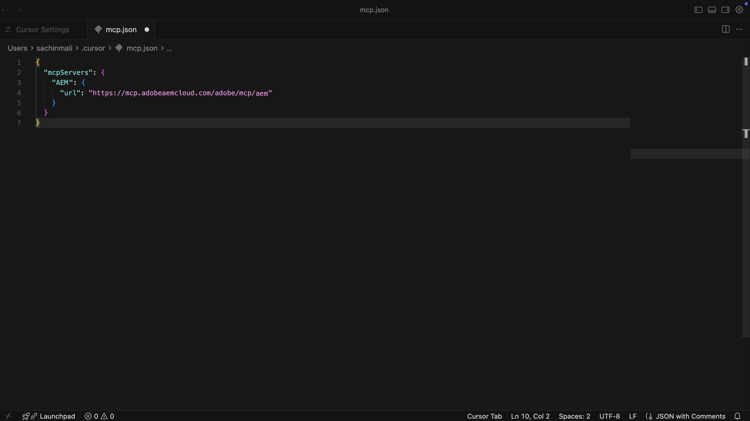
-
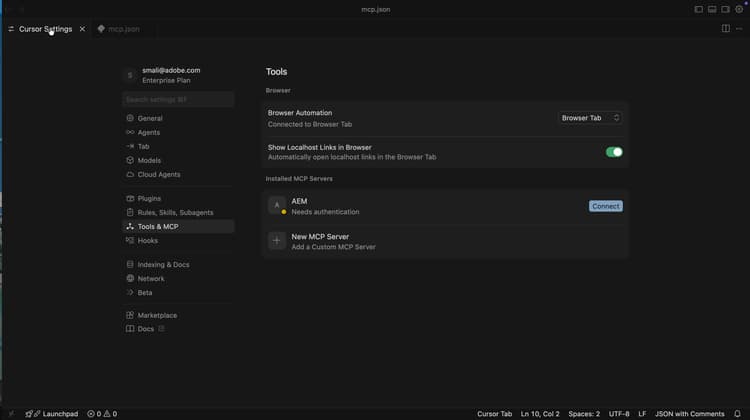
From the Cursor Settings window, click Connect to initiate the authentication process. It uses the OAuth 2.0 PKCE flow to get the User Specific Access Token to access the AEM MCP Server.
-
Sign in with your Adobe ID, then come back to the Cursor Settings window.

-
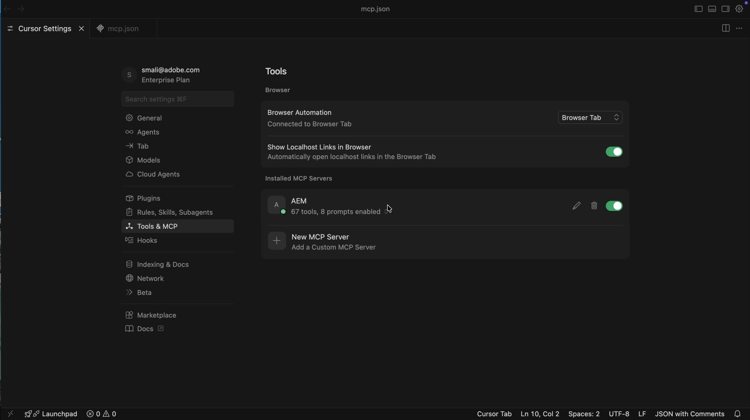
Confirm that AEM shows as connected. You can expand the server to see its tools.
Install the sample AEM web app
Next, set up the WKND Adventures React App in your IDE.
-
Clone these two repos on your machine:
code language-bash ## WKND GraphQL repo, the `react-app` folder is the WKND Adventures app $ git clone git@github.com:adobe/aem-guides-wknd-graphql.git ## WKND Site repo, you deploy this to RDE so the app can use its content fragments data via GraphQL $ git clone git@github.com:adobe/aem-guides-wknd.git -
Deploy the WKND Site project to your RDE. For detailed steps, see How to use the Rapid Development Environment.
-
Open the
react-appfolder in your IDE. -
Edit
.env.developmentand set:REACT_APP_HOST_URI: your RDE Author URLREACT_APP_AUTH_METHOD: to bebasicREACT_APP_BASIC_AUTH_USERandREACT_APP_AEM_AUTH_PASSWORD: to beaem-headless(create this user in RDE and add it to theadministratorsgroup)
-
From the IDE terminal, run:
code language-bash $ cd aem-guides-wknd-graphql/react-app $ npm install $ npm start -
In your browser, go to http://localhost:3000 to view the WKND Adventures app.

Review and update content
Suppose you need to show a HOT DEAL banner on Adventure cards when a simple rule is met. The usual approach would be:
- Look at the Adventure cards component code
- Add the logic for when to show the banner
- Check the Adventure content fragment model in AEM
- Change one or more Adventure fragment properties to test the rule
To keep things simple, let’s show the HOT DEAL banner when the adventure’s price is under $100.
Because the React app gets its data from your RDE environment, you need to know the Adventure content fragment model and then update the right fragment properties. That is exactly what the AEM MCP Server can help with. Here is how.
-
In your IDE’s chat, type:
code language-text I want to review my Content Fragment Models from AEM RDE, can you list the Adventure Content Fragment details.
Before invoking the AEM MCP Server, it asks for confirmation to proceed. Thus, you stay in control of the content operations.
The AI uses the AEM MCP Server to fetch the data and then presents it in a clear, structured way. It includes content fragment model details, the number of fragments, and summary information.
-
To trigger the HOT DEAL banner, update one adventure’s price. In the same chat, try:
code language-text Can you update adventure Beervana in Portland's price to 99.99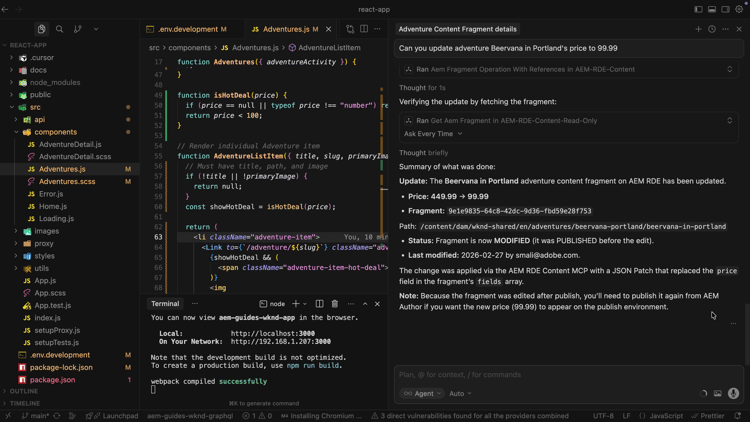
Similarly, the AI asks for confirmation to proceed before updating the content. It also summarizes the content operation before and after the update.
-
In the React app, confirm that the Beervana card now shows the HOT DEAL banner.

Additional prompts
Try these content focused prompts in your IDE (with the AEM MCP Server connected) to explore more workflows and features.
-
Discover content:
code language-text List all content fragments in the WKND Adventures folder List all WKND Site pages from US English site Can you give me page metadata for Tahoe Skiing English page? List assets of Bali Surf camp What Content Fragment models are available in this environment? -
Search for content:
code language-text Search for content fragments that mention 'cycling' Do we have a magazine page in US English site with "Camping" in it -
Update content:
code language-text In WKND US English create a copy of Downhill Skiing Wyoming as "Test Downhill Skiing Wyoming" In newly created "Test Downhill Skiing Wyoming" please change title to "Duplicated Page" -
Publish or unpublish:
code language-text Can you publish the page at /us/en/adventures/test-downhill-skiing-wyoming and give me publish page URL Can you unpublish the test-downhill-skiing-wyoming page
Congratulations!
You set up the AEM MCP Server in an agentic IDE (Cursor, in this example) and connected it to your RDE (or Development) environment. You then used the WKND Adventures React app and chatted in natural language to review Adventure content fragment details. You also updated a fragment’s price with the AI asking for your confirmation before each content operation. You verified the change in the running app. You can use the same human-centric flow from your IDE to review, update, and create AEM content without switching to the AEM UI or writing low-level API code.