Troubleshoot CI/CD Pipeline using AEM Development Agent
Learn how to troubleshoot and fix a failed CI/CD pipeline using the AEM Development Agent.
The AEM Development Agent helps technical teams, including developers, DevOps engineers, and administrators to accelerate their workflows by providing AI-powered guidance and actions.
Overview
The AEM Development Agent offers several capabilities, including the ability to list, troubleshoot, and fix failed CI/CD pipelines. You can invoke the AEM Development Agent through the AI Assistant to address your specific use cases.
This tutorial uses the WKND Sites Project to demonstrate how to troubleshoot and fix a failed CI/CD pipeline using the AEM Development Agent. The same principles apply to any AEM project.
For simplicity, this tutorial introduces a unit test failure in the BylineImpl.java file to showcase the AEM Development Agent’s pipeline troubleshooting capabilities.
Prerequisites
To follow this tutorial, you need:
- AI Assistant and Agents in AEM enabled. See Set up AI in AEM for details, and note that playgrounds mentioned in that article won’t have AEM Development Agent capabilities.
- Access to Adobe Cloud Manager with a Developer or Program Manager role. See role definitions for more information.
- An AEM as a Cloud Service environment
- Access to Agents in AEM via the Beta program
- The WKND Sites Project cloned to your local machine
Current Capabilities of AEM Development Agent
Before diving into the tutorial, let’s review the current capabilities of the AEM Development Agent:
- List CI/CD pipelines and their status
- Troubleshoot and fix failed full-stack pipelines, including both Code Quality and Deployment types.
- The Build (complilation of the code to produce a deployable artifact) and Code Quality (static code analysis via SonarQube rules) steps of the full-stack pipelines are supported.
The capabilities of the AEM Development Agent are continuously expanded and updated regularly. For feedback and suggestions, email aem-devagent@adobe.com.
Setup
Follow these high-level steps to complete this tutorial:
- Clone the WKND Sites Project and push it to your Cloud Manager Git repository
- Create and configure a Code Quality pipeline
- Run the pipeline and observe the failed execution
- Use the AEM Development Agent to troubleshoot and fix the failed pipeline
Let’s go through each step in detail.
Use WKND Sites Project as a Demo Project
This tutorial uses the WKND Sites Project’s tutorial/dev-agent/unit-test-failure branch to demonstrate how to use the AEM Development Agent. The same principles can be applied to any AEM project.
-
A unit test failure has been introduced in the
BylineImpl.javafile as follows. If you’re using your own AEM project, you can introduce a similar unit test failure.code language-java ... @Override public String getName() { if (name != null) { return "Author: " + name; // This line is intentionally incorrect to introduce a unit test failure. } return name; } ... -
Clone the WKND Sites Project to your local machine, navigate to the project directory, and switch to the
tutorial/dev-agent/unit-test-failurebranch.code language-shell git clone https://github.com/adobe/aem-guides-wknd.git cd aem-guides-wknd git checkout tutorial/dev-agent/unit-test-failure -
Create a new Cloud Manager Git repository for the WKND Sites Project and add it as a remote to your local Git repository:
-
Navigate to Adobe Cloud Manager and select your program.
-
Click Repositories in the left sidebar.
-
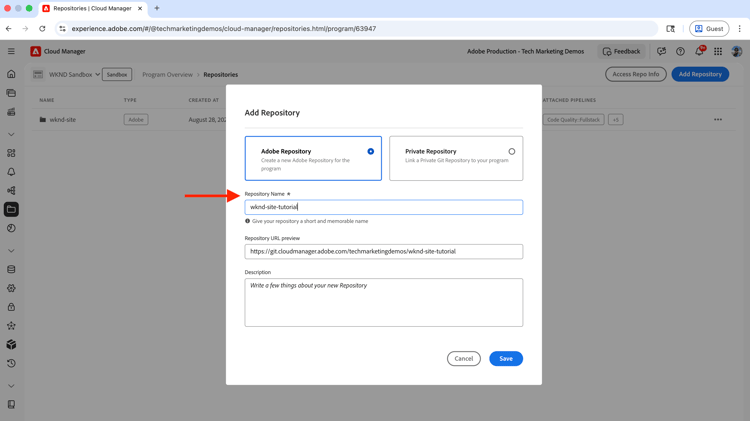
Click Add Repository in the top right corner.
-
Enter a Repository Name (for example, “wknd-site-tutorial”) and click Save. Wait for the repository to be created.
-
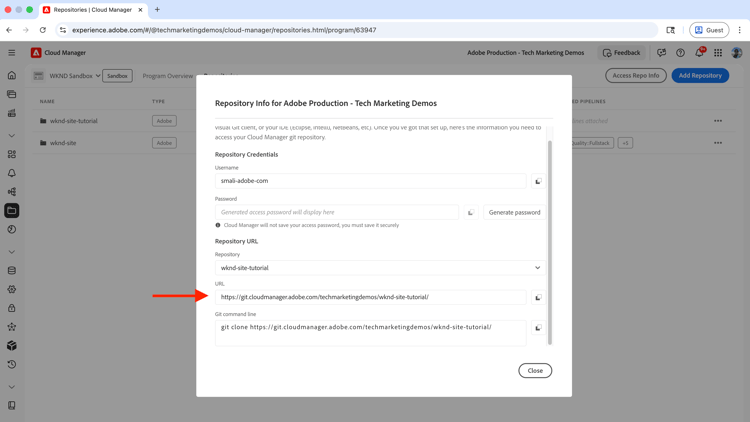
Click Access Repo Info in the top right corner and copy the repository URL.
-
Add the newly created Cloud Manager Git repository as a remote to your local Git repository:
code language-shell git remote add adobe https://git.cloudmanager.adobe.com/<your-adobe-organization>/wknd-site-tutorial/
-
-
Push your local Git repository to the Cloud Manager Git repository:
code language-shell git push adobeWhen prompted for credentials, provide the Username and Password from Cloud Manager’s Repository Info modal.
Create and Configure a Code Quality Pipeline
This tutorial uses a Code Quality pipeline (non-production) to trigger the pipeline failure for troubleshooting. See Introduction to CI/CD Pipelines for more information about Code Quality pipelines.
-
In Cloud Manager, navigate to the Pipelines section and select Add > Add Non-Production Pipeline.
-
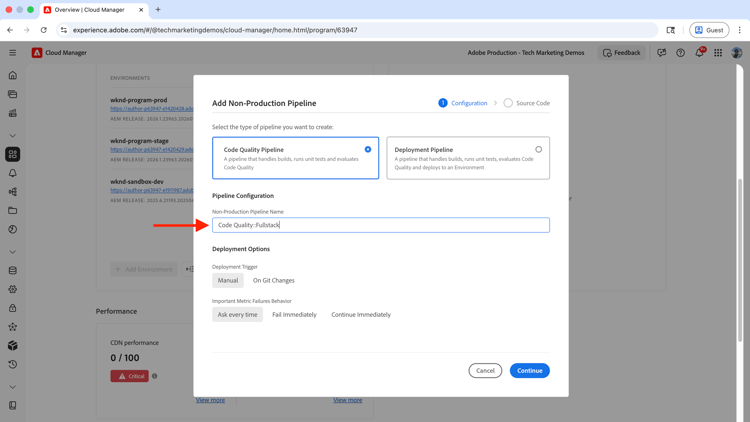
In the Add Non-Production Pipeline dialog, configure the following:
-
Configuration step:
- Keep the default values like Pipeline Type as
Code Quality Pipelineand Deployment Trigger asManual. - For Non-Production Pipeline Name, enter
Code Quality::Fullstack
- Keep the default values like Pipeline Type as
-
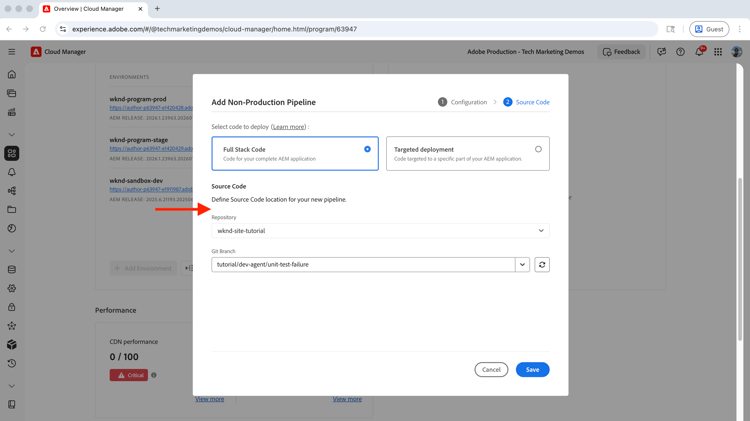
Source Code step:
- Select Full Stack Code
- For Repository, select the newly created Cloud Manager Git repository
- For Git Branch, select
tutorial/dev-agent/unit-test-failure - Click Save
-
-
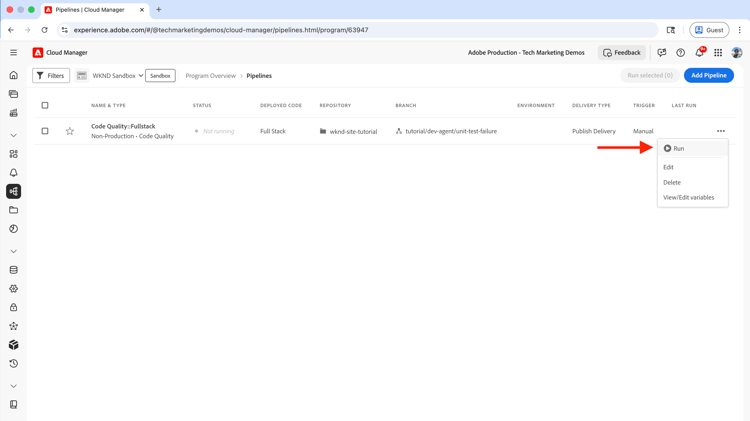
Run the newly created Code Quality pipeline by clicking Run in the three-dot menu of the pipeline entry.
Observe the Failed Pipeline Execution
The Code Quality pipeline fails in the Artifact Preparation step with an error:
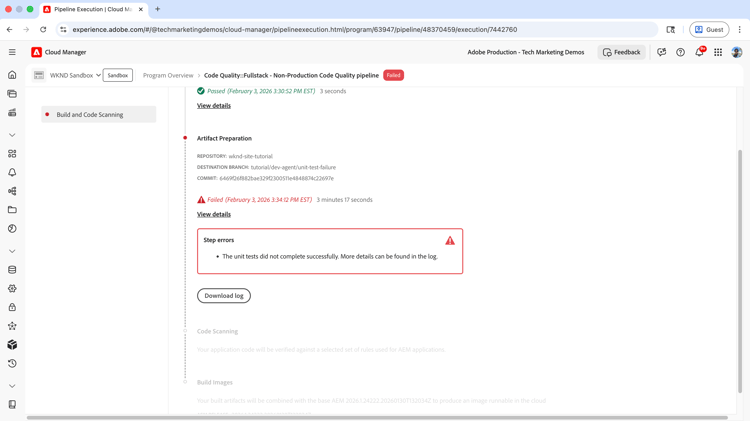
Without the AEM Development Agent, this pipeline failure requires manual troubleshooting. A developer would need to check the logs and review the code—a tedious and time-consuming process.
Next, you see how Agentic AI can troubleshoot and fix the failed pipeline execution.
Use AEM Development Agent to Troubleshoot and Fix the Failed Pipeline
You can invoke the AEM Development Agent using the AI Assistant in AEM by describing the pipeline failure in natural language.
-
Click the AI Assistant icon in the top right corner.
-
Enter the pipeline failure details in natural language aka Prompt. For example:
code language-text I have a failed pipeline execution on %PROGRAM-NAME% program, help me to troubleshoot and fix it.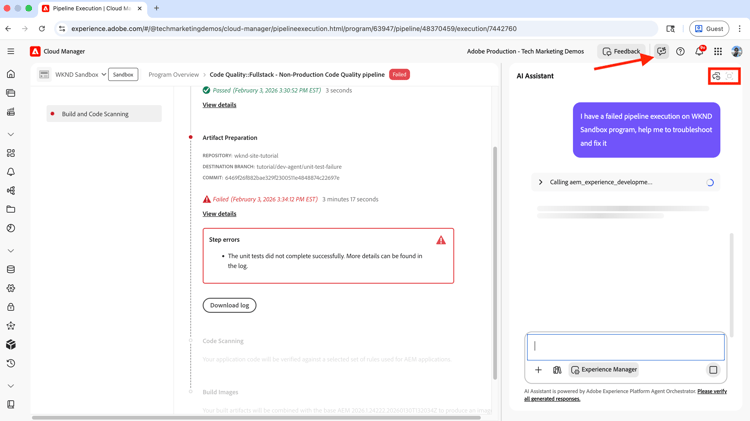
The AEM Development Agent is invoked to troubleshoot and fix the failed pipeline execution.
note note NOTE If entered prompt is not clear, the AI Assistant asks for clarification and provides information to help you refine the prompt. -
Once the reasoning is complete, click the Open in full screen icon to view the detailed troubleshooting process.
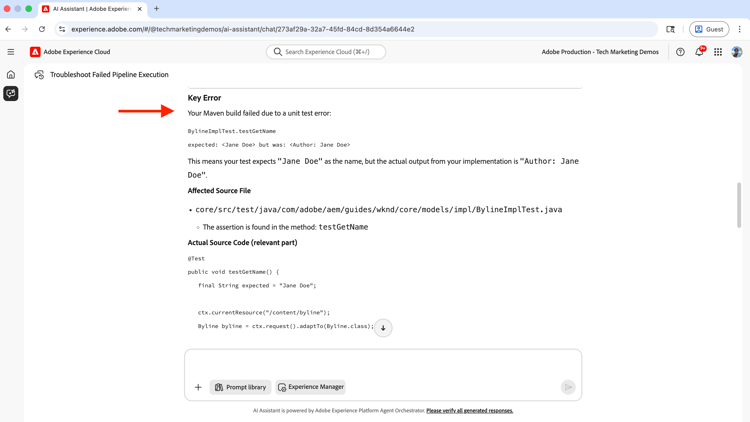
The results contain valuable insights including error details, the source file, line number, and a How to Fix section with clear steps to resolve the issue.
-
In this case, the agent correctly suggested either changing the implementation (
getName()method) or updating the unit test (getNameTest()method) to fix the issue. It avoided hallucination and used a human-in-the-loop approach while providing actionable code changes for the developer.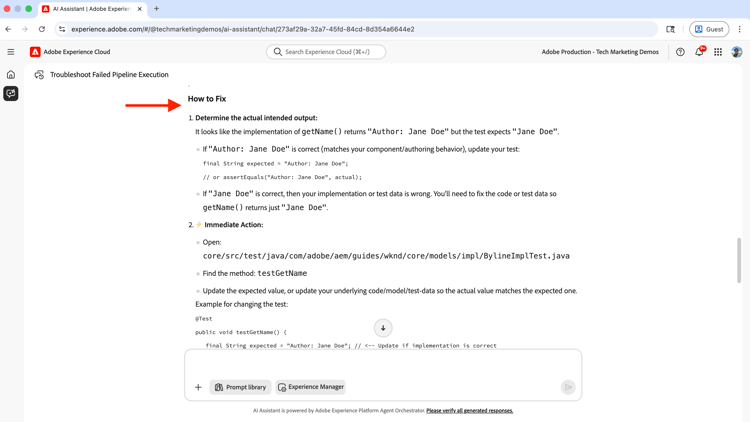
-
Update the
BylineImpl.javafile with the suggested code changes, then commit and push the changes to the Cloud Manager Git repository.code language-java ... @Override public String getName() { return name; } ... -
Run the pipeline again and observe the successful execution.
Additional Examples
The WKND Sites Project includes additional examples of broken code and configuration issues, such as missing dependencies and incorrect configuration. You can explore these examples by checking out the branches that start with tutorial/dev-agent/. To see the breaking changes, you can compare the tutorial/dev-agent/unit-test-failure branch with the main branch by clicking the Compare button. Then look for the changed file section.
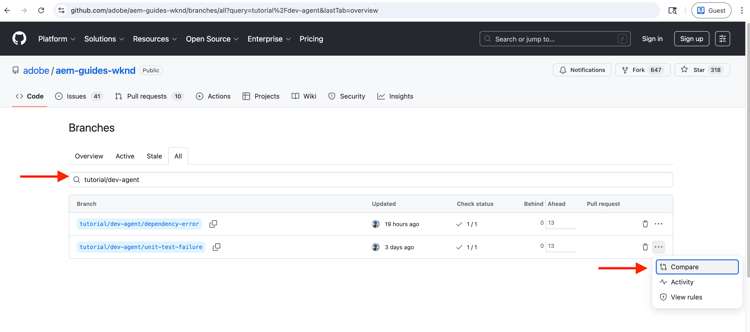
Also see the Sample prompts to get more ideas on how to use the AEM Development Agent.
Summary
In this tutorial, you learned how to use the AEM Development Agent to troubleshoot and fix a failed CI/CD pipeline using the AI Assistant. You also learned how Agentic AI accelerates the technical workflows by providing actionable insights and code changes.
Start using the AEM Development Agent and other Agents in AEM to accelerate your workflows, see Overview of Agents in AEM for more information.