Component development using AEM Agent Skills
Learn how to develop an AEM component using AEM Agent Skills as part of AI-assisted development.
In this walkthrough, you use natural language in an AI-powered IDE (for example, Cursor) to develop a Promo Banner component in the WKND Sites Project. The coding agent applies the create-component AEM Agent Skill to generate the implementation.
Prerequisites
To follow this tutorial, you need the following:
- An AI-powered IDE such as Cursor, or Visual Studio Code with GitHub Copilot.
- A local clone of the WKND Sites Project, built and deployed to a local AEM SDK instance.
- AEM Agent Skills installed in that project. If you have not done that yet, complete Setup AEM Agent Skills.
Component requirement
Let’s assume the WKND team wants to display a promo banner on the home page, and the design reference is as follows:
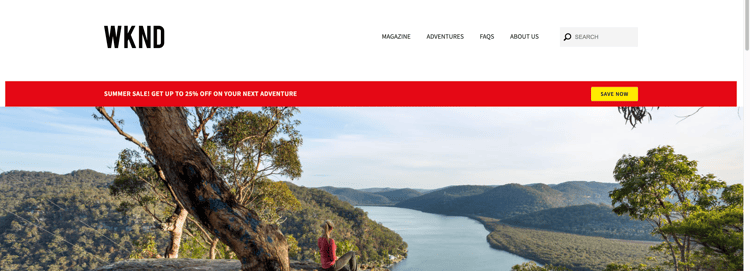
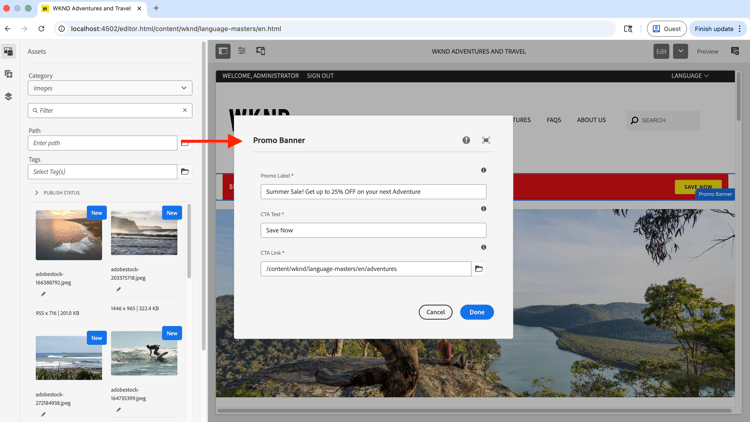
Authors must be able to set Promo label, CTA label, and CTA link fields in the component dialog.
The design reference is a screenshot obtained via wireframe, mockup or static markup capture.
Develop the component
-
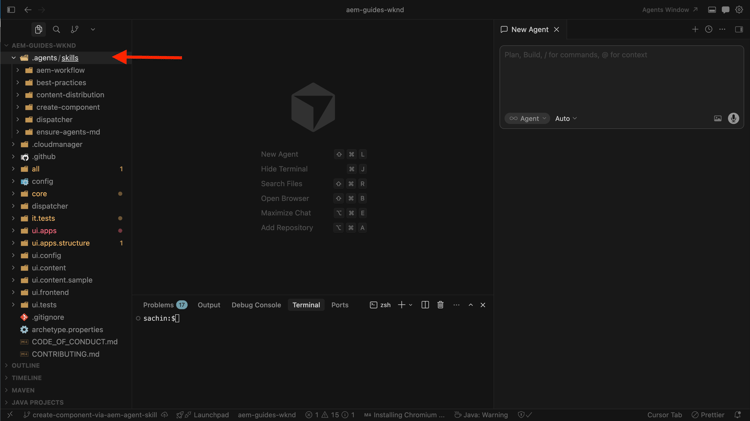
Open the WKND project in your IDE. Confirm that AEM Agent Skills are present (for example, under
.agents/skills), then start a new agent chat.
-
Enter a prompt like the following. Attach the component design screenshot (obtained via wireframe, mockup or static markup capture) if your IDE supports images in chat:
code language-text Create a WKND Promo Banner Component. Please see attached screenshot for design reference. Dialog specification are: 1. Promo Label - Textfield, required 2. CTA Text - Textfield, required 3. CTA Link - Pathfield, required -
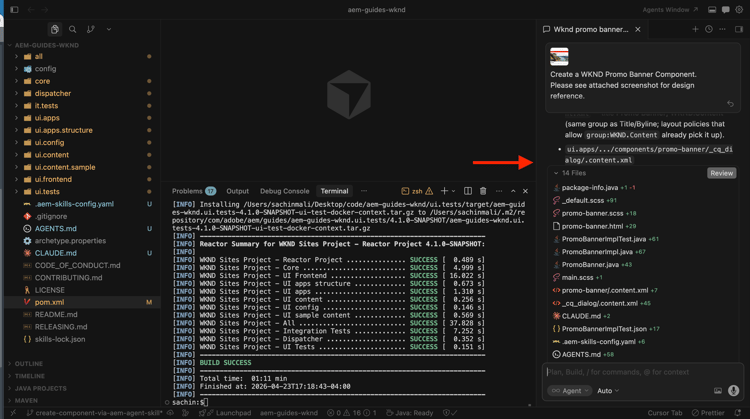
The coding agent uses the
create-componentAEM Agent Skill to generate the component. Review the proposed HTL, Sling Model, dialog XML, and related files.
create-component skill supports the Figma design integration-
Deploy the component to the local AEM instance/SDK.
code language-shell $ mvn clean install -PautoInstallSinglePackage -
In authoring, place the Promo Banner on the home page and validate behavior. Refine the implementation if it still diverges from the design reference.
-
Review the newly-created component by publishing the page or View as Published.
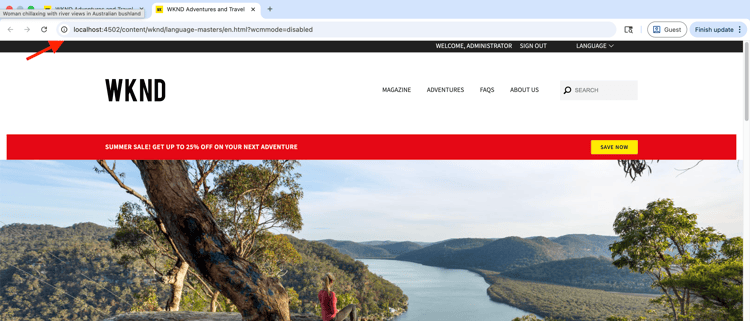
Congratulations! You have successfully created a new AEM component using AEM Agent Skills as part of AI-assisted development.
Beyond simple components
This walkthrough uses a simple component. The same create-component skill also supports richer cases, including:
- Multifields and nested dialogs fields
- AEM Core Components extensions (including Sling Resource Merger patterns)
- Figma file or frame URLs for layout and styling, when the Figma MCP server (for example
plugin-figma-figma) is enabled in your IDE
For field types, dialog patterns, Figma rules, and examples, read SKILL.md in your installed skill folder, for example, .agents/skills/create-component/SKILL.md.
For an overview, installation paths by IDE, and troubleshooting, see AEM Component Development Agent in the Adobe Skills repository.
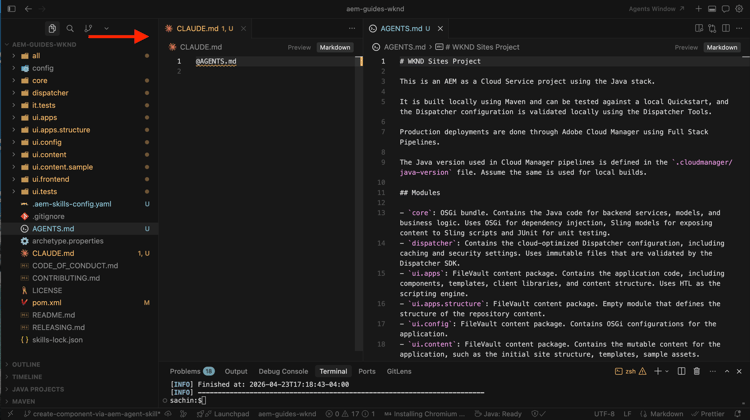
AGENTS.md
To conclude, review how AGENTS.md was generated as part of creating the component.
For AEM as a Cloud Service projects, the ensure-agents-md bootstrap skill (selected during Setup AEM Agent Skills) creates AGENTS.md at the repository root when it is missing. It uses what it learns from your project layout.
It does not overwrite an existing AGENTS.md file.