Set up AEM Agent Skills
Learn how to set up AEM Agent Skills for AI-assisted development.
When you ask a coding agent through an AI-powered IDE to work on AEM development tasks, it can use AEM Agent Skills procedural guidance from Adobe instead of relying only on generic model training or whatever it can infer from your repository alone.
Adobe provides the AEM Agent Skills via the Adobe Skills repository. Also see the AI-assisted development for how Adobe helps with AI-assisted development.
In this tutorial, you install the skills on a local clone of the WKND Sites Project. You can use the same steps for your own AEM as a Cloud Service project.
Prerequisites
To follow this tutorial, you need the following:
- A local clone of the WKND Sites Project or your own AEM as a Cloud Service project.
- An AI-powered IDE such as Cursor, or Visual Studio Code with GitHub Copilot.
Install AEM Agent Skills
Install AEM Agent Skills with the npx command (requires Node.js so npx is available). For other install options, for example, Claude Code plugins or the GitHub CLI extension, see the Installation section in the Adobe Skills repository.
-
Clone the WKND Sites Project locally:
code language-shell $ git clone https://github.com/adobe/aem-guides-wknd.git -
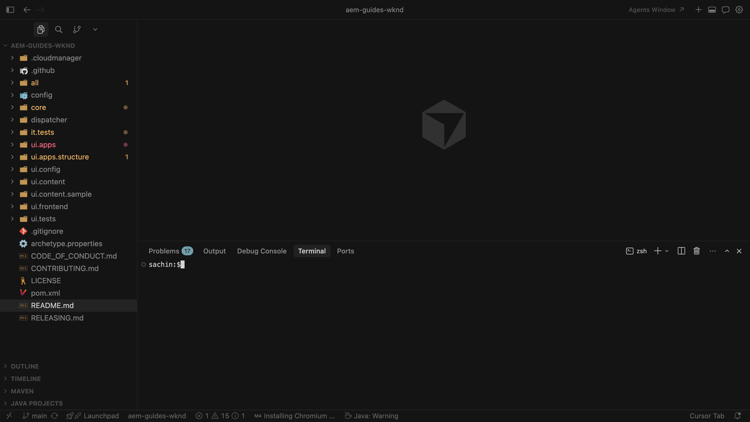
Open the cloned project in your AI-powered IDE (for example, Cursor) and open the integrated terminal.
-
Run the following command to add AEM Agent Skills for Cursor:
code language-shell $ npx skills add https://github.com/adobe/skills/tree/main/plugins/aem/cloud-service --agent cursorFor other agent types, see the Installation section in the Adobe Skills repository.
-
When prompted, choose which AEM Agent Skills to install.
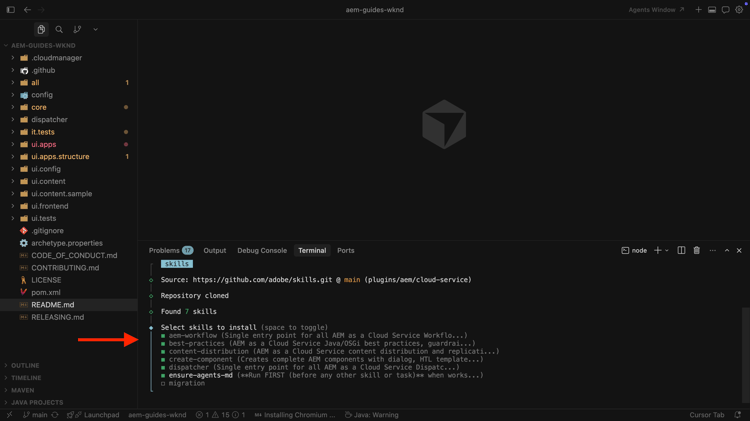
Select the ensure-agents-md skill so the installer can create AGENTS.md and CLAUDE.md files at the repository root. That bootstrap skill inspects your project, for example, the root
pom.xmland modules, and generates tailored agent guidance.If AGENTS.md already exists, it is not overwritten.
-
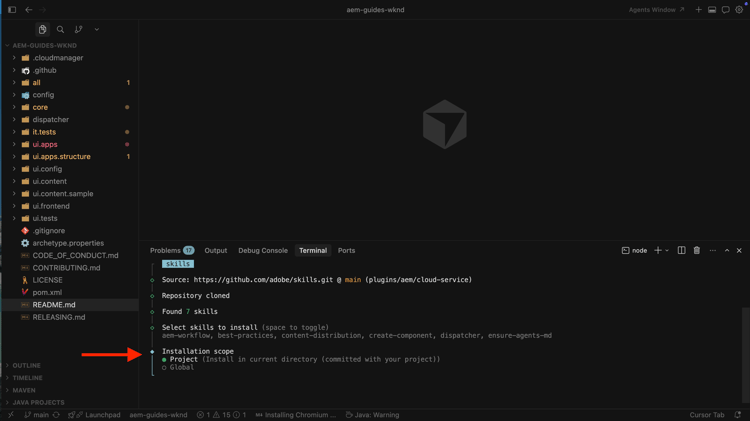
Choose the installation scope. For this walkthrough, the Project scope is typical so skill files live in the repo.
-
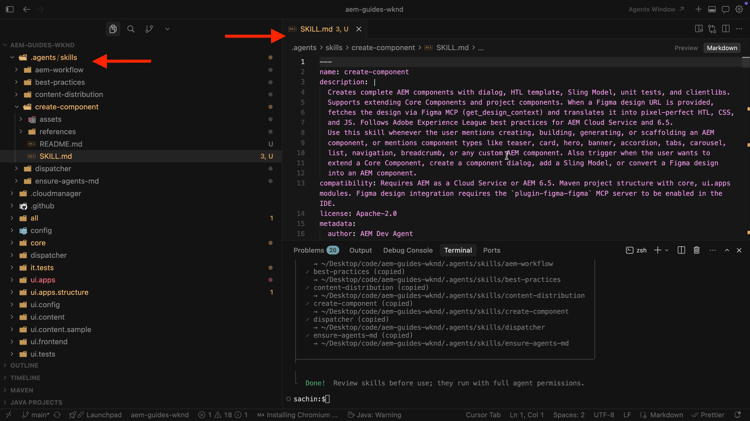
Confirm the install under
.agents/skills. You should see SKILLS.md and related reference and asset folders.
-
When Adobe adds or updates skills, use the CLI to add, update, remove, or list them. To see all commands:
code language-shell $ npx skills --help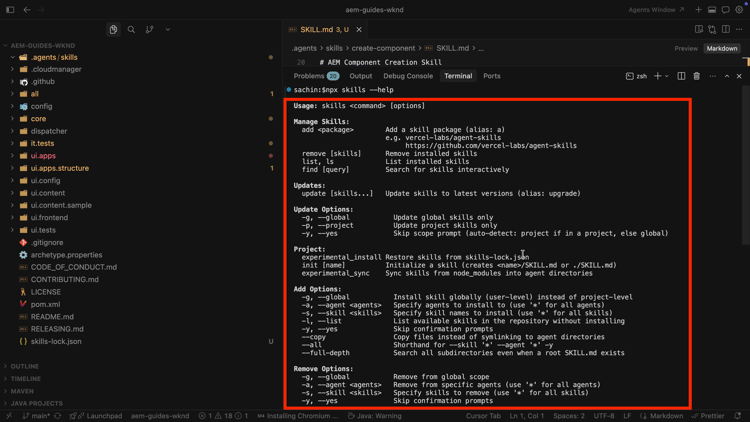
Use Cases
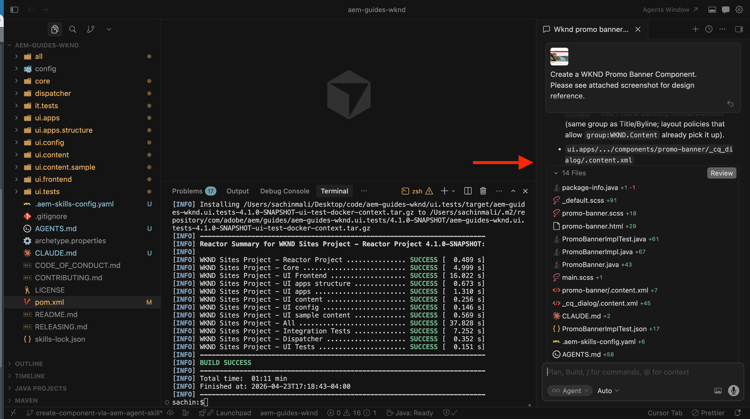
Create AEM Component with AI-assisted development
Learn how to use AI-assisted development to develop AEM components.