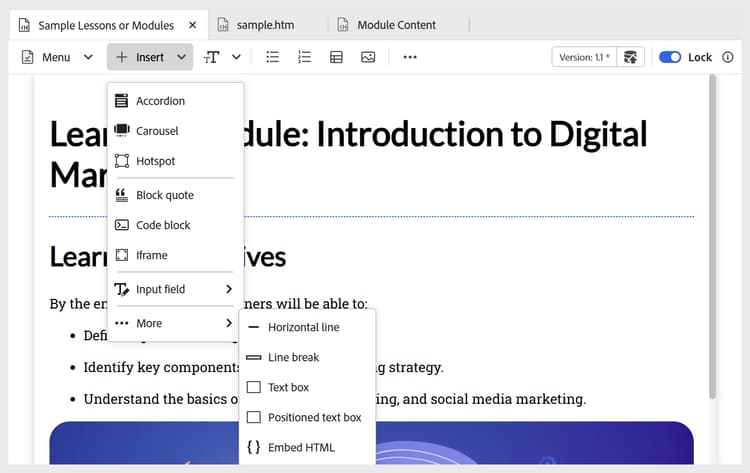
Other options in the Insert menu
The other options available in the Insert menu in the Editor toolbar include:
-
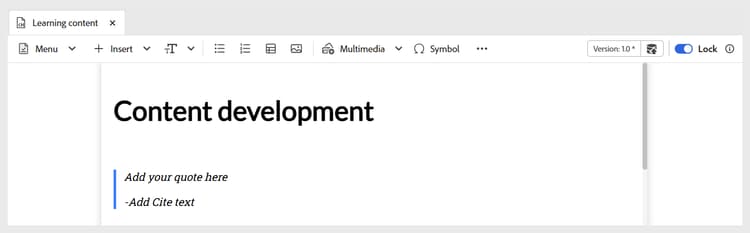
Block quotes: Adds block quotes along with citations to your content.
-
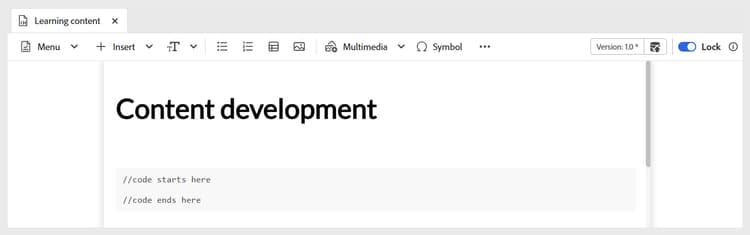
Code blocks: Adds a code block to your content.
-
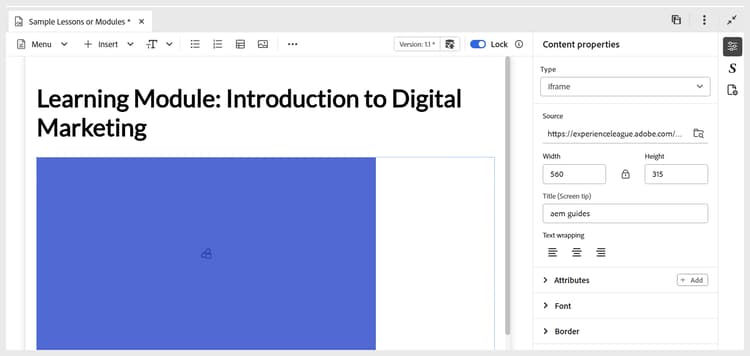
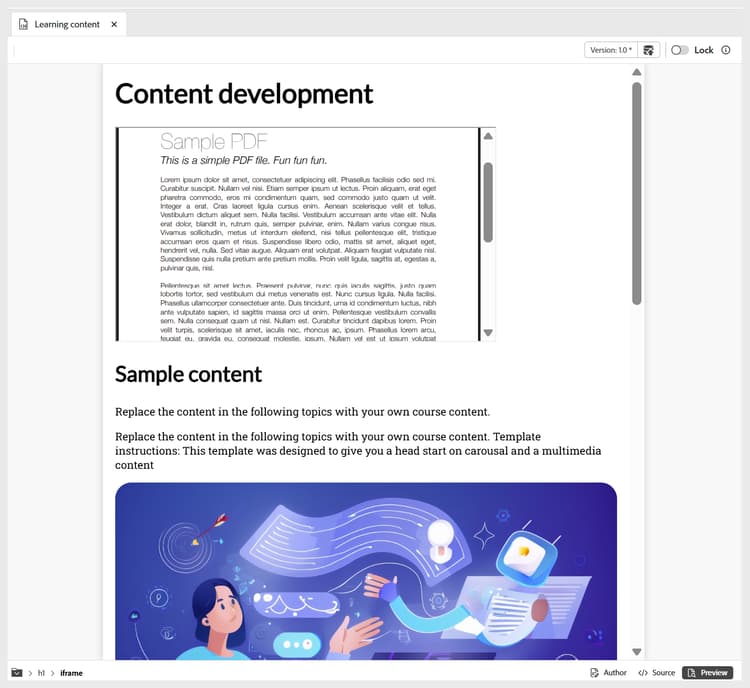
Iframes: Inserts an iframe to the content to embed external web pages or interactive resources. You can configure the iframe properties using the Content properties panel, including the source URL, width, height, alignment, and the title. You can view the content added in the iframe by switching to the Preview mode as shown below.
Author view:
Preview mode:
-
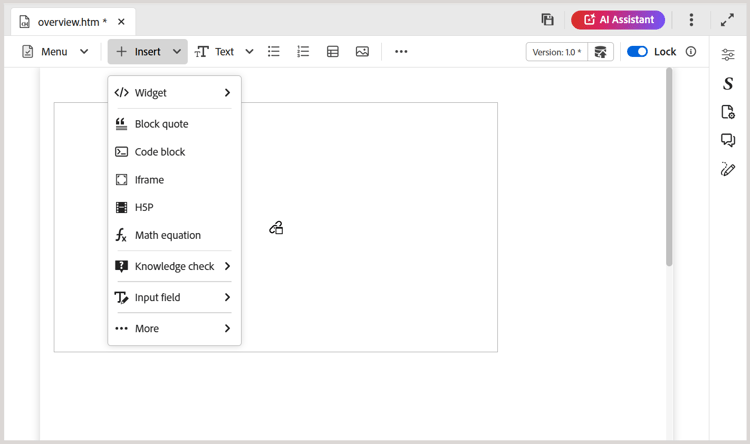
H5P: Adds interactive H5P package to your learning content. To add H5P content, place your cursor at the desired location and select H5P from the Insert menu. In the Insert H5P dialog, provide a reference to the H5P file you want to add to the learning content.
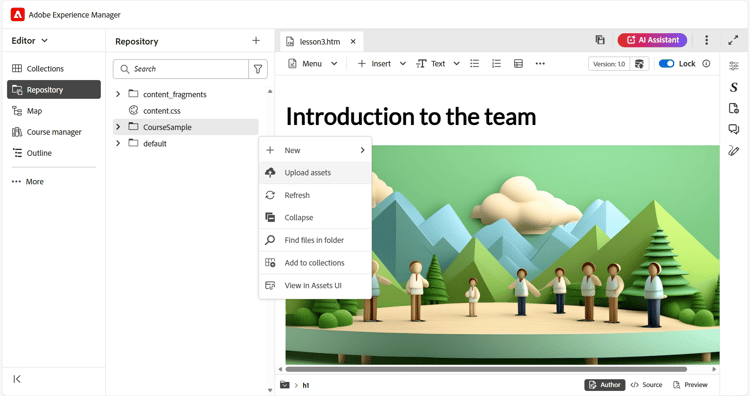
If you prefer to use the H5P content from your system, then first upload the file in DAM using the Upload assets option, and then have it part of Repository view/Assets.
Once done, review the H5P content in the Preview mode and published output. H5P content also supports a full screen display option. You can enable or disable full screen mode for each embedded H5P element through a dedicated toggle in the Content properties panel. When enabled, learners can expand the content to full screen; when disabled, the content remains inline within the standard view. This setting applies consistently across Preview mode and published output.
note NOTE Editing or creating H5P content is not supported within Adobe Experience Manager Guides. Prepare your H5P package externally before uploading. 
Preview mode

-
MathML equation: Inserts MathML equations to your content. You can create a MathML equation and select Insert to add it to your document.
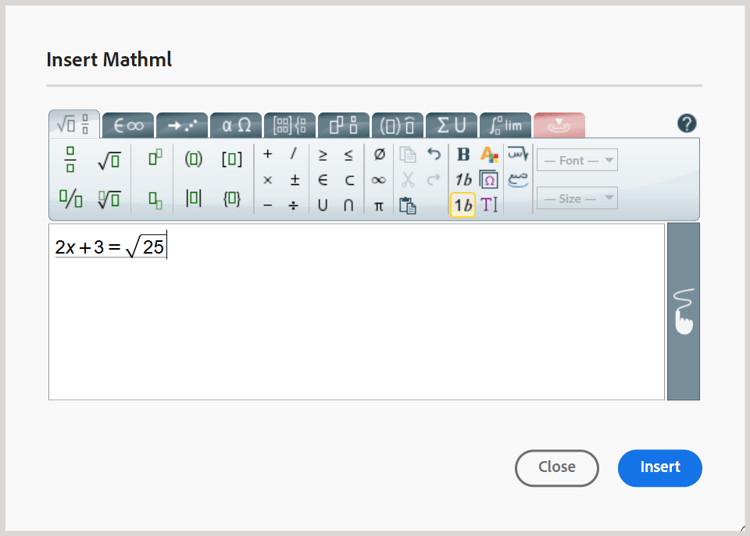
The equation is inserted with light gray background. At any time you can update an equation by right-clicking on an existing equation and selecting Edit Math equation from the context menu. For details on validating MathML equations in Experience Manager Guides, view Validation of equations in the MathML editor.
-
Knowledge check: Allows you to add questions in available formats (Single Correct, Multiple Correct, True/False, Match the Following, or insert from the question bank) to your topic for review and to confirm understanding without grading. These questions mirror standard formats and exclude scoring, making them ideal for self-assessment and suitable as part of course content or a topic before a quiz or assessment later, if available. You can configure correct answers and other required fields through the Content properties panel. For more details, view Question types.
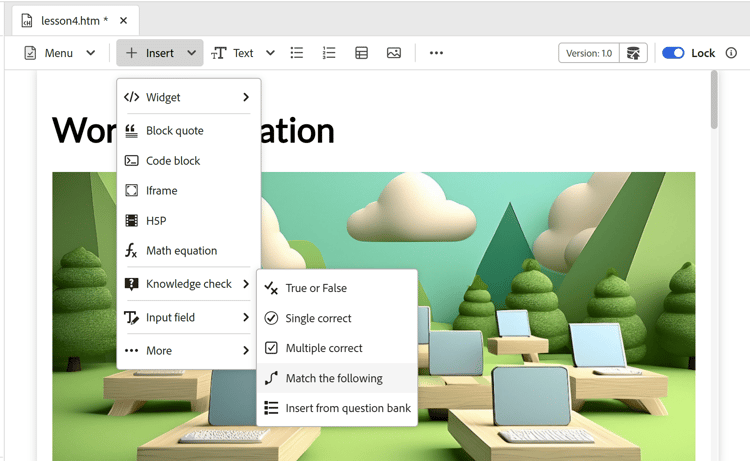
If a learner submits an incorrect response to a Knowledge check question, the response fields are highlighted along with an error message, guiding the learner to select Try again to retry the same question.

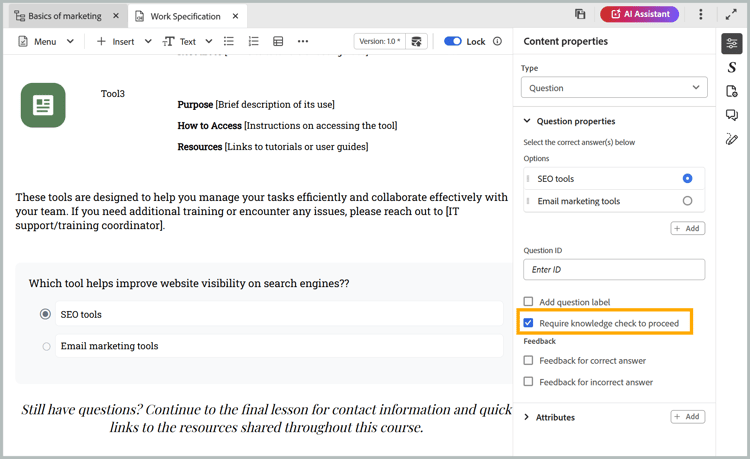
Additionally, you can enable the Require knowledge check to proceed option to ensure learners attempt a designated knowledge check before advancing to subsequent course content. This capability helps reinforce key learning objectives by preventing learners from skipping critical assessment checkpoints. The feature is supported when Learners must progress through content in a sequential order setting is enabled while configuring the SCORM preset output, ensuring the course progression follows the intended learning path.
-
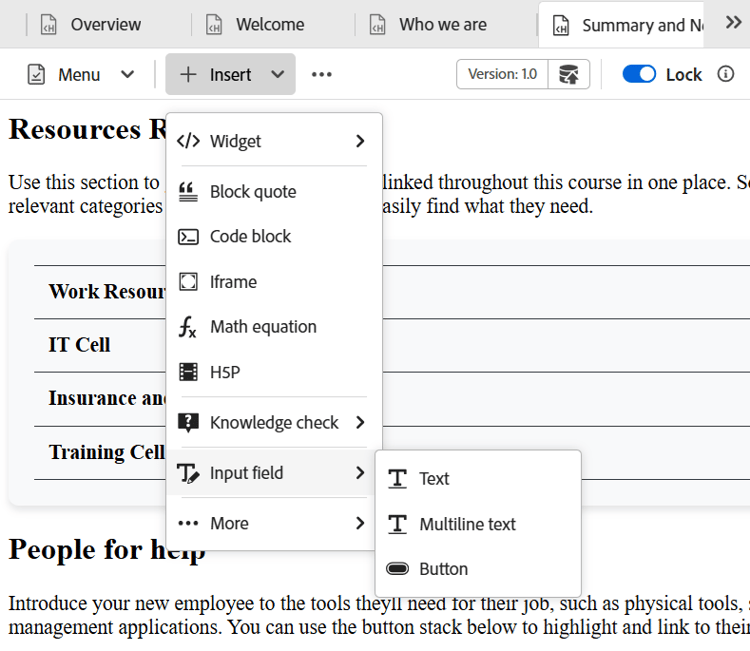
Input field: Adds a text input field along with a button to your content. You can use this combination to capture user input and trigger specific actions. You can now also add a multiline text area for longer responses, such as explanations or open-ended feedback. The multiline text area supports line breaks and text wrapping.
-
More options: You have additional options to enhance your learning content, including inserting a horizontal line, line break, text box, positioned text box, and embedded HTML.