Import content using Git connector
Git Connector allows you to import content from connected Git repositories into Experience Manager Guides. After the content is imported, you can use Experience Manager Guides authoring, review, translation, and publishing features to develop and deliver documentation.
When content changes in the source repository, you can refetch updates, review conflicts, and synchronize the latest changes with Experience Manager Guides.
Key features
Git Connector allows authors to pull content directly from a Git repository into Experience Manager Guides, without manual file transfers. Once configured, authors have access to the following capabilities.
Content ingestion
- Synchronizes files from any Git repository (public or private) into Experience Manager Guides.
- Filters by source folder path to ingest a single subdirectory instead of an entire repository.
- Uses a
gitignore-awarerule engine to automatically skip files excluded by.gitignorepatterns or custom rules. - Preserves GUIDs on re-sync to keep existing DITA cross-references intact after an update.
Incremental (delta) sync
- Tracks the last-synced commit and fetches only files that were added, modified, or deleted on subsequent syncs, instead of re-importing the entire repository.
- Produces a delta report listing every changed file and its change type before you import.
- Maintains consistent fetch times regardless of repository size. For benchmark data, view Performance benchmarks.
How Git Connector works
The following diagram shows how Git Connector moves content from a source repository into Experience Manager Guides.
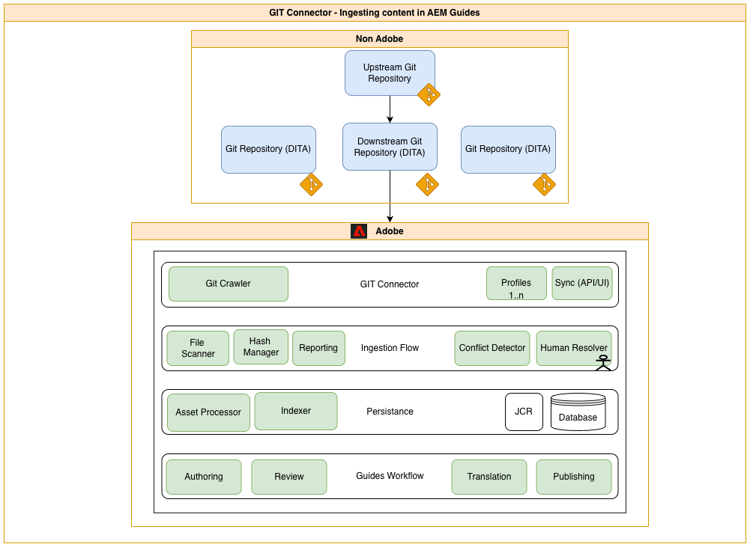
Git Connector moves content from a Git repository into Experience Manager Guides in four stages:
- Crawl and sync: A crawler connects to your configured Git repository and profile, and syncs content into the connector on demand.
- Ingest and detect conflicts: Incoming files are scanned and hashed against what’s already in Experience Manager Guides. Files with no conflicting changes move through automatically; files with conflicting changes are flagged for manual resolution.
- Persist: Resolved content is processed and saved into AEM, alongside your other Experience Manager Guides content.
- Experience Manager Guides workflow: Once persisted, the content is available like any other Experience Manager Guides content for authoring, review, translation, and publishing.
Performance benchmarks
The following benchmarks show full (non-incremental) Bulk Importer sync times on Experience Manager as a Cloud Service, at increasing repository scale.
Import content using Git Connector
After your Administrator configures the Git Connector in Experience Manager Guides, you can use it from the Editor to import content from a Git repository.
Prerequisites
Before you start using this feature, ensure that:
- Git Connector feature must be enabled for your environment.
- (If enabled) Your Administrator has configured the Git Connector in your environment. For details, view Create and configure Git Connector from the user interface.
- You have Read access to the Git repository that contains the content you want to import.
- You know which repository branch and source folder you want to import.
- You know the target folder in Experience Manager Guides where the imported content will be stored.
Import content from the connected Git repository
Perform the following steps to import content from a Git repository:
-
In the Editor, open the left panel.
-
Select Data sources.
The connected data sources are displayed.
-
Select the Git Connector tile.
-
Select the + icon and then select Bulk importer.
The Bulk importer dialog is displayed.

-
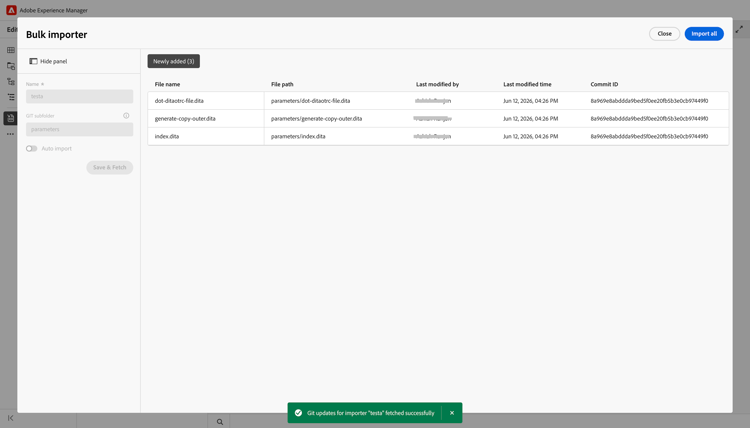
In the Bulk importer dialog, provide a name for the import, select a subfolder from your configured Git repository, and select Save & Fetch. The list of files available for import is displayed in the dialog. Review the list and validate the content before you continue.
-
After reviewing the files, select Import all to import the content into Experience Manager Guides.
note NOTE If you are using Git Connector version earlier than 1.0.1, importing a repository that contains Git submodules might fail during the fetch operation. Upgrade to Git Connector version 1.0.1 or later to avoid this issue. Starting with version 1.0.1, Git submodules are skipped during cloning and import, and only content from the main repository is imported. -
(Optional) You can enable Auto Sync to automatically synchronize and import content from your Git repository into Experience Manager Guides. If any errors are detected, Auto Sync is not triggered and the Author must manually import the content by selecting Import all. Once enabled, Auto Sync cannot be disabled for the importer.
After the content is imported, it is stored under the configured Target AEM root path when setting up the Git Connector.
Manage Git-imported content
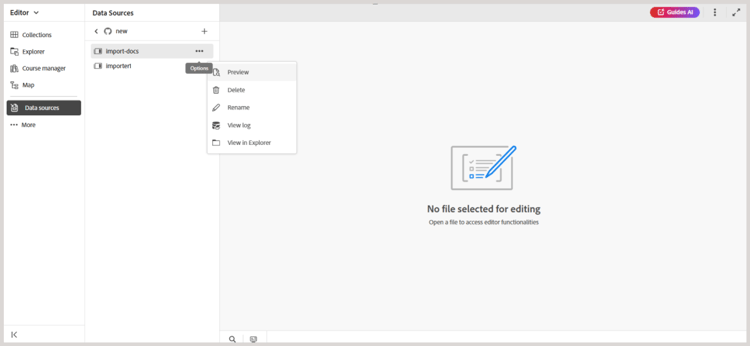
Once content is imported into Experience Manager Guides, you can use the available actions to manage the content and keep it synchronized with changes in the source repository.
-
Preview: Preview imported content. If the source repository contains updates, review the differences and use the Refetch option to import the latest changes. If the differences require merging, view Resolve Git Connector conflicts.
-
Delete: Remove importer that is no longer required.
-
Rename: Rename importer for easier identification.
-
View log: View the import log to review details of the import operation.
-
View Report: View and download the Bulk import report, which includes details such as:
- total number of imported files
- number of successful imports
- number of failed imports

You can also download the detailed report. If some files fail to import, use Retry failed imports to try importing them again.
Review and resolve content conflicts
When you re-fetch content from a Git repository, differences in the content between the repository version and the corresponding content available in Experience Manager Guides are displayed as conflicts. You must resolve and merge such conflicts before importing the data into Experience Manager Guides.
Perform the following steps to resolve and merge conflicts:
-
Open the Bulk importer dialog and select Refetch.
-
If conflicts are detected, the Merge required tab appears and lists the files that contain conflicts. Select the Merge required tab, and then select a file from the list to review and resolve the conflicts.
-
For files with conflicts, a three-way merge view is displayed.

The left pane (AEM) displays the current content from the AEM repository, while the right pane (GIT) shows the incoming content from the remote Git repository. The middle pane (Result) is initially populated with the AEM repository content and serves as the merge editor, where conflicts are resolved. The final merged result is produced and displayed in this middle pane.
-
Review the differences highlighted in the editor and resolve the conflicts using the merge controls:
-
If you want to use the latest changes from the Git repository, ensure that the checkbox for the conflict in the GIT section is selected, and then select the corresponding
<<<control. The selected Git content replaces the conflicting content in the Result section.
-
If you want to keep content from both versions, clear the checkbox for the conflict and then use the
<<<control to add the required content to the Result section without replacing the existing content.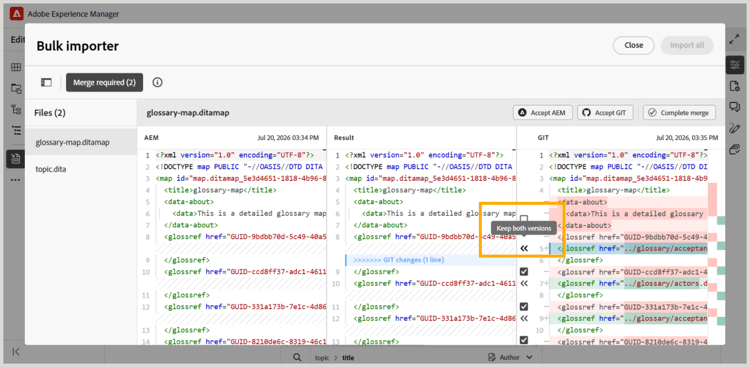
-
Similarly, you can use the
>>>control in the AEM section to keep the version currently available in Experience Manager Guides.
-
-
After reviewing the merged content, perform one of the following actions:
- Use Accept AEM to replace the content in the Result section entirely with the version from the AEM section, keeping your local changes.
- Use Accept GIT to replace the content in the Result section entirely with the version from the GIT section, keeping the repository changes.
Complete merge is required regardless of which option you use above. Selecting it locks in the current content of Result as the resolved version for that file and marks the file as merged.
After all files containing the conflicts are marked as merged, the Import all button is enabled. Select Import all to complete the process of resolving conflicts.
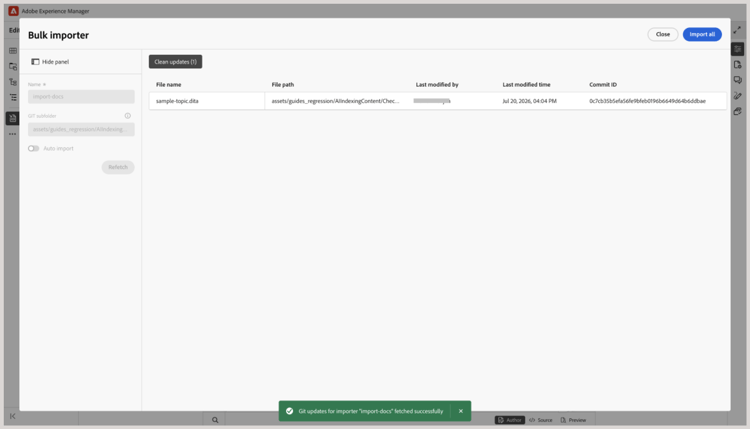
If a file has changed in the Git repository but hasn’t been modified in Experience Manager Guides, no merge is required. Such files are automatically included under Clean updates and can be imported directly.