Create and configure Git Connector from the user interface
Use the Data Sources tool in Experience Manager Guides to create and configure a Git connector from the user interface. After you configure the connector successfully, you can use it to import content from a Git repository into Experience Manager Guides.
-
Select the Adobe Experience Manager link at the top and choose Tools.
-
Select Guides from the list of tools.
-
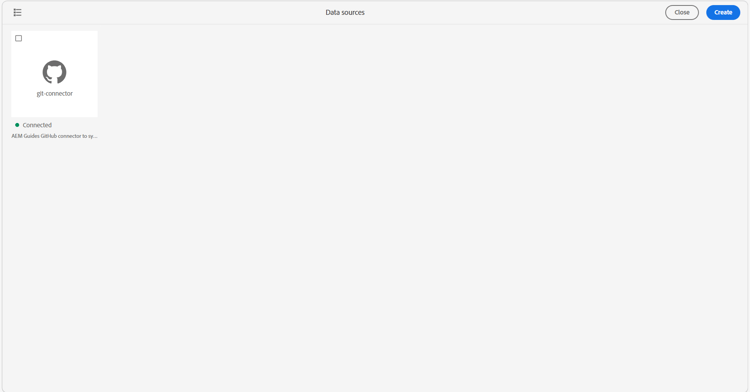
Select the Data Sources tile. The Data Sources page is displayed.
-
Select Create.
-
From the list of datasource connectors, select GitHub.

-
Select Next.
-
Enter the configuration and connection details.

note tip TIP - Hover over

- Fields with * are mandatory. For example, you can enter the following details for the Git connector.
-
Name: Enter the name of the data source.
-
Target AEM root path: Enter the path in the AEM repository where content imported from Git should be stored.
-
File type filter (inclusion): Specify the file types to include during import.
-
Excluded path (regex): Specify path patterns to exclude from import.
-
Authentication type: Select the authentication type from the drop-down list. Currently, Personal Access Token (PAT) is the only supported authentication method. Enter the PAT during connector setup to authenticate and access the Git repository.
Learn how to Generate a GitHub personal access token.
While selecting scopes during PAT generation on GitHub, ensure to enable the following scopes:
- repo: Select the top-level checkbox. All sub-scopes are selected automatically, granting access to repository content, commit status, and deployments.
- admin:org: Select only read:org. This is required to resolve organization and team membership.
- Repository URL: Enter the Git repository URL from which content should be imported.
- Branch: Enter the branch to use for content import.
- Hover over
-
Test the connection. The Test connection button is enabled only after you enter the required details. If the connection details are correct, a success message appears. Otherwise, an error message appears.

-
Select Save on the top to save the connector.
The Save button is enabled only after all required details are entered and the connection is successful. If the connector is saved successfully, you can view the configured Github connector on the Data sources page.
Add Git Connector to your Cloud Manager project
Before Git Connector is available to configure from the Data Sources page, it must be embedded as a dependency in your AEM project. Perform the following steps to add the dependency:
-
In your AEM project’s
all/pom.xml, add Git Connector as a dependency under<dependencies>:code language-xml <dependency> <groupId>com.adobe.aem.addon.guides</groupId> <artifactId>konnect-github</artifactId> <version>1.0.1</version> </dependency> -
In the same
pom.xml, add the dependency to the<embeddeds>section of thefilevault-package-maven-pluginconfiguration:code language-xml <embedded> <groupId>com.adobe.aem.addon.guides</groupId> <artifactId>konnect-github</artifactId> <type>jar</type> <target>/apps/YOUR-vendor-packages/content/install</target> </embedded>Replace
YOUR-vendor-packageswith your project’s vendor package name. -
Commit and push the changes to your Cloud Manager Git repository, then run the pipeline to deploy them.
Once the pipeline completes, Git Connector is installed in your environment and available to configure from the Data Sources page.