Paginated loading of files and folders
Experience Manager Guides uses a paginated API for loading files and folders. Instead of loading all content at once, folders load progressively in batches, with additional assets retrieved automatically as you scroll or by selecting Load more option.
Sorting is performed server-side, so applying a sort order fetches freshly sorted results rather than reordering data already loaded in the browser. Common operations, such as rename, delete, add, and move, no longer reload an entire folder. Instead, they update only the affected item or refresh the first page of results. The Always locate a file in Explorer functionality is also no longer available. For any asset, you can still use the context menu to locate the file in Explorer.
The sections below describe how each of these applies for different interfaces, panels, and dialogs.
Home Repository table
-
Browsing: Uses infinite scrolling. The first batch of assets load initially; subsequent batches are appended automatically as you scroll. Switching folders clears the current list and loads the assets from the newly selected folder.
-
Rename: In-place; no folder refresh.
-
Delete: The root folder refreshes to show the first batch of assets.
-
Add: The new file is inserted at the top (of the current folder). Additional metadata, such as document state, lock status, file type, creation date, and other details are fetched in a single batched background request and filled automatically after some time.
-
Move: Moving a file into the active folder adds it at the top; moving a file out of the active folder refreshes the folder to its first batch of assets.
-
Refresh button: Reloads the active folder, showing the first batch of assets.
-
Sorting: Display first sorted page with infinite scrolling.
-
Folder navigation panel: Opening a folder loads the first batch of assets, with a Load more option appended for subsequent batches.

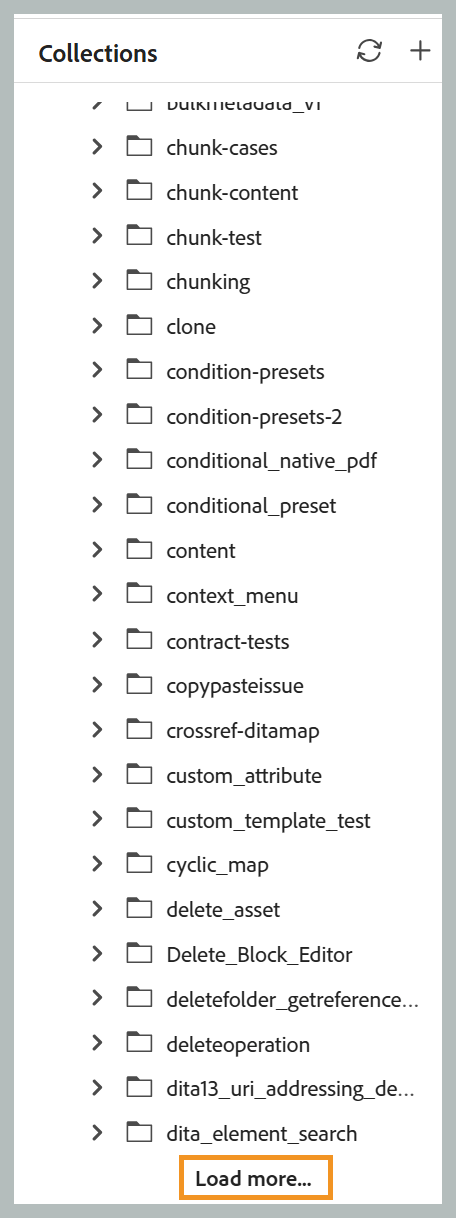
Collections
-
Adding a file inserts it at the top of the folder without the folder refresh.
-
Opening a folder loads the first batch of assets, with a Load more option appended for subsequent batches.
Explorer
-
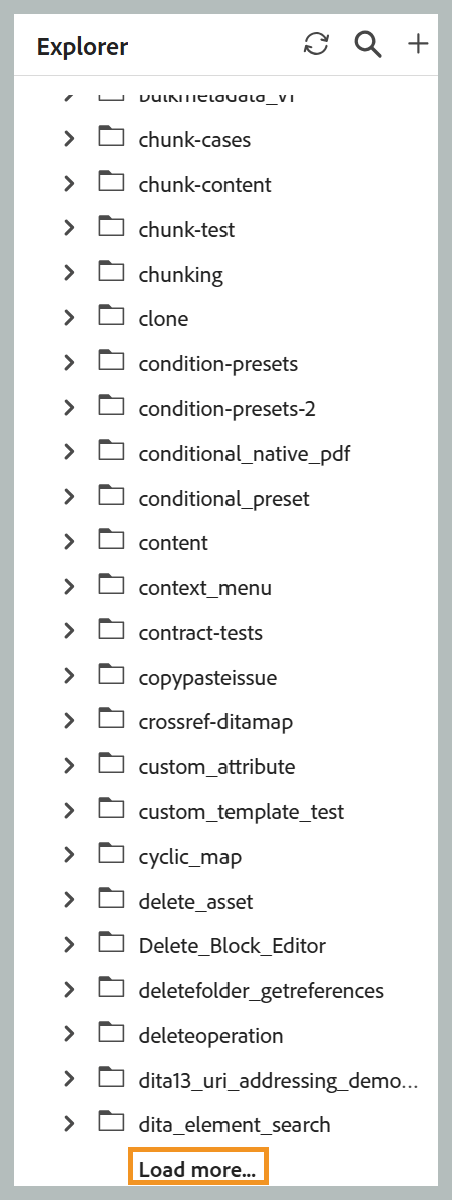
Root folder: Infinite scrolling. The first batch of assets loads initially; subsequent batches are appended automatically as you scroll.
-
Child folders: Expanding a folder loads the first batch of assets, with a Load more option appended for subsequent batches.
-
Rename: Happens in-place without folder refresh.
-
Delete: The root folder refreshes to show the first batch of assets.
-
Add or duplicate: The new file appears at the top of the folder.
-
Move: Moving between unrelated folders refreshes the source folder to its first batch of assets and adds the item at the top of the destination (loading the destination’s first batch of assets if it wasn’t already open).
-
Refresh: A new refresh button in the Explorer panel header reloads the root level, showing the first batch of assets.
-
Sort: Use the Sort button at the top of the Explorer panel to switch the order of files and folders between ascending (the default) and descending. Files and folders in the Explorer panel are sorted by the name displayed for them, which depends on your Editor files display configuration in User preferences. If it is set to Title, files and folders are sorted by title. If it is set to File name, they are sorted by file name.

Search panel
- Browsing search results uses infinite scrolling. The first batch of assets loads initially; subsequent batches are appended automatically as you scroll.
Template panel
- The root level shows only the map and topic categories. Expanding a subfolder loads the first batch of assets, with a Load more option appended for subsequent batches.
Select path dialog
-
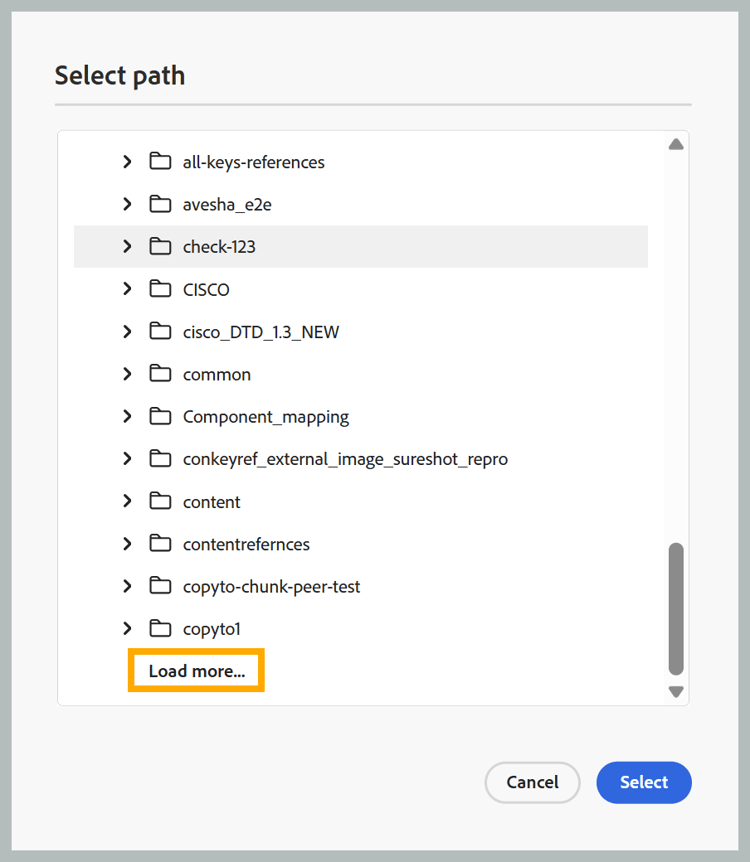
Each folder node loads the first batch of assets, with a Load more option appended for subsequent batches.
-
When the dialog opens and navigates to a specific target path, the tree automatically expands from the root to the target. Folders along the path load with a larger page size, while the target folder loads with the standard batch size.