Experience Manager Guides and Edge Delivery Services
Adobe Experience Manager Guides allows you to publish your DITA content directly to Edge Delivery Services (EDS) through a dedicated GitHub-based publish profile. This capability enables organizations to deliver high-performance, responsive documentation experiences while maintaining DITA-based authoring workflows in Experience Manager Guides.
For more details on using EDS in Adobe Experience Manager, view Edge Delivery Services Overview.
To enable publishing from Experience Manager Guides to EDS, you must complete a series of configuration steps across GitHub and Experience Manager Guides. The sections below outline each step in sequence and explain how they work together in the overall publishing workflow.
For a quick video walkthrough, view Publishing in AEM Guides.
Set up and configure GitHub for EDS
This section describes how to set up and configure GitHub for use with EDS. It covers creating a repository using the Adobe boilerplate, connecting GitHub to Adobe Experience Manager through AEM Code Sync, configuring the required GitHub and OAuth applications, and defining the repository mountpoint used for publishing content.
Create a GitHub Repository for EDS
EDS requires a GitHub repository with a predefined structure. Adobe provides an official boilerplate repository specifically designed for Experience Manager Guides users.
Perform the following steps to create your repository:
-
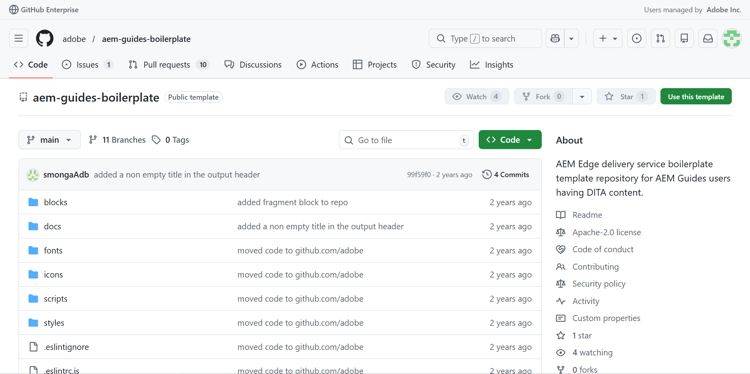
Open the Experience Manager Guides boilerplate template repository aem-guides-boilerplate.
-
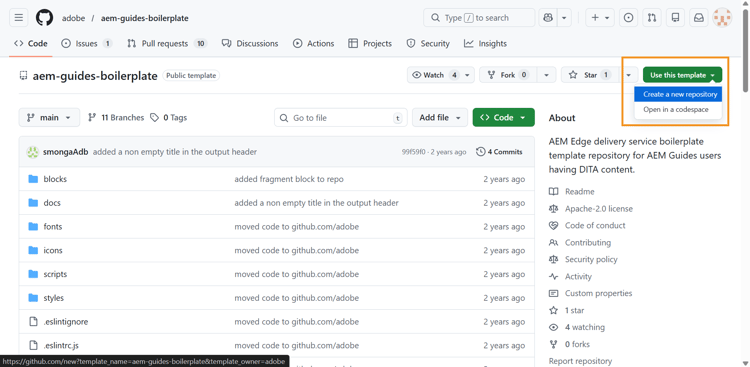
Create a new repository using this template. Learn about Creating a repository from a template. Ensure that the repository visibility is set to Public so it can be accessed by EDS.
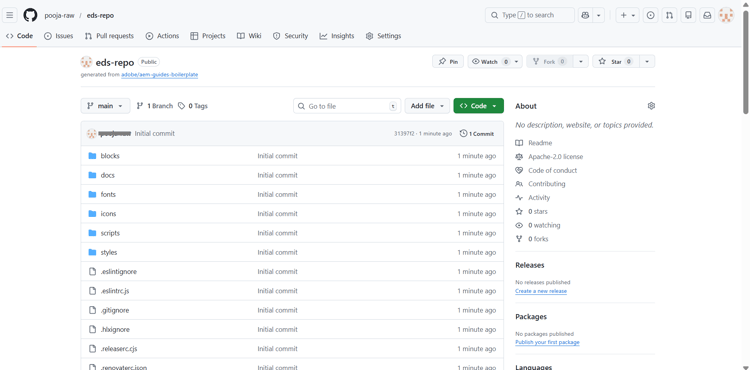
The repository is now created and aligns with the boilerplate template structure.
Connect GitHub to Adobe via AEM Code Sync
Adobe Experience Manager uses a GitHub application called AEM Code Sync to push content from Experience Manager Guides to GitHub.
Perform the following steps to install and configure the AEM Code Sync application:
-
Navigate to the AEM Code Sync page and select Install.
-
AEM Code Sync monitors repository changes and ensures that updates are correctly pushed to GitHub.
note NOTE While installing the application, ensure that you use the same GitHub account that owns the repository. 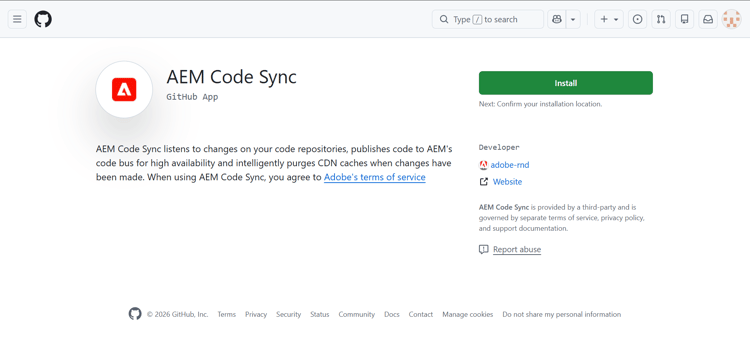
-
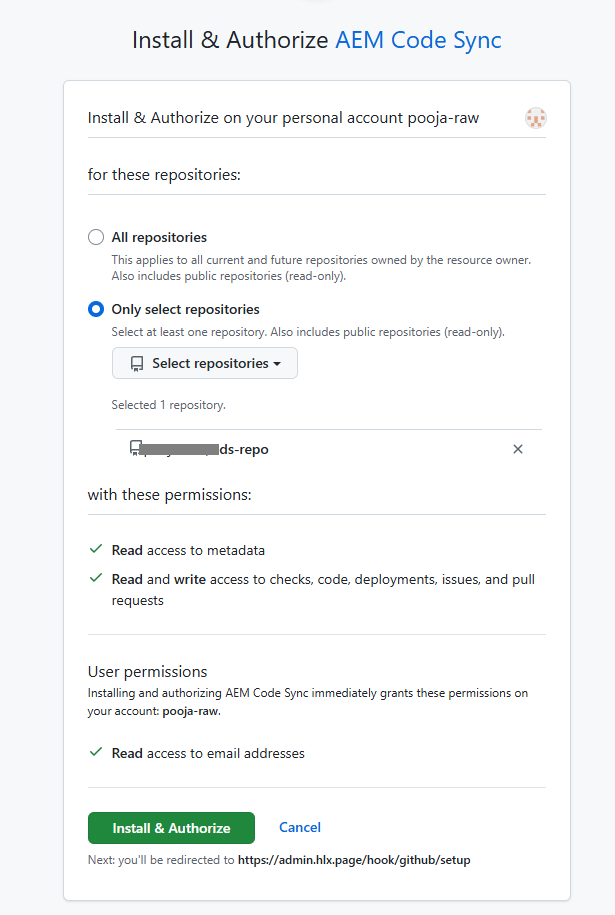
On the next page, grant access to the repository you created. To do this, select the Only select repositories option and then select your repository from the dropdown.
-
Select Install and Authorize.
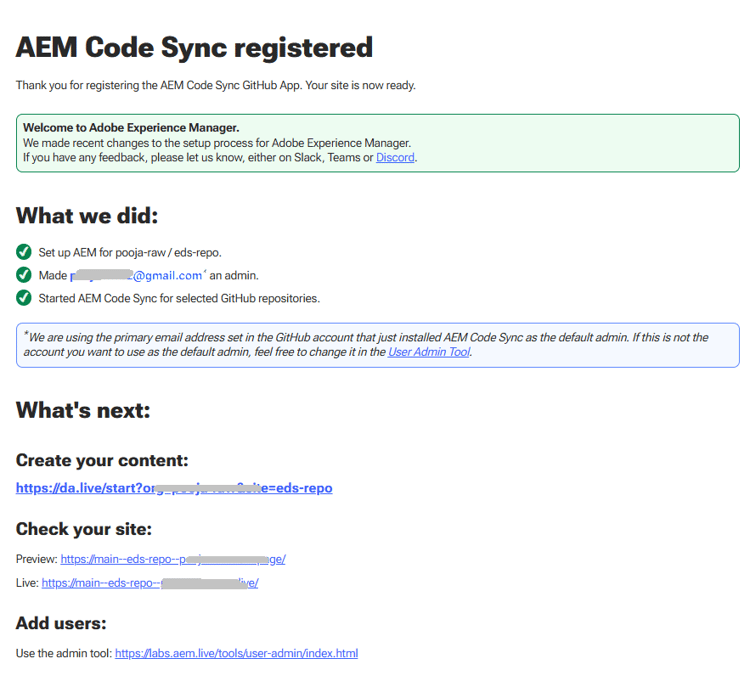
You are redirected to the GitHub setup page, confirming successful registration of the AEM Code Sync application. You can also save the Preview and Live URLs for your website from this page.
Create a new GitHub App
-
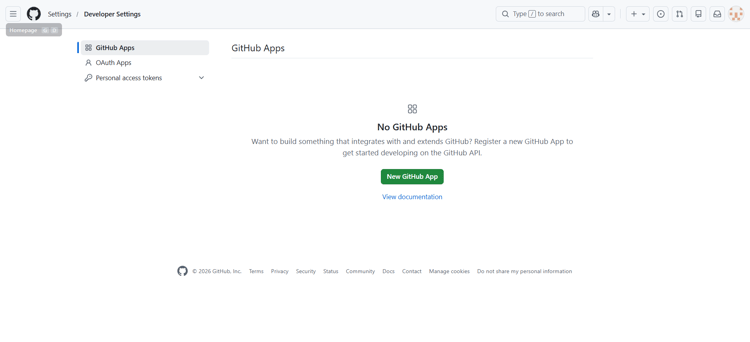
On GitHub, navigate to the left sidebar and select Developer settings.
-
In the left sidebar, select GitHub Apps.
-
Select New GitHub App.
-
On the Register new GitHub App page, provide the following details:
-
GitHub App name: Enter a name for your app. For example,
USERNAME-eds-appwhere USERNAME is your GitHub username. -
Homepage URL: Enter the URL to the Experience Manager Guides instance.
Sample URL (format):
https://<aem-author-url>/libs/fmdita/clientlibs/xmleditor/page.htmlSample URL:
https://author-p16602-e335172-cmstg.adobeaemcloud.com/libs/fmdita/clientlibs/xmleditor/page.html -
Callback URL: Same as the Homepage URL.
-
Webhook URL: Disable this option.
-
Repository permissions: Set Read and Write permissions for Actions, Administration, and Attestation.
-
-
Select Create GitHub App.
Your app is now ready. You are redirected to the Settings page of your GitHub App.
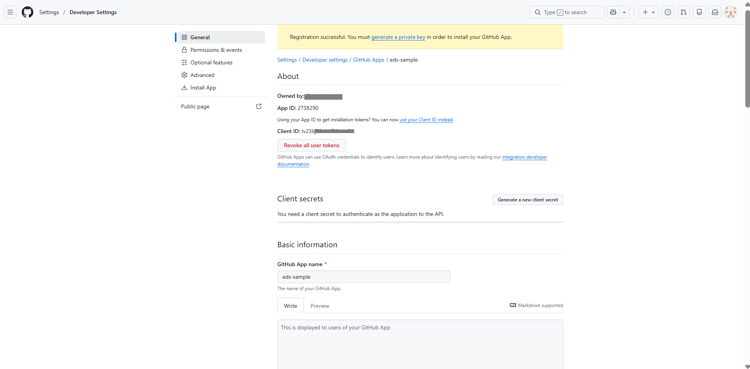
Create a new OAuth App
An OAuth App is required to authenticate users while creating an EDS publish profile in Experience Manager Guides. It enables a secure login flow using a Client ID and Client Secret.
Perform the following steps to create a new OAuth App:
-
On GitHub, navigate to the left sidebar and select Developer settings.
-
In the left sidebar, select OAuth Apps.
-
Select New OAuth App.
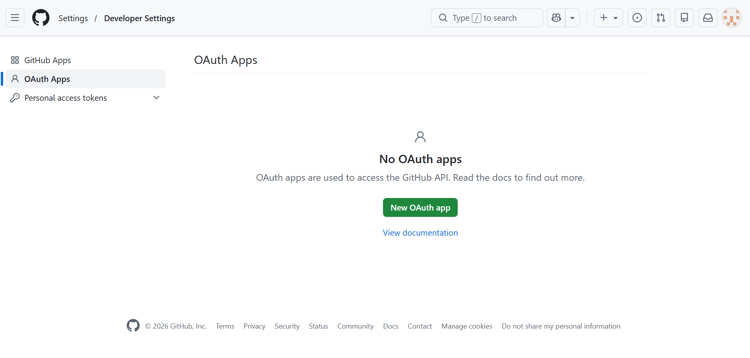
-
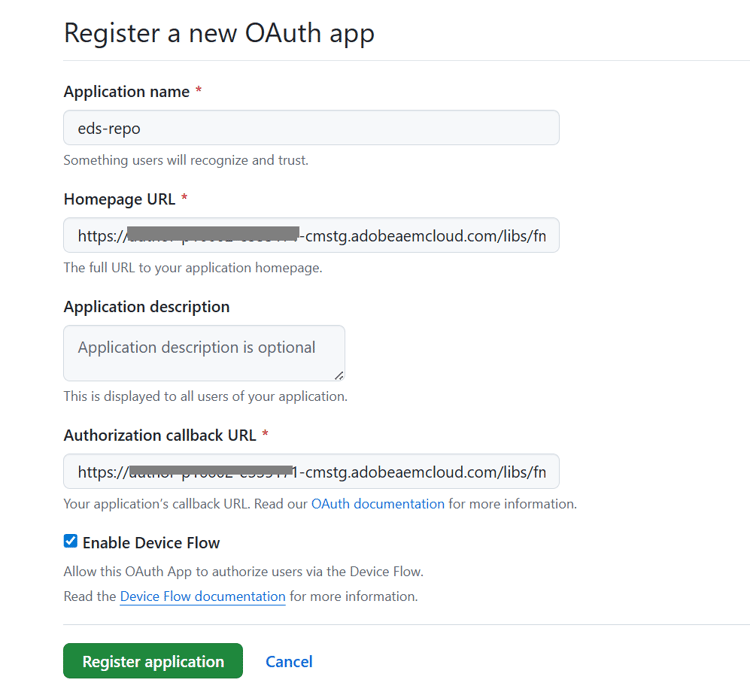
Register your application by providing the following mandatory details:
- Application name: Enter the name of your EDS repository
- Homepage URL: Enter the URL to the Experience Manager Guides instance. (For sample URL format, refer to step 4 of Create a new GitHub App section).
- Authorization callback URL: Same as Homepage URL
-
Select the Enable Device Flow option and then select Register application to complete the registration.
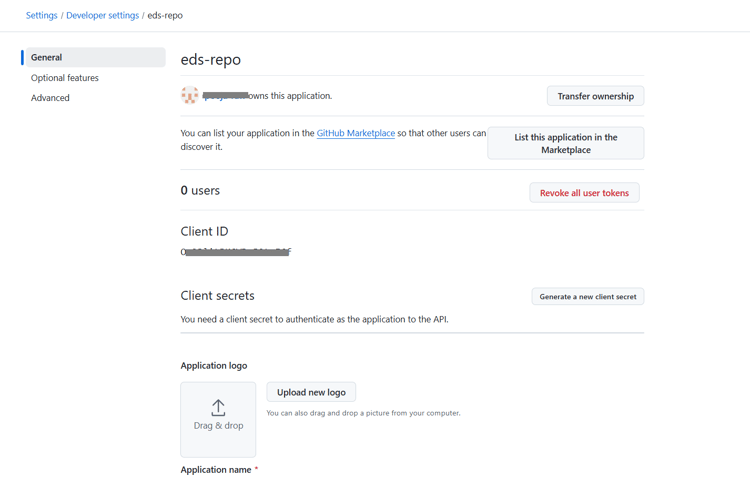
Your app is now ready. Note down the Client ID. You can generate up to five Client Secrets now or later while configuring the publish profile in Experience Manager Guides.
Configure the mountpoint URL in EDS repository
EDS reads content from a GitHub repository path defined as a mountpoint URL in the fstab.yaml file.
To configure the mountpoint URL in the fstab.yaml file:
-
Open the
fstab.yamlfile in your repository and update the following:your-user-nameyour-repo-name
note NOTE In the mountpoint URL, mainindicates the branch on which you want to publish the content, anddocsindicates the root folder of the EDS repository you are working on. If you prefer to change the branch name on GitHub, then you must update the same branch name in the mountpoint URL (in thefstab.yamlfile) and corresponding EDS publish profile in Experience Manager Guides.
-
Select Commit changes, enter commit details, and confirm.
-
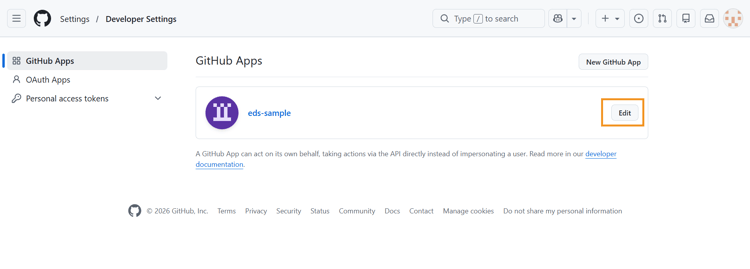
Return to Developer settings, locate your app, and select Edit.
-
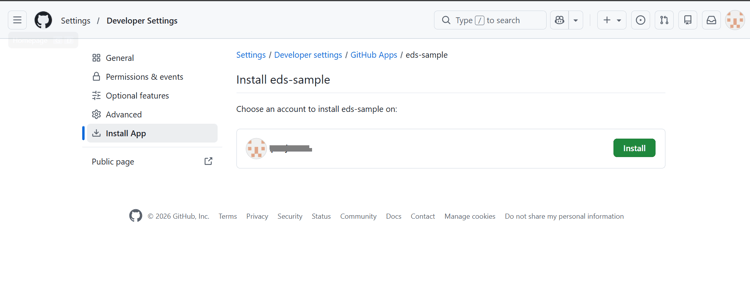
Navigate to the Install App page and select Install.
-
Repeat steps 2 and 3 from the Connect GitHub to Adobe via AEM Code Sync section to authorize the repository.
Create and configure a publish profile for EDS in Experience Manager
The sections below outline each step in sequence and explain how to set up EDS publish profile, configure an output preset, and generate output using EDS in Experience Manager Guides.
Create the EDS publish profile
-
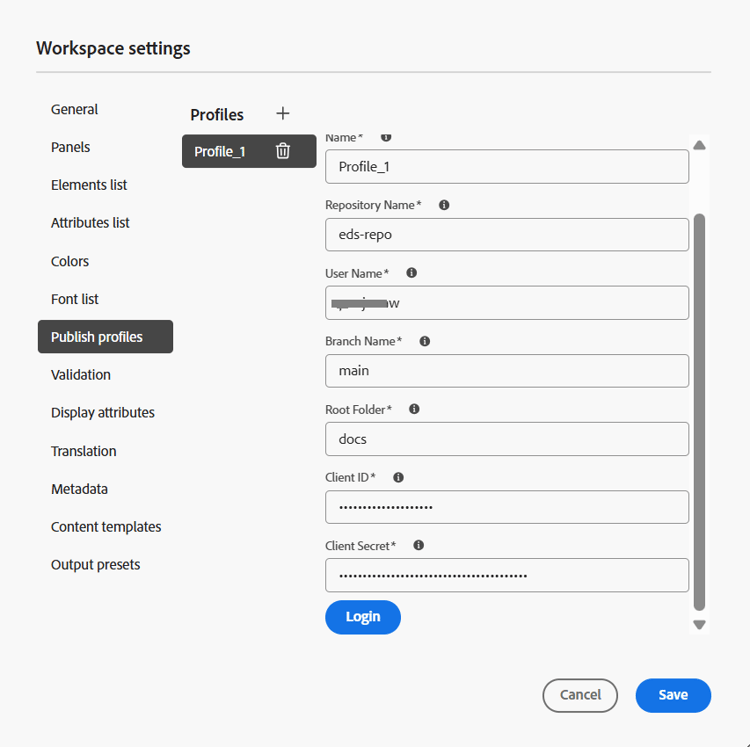
Go to Workspace settings > Publish profiles.
-
Select the + icon to create a new publish profile and provide the following details:
- Server type: Select GitHub Edge Delivery Services from the dropdown.
- Name: Enter a name for this profile .
- Repository name: Use the GitHub repository name created from the boilerplate.
- Username: Enter your GitHub username.
- Branch main: Set to main (default).
- Root folder: Set to docs (default).
- Client ID and Client Secret: Fetch these from your GitHub App (Refer to Create a new OAuth App section for details).
-
Select Login to authenticate.
-
On successful authentication, select Save.
Your EDS publish profile is now configured.
Create an Output preset for EDS and generate output
-
Open your map in Map console.
-
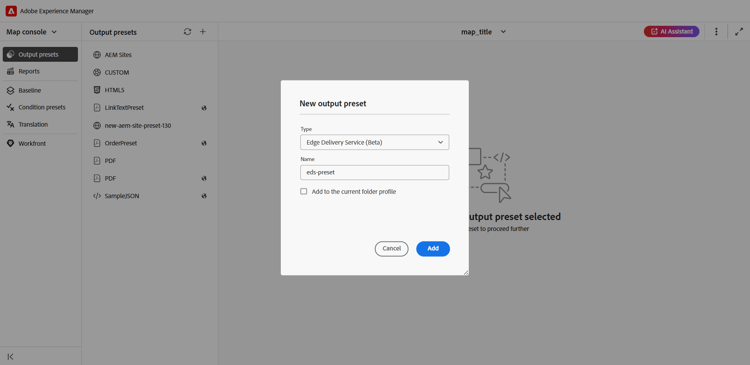
In the Output presets tab, select + to create a new output preset.
-
In the New output preset dialog, provide the following details:
- Type: Select Edge Delivery Service
- Name: Provide a name for this preset
-
Select Add.
-
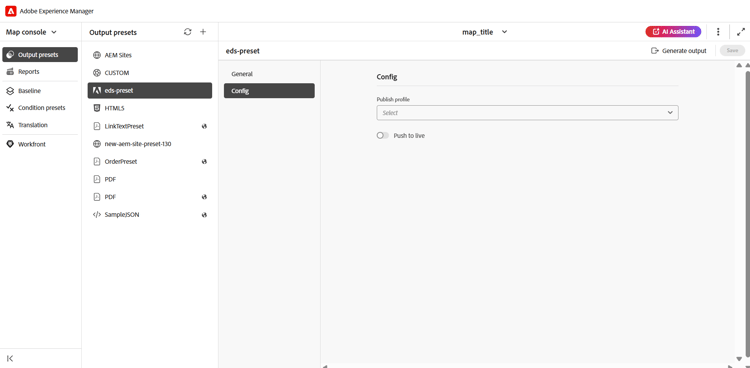
Open the newly created EDS output preset and navigate to the Config tab.
- Select the publish profile created in the previous step.
- Enable Push to live.
When Push to live is enabled, the generated output is committed to GitHub, and the corresponding updates are propagated to the live website immediately.
-
Select Save, and then Generate output.
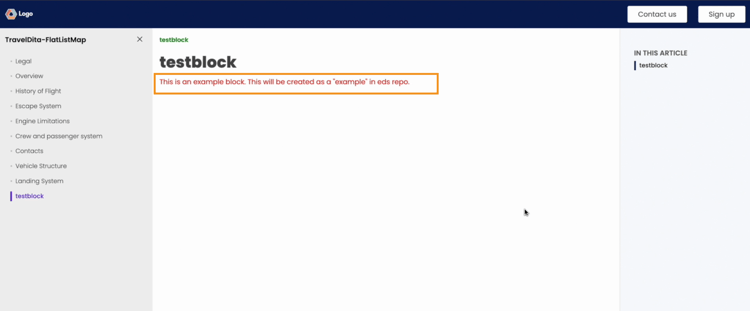
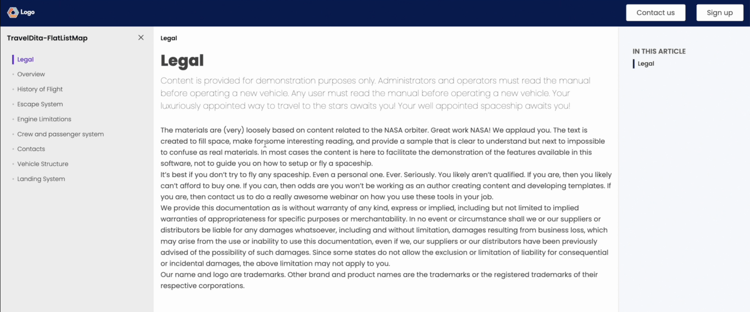
The EDS output is now generated. The content is presented in a clean, responsive layout. It includes regular elements such as the page title, breadcrumbs, body content, and any blocks used in the topic. The TOC on the left (generated from the map) helps you to navigate across topics, while a mini-TOC on the right highlights the sections within the current page. The entire output is fully responsive, ensuring an optimized, consistent reading experience across devices.
Customize output using EDS blocks
EDS uses blocks to control how different parts of your content are styled and displayed. You can modify existing blocks or create custom ones.
The examples outlined below walk you through customizing an existing block and creating a new block to style the final EDS output in Experience Manager Guides.
Customize a breadcrumb block to update its text color
Breadcrumbs are used across pages to help users understand where they are in the documentation. Since this block appears consistently throughout the website, updating its styling allows a unified design update.
Perform the following steps to customize a breadcrumb block to update its text color:
-
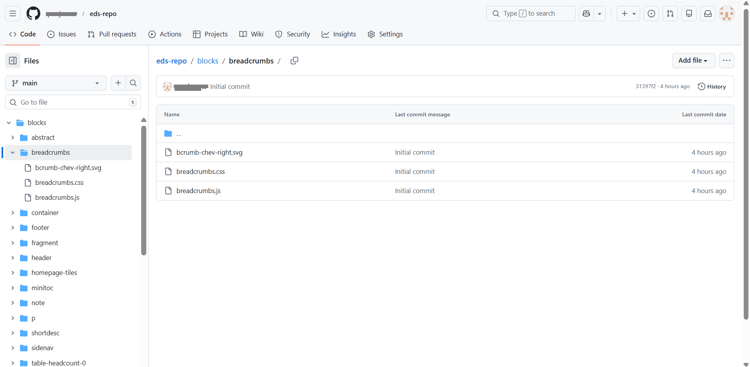
Go to your GitHub repository and open the
blocksfolder. -
Select the breadcrumbs block.
-
Open the
cssfile and update the text color. -
Commit the changes to GitHub.
-
Refresh the live website to view the updates.
Update EDS scripts to create custom element in the published output
In some cases, you may want to style only a specific part of your content. Peform the following steps to achieve this using a custom block.
-
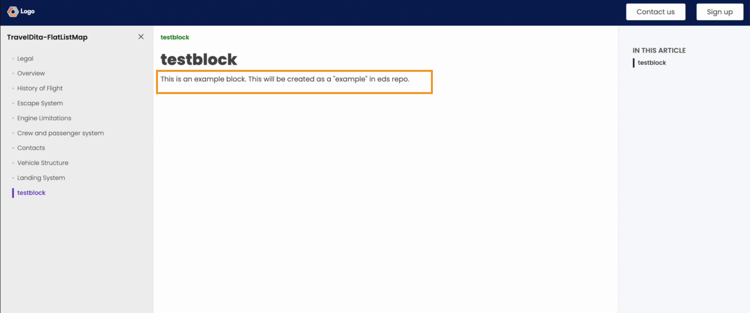
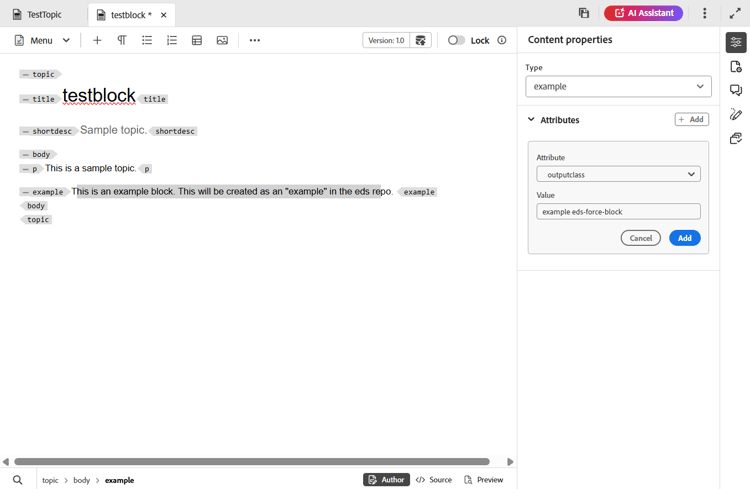
Open the topic file and select the text inside a tag element.
In the following screenshot, the content inside the
exampletag is selected.
-
To configure the text inside the
exampletag:- Navigate to Content properties.
- Add the
outputclassattribute. - Set its value to
example eds-force-block. - Select Add.
-
Save and regenerate the output.
-
Create a new folder with the same name as the
outputclassinside theblocksdirectory. Learn about adding files to a repository.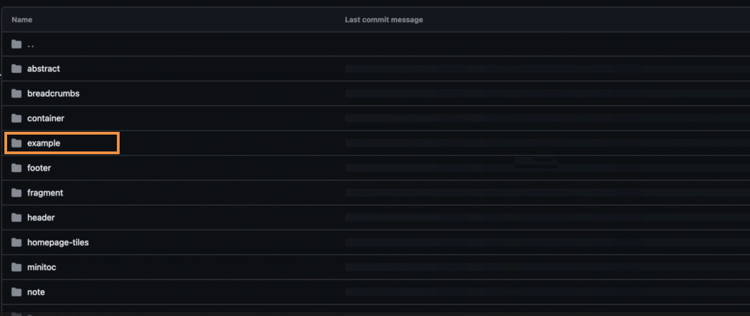
-
Add the required
cssand optionaljsfiles.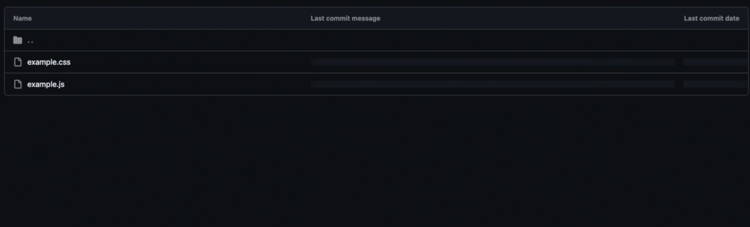
-
Commit changes and regenerate output.
The selected content now displays the custom styling defined in your block.