Visual Content Fragments visual-content-fragments
Content Fragments contain structured content that is intended for JSON output, without design or layout. The addition of HTML templates allows you to create fully decorated, visual experiences with structured content in HTML format:
-
Visualizing a content fragment helps content quality assurance, allowing stakeholders to review content before it is used, without having to open Content Fragment Editor
-
Delivering a visual fragment aids omnichannel delivery, for reuse of modular experiences across channels such as web, email or mobile apps.
The rendered output of an AEM Content Fragment that uses the layout and design of an attached HTML template is called a Visual Content Fragment.
HTML templates contain layout and design information, enabling the visualization of Content Fragments. The connection between a template and a Content Fragment is established using Handlebars syntax to map HTML tags to data types (fields) defined in the Content Fragment Model. This definition allows content authored in the respective fields of the Content Fragment Editor to be displayed in the appropriate locations within the template.
You, or your development team, can create and customize your own HTML templates, then upload and attach one, or more, to Content Fragment Models so that the corresponding fragments can be rendered into experiences, previewed and delivered as required.
Create a Template create-a-template
HTML templates developed using Handlebars allow you to preview and deliver Visual Content Fragments in HTML format. The Handlebars.js syntax defines placeholders for content that is authored in Content Fragment fields.
For details on developing your own templates see Visual Content Fragments - Templates.
Upload and Assign your Template upload-and-assign-your-template
A template is associated with a Content Fragment Model so that it can be used with any Content Fragments created from that model.
To upload your new HTML template:
-
In the Content Fragment console open the tab for Content Fragment Models.
-
Navigate to the location of your fragment model.
-
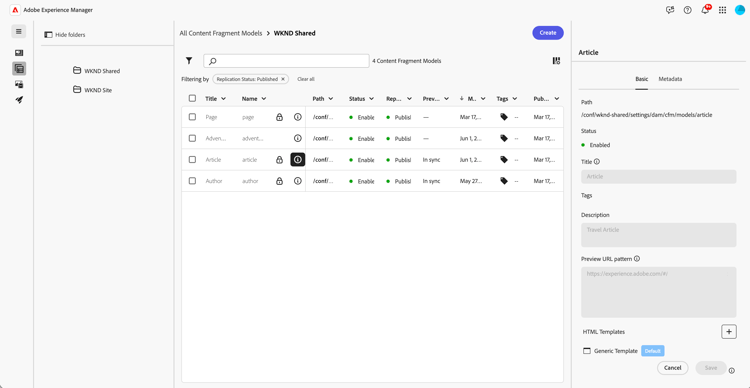
Select the information icon (i) for the required model:

The right panel will be shown.
-
Scroll down to show HTML Templates, the Generic Template is already listed as it is the default:
-
Select + to upload your template from an HTML file (
.html). A dialog will allow you to Browse your local file system and select your template file. -
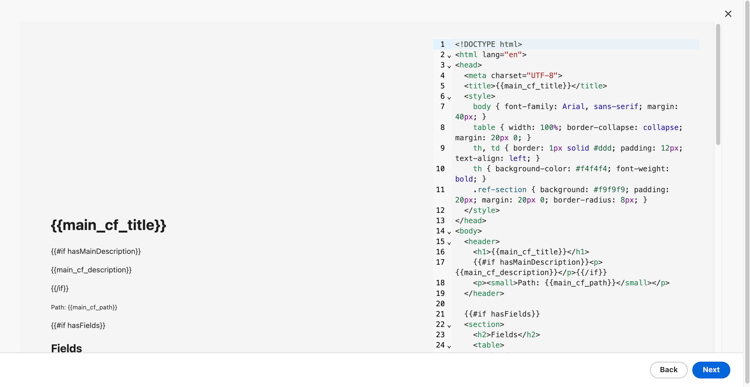
Once uploaded two views of the template are shown for you to review:
- left: a rendering of the template without content
- right: the HTML code, that can also be edited here before importing to AEM
-
Select Next to continue.
-
Enter a Template name for use in AEM.
-
Confirm with Create Template.
-
The template will be created in AEM and listed under HTML Templates, in properties of Content Fragment Models.
Once loaded it can be used for previewing fragments. You can also Download or Delete the template.
Preview your fragment with a Template preview-your-fragment-with-a-template
To preview your Content Fragment using a template:
-
In the Content Fragment console navigate to the location of your fragment.
-
Either:
- select your fragment in the console
- open your fragment in the editor
-
Select Preview from the top toolbar of:
- the Content Fragment console
- the editor, where you can then select Template
In both cases a new modal window will open.
-
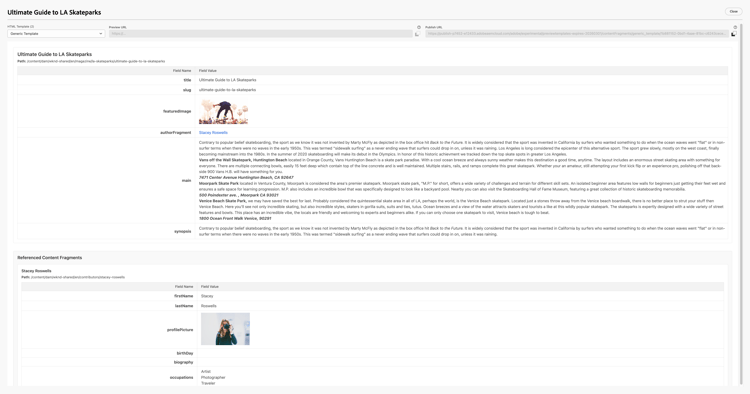
If no custom templates are available, then AEM will use the Generic Template to display your fragment. The Generic Template:
- displays the fields of your fragment in table form; name and content
- shows the fully hydrated content of referenced fragments in the same view
-
If custom templates are available, you can select the template you want to use (including the Generic Template).
-
If the Content Fragment is published you can also view and copy its Preview URL and Publish URL.
For example, preview with the Generic Template:
Deliver your Visual Content Fragment deliver-your-visual-content-fragment
The Visual Content Fragment can be delivered to a range of targets in HTML format.
Deliver to the browser deliver-to-the-browser
Copy the Preview URL or the Publish URL. Access this directly from your browser to see your Visual Content Fragment.
Deliver to Edge Delivery Services deliver-to-edge-delivery-services
You can deliver your visual fragment in an Edge Delivery Service (EDS) page.
Deliver to an AEM page deliver-to-an-AEM-page
You can deliver your Visual Content Fragment in an AEM page using the Core Component: Content Fragment.
When configuring a Content Fragment component on your page:
-
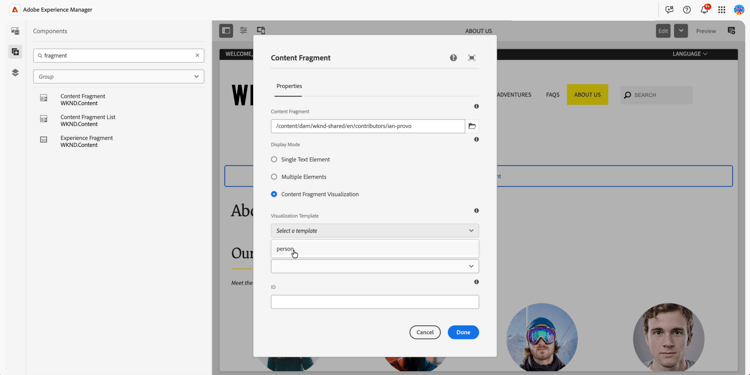
Specify the required Content Fragment.
-
Select Content Fragment Visualization.
-
Select the required Visualization Template from the drop down list.
-
The visual fragment will be shown in the page.
Download your template download-your-template
To download your HTML template from AEM:
-
In the Content Fragment console open the tab for Content Fragment Models.
-
Navigate to the location of your fragment model.
-
Select the information icon (i) for the required model:
The right panel will be shown.
-
Scroll down to show HTML Templates.
-
Select the ellipse by the template you want to download.
-
Select Download.
-
Specify the file name and location.
-
Confirm with Save.
Delete your template delete-your-template
To delete your new HTML template (from AEM):
-
In the Content Fragment console open the tab for Content Fragment Models.
-
Navigate to the location of your fragment model.
-
Select the information icon (i) for the required model:
The right panel will be shown.
-
Scroll down to show HTML Templates.
-
Select the ellipse by the template you want to download.
-
Select Delete.
-
In the following dialog confirm the action with Delete.