Open ID Connect Support for AEM as a Cloud Service on Publish Tier open-id-connect-support-for-aem-as-a-cloud-service-on-publish-tier
Introduction introduction
As organizations modernize their digital experiences, secure and scalable identity management becomes a foundational requirement. Adobe Experience Manager (AEM) Cloud Service now supports OpenID Connect (OIDC) on the Publish tier, allowing seamless and standards-based integration with leading Identity Providers (IdPs) such as Entra ID (Azure AD), Google, Okta, Auth0, Ping Identity, ForgeRock and OIDC supported IDPs.
OIDC is an identity layer on top of the OAuth 2.0 protocol that enables robust user authentication while maintaining simplicity for developers. It is widely adopted for business-to-consumer (B2C), intranet, and partner portal scenarios, where secure user login and identity federations are required.
Until now, AEM customers were responsible for implementing their own custom login logic on the Publish tier, which increased development time and introduced long-term maintenance and security challenges. With native support for OIDC, AEM Cloud Service removes this burden by providing a secure, extensible, and Adobe-supported authentication mechanism for end users accessing Publish environments.
Whether you’re delivering a personalized consumer website or an authenticated internal portal, OIDC on Publish simplifies identity federation and reduces risk through centralized identity governance. It also helps organizations meet modern compliance and security standards without sacrificing agility.
Configure AEM for OIDC Authentication configure-aem-oidc-authentication
Prerequisites prerequisits
We assume that the following information is available or defined:
- The paths of the content to be protected in the AEM repository
- An identifier for the IdP to be configured. This can be any string
Information from the IdP Configuration:
- The Client Id configured in the IdP
- The Client Secret configured in the IdP. If PKCE was configured on the IdP, the Client Secret is not available. Do not store the plain text value in the configuration file. Use a CM Secret and reference it
- The scopes configured on the Idp. At least the scope
openidmust be provided - Whether PKCE is enabled on the IdP
- The
callbackUrlis defined using one of the configured path defined at point 1 and adding the suffix:/j_security_check - The
baseUrlto access to the standard.well-knownfile. For example, if the well-known url is:https://login.microsoftonline.com/53279d7a-438f-41cd-a6a0-fdb09efc8891/v2.0/.well-known/openid-configurationthebaseUrlis:https://login.microsoftonline.com/53279d7a-438f-41cd-a6a0-fdb09efc8891
Overview of the Configuration Files overview-of-the-configuration-files
Find below a list of files that need to be configured:
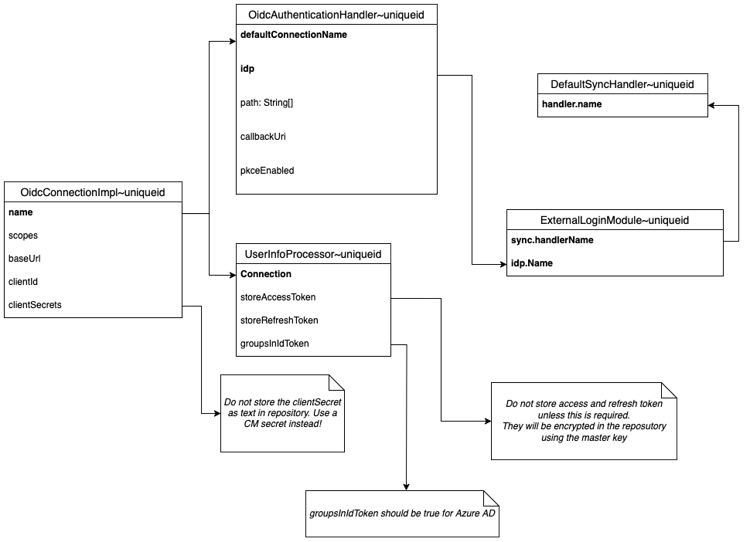
- OIDC Connection: this will be used by the
OidcAuthenticationHandlerto authenticate the users, or by other components to authorize access to resources protected by the IdP using OAuth - OIDC Authentication Handler: This is the authentication handler used to authenticate users that access to the configured paths
- UserInfoProcessor: This component process the information received by the IdP. It can be extended by customers to implement custom logic
- Default Synchronization Handler: This component creates the user in the repository
- ExternalLoginModule: This component authenticate the user in the local oak repository.
The following diagram shows how the mentioned configuration elements are linked. Note that since these are ServiceFactory components, the ~uniqueid can be any random unique string:
Configure the OIDC Connection configure-the-oidc-connection
First, we need to configure the OIDC connection. Multiple OIDC connections can be configured, and each has to have a different name.
-
Create a new
.cfg.jsonfile that will house the configuration. For example, you can useorg.apache.sling.auth.oauth_client.impl.OidcConnectionImpl~azure.cfg.json- the azure suffix must be a unique identifier for the connection -
Follow the configuration format in the example below:
code language-none { "name":"azure", "scopes":[ "openid" ], "baseUrl":"<https://login.microsoftonline.com/tenant-id/v2.0>", "clientId":"client-id-from-idp", "clientSecret":"xxxxxx" }
In some environments, the identity provider (IdP) may not expose a valid .well-known endpoint.
When this occurs, the required endpoints can be defined manually by specifying the following properties in the configuration file.
In this configuration mode, the baseUrl property must not be set.
"authorizationEndpoint": "https://idp-url/oauth2/v1/authorize",
"tokenEndpoint": "https://idp-url/oauth2/v1/token",
"jwkSetURL":"https://idp-url/oauth2/v1/keys",
"issuer": "https://idp-url"
-
Configure its properties as follows:
- The “name” can be defined by the user
baseUrl,clientidandclientSecretare configuration values that come from the IdP.- The scopes must contain at least the value
openid.
Configure OIDC Authentication Handler configure-oidc-authentication-handler
Now, configure the OIDC authentication handler. Multiple OIDC connections can be configured. Each has to have a different name. If they share the same OAK External Identity Provider, they can share users.
-
Create the configuration file. For this example, we’ll use
org.apache.sling.auth.oauth_client.impl.OidcAuthenticationHandler~azure.cfg.json. Theazuresuffix must be a unique identifier. See an example of the configuration file below:code language-none { "path":"/content/tests/us/en/test-7", "callbackUri":"http://localhost:14503/content/tests/us/en/test-7/j_security_check", "pkceEnabled":false, "defaultConnectionName":"azure" "idp": "azure-idp" } -
Then, configure its properties as follows:
path: the path to be protectedcallbackUri: the path to be protected, adding the suffix:/j_security_check. That same callbackUri must be also configured in the remote IdP as redirect url.defaultConnectionName: configure with the same name defined for the OIDC connection on the previous steppkceEnabled:trueProof Key for Code Exchange (PKCE) on Authorization code flowidp: the name of the OAK External Identity Provider. Note that different OAK IDP cannot share users or groupsjwkSetHttpSizeLimit: maximum size, in bytes, of the JWK set document fetched from the IdP’sjwks_uriwhen validating the ID token signature. Increase this if the IdP publishes a large key set and token validation fails withExceeded configured input limit. Must be between 1 and 10485760 (10 MB); an unbounded value is not allowed on the authentication path. Defaults to51200(50 KB).jwkSetHttpConnectTimeout: connect timeout, in milliseconds, for retrieving the JWK set from the IdP’sjwks_uri. Must be between 1 and 60000; an unbounded value is not allowed on the authentication path. Defaults to500.jwkSetHttpReadTimeout: read timeout, in milliseconds, for retrieving the JWK set from the IdP’sjwks_uri. Must be between 1 and 60000; an unbounded value is not allowed on the authentication path. Defaults to500.
note NOTE The three jwkSetHttp*properties are validated on activation: values of0or negative are rejected. A misconfigured value causes the handler to fail activation immediately with a descriptive error, instead of activating successfully and failing later on every OIDC callback.
Configure SlingUserInfoProcessor configure-slinguserinfoprocessor
-
Create the configuration file. For this example, we’ll use
org.apache.sling.auth.oauth_client.impl.SlingUserInfoProcessorImpl~azure.cfg.json. Theazuresuffix must be a unique identifier. See an example of the configuration file below:code language-none { "groupsInIdToken":true, "groupsClaimName": "groups", "connection":"azure", "storeAccessToken": false, "storeRefreshToken": false, "idpNameInPrincipals": true } -
Then, configure its properties as follows:
groupsInIdToken: Set to true if the groups are sent in ID Token. If the value is false, or not specified, the groups are read from UserInfo endpoint.groupsClaimName: Name of the claim contains the groups to be synchronized in AEM.connection: configure with the same name defined for the OIDC connection on the previous stepstoreAccessToken: true if the Access Token must be stored in the repository. By default this is false. Set it to true only if AEM needs to access resources in behalf of the user stored in external servers protected by the same IdP.storeRefreshToken: true if the Refresh Token must be stored in the repository. By default this is false. Set it to true only if AEM needs to access resources in behalf of the user stored in external servers protected by the same IdP and need to refresh the token from the IdP.idpNameInPrincipals: when set to true, the name of the IdP is added as suffix to the user and group principals separated by a ‘;’. For example, if the IdP name isazure-idpand the user name isjohn.doe, the principal stored in oak will bejohn.doe;azure-idp. This is useful when multiple IdPs are configured in oak to avoid conflicts between users or groups with the same name coming from different IdPs. This can also be set to avoid conflicts with users or groups created by other authentication handlers like Saml.
Remark that Access Token and Refresh Token are stored encrypted with AEM master key.
Configure the Synchronization Handler configure-the-synchronization-handler
At least one Synchronization Handler must be configured to synchronize the users authenticated in oak. For more details, see this page.
Create a file named org.apache.jackrabbit.oak.spi.security.authentication.external.impl.DefaultSyncHandler~azure.cfg.json. The azure suffix must be a unique identifier. For more information on how to configure its properties, consult the Oak User and Group Synchronization documentation. Please find an example configuration below:
{
  "user.expirationTime":"1h",
  "user.membershipExpTime":"1h",
  "group.expirationTime": "1d"
  "user.propertyMapping":[
    "profile/givenName=profile/given_name",
    "profile/familyName=profile/family_name",
    "rep:fullname=profile/name",
    "profile/email=profile/email",
    "access_token=access_token",
    "refresh_token=refresh_token"
  ],
  "user.pathPrefix":"azure",
  "handler.name":"azure"
}
During development, expiration times can be reduced to a lower value (for example: 1s) to speed up testing of user and group synchronization in oak.
Below some of the most relevant attributes to be configured in DefaultSyncHandler. Remark that Dynamic Group Membership should always be enabled in Cloud Services.
user.expirationTimeuser.membershipExpTimeuser.dynamicMembershipuser.enforceDynamicMembershipgroup.dynamicGroupsUserInfoProcessor synchronizes only few properties. It can be modified and customized.“profile/givenName=profile/given_name”,“profile/familyName=profile/family_name”,“rep:fullname=profile/name”,“profile/email=profile/email”,“access_token=access_token”,“refresh_token=refresh_token”user.membershipNestingDepthConfigure the External Login Module configure-the-external-login-module
Finally, you need to configure the External Login Module.
-
Create a file named
org.apache.jackrabbit.oak.spi.security.authentication.external.impl.ExternalLoginModuleFactory~azure.cfg.json. See an example configuration below:code language-none { "sync.handlerName":"azure", "idp.name":"azure-idp" } -
Configure its properties as follows:
sync.handlerName: name of the Synchronization Handler defined previouslyidp.name: OAK Identity Provider defined in OIDC Authentication Handler
Optional: Implement a Custom UserInfoProcessor implement-a-custom-userinfoprocessor
The user is authenticated by an ID Token, and additional attributes are fetched from the userInfo endpoint defined for the IdP. The UserInfoProcessor is responsible for transforming the data received from the identity provider into credentials and attributes that AEM can use for user synchronization.
When to Create a Custom UserInfoProcessor when-to-create-custom-userinfoprocessor
The default SlingUserInfoProcessorImpl handles standard OIDC claims and group synchronization. You may need a custom implementation if you need to:
- Extract and process custom claims from the ID token or UserInfo response
- Transform or map claims to different attribute names
- Implement custom logic for group extraction from nested claims
- Add additional user attributes that are not part of the standard OIDC profile
- Process access tokens or refresh tokens for specific use cases
- Integrate with external systems to enrich user data during authentication
Understanding the UserInfoProcessor Interface understanding-userinfoprocessor-interface
The UserInfoProcessor interface from the org.apache.sling.auth.oauth_client.spi package defines two methods:
public interface UserInfoProcessor {
    /**
     * Process the UserInfo and token response to create OIDC credentials
     *
     * @param userInfo - JSON response from the UserInfo endpoint (may be null)
     * @param tokenResponse - JSON response from the token endpoint
     * @param oidcSubject - The subject claim from the ID token
     * @param idp - The configured IDP name
     * @return OidcAuthCredentials containing user attributes and group memberships
     */
    @NotNull OidcAuthCredentials process(
        @Nullable String userInfo,
        @NotNull String tokenResponse,
        @NotNull String oidcSubject,
        @NotNull String idp
    );

    /**
     * @return The name of the OIDC connection this processor is associated with
     */
    @NotNull String connection();
}
The returned OidcAuthCredentials object allows you to:
- Set user attributes via
setAttribute(key, value)- these are synchronized based on theDefaultSyncHandlerproperty mappings - Add group memberships via
addGroup(groupName)- these groups are created/synced in AEM
Example: Custom UserInfoProcessor Implementation custom-userinfoprocessor-implementation
Below is a complete example showing how to implement a custom UserInfoProcessor:
package com.mycompany.aem.auth;

import java.nio.charset.StandardCharsets;
import java.util.Base64;

import org.apache.sling.auth.oauth_client.spi.OidcAuthCredentials;
import org.apache.sling.auth.oauth_client.spi.UserInfoProcessor;
import org.jetbrains.annotations.NotNull;
import org.jetbrains.annotations.Nullable;
import org.osgi.service.component.annotations.Activate;
import org.osgi.service.component.annotations.Component;
import org.osgi.service.metatype.annotations.AttributeDefinition;
import org.osgi.service.metatype.annotations.Designate;
import org.osgi.service.metatype.annotations.ObjectClassDefinition;
import org.slf4j.Logger;
import org.slf4j.LoggerFactory;

import com.google.gson.JsonObject;
import com.google.gson.JsonParser;

/**
 * Custom UserInfoProcessor that extracts additional claims from the ID token
 * and adds custom user attributes and group memberships.
 */
@Component(service = UserInfoProcessor.class, property = {"service.ranking:Integer=50"})
@Designate(ocd = CustomUserInfoProcessor.Config.class, factory = true)
public class CustomUserInfoProcessor implements UserInfoProcessor {

    private static final Logger logger = LoggerFactory.getLogger(CustomUserInfoProcessor.class);

    @ObjectClassDefinition(name = "Custom UserInfo Processor")
    @interface Config {
        @AttributeDefinition(name = "Connection Name", description = "OIDC Connection Name")
        String connection();
    }

    private final String connection;

    @Activate
    public CustomUserInfoProcessor(Config config) {
        this.connection = config.connection();
        logger.info("CustomUserInfoProcessor activated for connection: {}", connection);
    }

    @Override
    public @NotNull OidcAuthCredentials process(
            @Nullable String userInfo,
            @NotNull String tokenResponse,
            @NotNull String oidcSubject,
            @NotNull String idp) {

        // Parse the token response to extract tokens
        JsonObject tokenJson = JsonParser.parseString(tokenResponse).getAsJsonObject();
        String accessToken = tokenJson.has("access_token") ?
            tokenJson.get("access_token").getAsString() : null;
        String idToken = tokenJson.has("id_token") ?
            tokenJson.get("id_token").getAsString() : null;

        logger.debug("Processing authentication for subject: {}", oidcSubject);

        // Decode and extract claims from ID Token
        JsonObject claims = null;
        if (idToken != null) {
            claims = decodeJwtPayload(idToken);
            logger.debug("Extracted claims from ID token: {}", claims);
        }

        // Create credentials object
        OidcAuthCredentials credentials = new OidcAuthCredentials(oidcSubject, idp);
        credentials.setAttribute(".token", "");

        // Extract standard profile attributes
        if (claims != null) {
            // Standard OIDC claims
            setAttributeIfPresent(credentials, claims, "given_name", "profile/given_name");
            setAttributeIfPresent(credentials, claims, "family_name", "profile/family_name");
            setAttributeIfPresent(credentials, claims, "email", "profile/email");
            setAttributeIfPresent(credentials, claims, "name", "profile/name");

            // Custom claims from your IdP
            setAttributeIfPresent(credentials, claims, "department", "profile/department");
            setAttributeIfPresent(credentials, claims, "employee_id", "profile/employeeId");
            setAttributeIfPresent(credentials, claims, "job_title", "profile/jobTitle");
        }

        // Extract group memberships from claims
        if (claims != null && claims.has("groups")) {
            if (claims.get("groups").isJsonArray()) {
                claims.get("groups").getAsJsonArray().forEach(group -> {
                    credentials.addGroup(group.getAsString());
                });
            }
        }

        // Optionally store tokens if needed for later API calls
        // Note: Only store tokens if your application needs to call external APIs
        // on behalf of the user. Tokens are encrypted before storage.
        if (accessToken != null) {
            credentials.setAttribute("access_token", accessToken);
        }

        return credentials;
    }

    @Override
    public @NotNull String connection() {
        return connection;
    }

    /**
     * Helper method to set attribute if present in claims
     */
    private void setAttributeIfPresent(OidcAuthCredentials credentials,
                                      JsonObject claims,
                                      String claimName,
                                      String attributeName) {
        if (claims.has(claimName) && !claims.get(claimName).isJsonNull()) {
            String value = claims.get(claimName).getAsString();
            if (value != null && !value.isEmpty()) {
                credentials.setAttribute(attributeName, value);
            }
        }
    }

    /**
     * Decode JWT payload (middle part) to extract claims
     */
    private JsonObject decodeJwtPayload(String jwt) {
        try {
            String[] parts = jwt.split("\\.");
            if (parts.length != 3) {
                logger.warn("Invalid JWT format");
                return null;
            }

            // Decode the payload (second part)
            String payload = parts[1];
            // Add padding if needed
            payload = payload + "====".substring(0, (4 - payload.length() % 4) % 4);
            // Replace URL-safe characters
            payload = payload.replace('-', '+').replace('_', '/');

            byte[] decoded = Base64.getDecoder().decode(payload);
            String json = new String(decoded, StandardCharsets.UTF_8);
            return JsonParser.parseString(json).getAsJsonObject();
        } catch (Exception e) {
            logger.error("Failed to decode JWT payload", e);
            return null;
        }
    }
}
Configuration custom-userinfoprocessor-configuration
Create a configuration file for your custom UserInfoProcessor in your AEM project under ui.config/src/main/content/jcr_root/apps/myapp/osgiconfig/config.publish/:
com.mycompany.aem.auth.CustomUserInfoProcessor~azure.cfg.json
{
  "connection": "azure"
}
The configuration must match the connection name defined in your OidcConnectionImpl configuration. The service.ranking property in the @Component annotation (set to 50 in the example) determines the priority if multiple processors are registered for the same connection. Higher rankings take precedence over the default SlingUserInfoProcessorImpl (which has a ranking of 0).
Dependencies custom-userinfoprocessor-dependencies
Add the following dependencies to your core module’s pom.xml:
<dependency>
    <groupId>org.apache.sling</groupId>
    <artifactId>org.apache.sling.auth.oauth-client</artifactId>
    <version>0.1.7</version>
    <scope>provided</scope>
</dependency>
<dependency>
    <groupId>com.google.code.gson</groupId>
    <artifactId>gson</artifactId>
    <version>2.8.9</version>
    <scope>provided</scope>
</dependency>
Synchronizing Attributes with DefaultSyncHandler synchronizing-custom-attributes
To ensure your custom attributes are persisted to user nodes in the JCR, update your DefaultSyncHandler configuration to include property mappings:
org.apache.jackrabbit.oak.spi.security.authentication.external.impl.DefaultSyncHandler~azure.cfg.json
{
  "user.expirationTime": "1h",
  "user.membershipExpTime": "1h",
  "user.propertyMapping": [
    "profile/givenName=profile/given_name",
    "profile/familyName=profile/family_name",
    "rep:fullname=profile/name",
    "profile/email=profile/email",
    "profile/department=profile/department",
    "profile/employeeId=profile/employeeId",
    "profile/jobTitle=profile/jobTitle",
    "access_token=access_token"
  ],
  "user.pathPrefix": "azure",
  "handler.name": "azure"
}
The format is jcrPropertyPath=credentialAttributeName. The left side is where the property is stored in the user node under /home/users, and the right side matches the attribute name you set in the UserInfoProcessor using credentials.setAttribute().
Deployment and Testing custom-userinfoprocessor-deployment
-
Build and deploy your AEM project containing the custom
UserInfoProcessor:code language-bash mvn clean install -PautoInstallPackage -
Verify registration in the OSGi console at
/system/console/components:- Search for your custom processor class name
- Verify the component is active and the connection configuration is correct
-
Test authentication flow:
- Access a protected path configured in your
OidcAuthenticationHandler - After successful authentication, check the user node in CRXDE at
/home/users/<prefix>/<username> - Verify that custom attributes are synchronized
- Check group memberships under
/home/groups
- Access a protected path configured in your
-
Enable debug logging to troubleshoot issues:
code language-none Logger: com.mycompany.aem.auth Log Level: DEBUG
Best Practices custom-userinfoprocessor-best-practices
- Minimize token storage: Only store access tokens or refresh tokens if your application needs to make API calls to external services on behalf of users. Tokens are encrypted but still add overhead.
- Validate claims: Always check if claims exist and are not null before processing them.
- Error handling: Log errors appropriately but ensure the authentication flow can complete even if optional claims are missing.
- Performance: Keep processing logic lightweight as this runs on every authentication.
- Security: Never log sensitive information like full tokens or user passwords. Use
substring()if logging tokens for debugging. - Testing: Test with various user profiles from your IdP to ensure all claim variations are handled correctly.
Configure ACL for external groups configure-acl-for-external-groups
When users are authenticated through OIDC, their group memberships are typically synchronized from the external identity provider.
These external groups are created dynamically in the AEM repository but are not automatically associated with any access control entries.
To ensure that users have the appropriate permissions, access control lists (ACLs) must be explicitly defined for these groups.
Two primary approaches are available.
Option 1 — Local Groups
The external group can be added as a member of a local group that already has the required ACLs.
- The external group must exist in the repository, which occurs automatically when a user belonging to that group logs in for the first time.
- This option is generally preferred when Closed User Groups (CUGs) are in use, as the local group exists on both author and publish environments.
Option 2 — Direct ACLs on External Groups via RepoInit
ACLs can be applied directly to external groups using RepoInit scripts.
-
This approach is more efficient and is preferred when CUGs are not used.
-
The following example shows a RepoInit configuration that assigns read permissions to an external group. The option
ignoreMissingPrincipalallows the creation of the ACL even if the group does not yet exist in the repository:code language-none { "scripts":[ "set ACL for \"my-group;my-idp\" (ACLOptions=ignoreMissingPrincipal)\r\n allow jcr:read on /content/wknd/us/en/magazine\r\nend" ] }
Example: Configure OIDC authentication with Azure Active Directory
Configure a new Application in Azure Active Directory configure-a-new-application-in-azure-ad
-
Create a new application in Azure Active Directory by following the Azure Active Directory documentation. See below how the screen detailing the application overview should look:

-
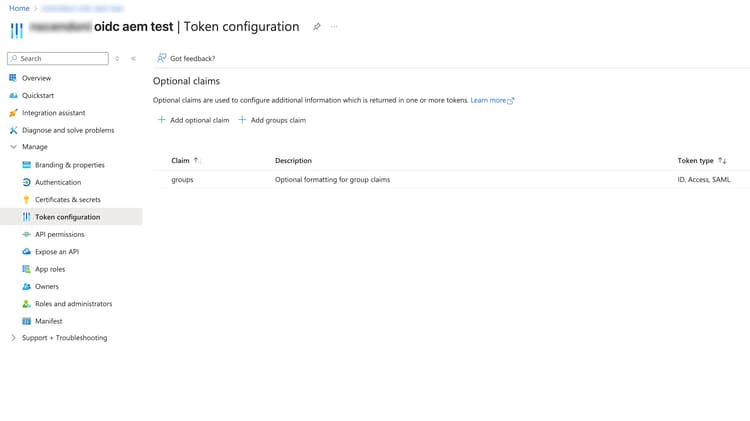
If Groups or application roles are required, follow the documentation to enable them for the application and send them in the ID Token. Below an example of configured groups:
-
Follow the previously documented steps to create the required configuration files. Below an example specific for Azure AD where:
- We define the name of oidc Connection, Authentication Handler and DefaultSyncHandler as:
azure - The website url is:
www.mywebsite.com - We protect the path
/content/wknd/us/en/adventuresthat is accessible only to authenticated users member of the groupadventures - Tenant is:
tennat-id, - Client id is:
client-id, - Secret is:
secret, - The groups are sent in the ID Token in a claim called:
groups
- We define the name of oidc Connection, Authentication Handler and DefaultSyncHandler as:
org.apache.sling.auth.oauth_client.impl.OidcConnectionImpl~azure.cfg.json
{
  "name":"azure",
  "scopes":[
    openid", "User.Read", "profile", "email"
  ],
  "baseUrl":"https://login.microsoftonline.com/tenant-id/v2.0",
  "clientId":"client-id",
  "clientSecret":"secret"
}
org.apache.sling.auth.oauth_client.impl.OidcAuthenticationHandler~azure.cfg.json
{
  "callbackUri":"https://www.mywebsite.com/content/wknd/us/en/adventures/j_security_check",
  "path":[
    "/content/wknd/us/en/adventures"
  ],
  "idp":"azure",
  "defaultConnectionName":"azure"
}
org.apache.jackrabbit.oak.spi.security.authentication.external.impl.ExternalLoginModuleFactory~azure.cfg.json
{
  "sync.handlerName":"azure",
  "idp.name":"azure"
}
org.apache.jackrabbit.oak.spi.security.authentication.external.impl.DefaultSyncHandler~azure.cfg.json
{
  "user.expirationTime":"1h",
  "user.membershipExpTime":"1h",
  "group.expirationTime": "1d"
  "user.propertyMapping":[
    "profile/givenName=profile/given_name",
    "profile/familyName=profile/family_name",
    "rep:fullname=profile/name",
    "profile/email=profile/email",
    "access_token=access_token",
    "refresh_token=refresh_token"
  ],
  "user.pathPrefix":"azure",
  "group.pathPrefix": "oidc",
  "user.membershipNestingDepth": "1",
  "handler.name":"azure"
}
org.apache.sling.jcr.repoinit.RepositoryInitializer~azure.cfg.json
{
  "scripts":[
    "set ACL for \"adventures;azure\"  (ACLOptions=ignoreMissingPrincipal)\r\n  allow jcr:read on /content/wknd/us/en/adventures\r\nend"
  ]
}
org.apache.sling.auth.oauth_client.impl.SlingUserInfoProcessorImpl~azure.cfg.json
{
  "groupsInIdToken": "true",
  "storeAccessToken": "false",
  "storeRefreshToken": "false",
  "connection": "azure",
  "groupsClaimName": "groups"
}
Additional Information about Azure AD Groups additional-information-about-azure-ad-groups
To configure a group to for the enterprise application in the Microsoft Azure Portal, you need to search the application on: Enterprise Applications and add the groups:
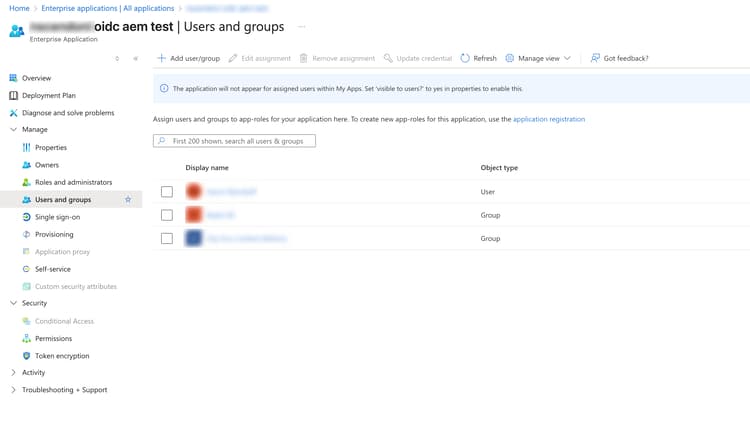
To enable the group claim in Id Token, add the claim in the Token Configuration section of the Microsoft Azure Portal:
The configuration of SlingUserInfoProcessor must be modified like in the example below.
The filename that needs to be modified is org.apache.sling.auth.oauth_client.impl.SlingUserInfoProcessorImpl.cfg.json. The content should be configured as follows:
{
  "connection": "azure",
  "groupsInIdToken": "true",
  "storeAccessToken": "false",
  "storeRefreshToken": "false"
}
Custom Redirect After Authentication custom-redirect-after-authentication
By default, after successful OIDC authentication, users are redirected back to the originally requested URL. However, you can customize this behavior using the redirect query parameter.
Using the redirect Parameter
When initiating authentication, you can specify a custom redirect URL by adding the redirect parameter to your authentication request:
/content/wknd/us/en/adventures?redirect=/content/wknd/us/en/welcome
In this example, after successful authentication, the user will be redirected to /content/wknd/us/en/welcome instead of the originally requested page.
Security Constraints
For security reasons, the redirect parameter has the following restrictions:
- Must be a relative path: The redirect URL must start with
/(e.g.,/content/mysite/dashboard) - No cross-site redirects: Absolute URLs (e.g.,
https://external-site.com) are not allowed - No protocol-relative URLs: URLs starting with
//are rejected to prevent protocol-relative redirects
If an invalid redirect URL is provided, the authentication will fail with an error.
Example Use Cases
-
Welcome page after login: Redirect users to a personalized welcome page after their first login
code language-none /content/mysite/secure-area?redirect=/content/mysite/welcome -
Dashboard redirect: Direct users to a specific dashboard after authentication
code language-none /content/mysite/login?redirect=/content/mysite/user/dashboard -
Deep linking: Allow users to authenticate and then access a specific resource
code language-none /content/mysite/protected?redirect=/content/mysite/protected/specific-document
Configure Single Logout configure-single-logout
By default, logging out of AEM only clears the local AEM session (the login cookie). The user’s session at the Identity Provider (IdP) remains active, so navigating back to a protected path may silently re-authenticate the user without prompting for credentials again.
To also terminate the session at the IdP, AEM supports SP-initiated Single Logout (also known as RP-Initiated Logout, as defined by the OpenID Connect RP-Initiated Logout specification). When enabled, AEM redirects the browser to the IdP’s end_session_endpoint so the IdP can end its own session before returning the user to a configured page.
How Single Logout Works how-single-logout-works
-
The user triggers logout, typically by requesting
/system/sling/logout?resource=<protected-path>. Theresourceparameter lets the Sling Authenticator route the logout to the correct OIDC authentication handler. -
AEM clears the local login cookie.
-
AEM redirects the browser to the IdP’s
end_session_endpoint, adding:post_logout_redirect_uri— where the IdP should send the user after logout.id_token_hint— the user’s stored ID Token (when available), which many IdPs require to complete logout without prompting.
-
The IdP terminates its session and redirects the browser back to the
post_logout_redirect_uri.
If SP-initiated single logout is disabled, or the IdP does not expose an end_session_endpoint, logout simply clears the local AEM session.
Required Configuration Changes single-logout-configuration
Enabling single logout requires changes to the four configuration files described earlier in this document.
1. Add the end_session_endpoint to the OIDC Connection single-logout-connection
The endSessionEndpoint is the IdP URL used to terminate the IdP session.
- When the connection is configured with a
baseUrl(that is, the IdP exposes a valid.well-knownendpoint), theend_session_endpointis read automatically from the provider metadata and does not need to be set explicitly. - When the endpoints are configured manually (no
baseUrl), or the IdP metadata does not advertise anend_session_endpoint, set it explicitly.
org.apache.sling.auth.oauth_client.impl.OidcConnectionImpl~azure.cfg.json
{
  "name":"azure",
  "scopes":[
    "openid"
  ],
  "baseUrl":"https://login.microsoftonline.com/tenant-id/v2.0",
  "clientId":"client-id",
  "clientSecret":"secret",
  "endSessionEndpoint":"https://login.microsoftonline.com/tenant-id/oauth2/v2.0/logout"
}
2. Enable SP-initiated logout on the Authentication Handler single-logout-handler
org.apache.sling.auth.oauth_client.impl.OidcAuthenticationHandler~azure.cfg.json
{
  "path":[
    "/content/wknd/us/en/adventures"
  ],
  "callbackUri":"https://www.mywebsite.com/content/wknd/us/en/adventures/j_security_check",
  "idp":"azure",
  "defaultConnectionName":"azure",
  "enableSPInitiatedSingleLogout":true,
  "logoutRedirectPath":"/content/wknd/us/en/logout-complete",
  "logoutRedirectAllowedHosts":[
    "www.mywebsite.com"
  ]
}
Configure the properties as follows:
enableSPInitiatedSingleLogout: set totrueto redirect to the IdP’send_session_endpointon logout. Whenfalse(the default), logout only clears the local AEM session.logoutRedirectPath: the path the IdP redirects to after logout. It is used as thepost_logout_redirect_uri. Defaults to/.logoutRedirectAllowedHosts: required whenenableSPInitiatedSingleLogoutistrue. A list of host names allowed in thepost_logout_redirect_uri. This prevents open-redirect attacks viaHostheader spoofing — if the request host is not in this list, the first allowed host is used instead.
enableSPInitiatedSingleLogout is true but logoutRedirectAllowedHosts is empty, the authentication handler will fail to activate. This is a deliberate safeguard against open-redirect vulnerabilities. Always list every public host name from which users log out.3. Store the ID Token for id_token_hint single-logout-store-id-token
Most IdPs require the id_token_hint parameter to complete logout without prompting the user for confirmation. To make the ID Token available at logout time, enable storeIdToken in the SlingUserInfoProcessor configuration. The ID Token is encrypted with the AEM master key before it is stored.
org.apache.sling.auth.oauth_client.impl.SlingUserInfoProcessorImpl~azure.cfg.json
{
  "connection": "azure",
  "groupsInIdToken": true,
  "groupsClaimName": "groups",
  "storeAccessToken": false,
  "storeRefreshToken": false,
  "storeIdToken": true
}
storeIdToken: set totrueto store the (encrypted) ID Token so it can be sent asid_token_hintduring logout. Defaults tofalse.
4. Persist the ID Token via the Synchronization Handler single-logout-sync-id-token
For the stored ID Token to be readable at logout, add an id_token mapping to the DefaultSyncHandler property mapping so it is persisted on the user node.
org.apache.jackrabbit.oak.spi.security.authentication.external.impl.DefaultSyncHandler~azure.cfg.json
{
  "user.expirationTime":"1h",
  "user.membershipExpTime":"1h",
  "group.expirationTime": "1d",
  "user.propertyMapping":[
    "profile/givenName=profile/given_name",
    "profile/familyName=profile/family_name",
    "rep:fullname=profile/name",
    "profile/email=profile/email",
    "id_token=id_token"
  ],
  "user.pathPrefix":"azure",
  "handler.name":"azure"
}
The mapping format is jcrPropertyPath=credentialAttributeName. The entry id_token=id_token persists the encrypted ID Token set by the SlingUserInfoProcessor onto the user node, where the logout handler reads it back to build the id_token_hint.
id_token_hint may be missing.end_session_endpoint without an id_token_hint. Depending on the IdP, the user may then be prompted to confirm the logout.Customizing the Post-Logout Redirect single-logout-redirect-parameter
Similar to the login flow, the post-logout destination can be overridden per request by adding a redirect parameter to the logout request:
/system/sling/logout?resource=/content/wknd/us/en/adventures&redirect=/content/wknd/us/en/goodbye
The same security constraints as the login redirect apply: the value must be a relative path (starting with a single /), and its resulting host is validated against logoutRedirectAllowedHosts. If the redirect parameter fails validation, AEM falls back to the configured logoutRedirectPath.
How to migrate from Saml Authentication Handler to Oidc Authentication Handler
When AEM is already configured with a SAML Authentication Handler, and users are present in the repository with data synchronization enabled, conflicts can occur between the original SAML users and the new OIDC users.
- Configure the OidcAuthenticationHandler and enable
idpNameInPrincipalsin SlingUserInfoProcessor configuration - Setup ACL for external groups.
- After login from users, the old users created by the saml authentication handler can be deleted.