Configuring Timeline View for AEM Screens configuring-timelineview-screens
Introduction introduction
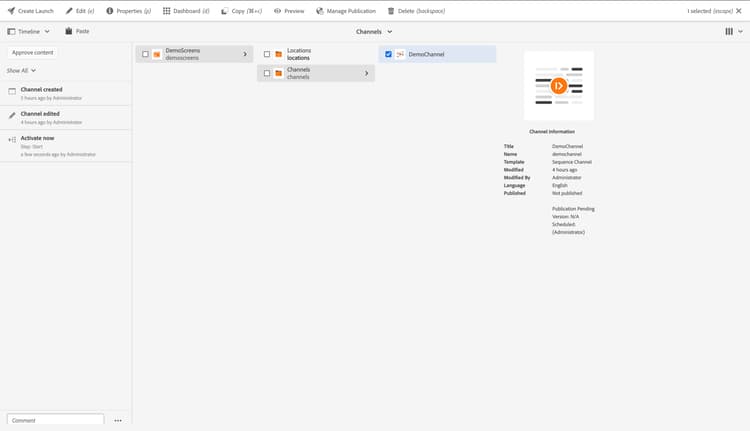
This section describes how to create a Timeline View for AEM Screens.
AEM provides a suite of features that allow multiple people in groups in an organization to collaborate on channel creation, management, and use.
The timeline, located in the left bar, describes the channels, location, or any screen folder’s life cycle in time order conveying what has happened to it over its life. This can be filtered down by type.
The timeline rail provides the below features in addition to the life cycle logs.
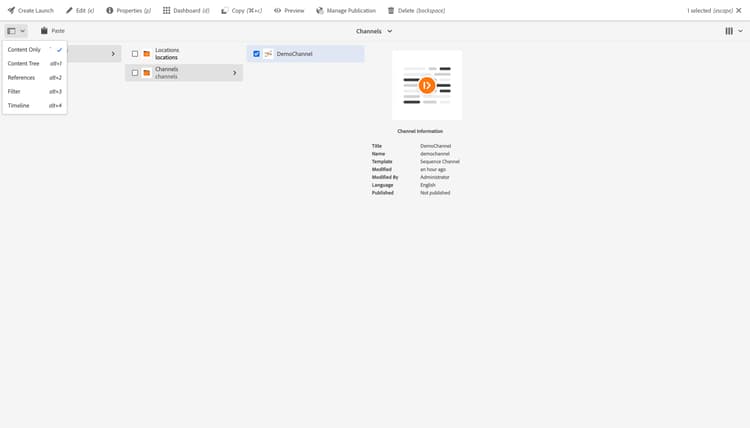
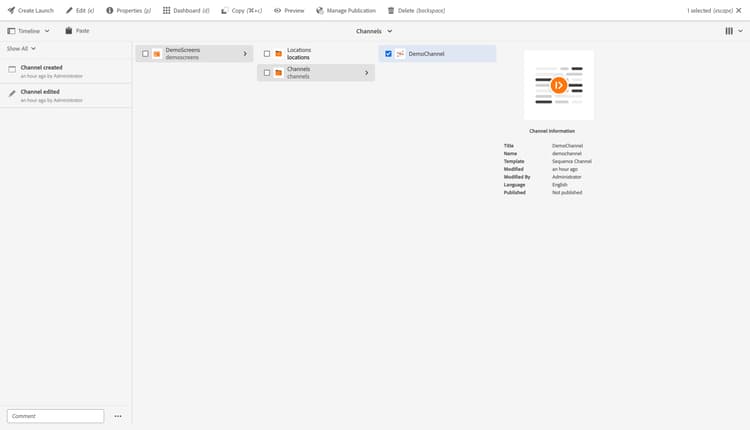
To create a Timeline View for AEM Screens, complete the following steps:
- Add a comment
- Save a version
- Start a workflow
The following sections describe these steps in detail.
Add a Comment addcomment
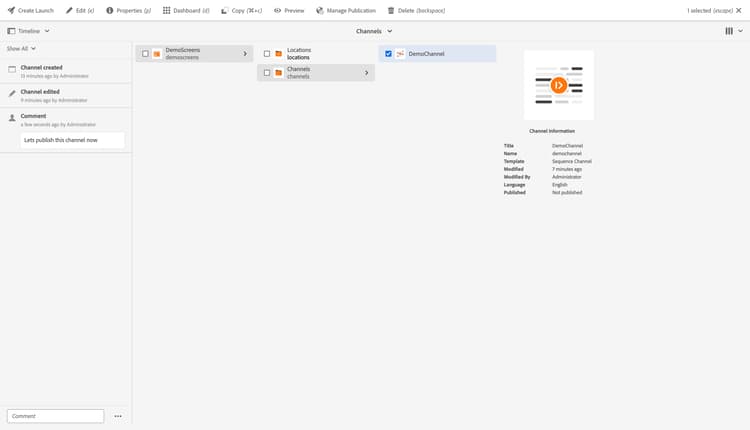
Commenting available via timeline allows users to create a centralized and historical record for discussions that take place about the channel, location, or any folder in the screen.
Comments provide a nice consolidated way for AEM users to discuss a way that can be persisted, allowing others to understand key decisions.
- Navigate to the channel for which you want to add a comment.
- Select the channel.
- Open the Timeline column.
- Add your comment and press Enter.
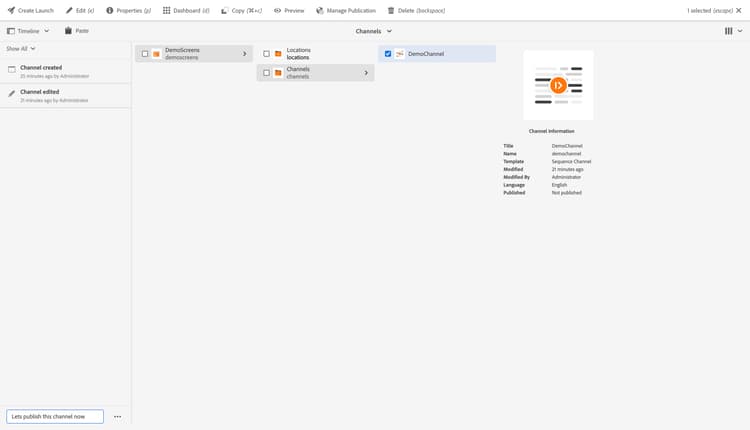
The information in the timeline is updated to indicate the comment was added.
Save a Version saveversion
Versioning creates a “snapshot” of a channel at a specific point in time. With versioning, you can perform the following actions:
- Create a version of a channel.
- Restore a channel to a previous version; for example:
- to undo a change that you made to the page.
- Compare the current version of a channel with a previous version:
- to highlight differences in the channel content.
Create a new version createnewversion
-
Navigate to the channel for which you want to add a comment.
-
Select the channel.
-
Open the Timeline column.
-
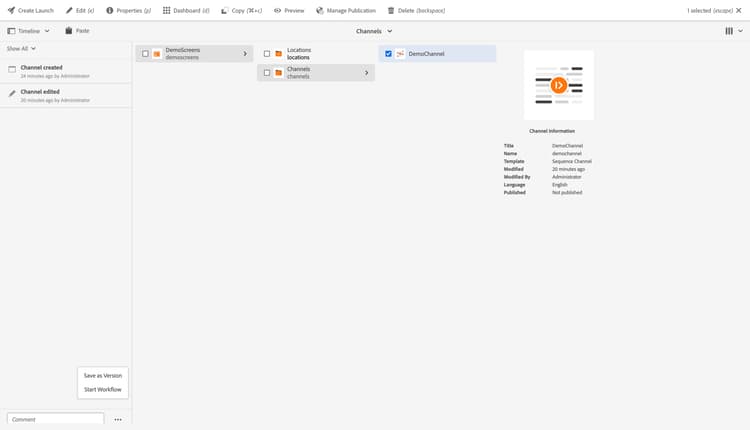
Click the button (three dots) by the comment field at the bottom of the page.
-
Select Save as Version.
-
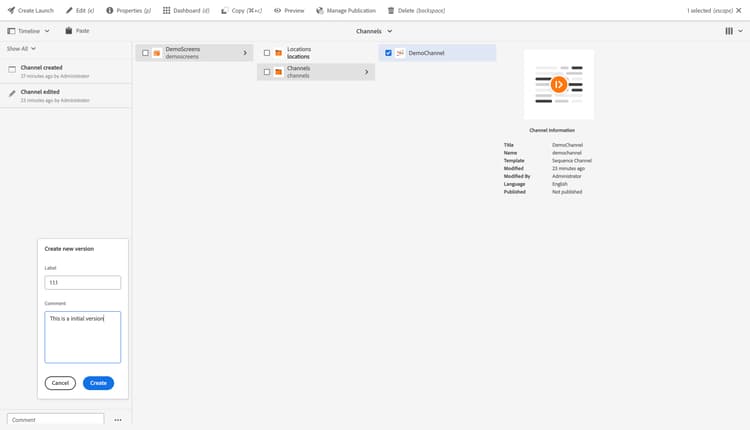
Enter a Label and Comment for the version.
-
Confirm the new version by selecting Create.The information in the timeline is updated to indicate the new version.
Revert to a version revertversion
To Revert the selected page to a previous version:
-
Navigate to the channel to add a comment.
-
Select the channel.
-
Open the Timeline column.
-
Select either Show All or Versions from the filter dropdown. The channel versions for the selected channel are listed.
-
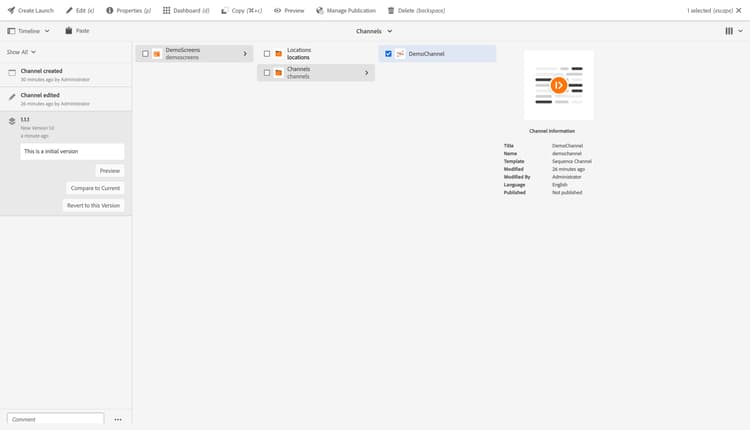
Select the version that you want to revert to. The possible options are shown:
-
Select Revert to this Version. The selected version is restored and the information in the timeline updated.
Preview a version previewversion
You can preview a specific version:
-
Navigate to the channel to add a comment.
-
Select the channel.
-
Open the Timeline column.
-
Select either Show All or Versions from the filter dropdown. The channel versions for the selected channel are listed.
-
Select the version that you want to preview. The possible options are shown:
-
Select Preview. The channel is shown in a new tab.
Compare a version with current version compareversion
You can compare a specific version with current version:
-
Navigate to the channel for which you want to add a comment.
-
Select the channel.
-
Open the Timeline column
-
Select either Show All or Versions from the filter dropdown. The channel versions for the selected channel are listed.
-
Select the version that you want to compare. The possible options are shown:
-
Select Compare to Current. The popup opens to display the differences.
Start a Workflow workflowstart
When authoring, you can invoke workflows to take action on your channels; it is also possible to apply more than one workflow.
When you apply the workflow, you specify the following information:
- The workflow to apply.
- Optionally, a title that helps identify the workflow instance in a user’s Inbox.
- The workflow payload.
Starting the workflow
-
Navigate to the channel for which you want to add a comment.
-
Select the channel.
-
Open the Timeline column.
-
Click the button(three dots) by the comment field at the bottom.
-
Select Start Workflow.
-
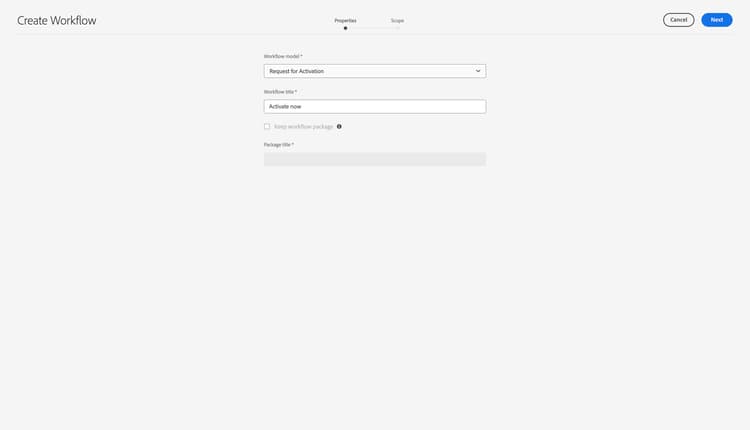
The Create Workflow wizard will open to specify the workflow details.
-
Select Workflow model from the dropdown list and enter the Workflow title.
-
Continue by clicking Next.
-
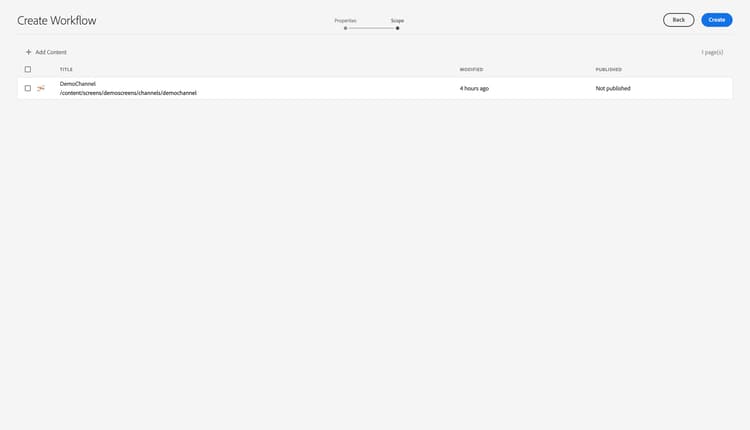
In the scope step, you can:
- Add Content to add additional resources to the workflow.
- Include children to specify that children of that resource will be included in the workflow.
- Remove Selection to remove that resource from the workflow.
-
Select Create to close the wizard and create the workflow instance.
-
You may need to perform some additional actions to complete the workflow depending on the workflow model selected.