Tree Replication Workflows in AEM as a Cloud Service tree-replication-workflows
When you must publish a large branch of the content tree, standard page-by-page publishing can be slow and resource-intensive. AEM as a Cloud Service provides workflow-based approaches that replicate deep content hierarchies in manageable chunks, pause when replication queues are busy, and resume if interrupted.
Use the Tree Activation Workflow Step for bulk tree replication. It is the recommended approach for large payloads. The Publish Content Tree Workflow remains documented for reference but is deprecated in favor of the Tree Activation step.
For other replication topics, see Replication.
Tree Activation Workflow Step tree-activation
The Tree Activation workflow step is intended to performantly replicate a deep hierarchy of content nodes. It automatically pauses when the queue grows too large in order to allow other replications to proceed in parallel with minimal latency.
Create a Workflow Model that uses the TreeActivation process step:
-
From the AEM as a Cloud Service homepage, go to Tools - Workflow - Models.
-
In the Workflow Models page, press Create in the upper right corner of the screen.
-
Add a title and a name to your model. For more information, see Creating Workflow Models.
-
Select the created model from the list, and press Edit
-
In the following window, delete the Step that appears by default
-
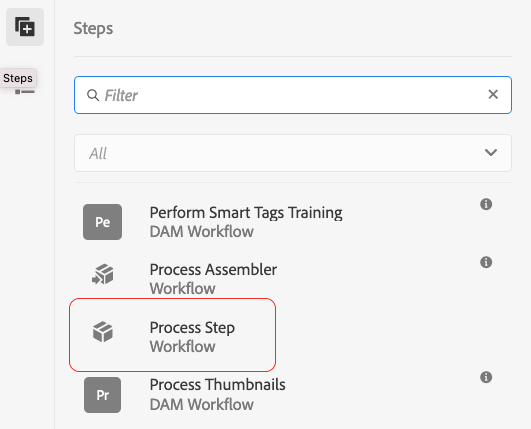
Drag and drop the Process Step to the current model flow:
-
Select the Process step in the flow and select Configure by pressing the wrench icon.
-
Select the Process tab and select
Publish Content Treefrom the drop-down list, then check the Handler Advance check box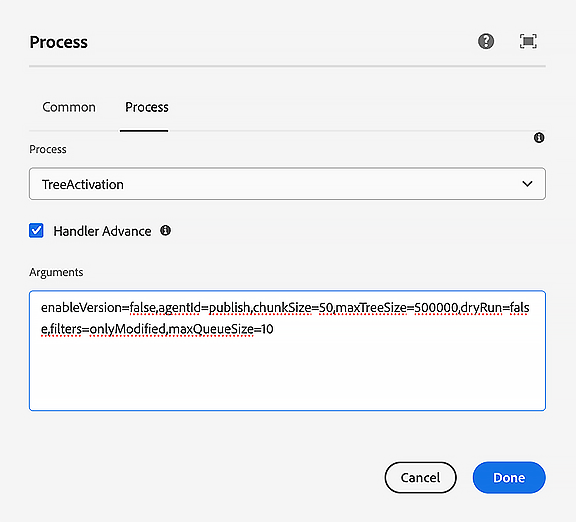
-
Set any additional parameters in the Arguments field. Multiple comma-separated arguments can be strung together. For example:
enableVersion=false,agentId=publish,chunkSize=50,maxTreeSize=500000,dryRun=false,filters=onlyModified,maxQueueSize=10note NOTE For the list of parameters, see the Parameters section below. -
Press Done to save the Workflow model.
Parameters
publish or preview)Support Filters
Resume Support
The workflow processes content in chunks, each of which represents a subset of the full content to be published. If the workflow is stopped by the system, it will continue where it left off.
Monitoring Workflow Progress
-
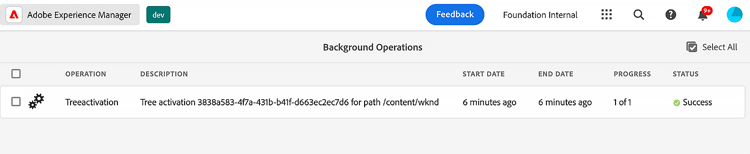
From the AEM as a Cloud Service homepage, go to Tools - General - Jobs.
-
Look at the row corresponding to your workflow. The progress column gives an indication of how the replication is progressing. For example, it may display 41/564 and upon refreshing, it may be updated to 52/564.
-
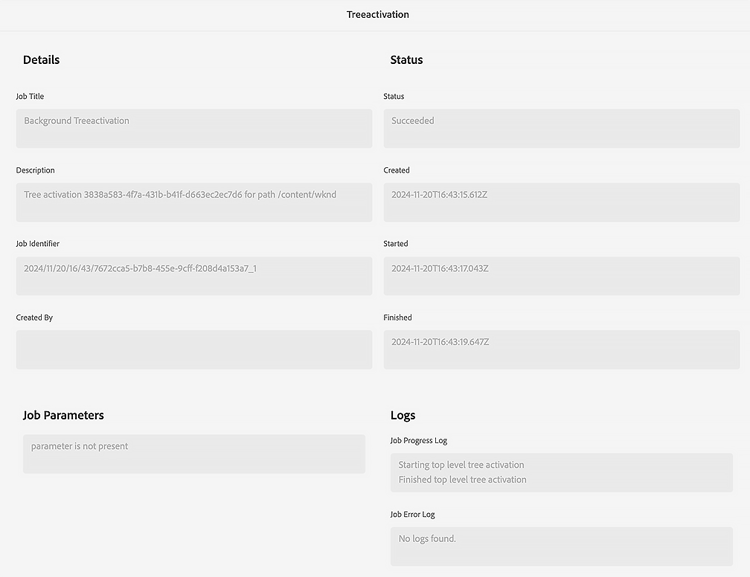
Selecting the row and opening it will provide additional details about the status of the workflow execution.
Publish Content Tree Workflow publish-content-tree-workflow
You can trigger a tree replication by choosing Tools - Workflow - Models and copying the Publish Content Tree out-of-the-box workflow model, as shown below:
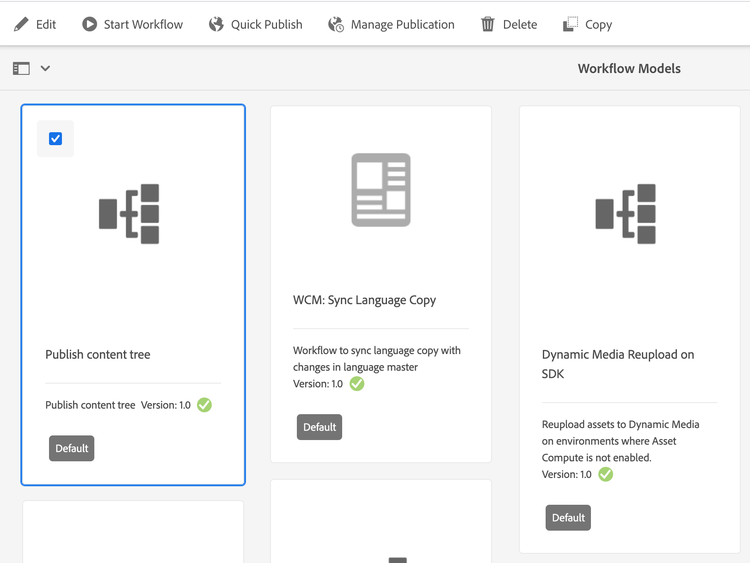
Do not invoke the original model. Instead, make sure to first copy the model and invoke that copy.
Like all workflows, it can also be invoked via API. For more information, see Interacting with Workflows Programmatically.
Alternatively, you can create a Workflow Model that uses the Publish Content Tree process step.
-
From the AEM as a Cloud Service homepage, go to Tools - Workflow - Models.
-
In the Workflow Models page, press Create in the upper right corner of the screen.
-
Add a title and a name to your model. For more information, see Creating Workflow Models.
-
Select the created model from the list, and press Edit
-
In the following window, drag and drop the Process Step to the current model flow:
-
Select the Process step in the flow and select Configure by pressing the wrench icon.
-
Select the Process tab and select
Publish Content Treefrom the drop-down list, then check the Handler Advance check box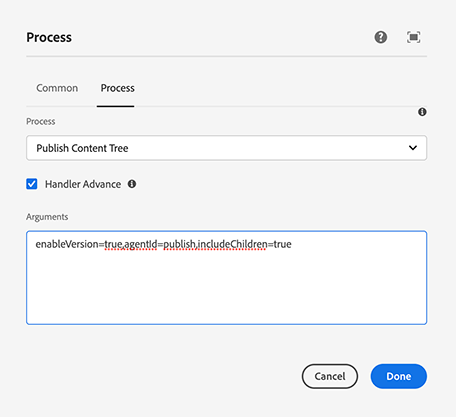
-
Set any additional parameters in the Arguments field. Multiple comma-separated arguments can be strung together. For example:
enableVersion=true,agentId=publish,includeChildren=truenote NOTE For the list of parameters, see the Parameters section below. -
Press Done to save the Workflow model.
Parameters
-
includeChildren(boolean value, default:false). The valuefalsemeans that only the path is published;truemeans that children are published too. -
replicateAsParticipant(boolean value, default:false). If configured astrue, the replication is using theuseridof the principal which performed the participant step. -
enableVersion(boolean value, default:false). This parameter determines if a new version is created upon replication. -
agentId(string value, default means only agents for publish are used). Specify the target agent explicitly—for example,publishfor the live publish tier orpreviewfor the preview tier. -
filters(string value, default means that all paths are activated). Available values are:onlyActivated- only activate pages that have (already) been activated. Acts as a form of reactivation.onlyModified- activate only paths which are already activated and have a modification date later than the activation date.- The above can be ORed with a pipe “|”. For example,
onlyActivated|onlyModified.
Logging
When the tree activation workflow step starts, it logs its configuration parameters on the INFO loglevel. When paths are activated, an INFO statement is also logged.
A final INFO statement is logged after the workflow step has replicated all paths.
Also, you can increase the loglevel of the loggers below com.day.cq.wcm.workflow.process.impl to DEBUG/TRACE to get even more log information.
If there are errors, the workflow step terminates with a WorkflowException, which wraps the underlying Exception.
The following are examples of logs that are generated during a sample publish content tree workflow:
| code language-none |
|---|
|
| code language-none |
|---|
|