[AEM Forms]{class="badge positive" title="Applies to AEM Forms)."}
Getting Started with Interactive Communication (IC) Editor
The Interactive Communication (IC) Editor in Adobe Experience Manager (AEM) Forms allows organizations to design and deliver personalized, data-driven communications such as statements, invoices, and letters across digital and print channels. This guide provides an overview of how to get started — from onboarding to navigating the IC Editor interface.
Onboarding and Access
Access Requirements
To use Interactive Communication, ensure your AEM Forms as a Cloud Service environment includes the AEM Forms add-on and that your account has the appropriate permissions.
Verify your Browser
To know the supported browsers and client platforms, follow the linked article, Supported Client Platforms
Firefox, Chrome, and Edge release updates regularly. Adobe is committed to maintaining the support level as listed above for upcoming versions of these browsers.
Configure User Roles and Permissions
Access to IC Editor features is governed by user roles within AEM. The following are the key roles involved in the creation and management of Interactive Communications:
forms-user, fdm-author, template-authors) to access corresponding features.Access the IC Editor
- Log in to your AEM Forms as a Cloud Service instance.
- Navigate to Forms > Interactive Communications.
- Click Create → Interactive Communication.
- Choose a Template, configure data sources, and click Create to open the Interactive Communication Editor.
The editor provides a unified environment to design, preview, and manage both print and web versions of communications.
Navigate the Interface
The Interactive Communication Editor interface is designed to give authors intuitive access to all design tools and configuration options.
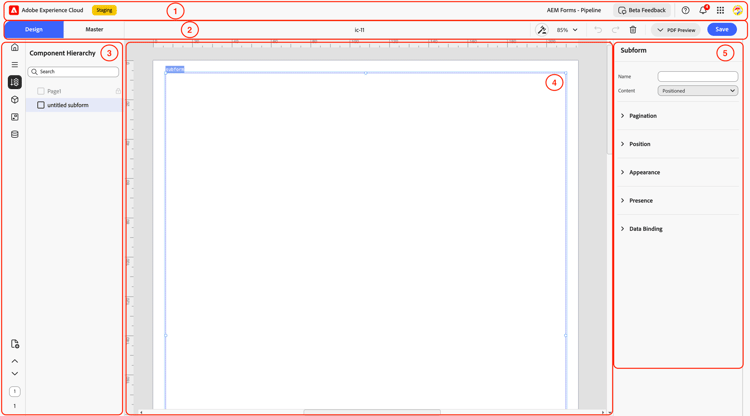
1. Top Toolbar

Location: Topmost section
Purpose: Provides environment access and global actions.
Includes:
Displays the Adobe Experience Cloud environment (e.g., Staging), along with the project title, Beta feedback, notifications, and profile controls for managing user settings and environment access.
2. Tab Bar (Design/Master Tabs & File Controls)

Location: Below the top header
Purpose: Manage views and communication files.
Includes:
Tabs: Switch between Design View and Master Page View for layout and reusable element design
File Name: Displays the current communication’s title (e.g., ic-11)
View Controls: Options like rule, creation, Zoom (85%), Undo/Redo, Delete, PDF Preview, and Save
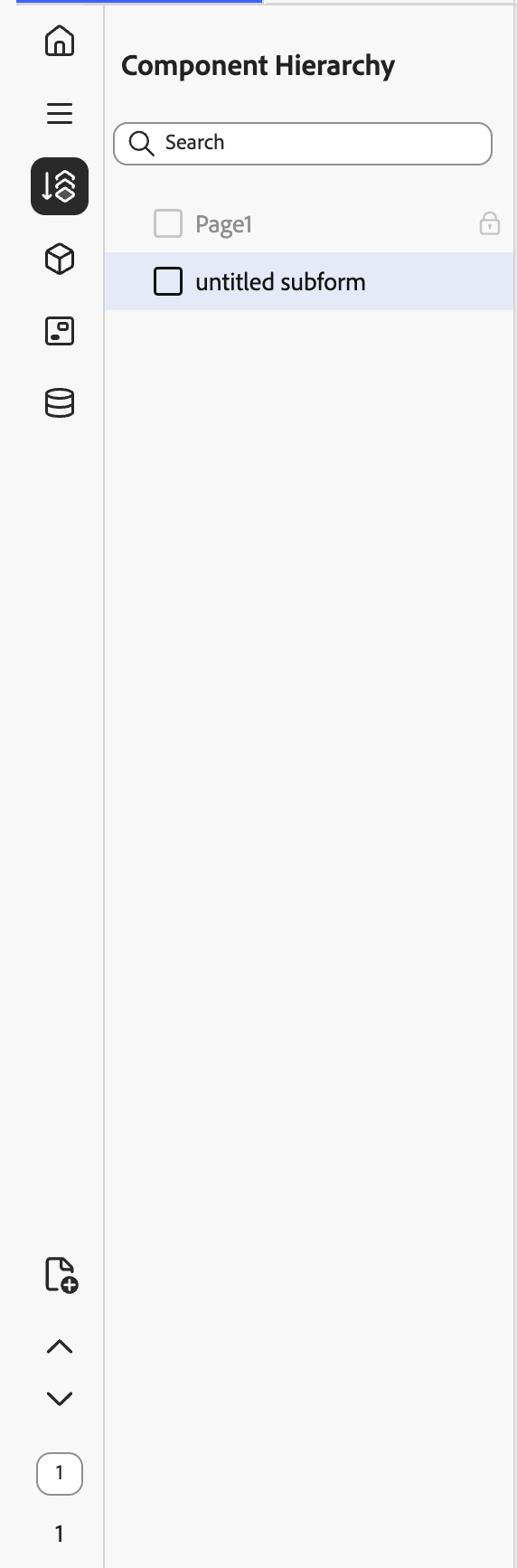
3. Left Panel (Navigation & Component Tools)
Location: Left side of the interface
Purpose: Access project structure, reusable assets, and data bindings.
Includes:
-
Home Page: Takes the user to the main Interactive Communication (IC) home screen, where you can view and manage existing ICs and folders.
-
Menu Panel: Displays view-related options such as Rulers, Object Boundaries, Snap to Grid, Snap to Feature Object, and the Import XDP feature.
-
Hierarchy View: Displays the component structure of the communication, showing the organization of pages, panels, and subforms.
-
Component Library: Contains design elements like Text, Image, Subform, and Barcode that can be dragged onto the canvas.
-
Fragments: Enables reuse of predefined design and content blocks across multiple communications.
-
Data Model: Connects the communication to underlying Form Data Models (FDM) for binding dynamic data.
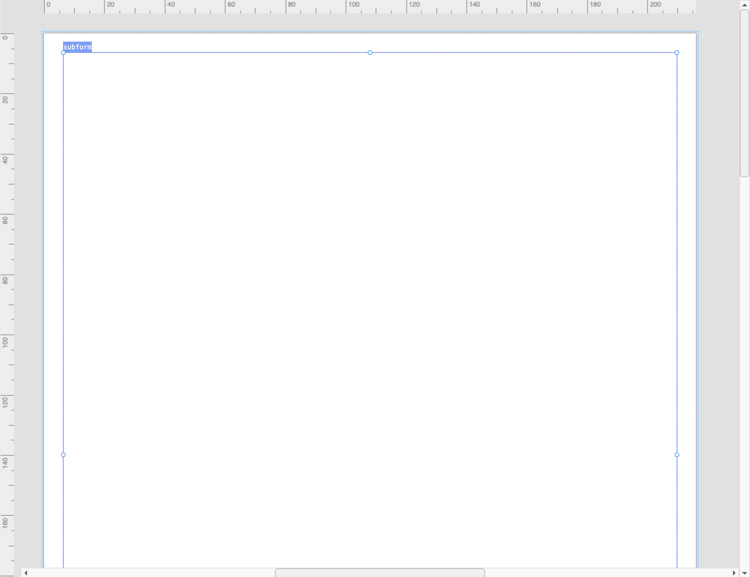
4. Central Workspace (Design Canvas)
Location: Center of the interface
Purpose: Primary workspace for designing Interactive Communications.
Features:
-
Drag-and-drop components from the library
-
Arrange and format visual layout
-
Add or edit pages, subforms, and fields
-
Navigate between pages (e.g., “1 of 1”) using controls at the bottom-left
-
Preview the final layout before publishing
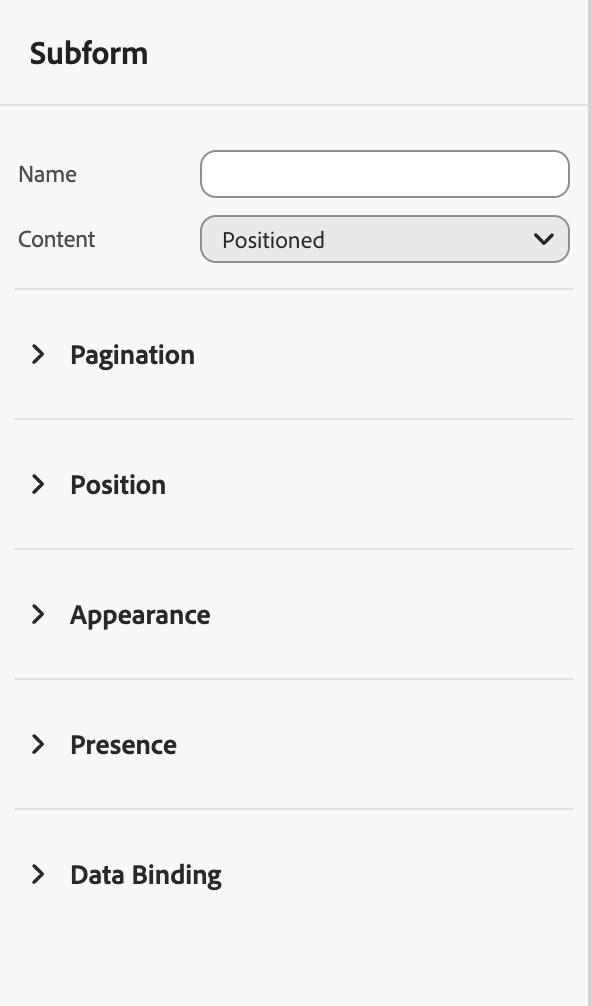
5. Right Panel (Properties Panel)
Location: Right side of the screen
Purpose: Customize component behavior and style.
Includes:
-
General settings (Name, Type, Flowed/Positioned)
-
Layout & Appearance options
-
Pagination, Position, Presence, and Data Binding controls