[AEM Forms]{class="badge positive" title="Applies to AEM Forms)."}
Content Overflow Handling in Interactive Communication Editor
Introduction
The Content Overflow Handling feature in the Interactive Communication Editor enhances how text behaves within Flowed and Positioned layouts. It ensures smooth content continuity for flowed layouts and provides visual alerts for positioned layouts, giving authors better control and flexibility when designing communications.
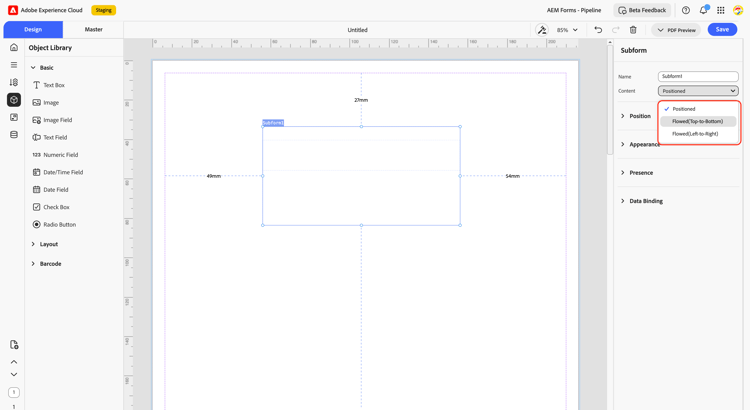
How to Use Content Overflow Handling in Interactive Communication Editor
-
Open the Interactive Communication Editor
Open your communication in the IC Editor to begin editing the layout and content. -
Select the Layout Type
Choose the desired layout for your subform, Flowed or Positioned based on how you want content to behave. -
For Flowed Layouts
-
Ensure the parent subform hierarchy is set to Flowed.
-
In the Properties panel, enable the Allow page breaks within content option (visible only if the parent subform’s “Allow page breaks” is enabled).
-
Add or paste text, when content exceeds one page, it automatically continues on the next page.
-
-
For Positioned Layouts
-
Add or edit text within a fixed container.
-
If the content exceeds the container height, a red border appears at the bottom to indicate overflow.
-
Manually resize the container to accommodate the extra content.
-
-
Preview the Communication
Use the PDF Preview option to verify how the content flows or overflows across pages for both layout types.
Key Capabilities
Flowed Layout
-
New Option:
Adds a property allow page breaks within content to control overflow behavior. This option is visible only when the parent subform is set to Flowed and it’s Allow page breaks property is enabled. -
Automatic Page Continuation:
When content exceeds the available space, a new page is automatically created, and editing continues seamlessly. -
Copy-Paste Support:
Large text pasted into the editor automatically flows across pages, maintaining layout consistency.
Positioned Layout
-
Overflow Indicator:
When content exceeds the container (subform or page), the text editor expands for editing, but the element height stays fixed. -
Visual Alert:
A red border appears at the bottom of the container to indicate overflow. -
Manual Adjustment:
Authors manually resize the container to fit additional content.
Benefits
-
Improves content authoring efficiency and control.
-
Maintains consistent layout and readability across pages.
-
Helps identify overflow quickly through visual indicators.
-
Enhances communication design flexibility for both layout types.