[AEM Forms]{class="badge positive" title="Applies to AEM Forms)."}
Subform Component in Interactive Communication Editor
1. Introduction
The Subform component in the Interactive Communication (IC) editor acts as a dynamic layout container that allows you to organize multiple form elements in a flexible and structured way. It is commonly used to group related fields, create repeating sections, or define nested data structures for improved user experience and data binding.
Subforms can be configured to flow in different layouts, such as top-to-bottom or left-to-right, making them ideal for complex form designs and reusable sections.
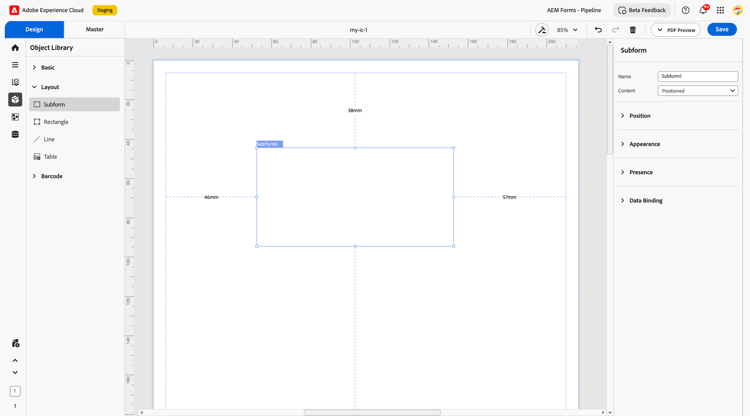
2. Properties
2.1 Basic Properties
-
Name: A unique identifier for the subform used in referencing, data models, and business rules.
-
Content: Defines how elements inside the subform are arranged.
-
Positioned: Absolute placement of child elements using X and Y coordinates.
-
Flowed (Top-to-Bottom): Arranges elements vertically.
-
Flowed (Left-to-Right): Arranges elements horizontally.
-
2.2 Position
-
Description: Determines the placement of the subform within the communication layout.
-
Settings:
-
X and Y coordinates (in mm)
-
Width and Height (in mm)
-
2.3 Appearance
-
Fill: Specifies the background color of the subform area.
-
Stroke: Defines the border color.
-
Width: Sets the border thickness.
-
Style: Choose from visual presets like flat, bordered, or elevated.
-
Edges: Determines corner styling—rounded or sharp.
2.4 Presence
-
Description: Controls the visibility of the subform during runtime.
-
Options:
-
Visible: Always displayed.
-
Hidden: Not shown but space is retained in layout.
-
2.5 Data Binding
-
Data Binding Type: Links the subform to a data structure (typically XML or JSON).
-
Use Name: Binds data using the subform’s assigned name.
-
Use Global Data: Connects the subform to a global schema path for shared data usage.
-
No Data Binding: Subform does not store or interact with any external data model.
3. Usage
Subforms are vital in scenarios requiring grouping, nesting, or repeating field sets. Typical applications include:
-
Organizing address blocks (e.g., Street, City, Zip)
-
Repeating sections for line items or multiple entries
-
Structuring conditional form logic using visibility and rules
Subforms can also be used as containers for drag-and-drop design alignment in both static and dynamic layouts.
4. Best Practices
-
Choose the right layout (flowed vs. positioned) based on design and data needs.
-
Use meaningful names for ease of data integration and rule referencing.
-
Style subforms to visually distinguish grouped sections.
-
When using repeating subforms, ensure proper data binding to array structures.
-
Apply conditional visibility rules to optimize user experience in complex forms.
The Subform component in the Interactive Communication editor provides a powerful way to structure and control complex form layouts. Whether organizing input fields, managing dynamic content, or enabling modular design, subforms enhance both usability and maintainability across document templates.