[AEM Forms]{class="badge positive" title="Applies to AEM Forms)."}
Line Component in Interactive Communication Editor
1. Introduction
The Line Component in the Interactive Communication (IC) editor allows authors to insert horizontal or vertical lines within a communication layout. These lines help in visually segmenting content, enhancing readability, or emphasizing form structure. With customizable styles such as solid lines or underlines and flexible positioning, the Line Component can be used for both functional and aesthetic purposes in form design.
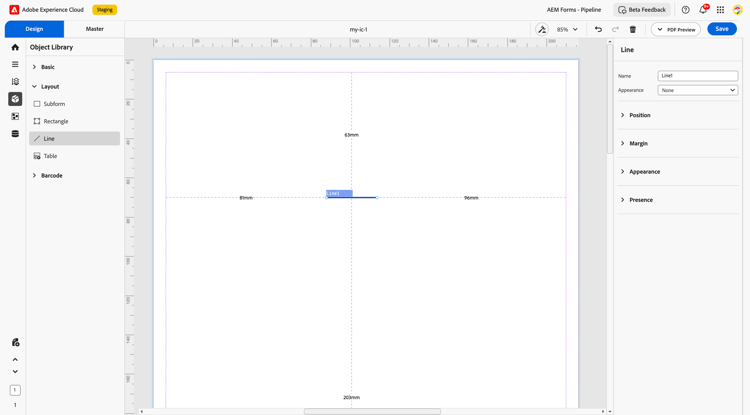
2. Properties
The Line Component comes with a range of configurable properties to define its identity, appearance, placement, and visibility within the document.
2.1. Basic Field
-
Name: A unique identifier used internally to reference the line component in data models, rules, or scripting.
-
Appearance Type: Select how the line appears within the form.
-
None: No line is displayed.
-
Solid Box: Renders the line as a solid box, usually used as a separator.
-
Underline: Draws an underline typically used beneath headers or fields.
-
2.2. Position
-
Description: Defines the physical placement of the line on the form layout.
-
Settings:
-
X and Y Coordinates: Specifies the horizontal and vertical positioning.
-
Height and Width: Set the length and thickness of the line (in mm).
-
2.3. Margin
-
Description: Adds padding or spacing around the line component to control layout density.
-
Options:
-
Top
-
Bottom
-
Left
-
Right
-
2.4. Appearance
-
Description: Allows styling of the line to match the document design.
-
Options:
-
Stroke: Defines the color and thickness of the line stroke.
-
Width: Determines how wide the line spans across the form.
-
Style: Choose between dashed, dotted, or solid line styles.
-
2.5. Presence
-
Description: Controls the visibility of the line component during runtime.
-
Options:
-
Visible: The line is rendered on the final output.
-
Hidden: The line is not shown, but its layout space is preserved.
-
3. Usage
The Line component is often used to:
-
Visually divide sections in a long form
-
Underline headers or labels for emphasis
-
Create borders or boxes around groups of fields
-
Improve the visual hierarchy of the communication layout
4. Best Practices
-
Use consistent line styles throughout the form to maintain a professional appearance.
-
Adjust margins to prevent visual clutter and ensure alignment.
-
Choose appropriate stroke and style settings to match brand or document design.
-
Hide unnecessary lines to avoid distraction while preserving layout spacing.
The Line component in the Interactive Communication editor is a simple yet powerful design element. When used strategically, it enhances the visual structure of communication documents, helping users better navigate content and ensuring a cleaner, more polished layout.