Generating Access Tokens for Server-Side APIs (Legacy) generating-access-tokens-for-server-side-apis-legacy
Some architectures rely on making calls to AEM as a Cloud Service from an application hosted on a server outside of AEM infrastructure. For example, a mobile application that calls a server, which then makes API requests to AEM as a Cloud Service.
The server-to-server flow is described below, along with a simplified flow for development. The AEM as a Cloud Service Developer Console is used to generate tokens needed for the authentication process.
The Server-to-server Flow the-server-to-server-flow
A user with an IMS org administrator role, and who is also a member of the AEM Users or AEM Administrators Product Profile on AEM Author, can generate an AEM as a Cloud Service credential. That credential can later be retrieved by a user with the AEM as a Cloud Service Environment administrator role and should be installed on the server and needs be treated carefully as a secret key. This JSON format file contains all the data required to integrate with an AEM as a Cloud Service API. The data is used to create a signed JWT token, which is exchanged with IMS for an IMS access token. This access token can then be used as a Bearer authentication token to make requests to AEM as a Cloud Service. The credentials expire after one year by default, but they can be refreshed when needed, see Refresh Credentials.
The server-to-server flow involves the following steps:
- Fetch the credentials for AEM as a Cloud Service from the Developer Console
- Install the credentials for AEM as a Cloud Service on a non-AEM server making calls to AEM
- Generate a JWT token and exchange that token for an access token using Adobe’s IMS APIs
- Calling the AEM API with the access token as a Bearer Authentication token
- Set appropriate permissions for the technical account user in the AEM environment
Fetch the AEM as a Cloud Service Credentials fetch-the-aem-as-a-cloud-service-credentials
Users with access to the AEM as a Cloud Service developer console see the integrations tab in the Developer Console for a given environment, and two buttons. A user with the AEM as a Cloud Service Environment administrator role can click the Generate Service Credentials button to generate and display the service credentials json. The json contains all the information required for the non-AEM server, including client id, client secret, private key, certificate, and configuration for author and publish tiers of the environment, regardless of the pod selection.
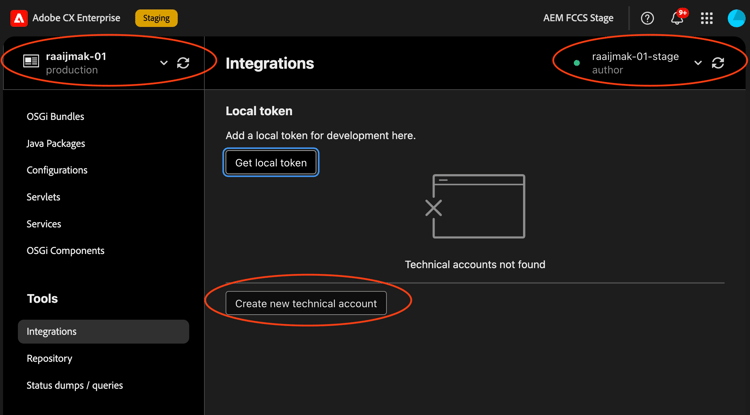
After being generated, you can retrieve the credentials by clicking the hamburger menu and Click “View” on the Credential.
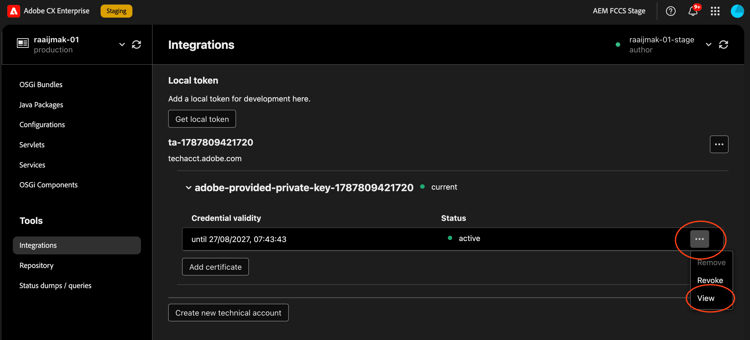
You will get output like:
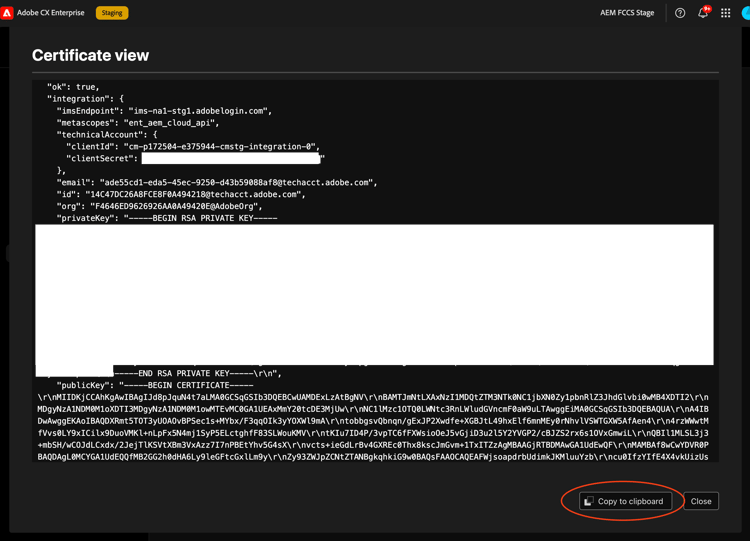
You can use the copy to clipboard button to copy the json to your clipboard and save it in a file. The file should be treated as a secret and stored securely.
Install the AEM Service Credentials on a Non-AEM Server install-the-aem-service-credentials-on-a-non-aem-server
The non-AEM application making calls to AEM should be able to access the credentials of AEM as a Cloud Service, treating it as a secret.
Generate a JWT Token and Exchange It for an Access Token generate-a-jwt-token-and-exchange-it-for-an-access-token
Use the credentials to create a JWT token in a call to Adobe’s IMS service to retrieve an access token, which is valid for 24 hours.
The AEM CS Service Credentials may be exchanged for an access token using code samples designed for this purpose. Sample code is available from Adobe’s public GitHub repository, which contains code examples that you can copy and adapt for your own projects. Note that this repository contains sample code for reference and is not maintained as a production-ready library dependency.
/*jshint node:true */
"use strict";

const fs = require('fs');
// Sample code adapted from Adobe's GitHub repository
const exchange = require("./your-local-aemcs-client"); // Copy and adapt the code from the GitHub repository

const jsonfile = "aemcs-service-credentials.json";

var config = JSON.parse(fs.readFileSync(jsonfile, 'utf8'));
exchange(config).then(accessToken => {
    // output the access token in json form including when it will expire.
    console.log(JSON.stringify(accessToken,null,2));
}).catch(e => {
    console.log("Failed to exchange for access token ",e);
});
The same exchange can be performed in any language capable of generating a signed JWT Token with the correct format and calling the IMS Token Exchange APIs.
The access token defines when it expires, which is typically 24 hours. There is sample code in the git repository to manage an access token and refresh it before it expires.
Calling the AEM API calling-the-aem-api
Make the appropriate server-to-server API calls to an AEM as a Cloud Service environment, including the access token in the header. So for the “Authorization” header, use the value "Bearer <access_token>". For example, using curl:
curl -H "Authorization: Bearer <your_ims_access_token>" https://author-p123123-e23423423.adobeaemcloud.com/content/dam.json
Set the Appropriate Permissions for the Technical Account User in AEM set-the-appropriate-permissions-for-the-technical-account-user-in-aem
After the technical account user is created in AEM (occurs after the first request with the corresponding access token), the technical account user must be properly permissioned in AEM.
By default, on the AEM Author service, the technical account user is added to the Contributors user group which provides read access AEM.
This technical account user in AEM can be further provisioned with permissions using the usual methods.
Developer Flow developer-flow
Developers should test using a development instance of their non-AEM application (either running on their laptop or hosted) that makes requests to a development AEM as a Cloud Service dev environment. However, because developers do not necessarily have IMS admin role permissions, Adobe cannot assume they can generate the JWT bearer described in the regular server-to-server flow. Thus, Adobe provides a mechanism for a developer to generate an access token directly that can be used in requests to an AEM as a Cloud Service environment that they have access to.
See the Developer Guidelines documentation for information about the required permissions to use the AEM as a Cloud Service developer console.
Developers may use this token to make calls from their non-AEM test application to an AEM as a Cloud Service environment. Typically, the developer uses this token with the non-AEM application on their own laptop. Also, the AEM as a Cloud is typically a non-production environment.
The developer flow involves the following steps:
- Generate an access token from the Developer Console
- Call the AEM application with the access token.
Developers can also make API calls to an AEM project running on their local machine, in which case an access token is not needed.
Generating the Access Token generating-the-access-token
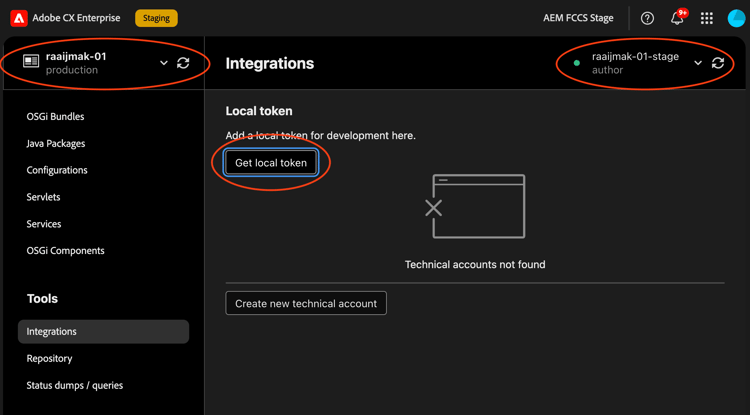
To generate an access token, in the Developer Console, Integrations tab, click Get Local Development Token.
Call then AEM Application with an Access Token call-the-aem-application-with-an-access-token
Make the appropriate server-to-server API calls from the non-AEM application to an AEM as a Cloud Service environment, including the access token in the header. So for the “Authorization” header, use the value "Bearer <access_token>".
Refresh Credentials refresh-credentials
By default, credential on AEM as a Cloud Service expire after a year. To ensure service continuity, developers have the option of refreshing the credentials, extending their availability for an extra year.
To generate new credentials under the same Technical User, click “Add certificate” as shown below
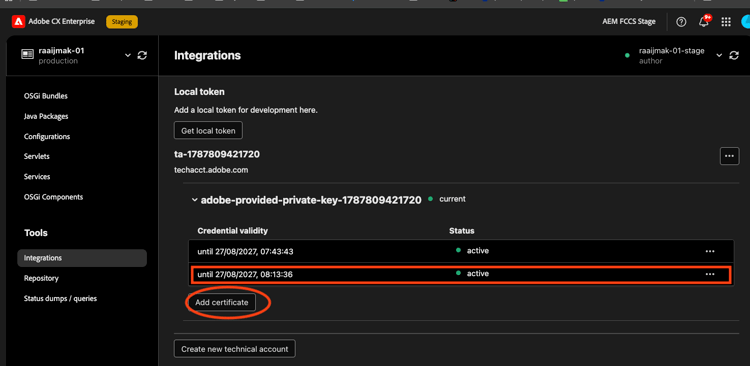
After pressing the button, a new set of credentials is generated. You can update your secret storage with the new credentials and validate that they work as they should.
Service Credentials Revocation service-credentials-revocation
If the credentials must be revoked, you must submit a request to customer support using these steps:
-
Disable the technical account user for the Adobe Admin Console in the User Interface:
- In Cloud Manager, press the … button next to your environment. This action opens the product profiles page
- Now, click the AEM Users profile, to show a list of the users
- Click the API Credentials tab, then find the appropriate technical account user and delete it
-
Contact customer support, and request that the service credentials for that specific environment are deleted
-
Finally, you can generate the credentials again, as described in this documentation. Also make sure that the new technical account user that is created has the appropriate permissions.