[type=“Positive” url=“/help/implementing/cloud-manager/release-notes/current.md”]{class="badge informative"}
Use canary deployments to validate code canary-deployments
For AEM Cloud Service implementations, canary deployments in Cloud Manager let you validate new code on the live production infrastructure’s publish tier before you route real user traffic to it. You deploy the new version alongside the current stable version and reach it through a dedicated request header. After you confirm that the new version works successfully, you can either promote it to all traffic (this happens automatically after a 3-hour window) or roll it back.
Dev and stage environments remain the primary places to test code releases; canary deployments serve as an additional opportunity to verify that a release functions as you expect. For example, it is useful if AEM production integrates with an external service’s production endpoint, which is not explicitly validated in lower AEM environments.
Canary deployments are for internal validation, not for shifting real user traffic from the old release to the new one; real user traffic never routes to canary instances automatically.
You can email aemcs-canary-deployments-feedback@adobe.com with questions and feedback.
Canary deployment process how-canary-deployments-work
When you run a full stack pipeline that has canary deployments enabled, Cloud Manager starts a separate set of canary instances for the new build while your stable instances continue serving your users. The process follows these steps:
- You run a full stack deployment pipeline, stage or production, that has canary deployments enabled.
See Run a pipeline and Enable canary deployments. - During the deployment step, Cloud Manager starts canary instances that run the new version of your code.
- Your existing stable instances continue to serve live traffic.
- You reach the new version selectively by adding a canary request header. See Access the canary release.
- During a validation window, you promote the canary release to all traffic or cancel it. See Validate and promote or cancel.
Enable canary deployments enable-canary-deployments
You enable canary deployments on the full stack pipeline. Canary deployments are supported only for stage and production environments. Note that a pipeline configured to deploy to both stage and production runs the canary deployment only in production, as shown below.
Canary deployment behavior by pipeline type
Where the canary deployment runs depends on the type of pipeline.
To enable canary deployments:
-
In Cloud Manager, add a new pipeline or edit an existing pipeline that deploys full stack code to a stage or production environment.
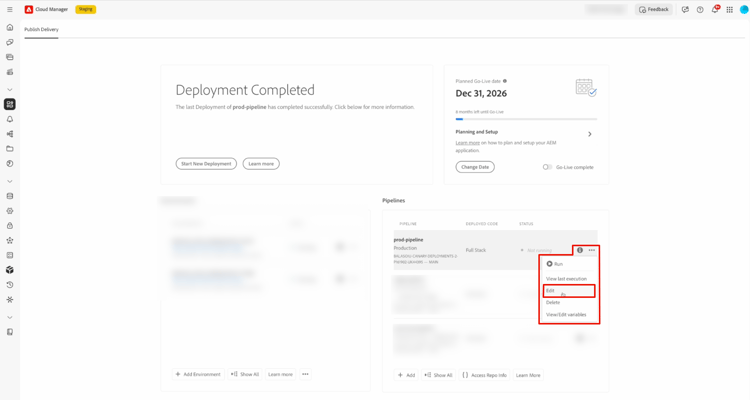
-
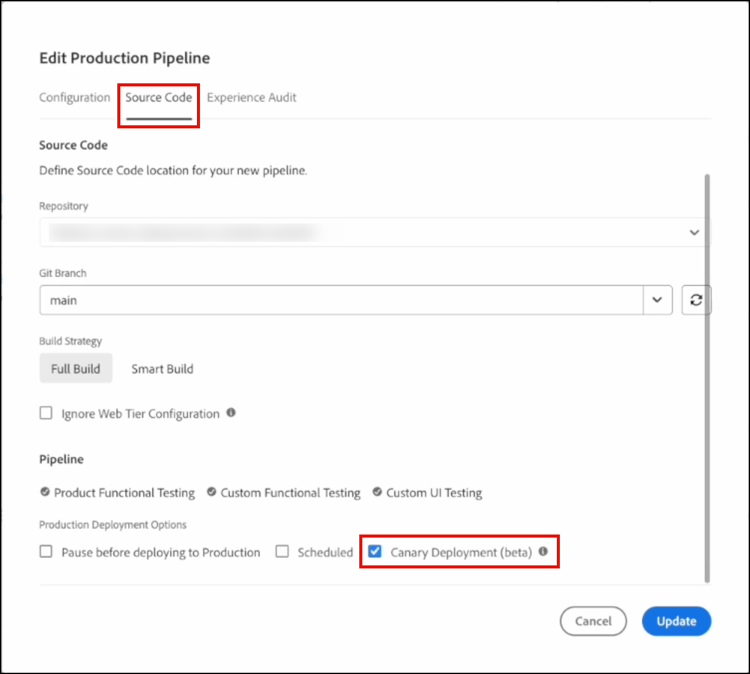
In the Edit Production Pipeline dialog box, click the Source Code tab.
-
In the Pipeline section, under the Production Deployment Options heading, click Canary Deployment (beta).
-
Click Update to complete the pipeline enablement.
During the validation window, only requests that include the canary header reach the newly deployed release. All other requests continue to reach the stable release.
Access the canary release access-the-canary-release
After Cloud Manager starts the canary instances, you reach the new version by adding an HTTP header to your requests. The stable version continues to serve requests without the header.
To send a request to the canary release, include the following header:
X-Aem-Canary: true
Validate and promote or cancel validate-and-promote-or-cancel
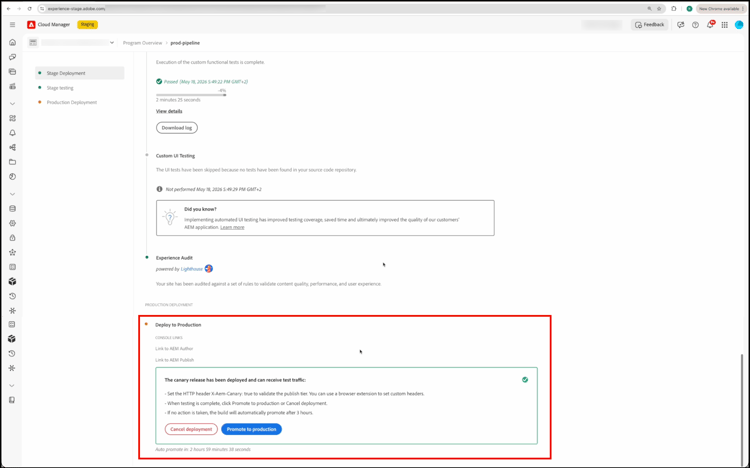
When the canary instances are ready, a validation window opens so that you can test the new version. Cloud Manager shows the Promote to production and Cancel deployment options in the Deploy to Production section.
Promote the canary release promote-the-canary-release
To route all live traffic to the new version, click Promote to production. When you promote the canary release:
- The canary version becomes the new stable release.
- Cloud Manager routes all live traffic to the new version.
- Rollback is no longer available.
Cancel the canary deployment cancel-the-canary-deployment
If you find issues during the validation window, click Cancel deployment. When you cancel the canary deployment:
- Cloud Manager stops the canary release and removes the canary instances.
- The previous stable version continues to serve traffic.
- Cancellation is available only during the validation window.
Scope and limitations scope-and-limitations
Consider the following scope and limitations when you use canary deployments:
- Canary deployments apply to the publish tier only. The author tier stays on the stable version during canary validation.
- Your changes must be backward compatible so that the canary publish instances can serve your existing content structures.
- Mutable content changes in a release apply after you promote the canary release. These changes are not available on the canary instances during validation.