[AEM Sites]{class="badge positive" title="Applies to AEM Sites)."}
Content Fragments - Cloud Configurations content-fragments-setup
With a Content Fragment Cloud Configuration you can customize various aspects of the new Content Fragment editor.
After creating and defining the configuration you also assign the Cloud Configuration to your individual Assets folders, so that it is applied to all the Content Fragments in that folder.
- the original Content Fragment editor
- the Content Fragment console
- the Assets console
Create a Content Fragment Cloud Configuration create-a-content-fragment-cloud-configuration
To create a configuration for customizing the new Content Fragment editor:
-
Navigate to Tools, Cloud Services, then open the Content Fragment Cloud Configuration.
-
In the left panel select the name of the configuration (workspace) you created in the Configuration Browser; for example
CFModels-Conf. -
Select Create from the top right toolbar.
-
Select Configuration from the dropdown menu.
-
A new configuration name Content Fragment Cloud Configuration is created.
You can select the configuration to edit the properties, publish, unpublish or delete the configuration.note NOTE For each workspace (context aware) configuration only one Content Fragment Cloud Configuration can be created.
Define the Content Fragment Cloud Configuration define-the-content-fragment-cloud-configuration
After creating your configuration you can open the Properties to define the settings for:
Disable Publishing disable-publishing
Use this option to disable publishing actions from the editor:
- Navigate to your Content Fragment Cloud Configuration.
- Select and open the Properties.
- Select the Capabilities tab.
- Select, or deselect, Disable Publish. See the i icons for more information on each field.
- Save and Close.
- Apply the Cloud Configuration to your folder.
Configure the RTE configure-the-rte
Use this option to configure the Rich Text Editor (RTE):
-
Navigate to your Content Fragment Cloud Configuration.
-
Select and open the Properties.
-
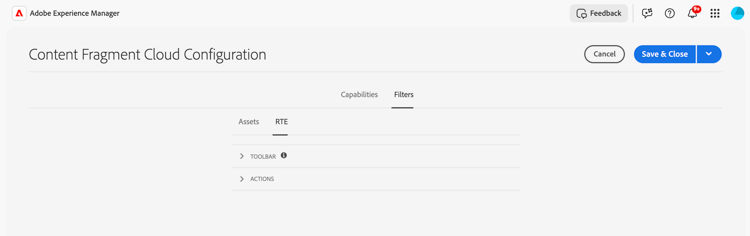
Select the Filters tab.
-
Select the RTE tab.
-
Select whether you want to configure the Toolbar or Actions. In both cases use the i icons for more information on each field:
-
Toolbar:
- Expand the Toolbar section.
- Activate, or deactivate, the options you want to see in the RTE of the new Content Fragment editor.
-
Actions:
-
Expand the Actions section.
-
Add a new action.
-
Specify the details:
- Action
- Label
- Shortcut
- Tag
You can also:
- edit a specific, existing Action configuration: select, then update
- delete a specific, existing Action configuration: select, use the trash can icon to remove the action definition
-
-
-
Select Save and Close.
Configure the Content Reference Asset Selector configure-the-content-reference-asset-selector
Use this option to configure the Asset Selector for Content Reference fields:
-
Navigate to your Content Fragment Cloud Configuration.
-
Select and open the Properties.
-
Select the Filters tab.
-
Select the Assets tab.
-
Configure as required. Use the i icons for more information on each field:
-
Disable upload
-
Root Path
note NOTE If a Content Fragment Model has already predefined a root path for any fragments in the folder, then this configuration will override that setting. -
Disable remote
-
Repository Names
-
Selection Tier: Author and Deliver
-
-
Select Save and Close.
Apply the Configuration to your Folder apply-the-configuration-to-your-folder
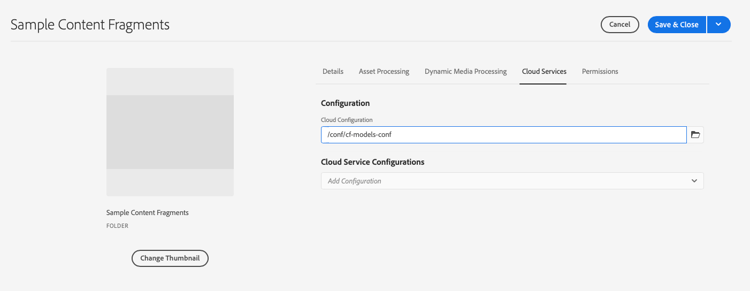
To apply your Cloud Configurations to an Assets folder, you have to define the connection.
You can do this either when creating a new folder, or when editing the properties of an existing folder.
Select the appropriate Configuration in the Cloud Services tab of the Folder Properties of the appropriate folder.