[AEM Forms]{class="badge positive" title="Applies to AEM Forms)."}
Manage Form Assets Versions in Forms Manager UI
Forms Manager now supports versioning for form assets. You can create versions, view version history, and restore earlier versions of your assets from the Forms Manager UI.
Supported asset types supported-asset-types
You can create and manage versions for the following asset types:
Create a version create-version-forms-manager
To create a version of a form asset:
- Navigate to Adobe Experience Manager > Forms > Forms & Documents.
- Select the form or asset.
- In the left panel, select Timeline.
- Click Save as Version in the timeline toolbar.
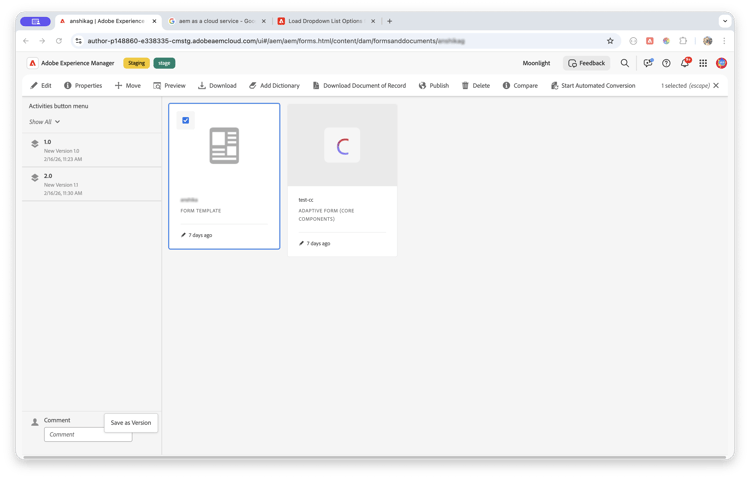
- Enter a Label and an optional Comment to describe the changes.
- Click Create.
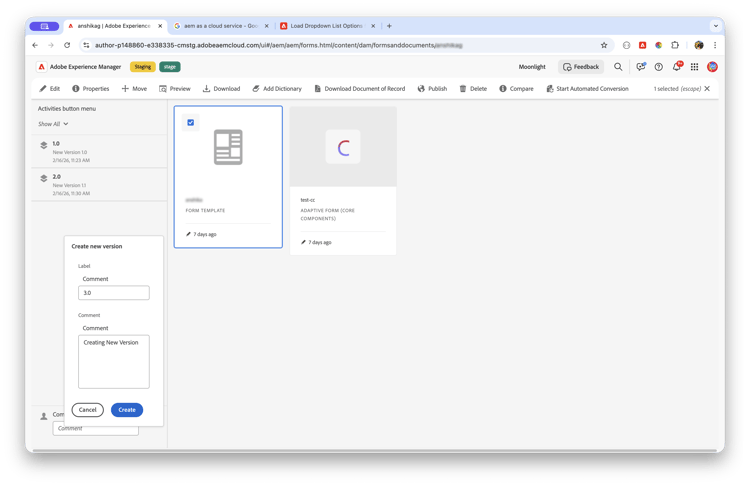
The version appears in the timeline panel with its label, comment, and timestamp.
Version an asset during upload version-on-upload
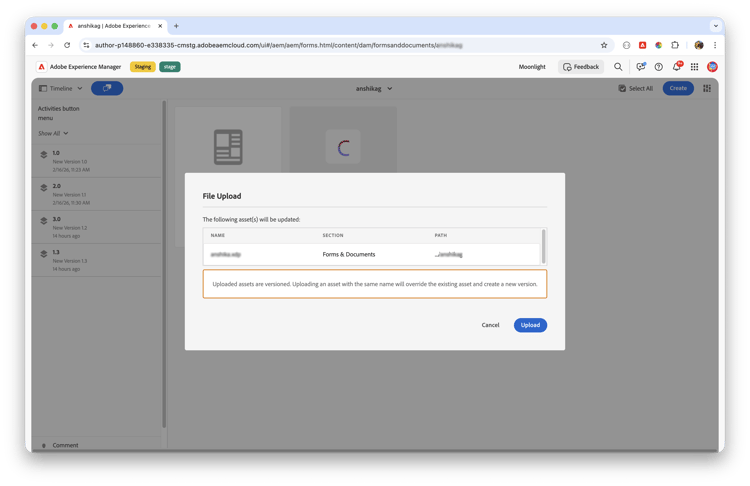
When you upload an asset with the same name as an existing asset, Forms Manager displays a File Upload dialog that lists the assets to be updated. The dialog shows the asset name, section, and path.
When an asset with the same name already exists, the upload replaces the existing asset and creates a new version automatically. You can view the created version in the timeline.
View version history view-version-history
To view the version history of an asset:
- Select the asset in Forms Manager.
- In the left panel, select Timeline.
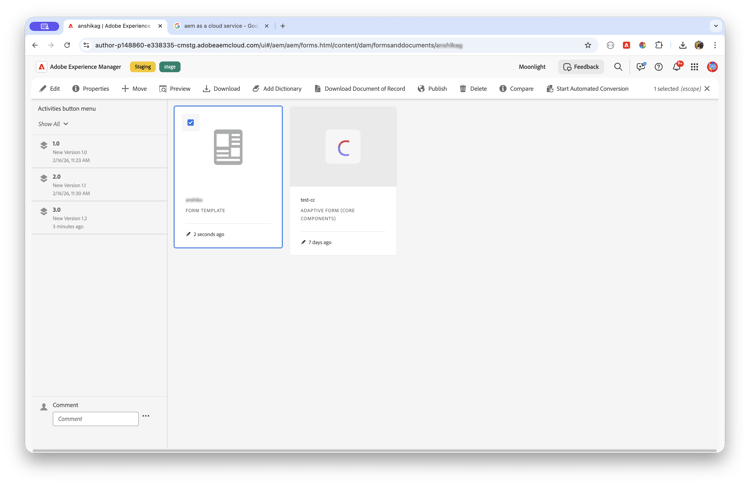
The timeline displays all version entries along with activity events. Each entry shows the label, comment, author, and timestamp.
Restore a previous version restore-version
To restore an asset to an earlier version:
- Select the asset in Forms Manager.
- In the left panel, select Timeline.
- Select the version that you want to restore.
- Click Revert to this Version.