[AEM Forms]{class="badge positive" title="Applies to AEM Forms)."}
Manage Publication in Experience Manager Forms
As an Adobe Experience Manager (AEM) Forms administrator, you can publish forms from your author instance to Experience Manager Forms. You also have the option to schedule the publication of a form or folder for a later date or time. Once published, users can access and fill out the forms.
In Experience Manager Forms, you can publish a form using one of the following methods:
Things to keep in mind
- Only members of the
forms-usersgroup can use the Manage Publication option to publish the forms. - Changes made to forms or folders in Experience Manager Forms do not appear in the Publish instance until republished. This ensures that work-in-progress updates remain unavailable in the Publish instance. Only changes explicitly published by an administrator are reflected in the Publish instance.
Publish forms using the Publish option
The Publish option lets you immediately publish a form. To publish an Experience Manager Form using the Publish button on the toolbar. To publish forms using the Publish option are:
-
From the Experience Manager Forms console, navigate to the parent folder and select a form that you want to publish.
-
Click Publish option from the toolbar, take a look at all the reference assets that would be published with form.
-
Click Publish.
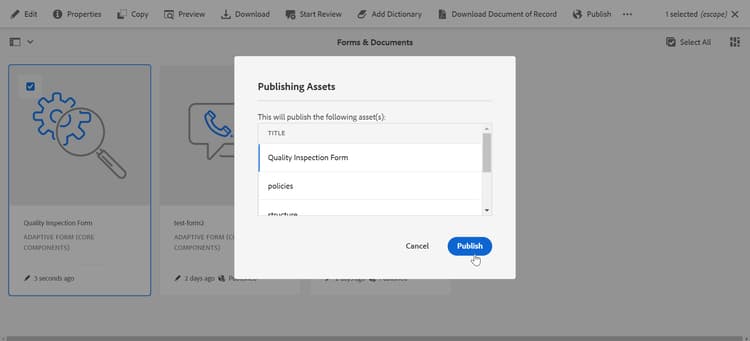
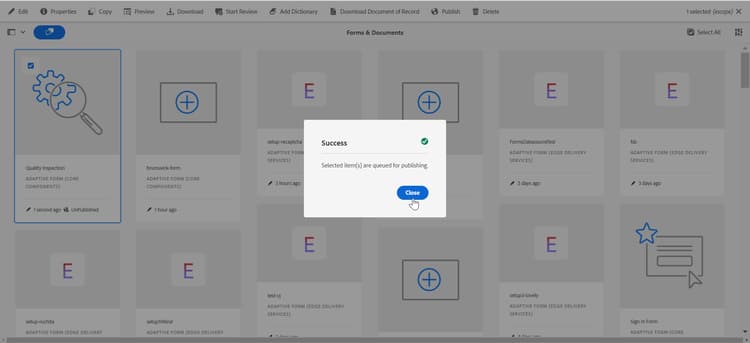
Once the form and its related assets are successfully published, a Success dialog appears.
-
Click Close.
Unpublish the form
After successfully publishing the form using the Publish option and its related assets, you can even unpublish them using the Unpublish button available on the toolbar. To unpublish form:
-
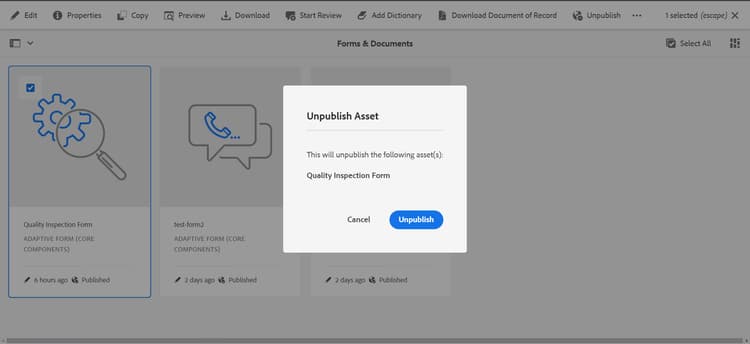
To unpublish the form and its related assets, select the form and click Unpublish from the toolbar
When you click the Unpublish button, the Unpublish Asset dialog appears.
-
Click Unpublish to start the unpublishing process
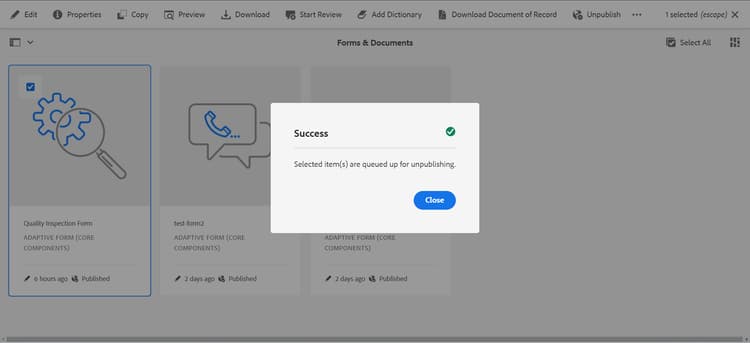
Once the form and its related assets are successfully unpublished, a Success dialog appears.
-
Click Close.
Publish forms using the Manage Publication option
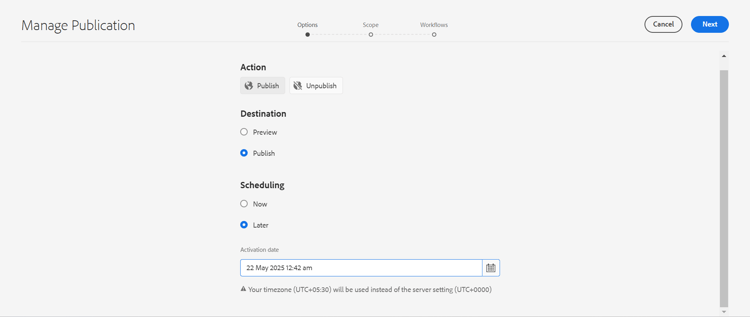
Manage publication lets you publish or unpublish content to and from the selected destination, add content to the publishing list from across the forms&documents folder, select references to publish, and schedule publishing to a later date or time. To publish forms using the Manage Publication option are:
-
From the Experience Manager Forms console, navigate to the parent folder and select a form that you want to publish.
-
Click Manage Publication option from the toolbar.
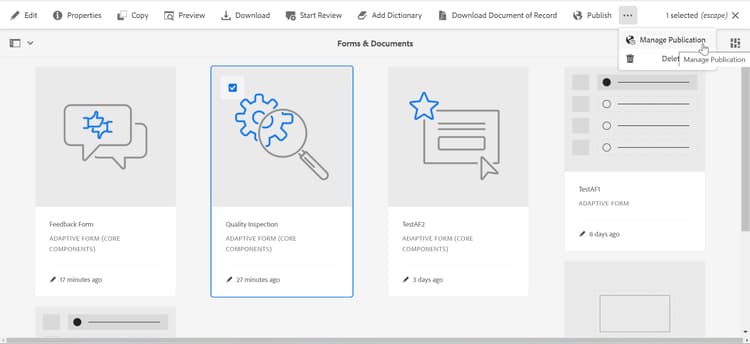
The Manage Publication UI appears:
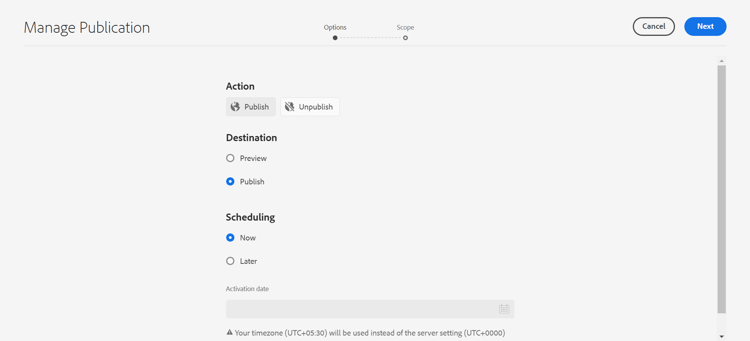
The following options are available in the Manage Publication UI:
-
Actions
- Publish: Publish forms to the selected destination
- Unpublish: Unpublish forms from the destination
-
Destination
- Publish: Publish forms to Experience Manager Forms (AEM) Publish instance.
- Preview: Publish forms to Experience Manager Forms (AEM) Preview instance.
-
Scheduling
- Now: Publish forms immediately
- Later: Publish forms based on the Activation date or time
-
-
Click Next to continue.
-
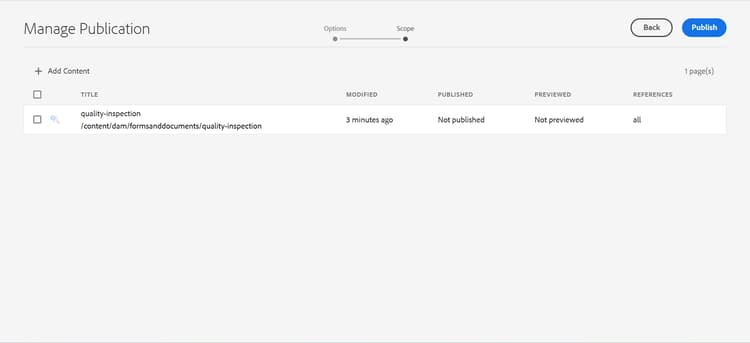
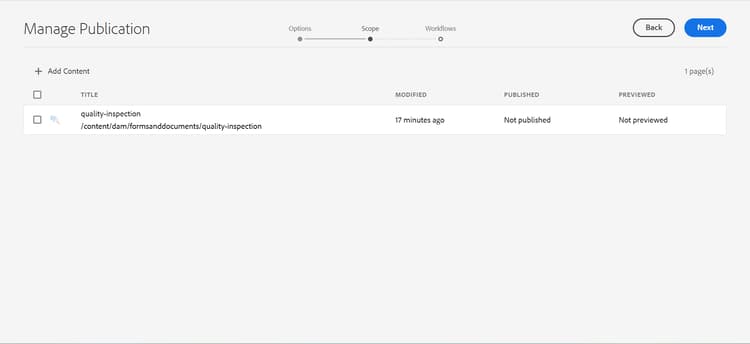
(Optional) In the Scope tab, use the Add Content option to add more content for publishing. For example, you can add more Forms or Document of Record files.
-
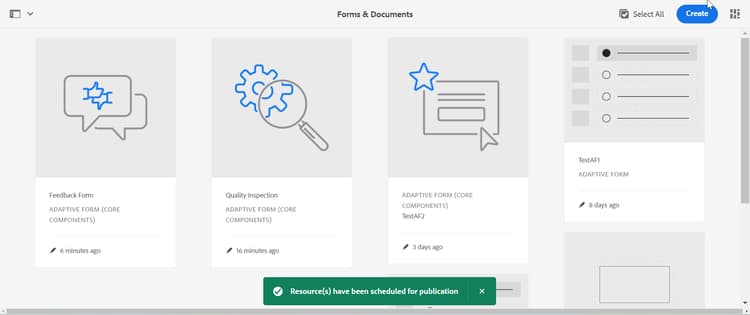
Click Publish to publish the forms and related assets and successful message appears.
Add content
Publishing to Experience Manager Forms lets you further add more content (forms) to the publishing list.
To add more forms for publishing:
-
Click Add Content button to add more content.
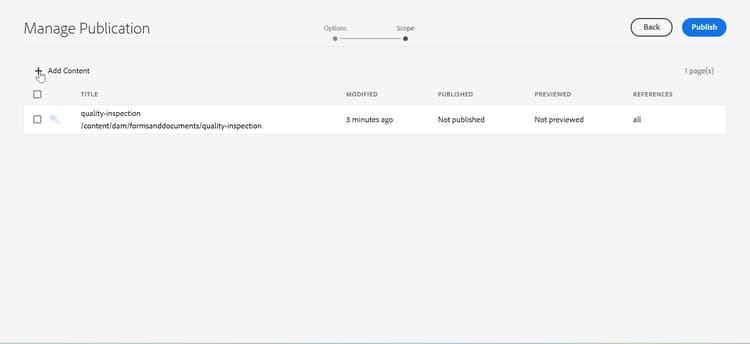
-
Select the form from the Select Path screen.
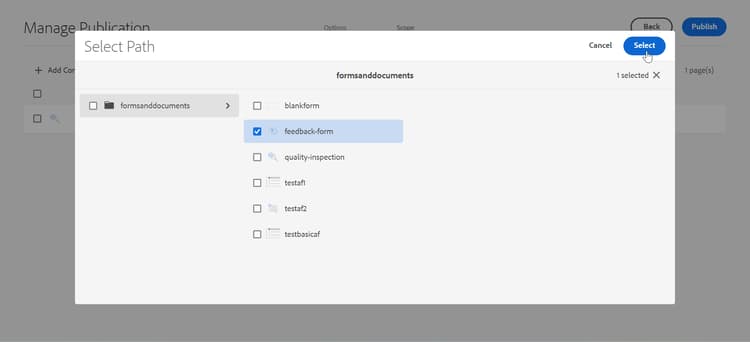
note NOTE You can add more forms or folders to the list from the formsanddocumentsfolder. But you cannot add forms from multiple folders at a time. -
To configure the references to publish or not publish for a form, select the form and click Published References.
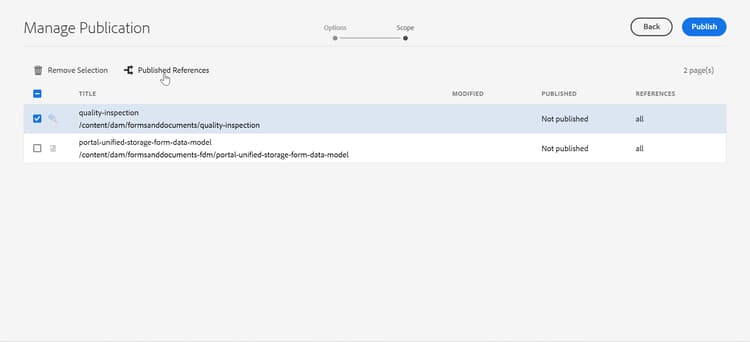
-
In the Published References dialog box, uncheck the assets you plan to not-publish and click Done.
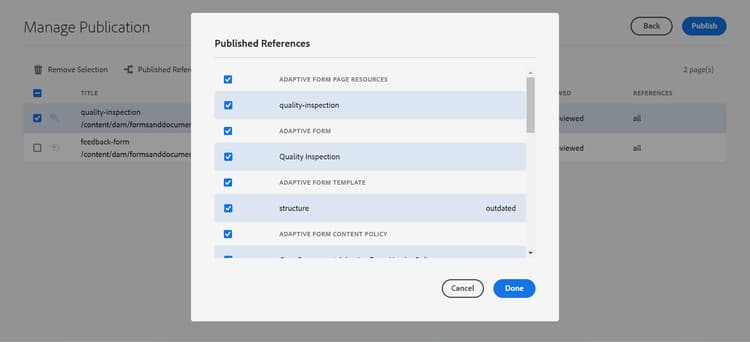
Publish or unpublish a form later
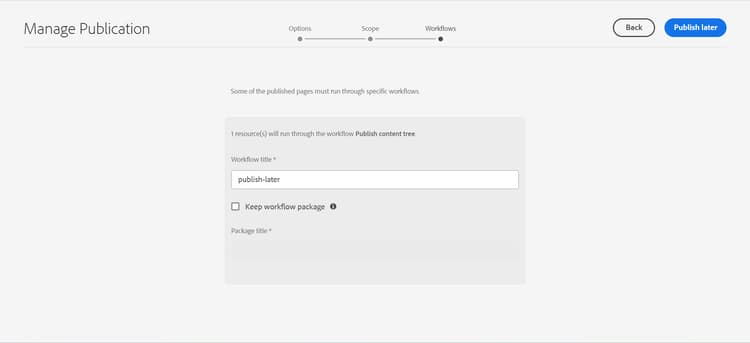
Along with allowing you to publish or unpublish forms at a later date and time, the publish or unpublish later option also allows to configure a workflow. The forms are published or unpublished after completion of the workflow.
To schedule a form for publishing or unpublishing:
-
From the Experience Manager Forms console, navigate to the parent folder and select the form that you want to schedule for publishing.
-
Click Manage Publication option from the toolbar.
-
Click Publish or Unpublish from Action.
-
Select the Destination where you want to publish or unpublish the content.
- Preview: Use the Preview option to publish or unpublish to an Experience Manager Forms preview environment. The Experience Manager Forms preview environments are used to test under development forms.
- Publish: Use the Experience Manager Forms Publish option to send the form to Experience Manager Forms publish environment after the form is ready to use in a production environment.
-
Select Later from Scheduling.
-
Select an Activation date and specify the date and time.
-
Click Next.
-
(Optional) In the Scope tab, add content using Add Content .
-
Click Next.
-
In the Workflows tab, specify a Workflow title.
-
Click Publish Later.
Determining publication status
There are multiple ways to determine the publishing status:
-
Log in to the destination instance to verify the published forms and other assets (depending upon the scheduled date or time).
-
Use the timeline view to determine the publication status.
-
Use the page information menu in Adaptive Forms editor.