[AEM Forms]{class="badge positive" title="Applies to AEM Forms)."}
Embed an Adaptive Forms theme in an AEM Sites theme
You can embed an Adaptive Forms theme (such as the AEM Forms Canvas theme) into your AEM Sites theme. That way, a single theme drives both your site pages and any Adaptive Forms embedded on those pages, with one build and one deployment via the AEM Front-End Pipeline.
This article is for developers who maintain or customize the standard (or custom) AEM Sites theme and want to include Adaptive Form styling without managing a separate Forms theme deployment.
Prerequisites prerequisites
Before you start, ensure you have:
- AEM as a Cloud Service with the Front-End Pipeline configured for your site theme.
- Site theme sources – for example, the standard site template theme (the repo that contains
theme/withsrc/theme.scss,src/components/, and so on). - Forms theme sources – the AEM Forms Canvas theme (or another compatible Adaptive Forms theme) cloned or downloaded locally.
- Node.js and npm – to build the site theme (see theme README for supported versions).
- Maven – if you build the full site template package (optional for theme-only work).
Step 1: Create the adaptive form components folder step-1-create-folder
In your site theme repository, create the folder where the Forms theme will live:
theme/src/components/adaptiveform/
All Forms theme assets will sit under this folder so they stay separate from existing site components.
Step 2: Copy Forms theme components and images step-2-copy-components-and-images
Using your Forms theme (for example, aem-forms-theme-canvas) and your site theme paths:
-
Copy component folders
From the Forms theme, copy the entire contents ofsrc/components/into the site theme as:code language-text theme/src/components/adaptiveform/So you get paths like:
code language-text theme/src/components/adaptiveform/button/ theme/src/components/adaptiveform/checkbox/ theme/src/components/adaptiveform/container/ … (one folder per component)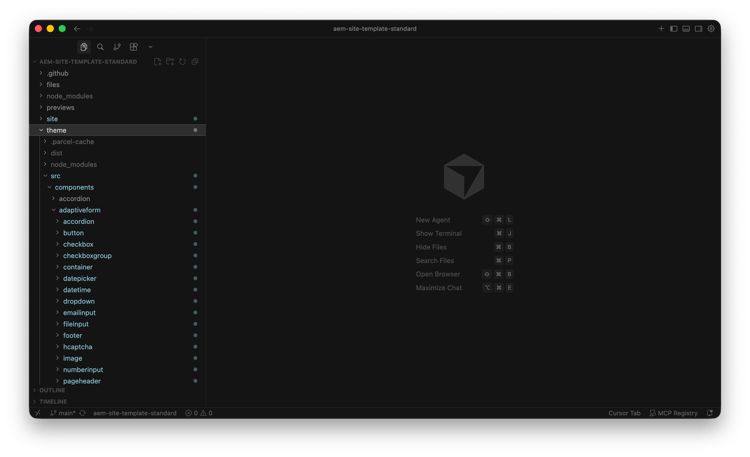
-
Copy images
Copy the Forms theme images into the site theme:code language-text Forms theme: src/resources/images/* Site theme: theme/src/components/adaptiveform/resources/images/Create
theme/src/components/adaptiveform/resources/images/if it does not exist, then copy all image assets (for examplequestion.svg,Chevron-Left.svg,busy-state.gif, and so on).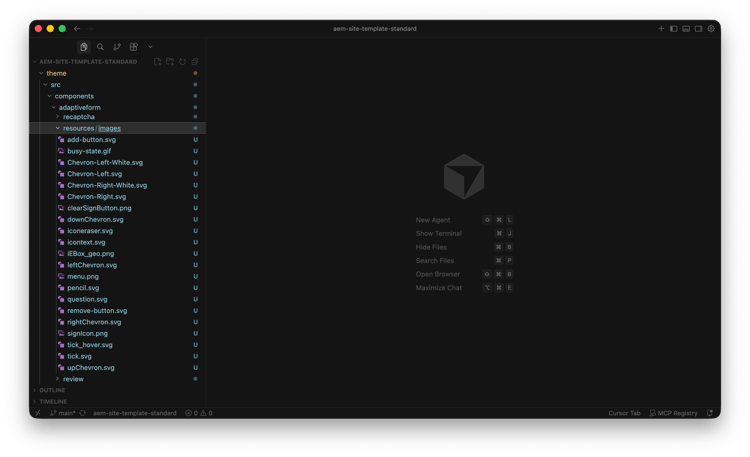
Step 3: Copy variables and mixins step-3-copy-variables-and-mixins
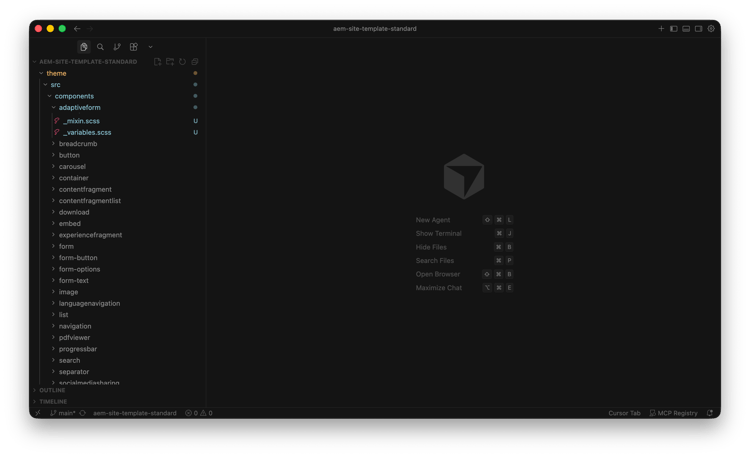
The Forms theme uses shared variables and mixins under src/site/. Copy only these two files into the root of adaptiveform/ (not inside a site subfolder):
src/site/_variables.scsstheme/src/components/adaptiveform/_variables.scsssrc/site/_mixin.scsstheme/src/components/adaptiveform/_mixin.scssDo not copy the rest of the Forms theme’s src/site/ folder; only these two files are required for the embedded form styles.
Step 4: Fix image paths in SCSS step-4-fix-image-paths
In the Forms theme, component SCSS files often reference images with paths like ./resources/ or url(resources/. After copying into the site theme, those paths must point to theme/src/components/adaptiveform/resources/images/.
The standard site template theme uses Parcel, which resolves url() paths from theme/src/. So when images are in theme/src/components/adaptiveform/resources/images/, use the path components/adaptiveform/resources/images/ (relative to theme/src/).
Find and replace in every .scss under theme/src/components/adaptiveform/:
./resources/components/adaptiveform/resources/url(resources/url(components/adaptiveform/resources/url('resources/url('components/adaptiveform/resources/url(../resources/url(components/adaptiveform/resources/Example – before (Forms theme):
.cmp-adaptiveform-button__questionmark {
  background: url(./resources/images/question.svg) center center / cover no-repeat, #969696;
}
After (site theme, images in adaptiveform/resources/images/):
.cmp-adaptiveform-button__questionmark {
  background: url(components/adaptiveform/resources/images/question.svg) center center / cover no-repeat, #969696;
}
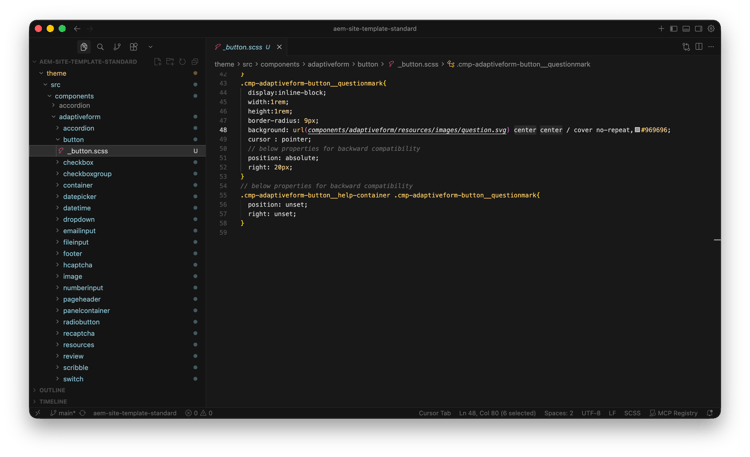
Repeat for every SCSS file under adaptiveform/ that references images (button, accordion, wizard, container, scribble, and others). A project-wide find/replace in your IDE over theme/src/components/adaptiveform/ is recommended.
Step 5: Create the adaptive form entry-point SCSS step-5-create-adaptiveform-scss
Create theme/src/components/adaptiveform/_adaptiveform.scss in the site theme. This file must:
- Import the shared variables and mixins.
- Import each Adaptive Form component’s main SCSS file.
Use the following as the full entry point (matches the standard integration with all Core Components–based form components):
//== Adaptive Form components (forms theme integration)
// Variables and mixins for adaptive form components
@import 'variables';
@import 'mixin';

//== Core adaptive form components
@import './button/_button.scss';
@import './checkboxgroup/_checkboxgroup.scss';
@import './container/_container.scss';
@import './datepicker/_datepicker.scss';
@import './dropdown/_dropdown.scss';
@import './fileinput/_fileinput.scss';
@import './footer/_footer.scss';
@import './image/_image.scss';
@import './numberinput/_numberinput.scss';
@import './panelcontainer/_panelcontainer.scss';
@import './radiobutton/_radiobutton.scss';
@import './text/_text.scss';
@import './textinput/_textinput.scss';
@import './accordion/_accordion.scss';
@import './tabsontop/_tabsontop.scss';
@import './pageheader/_pageheader.scss';
@import './wizard/_wizard.scss';
@import './title/_title.scss';
@import './telephoneinput/_telephoneinput.scss';
@import './emailinput/_emailinput.scss';
@import './recaptcha/_recaptcha.scss';
@import './verticaltabs/_verticaltabs.scss';
@import './checkbox/_checkbox.scss';
@import './termsandconditions/_termsandconditions.scss';
@import './switch/_switch.scss';
@import './hcaptcha/_hcaptcha.scss';
@import './turnstile/_turnstile.scss';
@import './review/_review.scss';
@import './scribble/_scribble.scss';
@import './datetime/_datetime.scss';
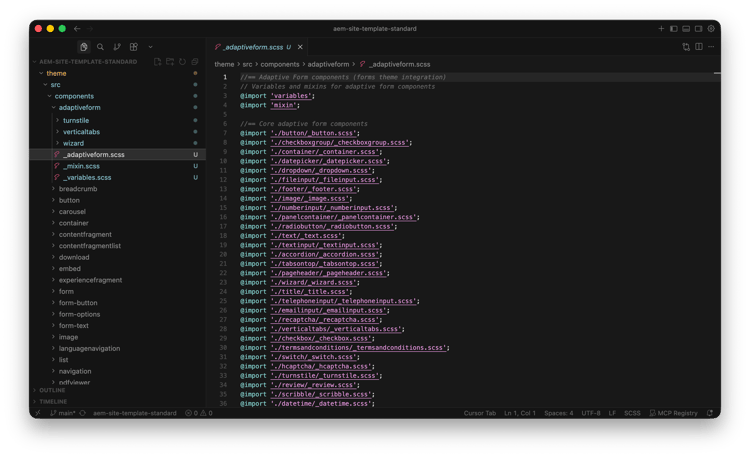
If your Forms theme omits some components (for example, no scribble or captcha), remove or comment out the corresponding @import lines to avoid build errors. The list above matches the Canvas theme structure.
Step 6: Import the adaptive form theme in the site theme step-6-import-in-theme-scss
In theme/src/theme.scss, add a single import at the end of the file (after other component imports):
//== Adaptive Form components (forms theme)
@import './components/adaptiveform/_adaptiveform.scss';
Example – end of theme.scss:
// ... existing site component imports ...
@import './components/embed/_embed.scss';
@import './components/pdfviewer/_pdfviewer.scss';
@import './components/socialmediasharing/_social_media_sharing.scss';

//== Adaptive Form components (forms theme)
@import './components/adaptiveform/_adaptiveform.scss';
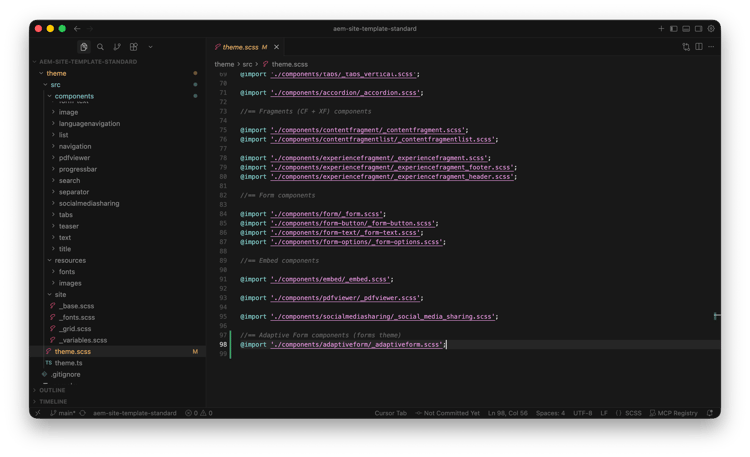
This is the only change required in the existing site theme structure; all form-specific code stays under src/components/adaptiveform/.
Step 7: Build and deploy step-7-build-and-deploy
-
Build the site theme from the theme root:
code language-bash cd theme npm install npm run build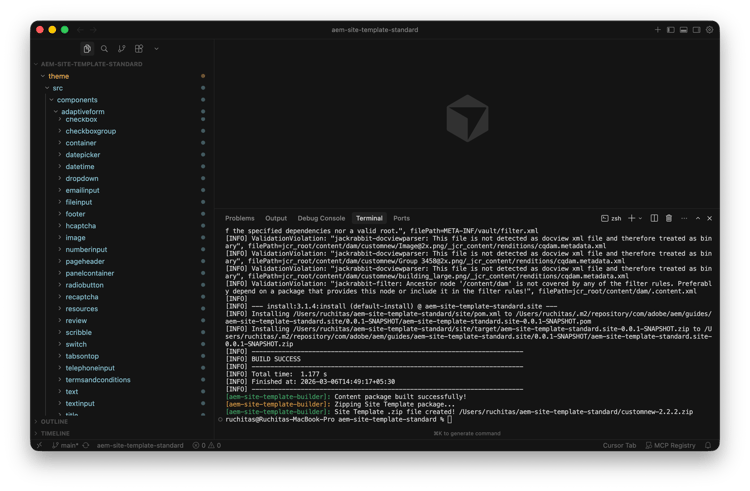
-
Deploy via your existing Front-End Pipeline. After deployment, the same theme CSS will apply to both site pages and embedded Adaptive Forms.
Troubleshooting troubleshooting
theme/src/components/adaptiveform/resources/images/. In every .scss under adaptiveform/, use url(components/adaptiveform/resources/images/...) so the path resolves from theme/src/ (required for the standard site theme build with Parcel). Do not use ../resources/ or resources/ alone unless your bundler resolves paths per-file; then use the path that matches your image folder._variables.scss or _mixin.scsssrc/site/ into theme/src/components/adaptiveform/ (the adaptiveform root), not inside a site subfolder._scribble.scss)theme/src/components/adaptiveform/_adaptiveform.scss, remove or comment out the @import line for that component.theme.scss contains the @import './components/adaptiveform/_adaptiveform.scss'; line and the theme was rebuilt and deployed.cmp-adaptiveform-button). If you see clashes, inspect whether custom site CSS overrides those classes and adjust specificity or order.