Customizing Form Themes customizing-form-themes
The Theme Editor in Adobe Experience Manager (AEM) Forms is a visual interface that lets you create and customize themes for your Adaptive Forms without writing code manually. A theme defines the look and feel of form components and panels, including background colors, font styles, borders, dimensions, and spacing. When you apply a theme, the specified styles reflect on the corresponding components, and you can reuse the same theme across multiple Adaptive Forms.
The Theme Editor eliminates the need for a dedicated developer persona for basic form styling. With just a working knowledge of CSS, you can style forms using the visual sidebar or write advanced CSS overrides directly within the editor.
Prerequisites prerequisites
- Author-level permissions in Adobe Experience Manager Forms.
- Basic understanding of CSS styling principles. For a complete CSS reference, see the MDN Web Docs CSS reference.
Navigate to the Themes Directory navigate-to-themes
-
Log in to your AEM author instance.
-
Navigate to Adobe Experience Manager > Forms > Themes.
The Themes directory displays all available themes, including any standard themes provided by AEM Canvas, along with custom themes that you or your organization have created.
Create a new theme create-a-new-theme
-
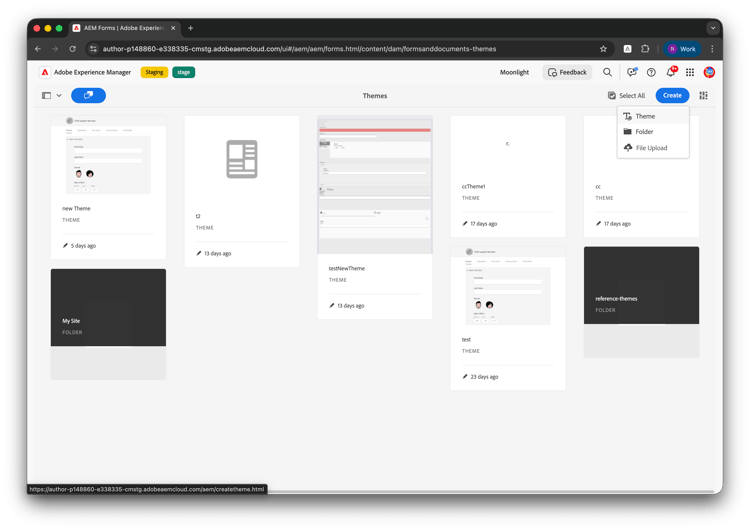
In the Themes directory, select the folder where you want to store your new theme.
-
Click Create > Theme.
-
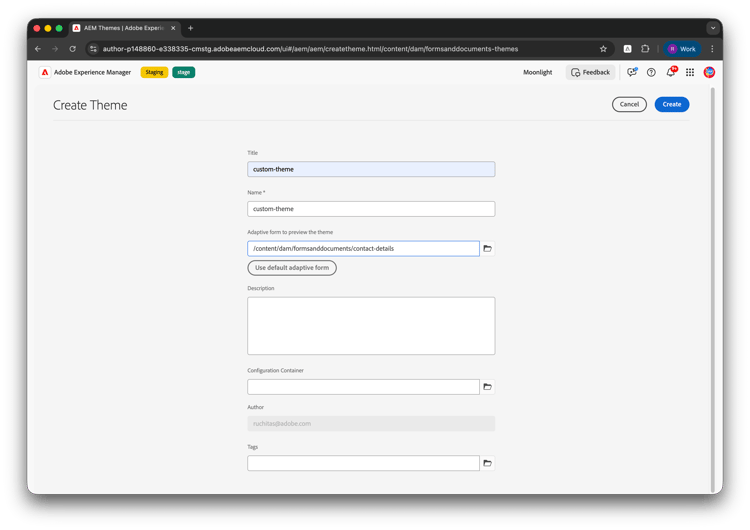
In the Create Theme dialog, specify the following details:
- Title: A descriptive title for the theme.
- Name: The node name for the theme.
- Adaptive form to preview the theme: For a Core Component theme, select a Core Component-based Adaptive Form. Use default adaptive form uses a foundation Adaptive Form, not Core Components. The selected form appears in the Theme Editor canvas for real-time preview while you edit.
- Description (Optional): A brief description of the theme.
- Configuration Container (Optional): The configuration container that holds Adobe Font configuration details.
- Tags (Optional): Tags attached to the theme for identification and search.
-
Click Create.
The theme is created. You can now click Edit to open it in the Theme Editor.
Edit an existing theme edit-an-existing-theme
-
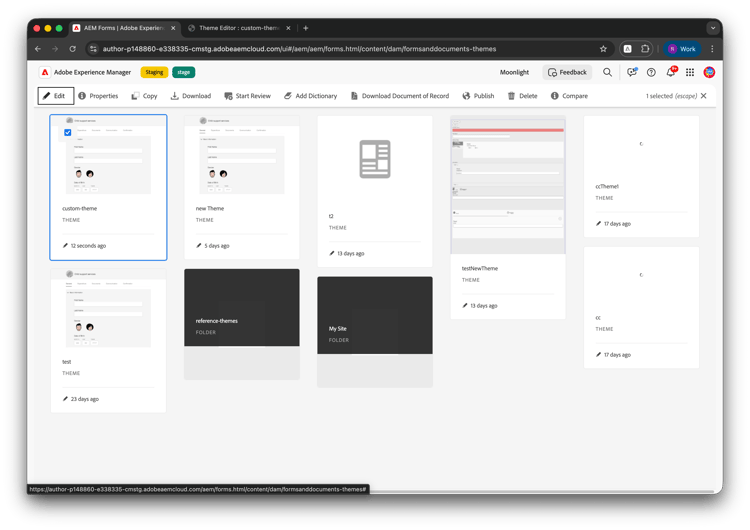
In the Themes directory, select the theme you want to modify.
-
Click Edit in the action bar to open the theme in the Theme Editor.
Upload a theme upload-a-theme
You can import a theme package (for example, one exported from another environment) into the Themes directory:
-
In the Themes directory, click Create > File Upload.
-
Browse to select the theme package (ZIP file) on your computer, then click Upload.
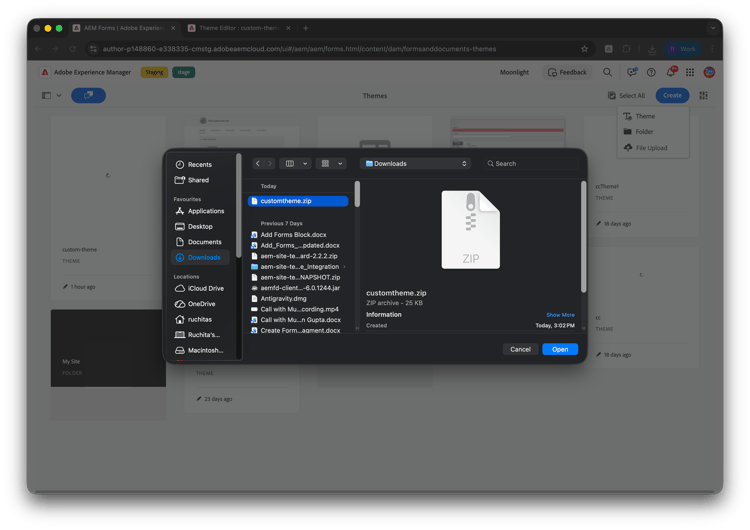
The uploaded theme appears in the Themes directory and can be edited like any other theme.
Download a theme download-a-theme
You can export a theme as a package (ZIP file) to reuse in another AEM Forms environment or to back it up:
-
In the Themes directory, select one or more themes (use the checkboxes on the theme cards).
-
Click Download in the action bar. A dialog may appear with details of the selected theme(s).
-
Confirm or click Download in the dialog. The theme package is downloaded as a ZIP file to your computer.
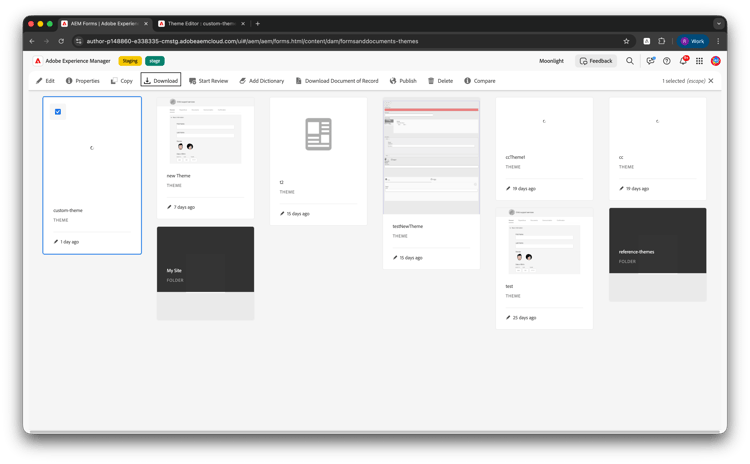
You can upload this ZIP later using Upload a theme in the same or another environment.
Understand the Theme Editor interface understand-the-theme-editor
When you open a theme in the Theme Editor, you see two main areas:
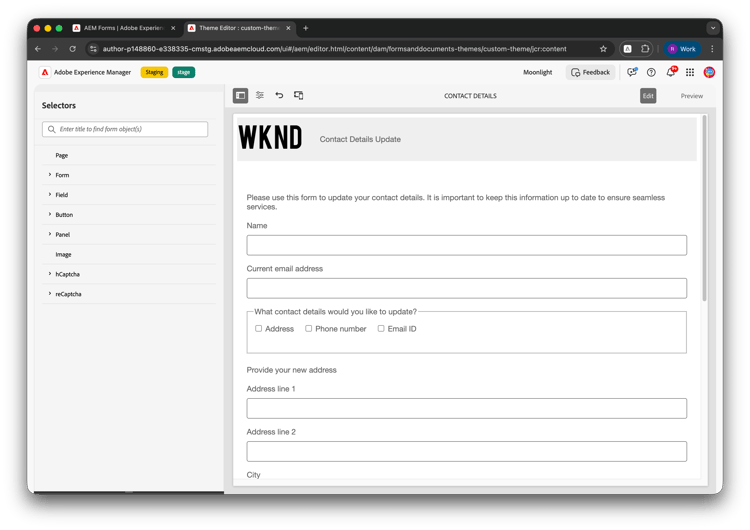
- Canvas (right side): Displays a preview of the Adaptive Form linked to the theme. All styling changes reflect here instantly, so you can see the impact of your edits in real time.
- Sidebar (left side): Contains the Selectors panel that lists all stylable form components in a tree structure, such as Page, Form, Field, Button, Panel, Image, hCaptcha, and reCaptcha.
Canvas toolbar canvas-toolbar
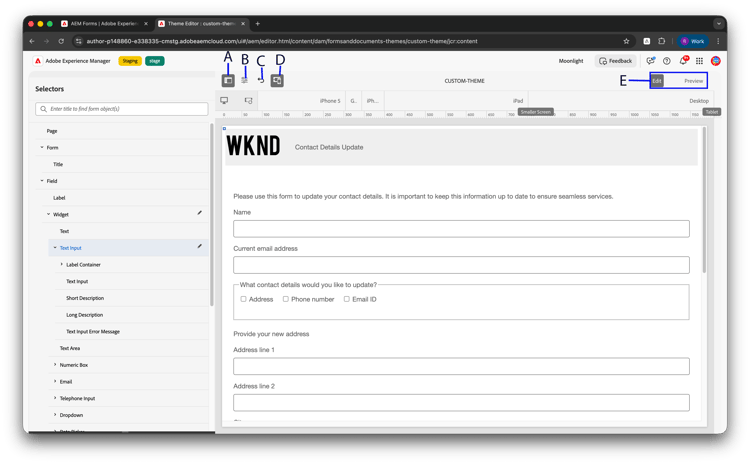
From left to right, the toolbar provides:
-
A: Toggle Side Panel: Show or hide the Selectors sidebar. Use this to maximize the form preview area when you want to focus on the canvas, or show the sidebar again when you need to select or style components.
-
B: Theme Options (dropdown): Opens a menu with four options. Click it when you need to change the preview form, view CSS, manage saved styles, or get in-editor help. When you open the Theme Options dropdown, you see:
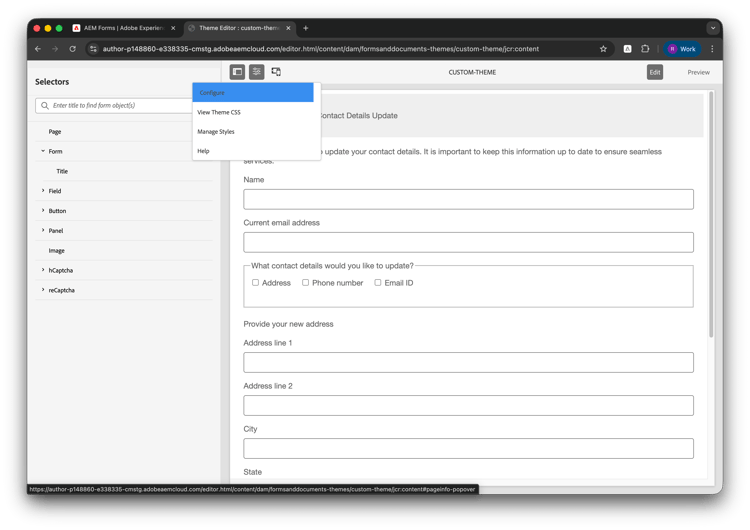
- Configure: Switch the form shown in the canvas to a different Adaptive Form. Use this to check how your theme looks on another form without leaving the editor.
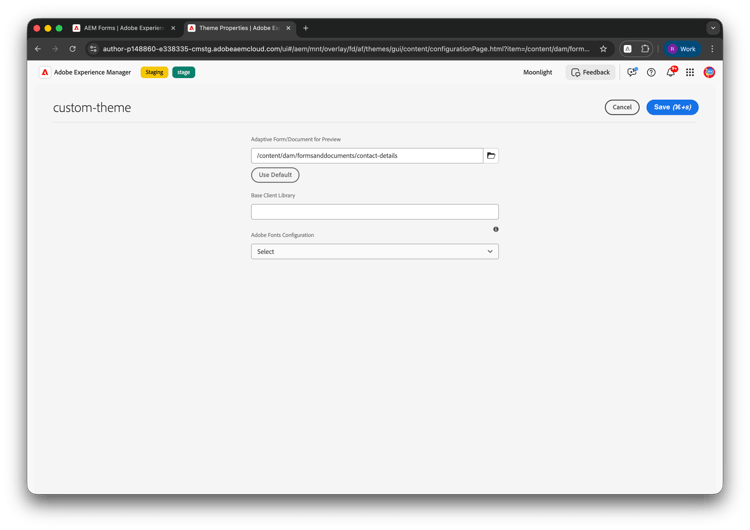
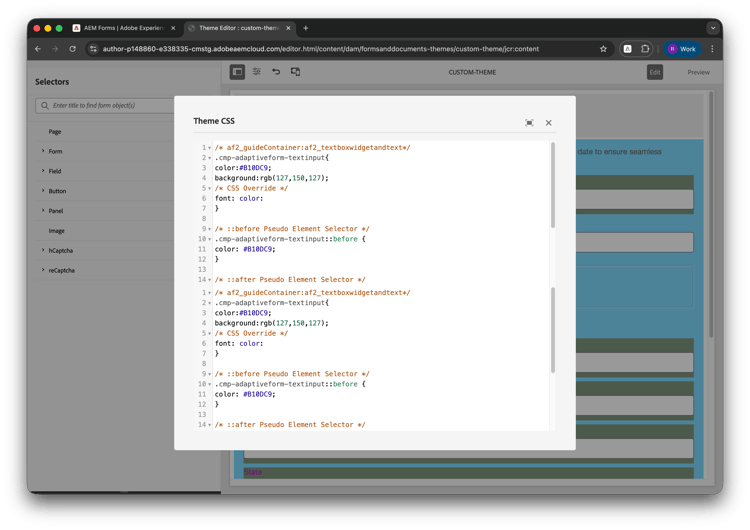
- View Theme CSS: Open a dialog with the full compiled CSS for the theme. To see CSS for only the currently selected component, use View CSS in the sidebar instead (handy for debugging or copying rules).
- Manage Styles: Open the dialog to save, name, and reuse text and image styles. Saved styles can be applied to other components; recently used styles may also appear for quick reuse.
- Help: Start the image-guided tour of the Theme Editor.
- Configure: Switch the form shown in the canvas to a different Adaptive Form. Use this to check how your theme looks on another form without leaving the editor.
-
C: Undo / Redo: Revert or reapply your last styling changes. Useful if you try a style and want to step back without losing other edits.
-
D: Emulator: Select a device or breakpoint (for example, Desktop, Tablet, or Mobile) to preview the form at that screen size. The form preview resizes to match the selected breakpoint. Any styles you set while a breakpoint is selected apply only to that breakpoint, so you can define responsive styles. For details, see Styling for different screen sizes.
-
E: Edit / Preview: Switch between two modes. Edit is the default: you can click components on the canvas to select them and change their styling in the sidebar. Preview shows the form as an end user would see it without selection borders, component labels, or the styling sidebar, so you can check how the themed form looks and behaves before publishing.
Style a Component
You can select a component to style in two ways:
-
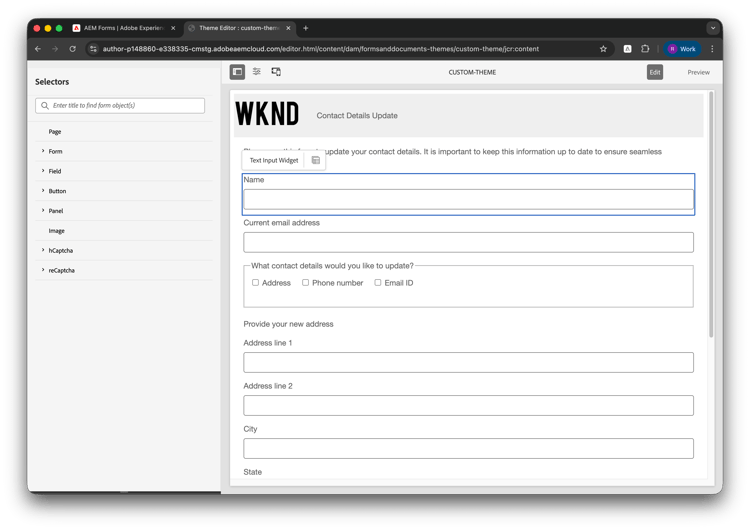
From the Canvas: Click directly on a component in the form (for example, a text field, button, or drop-down). The selected element is highlighted with a border, and a component label (for example, “Text Input Widget”) appears above it. The styling options for that component appear in the sidebar.
-
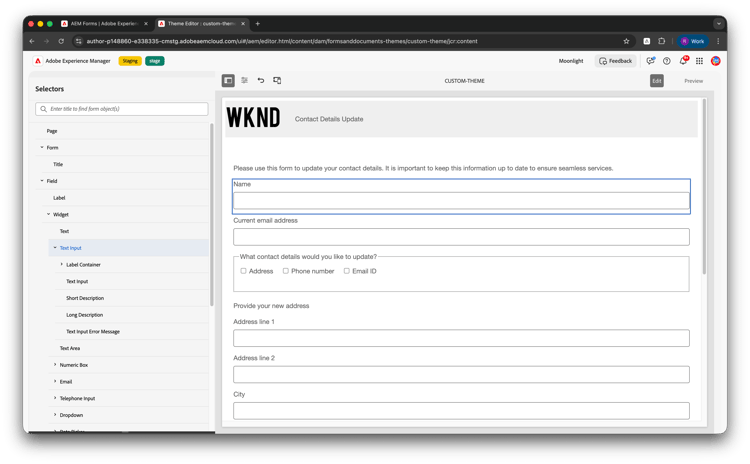
From the Selectors panel: Use the tree structure in the left sidebar to drill down into specific components. For example, expand Field > Widget > Text Input to target the textbox widget specifically.
Apply styles to a component apply-styles-to-a-component
Once a component is selected, the sidebar displays the available styling properties organized into the following categories:
- Dimensions & Position: Control alignment, size, padding, margin, width, height, and Z-index.
- Text: Configure font family, weight, color, size, line height, alignment, letter spacing, text decoration, and transform. For a complete list of supported CSS text properties, see the MDN CSS Text documentation.
- Background: Set a background color, image, or gradient. See MDN CSS Backgrounds documentation.
- Border: Define border width, style, radius, and color.
- Effects: Add opacity, blend modes, and shadows.
To apply a style:
-
Select the component from the canvas or the Selectors panel.
-
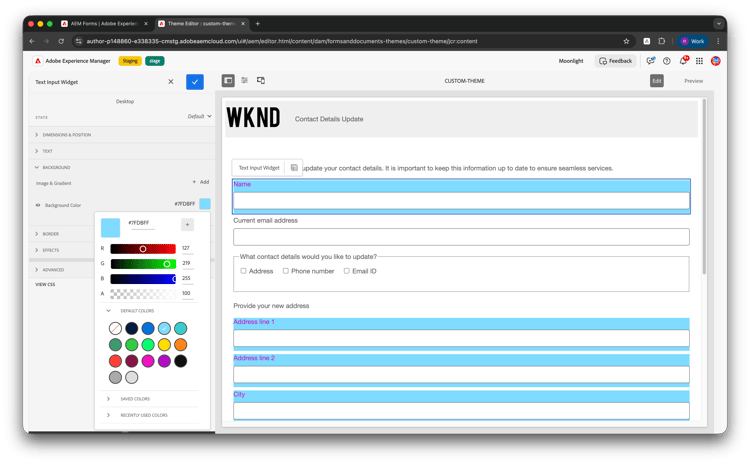
Set the desired visual properties in the sidebar. For example, choose a Background Color and adjust the Font Color.
-
Click the checkmark icon OK to confirm the property change.
Form-level styling form-level-styling
Form-level styling applies a style broadly to all components of the same type. For example, if you select Field in the Selectors panel and set a background color to blue, every field in the form (text boxes, numeric boxes, date pickers, and drop-downs) inherits that blue background.
Example: To set a uniform background color on all fields in the form:
-
In the Selectors panel, select Field.
-
In the sidebar, set the Background Color to blue.
-
Click OK.
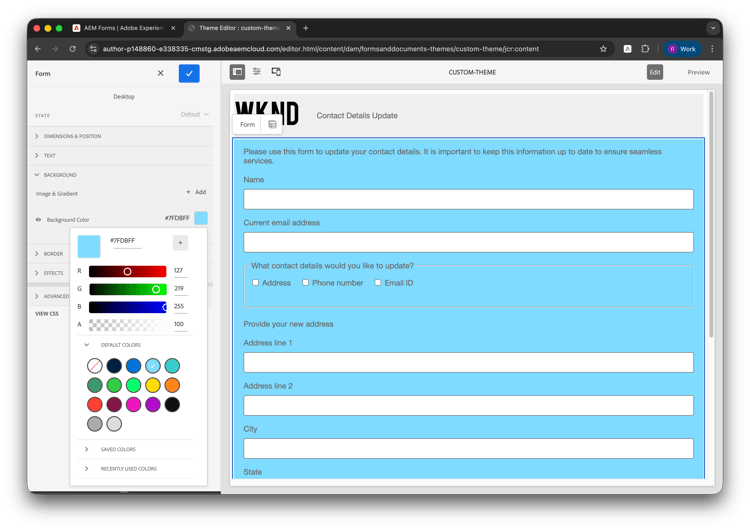
All field components in the form now display a blue background.
Component-level styling component-level-styling
Component-level styling targets a specific component type, overriding any broader form-level style. For example, if you want only the Textbox widget to have a different background color while all other fields remain blue, you target the textbox widget specifically.
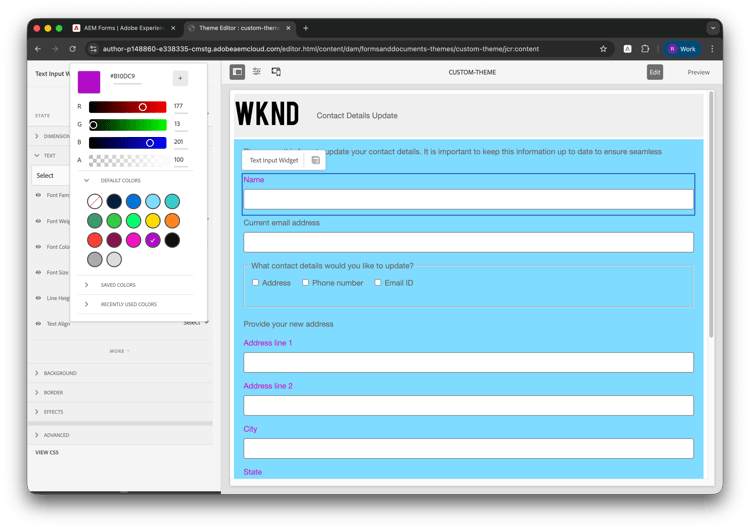
Example: To set a green background and purple font on only the textbox widget:
- In the Selectors panel, expand Field > Widget > Text Input.
- Set the Font Color to purple.
- Set the Background Color to green.
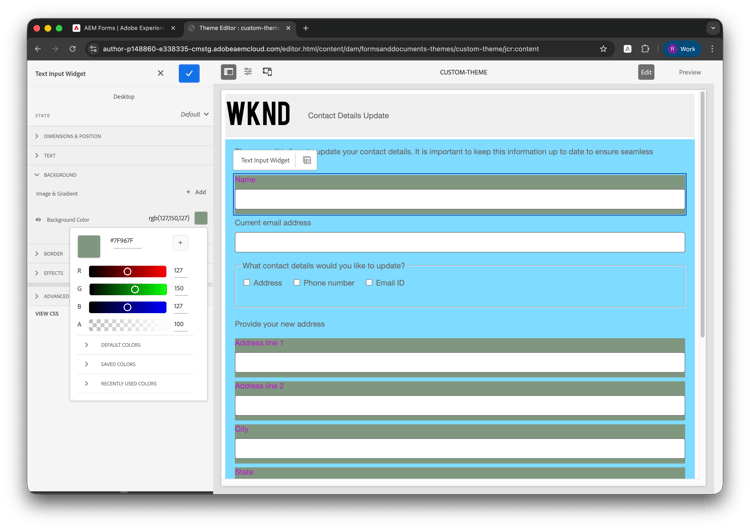
- Click OK.
The Textbox widget now displays a green background with purple text, while all other fields remain blue from the form-level style.
Styling for different screen sizes styling-for-different-screen-sizes
You can define different styles for different device sizes so your theme is responsive. The Theme Editor toolbar shows device options (for example, iPhone 5, iPad, Desktop, Tablet, Smaller Screen) to preview and style the form at that screen size.
-
In the canvas toolbar, use the device emulator: click one of the device labels (for example, Desktop, Tablet, iPad, Smaller Screen). A ruler above the form shows the pixel width for the selected device.
-
With that device selected, use the sidebar to set or adjust styles. The styles apply only for the selected device view.
-
Switch to another device and define styles for it as needed.
-
Click OK and save the theme when finished.
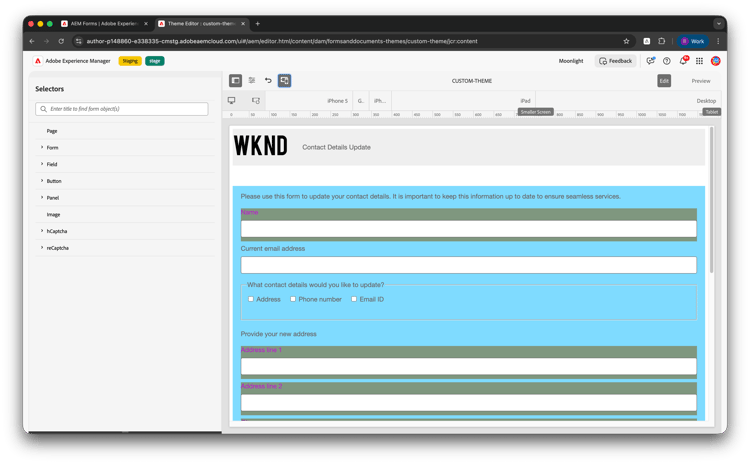
The same theme can therefore have different spacing, font sizes, or layout-related styles per device, matching the AEM 6.5 Theme Editor behavior for responsive styling.
Use advanced CSS overrides use-advanced-css-overrides
For styles that are not available through the visual sidebar, you can write custom CSS directly in the editor.
- Select the component.
- In the sidebar, expand the Advanced section.
- Write your custom CSS rules in the CSS Override area. These rules override any properties set through the visual controls if there is a conflict.
For a complete CSS property reference, see the MDN Web Docs CSS reference.
Add CSS pseudo-elements add-css-pseudo-elements
The Advanced section also supports CSS pseudo-elements such as ::before and ::after. These let you inject content or decorative styling around a component without modifying the form structure. For example, to add a visual indicator before a textbox component:
-
Select the component (for example,
CMP Textbox). -
Expand the Advanced section.
-
In the
::beforepseudo-element fields, add CSS properties such as:code language-css color: #B10DC9;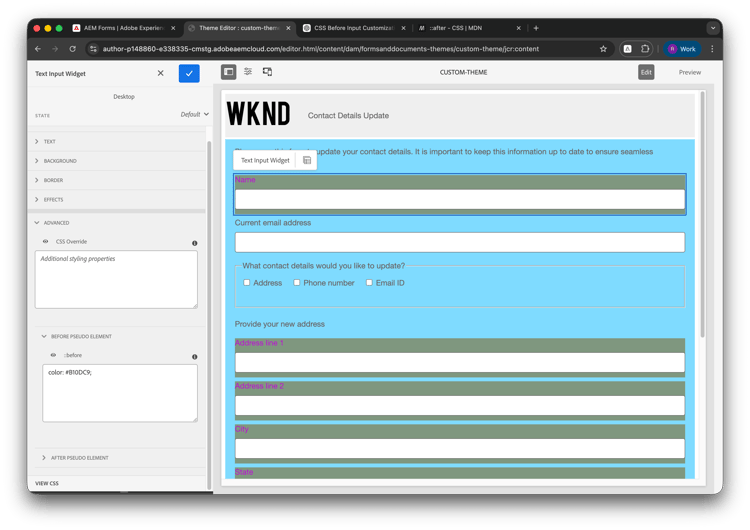
-
In the
::afterpseudo-element fields, add CSS properties such as:code language-css color: #006400;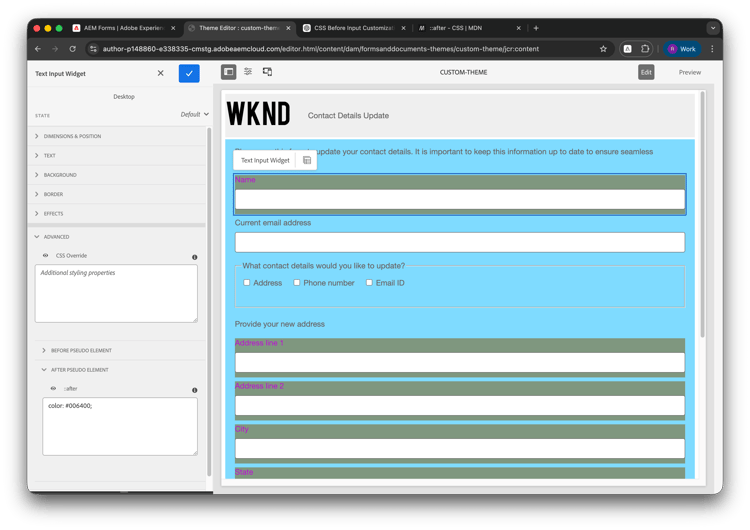
These pseudo-elements follow standard CSS behavior. For a full reference, see MDN CSS Pseudo-elements.
Best practices best-practices
- Use the Selectors panel for precise targeting: When styling nested elements such as a field label or a long description, use the Selectors panel on the left rather than clicking the canvas. This ensures that the correct CSS selector is generated with proper specificity.
- Avoid assets from other themes: When editing a theme, do not browse and add assets (such as images) from other themes. If the source theme is moved or deleted, your current theme breaks.
- Do not change container panel layout width: Specifying a fixed width on container panels makes them static and prevents them from adapting to different screen sizes.
See Also see-also
- Create an AEM Adaptive Form
- Add an AEM Adaptive Form to the AEM Sites page
- Apply themes to an AEM Adaptive Form
- Add components to an AEM Adaptive Form
- Use CAPTCHA in an AEM Adaptive Form
- Generate a PDF version (DoR) of an AEM Adaptive Form
- Translate an AEM Adaptive Form
- Enable Adobe Analytics for an Adaptive Form to track form usage
- Connect Adaptive Form to Microsoft SharePoint
- Connect Adaptive Form to Microsoft Power Automate
- Connect Adaptive Form to Microsoft OneDrive
- Connect Adaptive Form to Microsoft Azure Blob Storage
- Connect Adaptive Form to Salesforce
- Use Adobe Sign in an AEM Adaptive Form
- Add a new locale for an Adaptive Form
- Send Adaptive Form data to a database
- Send Adaptive Form data to a REST endpoint
- Send Adaptive Form data to AEM Workflow
- Use Forms Portal to list AEM Adaptive Forms on an AEM website
- Add versionings, comments, and annotations to an Adaptive Form
- Compare Adaptive Forms