[AEM Assets]{class="badge positive" title="Applies to AEM Assets)."}
Smart Tags Training
Smart tags training allows you to train your tags so that you can specify the particulars if the relevant tags are not there. It uses an artificially intelligent framework of Adobe AI to train its image recognition algorithm on your tag structure and business taxonomy. This content intelligence is then used to apply relevant tags on a different set of assets. Experience Manager Assets automatically applies smart tags to uploaded assets, by default.
Determining the requirement of smart tags training smart-tag-training-requirement
Smart tags training is required in the following scenarios:
- To add an automated labeler to save iterations of adding labels every time you upload the same asset.
- To improve the ability of assets to apply relevant tags.
- To increase accuracy of the tags appearing for an asset.
- To add unavailable or missing labels.
Steps involved in training smart tags
Experience Manager as a Cloud Service auto-generates the Smart Tags to the text-based assets and to videos by default. To train smart Tags to images, complete the following tasks:
Understand tag models and guidelines understand-tag-models-guidelines
A tag model is a group of related tags that are associated with various visual aspects of images being tagged. Tags relate with the distinctly different visual aspects of images so that when applied, the tags help in searching for specific types of images. For example, a shoes collection can have different tags but all the tags are related to shoes and can belong to the same tag model. When applied, the tags help find different types of shoes, say for example by design or by usage.
Before you create a tag model and train the service, identify a set of unique tags that best describe the objects in the images in the context of your business. Ensure that the assets in your curated set confirm to the training guidelines.
Training guidelines training-guidelines
Ensure that the images in the training set conform to the following guidelines:

Figure: Illustrative images of Coherence to exemplify the guidelines for training

Figure: Illustrative images of Coverage to exemplify the guidelines for training

Figure: Illustrative images of Distraction/obstruction to exemplify the guidelines for training

Figure: Illustrative images of Completeness to exemplify the guidelines for training
Examples: Some more examples for guidance are:
-
Create a tag model that only includes,
- The tags related to car models.
- The tags related to jackets for adults and kids.
-
Do not create,
- A tag model that includes car models released in 2019 and 2020.
- Multiple tag models that include the same few car models.
You cannot undo the training. The above guidelines should help you choose good images to train.
Train the model for your custom tags train-model
To create and train a model for your business-specific tags, follow these steps:
-
Create the necessary tags and the appropriate tag structure. Upload the relevant images in the DAM repository.
-
In Experience Manager Cloud Service user interface, access Assets > Smart Tag Training.
-
Click Create. Provide a Title, Description.
-
Click on the folder icon in Tags field. A popup window opens.
-
Search or select the appropriate tags from the existing tags in
cq-tagsthat you want to add to the model. Click Next.note note NOTE You can sort the tags structure in ascending or descending order based on the Name (alphabetical order), Created date, or Modified date. -
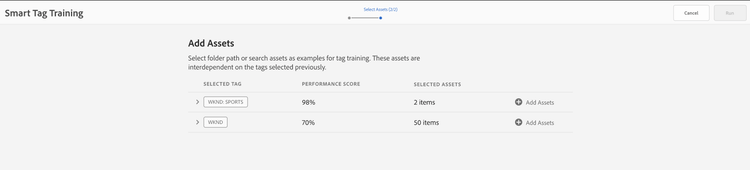
In the Select Assets dialog, click Add Assets against each tag. Search in the DAM repository or browse the repository to select at least 10 and at most 50 images. Select assets and not the folder. Once you’ve selected the images, click Select.
-
To preview the thumbnails of the selected images, click the accordion in front of a tag. You can modify your selection by clicking Add Assets. Once satisfied with the selection, click Submit. The user interface displays a notification at the bottom of the page indicating that the training is initiated.
-
Check the status of the training in the Status column for each tag model. Possible statuses are Pending, Trained, and Failed.

Figure: Steps of the training workflow to train tagging model.
View training status and report training-status
To check whether the Smart Tags service is trained on your tags in the training set of assets, review the training workflow report from the Reports console.
- In Experience Manager Cloud Service interface, go to Tools > Assets > Reports.
- In the Asset Reports page, click Create.
- Select the Smart Tags Training report, and then click Next from the toolbar.
- Specify a title and description for the report. Under Schedule Report, leave the Now option selected. If you want to schedule the report for later, select Later and specify a date and time. Then, click Create from the toolbar.
- In the Asset Reports page, select the report you generated. To view the report, click View from the toolbar.
- Review the details of the report. The report displays the training status for the tags you trained. The green color in the Training Status column indicates that the Smart Tags service is trained for the tag. Yellow color indicates that the service is partially trained for a particular tag. To train the service completely for a tag, add more images with the particular tag and execute the training workflow. If you do not see your tags in this report, execute the training workflow again for these tags.Tags
- To download the report, select it from the list, and click Download from the toolbar. The report downloads as a spreadsheet.
You do not need to export Smart Tags training if the environment belongs to the same IMS org. It is automatically shared. If the environment is across IMS orgs, then there is no way to share or export Smart Tags training.
Limitations and best practices related to smart tags limitations-smart-tags-training
- To train the model, use the most appropriate images. The training cannot be reverted or training model cannot be removed. Your tagging accuracy depends on the current training, so do it carefully.
- You cannot train the service that applies Smart Tags to videos using any specific videos. It works with default Adobe AI settings.
For best results, Adobe recommends that you use visually similar images to train the service for each tag.