New Video Viewer in Dynamic Media new-video-viewer-dynamic-media
The New Video Viewer for Dynamic Media provides a modernized video playback experience in Adobe Experience Manager (AEM). It delivers a consistent and extensible viewing experience across authoring, preview, and Sites environments, while continuing to work with existing Dynamic Media workflows.
Existing video viewers in Dynamic Media support core playback requirements but provide limited extensibility and event-level integration for modern analytics and integration scenarios
The New Video Viewer addresses these limitations by:
- Providing a more consistent playback experience
- Allowing explicit viewer selection
- Emitting structured playback events for programmatic consumption
- Supporting integration with external analytics and external systems
The viewer is available as an additional option and requires explicit selection where supported. It does not automatically replace existing video viewers.
The New Video Viewer is intended for organizations that require an enhanced and extensible video experience without disrupting existing implementations.
NOTE
The New Video Viewer is a limited availability feature. You can get it enabled by creating a support ticket.
How the New Video Viewer works how-it-works
The New Video Viewer works as follows:
- A video asset is ingested into a folder that is synced with Dynamic Media.
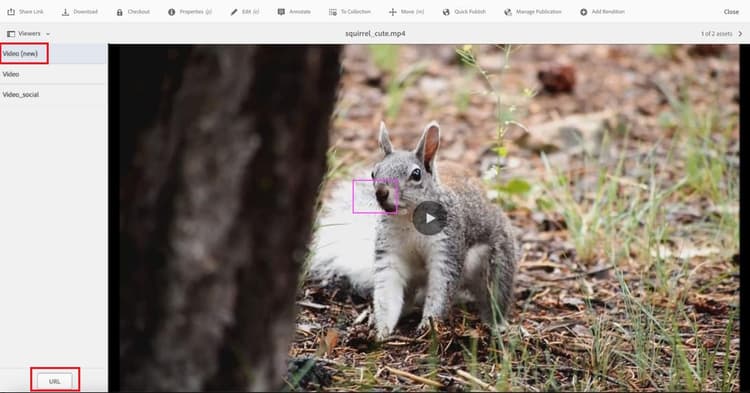
- The video can be previewed from the asset details page using Video (new).
- The New Video Viewer can be selected in the Dynamic Media component when authoring Sites pages.
- During playback, the viewer emits structured events to the parent window.
- Optional viewer modifiers can be used to control playback behavior.
Key differences from the existing Video Viewer key-differences
Prerequisites prerequisites
Before using the New Video Viewer, ensure the following prerequisites are met:
The New Video Viewer is available starting with AEM as a Cloud Service version 2025.7.0.
To enable or disable the New Video Viewer, contact Adobe Customer Care.
Preview the New Video Viewer preview
Execute the following steps to preview the New Video Viewer from the asset details page:
- Navigate to Assets > Files, and open the folder containing the video asset.
- Click the video asset to open the asset details page.
- In the left panel, click Viewers.
- In the Viewers panel, select Video (new).
- Click URL to copy the preview link.
Use the New Video Viewer in Sites use-in-sites
The New Video Viewer is available through the existing Dynamic Media component in AEM Sites.
Add the Dynamic Media component
Execute the following steps to add a video using the Dynamic Media component:
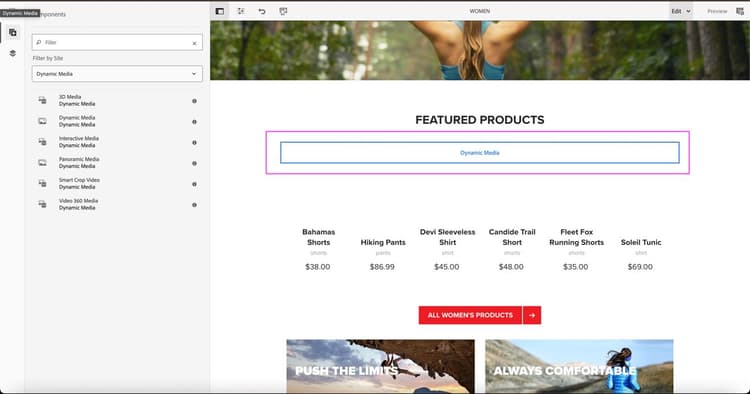
- Open the page in the Sites editor.
- Drag the Dynamic Media component to the required location on the page.
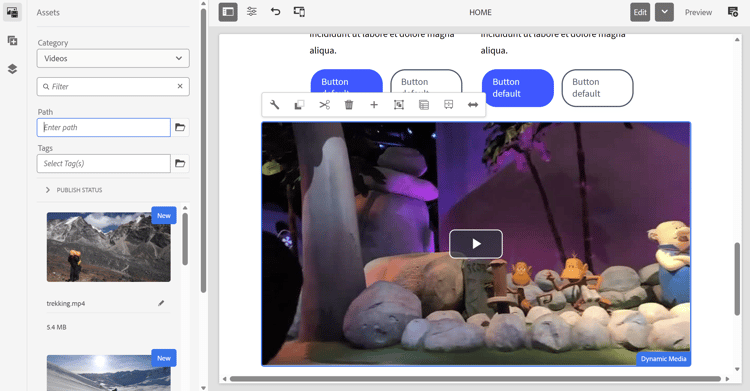
- Select the Dynamic Media component on the page.
- Click the component to open the asset selector.
- Select a video asset.
Configure the viewer
Execute the following steps to configure the viewer preset:
-
Select the Dynamic Media component on the page.
-
Click Configure in the component toolbar.
-
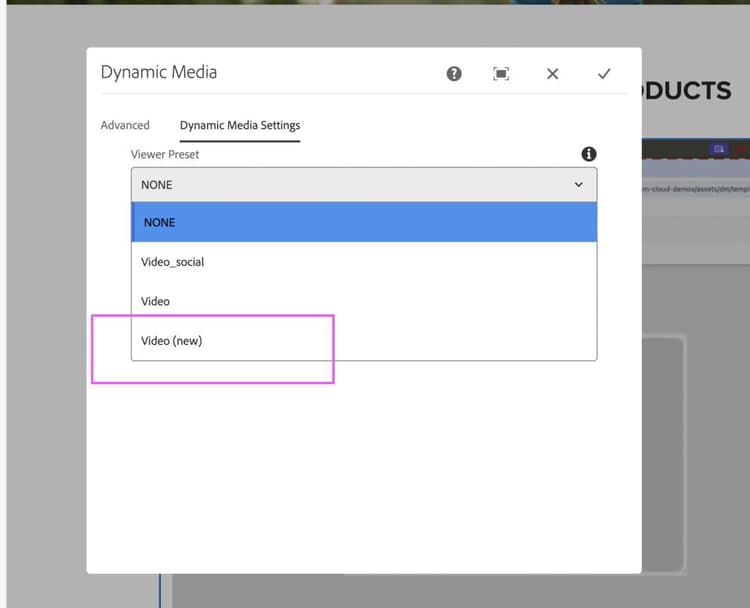
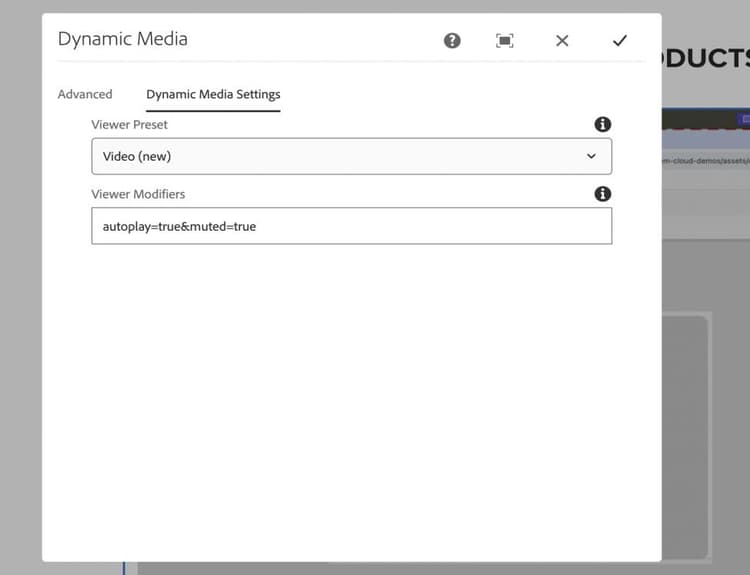
In the Dynamic Media settings dialog, select Video (new) from the Viewer Preset drop-down list.
-
Enter any required modifiers in the Viewer Modifiers field (for example,
autoplay=true&muted=true).
-
Save the changes.
The video loads on the page using the New Video Viewer.
Note: The New Video Viewer does not automatically replace existing videos. Users must manually select Video (new) in the Viewer Preset when using the Dynamic Media component, or update direct URLs to point to the New Video Viewer where needed.
Migrating videos using direct URLs
If your videos are accessed via direct URLs instead of the Dynamic Media component, you can switch them to the New Video Viewer by updating the URL. For example: https://s7d1.scene7.com/dmviewers/html5/VideoViewer.html?asset=<video-asset>
Viewer modifiers viewer-modifiers
Viewer modifiers allow you to control asset loading, playback behavior, streaming format selection, and viewer presentation.
assetposterimageserverurlcontenturlvideoserverurlsources.dashsources.hlsautoplay=truecontrols=true/falseloop=truemuted=trueplaybackratesplaybackprogressivebitrateinitialbitrateisletterboxed=true/falsecustomcsstransitionmode=smartcropModifiers are specified as query parameters in the Viewer Modifiers field.
Supported events supported-events
The New Video Viewer emits the following events during playback:
Handling events in the parent window handling-events
The New Video Viewer sends playback-related messages to the parent page during video interactions.
To handle these events, the parent application must listen for browser message events and validate the message origin before processing the data.
The event payload includes information such as the event type, playback state, current playback time, and additional metadata. These events can be used to support analytics tracking, custom interactions, or integration with external systems.
Adobe recommends validating the message origin to ensure that events are processed only from trusted Dynamic Media domains.
Video Engagement Report for the New Video Viewer video-engagement-report
The Video Engagement Report provides analytics metrics for videos played using the New Video Viewer in Dynamic Media. The report delivers aggregated performance data for the specified month and supports monthly reporting.
Reports are generated upon request. To request a report, create a support ticket and provide the following details:
- Month of report – Specify the month for which the report is required (for example, January 2026).
- Delivery email address – Email address of the group (recommended) or individual to deliver the report
The report provides per-video engagement metrics, including views, impressions, watch time, completion rate, and engagement score.
Report format
- Reports are delivered in CSV format.
- Each row represents a single video.
- Metrics are aggregated for the selected reporting period.
- Deleted assets are excluded from the report.
- Supports filtering by
tenant_name.
Report fields
The Video Engagement Report includes the following fields:
video_idvideo_namevideo_created_dateduration_in_secondsvideo_viewsvideo_impressionsvideo_watched_secondsplay_ratevideo_views ÷ video_impressions) × 100avg_time_watched_in_secondsvideo_watched_seconds ÷ video_viewsavg_completion_ratevideo_views) × 100engagement_scorevideo_views)tenant_name