[AEM Assets]{class="badge positive"}
Generate and translate captions in Dynamic Media with OpenAPI capabilities generate-translate-captions
Adobe Experience Manager Assets Dynamic Media with OpenAPI capabilities enables you to generate captions from audio tracks and translate existing captions into multiple supported languages. These capabilities improve accessibility, simplify subtitle creation, and support localized video playback experiences.
You can manage captions directly from the Captions & Audio tracks tab on the video asset properties page.
Before you begin before-you-begin
Ensure the following:
- The video asset is available in AEM Assets.
- The video contains at least one audio track.
Generate captions from audio tracks generate-captions
To generate captions from an audio track:
-
Navigate to the uploaded video asset.
-
Select the asset and click Properties.
-
Open the Captions & Audio tracks tab.
-
Click Create Caption > Convert audio tracks.

-
Select the audio track.
-
Select one or more output languages.
-
Click Done.
Caption files are generated for the selected languages and are added to the Captions section.
note NOTE Only audio tracks that are in the Processing, Processed, or Approved state and are in a supported language can be selected for caption generation. -
Click Save or Save & Close.
Translate captions translate-captions
To translate an existing caption:
-
Open the Captions & Audio tracks tab.
-
Click Create Caption > Translate caption.

-
Select the source caption.
-
Select one or more output languages.
-
Click Done.
Translated captions are added to the Captions section.
note NOTE Only caption files that are in the Processing, Processed, or Approved state and are in a supported language can be selected as source captions for translation. -
Click Save or Save & Close.
Edit captions edit-captions
To edit a caption:
- Open the Captions & Audio tracks tab.
- Select the caption.
- Click the Edit icon.
- Modify the caption text.
- Preview the updated caption.
- Click Save or Save & Close.
The updated caption enters the Processing state before it becomes available.
Approve captions approve-captions
After caption processing is complete:
-
Open the Captions & Audio tracks tab.
-
Select one or more caption files.
-
Click Approve.
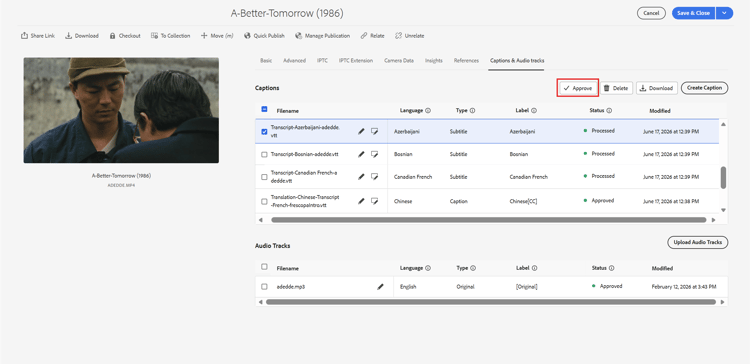
The selected caption files are approved and become available for delivery.
View caption lifecycle status status
The Status column displays the current processing state of each caption.
- Processing – The caption is being generated or translated.
- Processed – The caption has been generated or translated and is ready for approval.
- Approved – The caption is approved and available for delivery.
Deliver videos with captions deliver-videos-with-captions
After the caption files are approved, you can deliver the video with captions using the Dynamic Media delivery URL.
To copy the delivery URL:
- Open the video asset.
- Open the Dynamic Media panel.
- Click Copy URL.
The copied URL has the following format:
https://delivery-p<programId>-e<environmentId>.adobeaemcloud.com/adobe/assets/urn:aaid:aem:<asset-uuid>/play
When the video is played using the /play URL, approved captions are available from the CC (Closed Captions) button in the video player. If multiple approved caption languages are available, users can switch between them using the CC button.